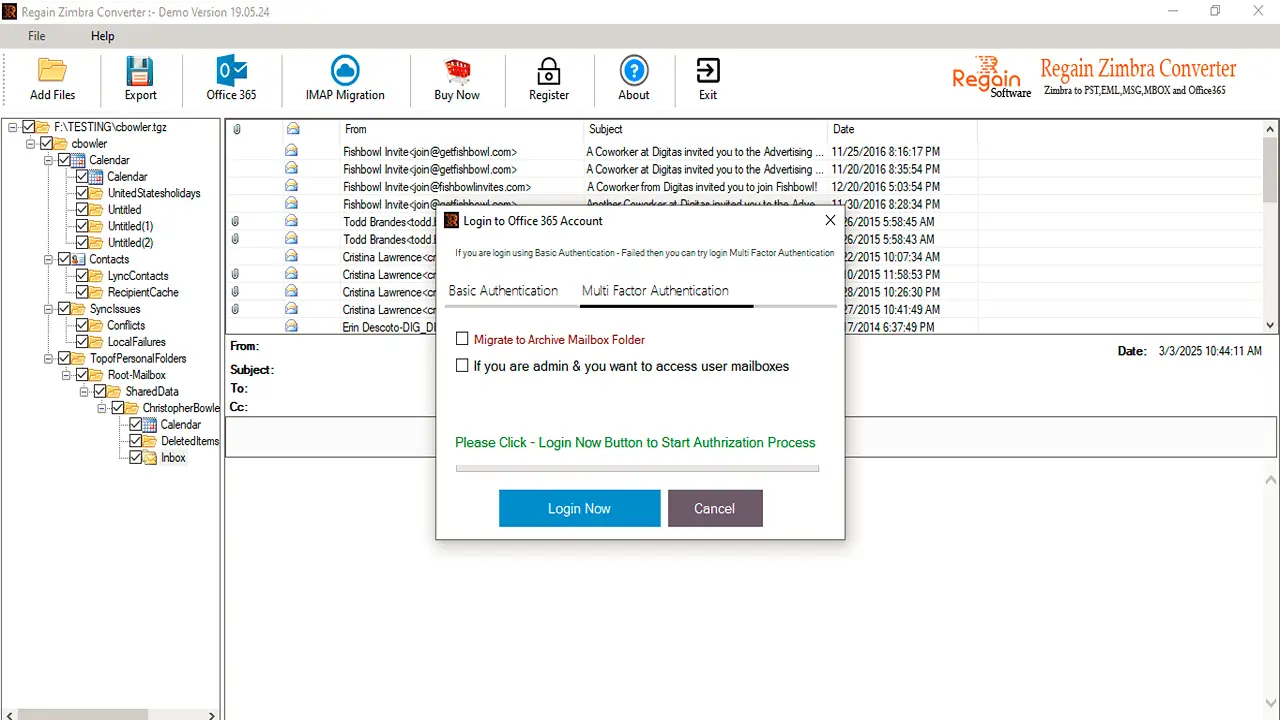
Welcome Screen of Regain Zimbra Converter Tool

Select Add File or Add Folder to Select TGZ files for Scanning

Show Preview of folders in software panel

Select the destination location and desired Saving Email format.

Click on Convert Now button to sucessfully Convert Zimbra Mailbox to your Selected formats.

Zimbra to Cloud Migration
After Scanning, Click on IMAP Migration button and then import Zimbra mailbox to Various email servers.
Note: All Email Clients does not allow you to directly connect with Third party tool, To Connect Email Client with the software, You need to follow these steps.
Enter 16 Digit App Generated Password instead of Original Password. Know How to Generate App Password: Click Here

Zimbra to Office 365 Migration
Migrate Zimbra (tgz files) to Office 365 account