Step-1: Install and run the Regain IMAP Backup & Migration Tool with administrative privileges.
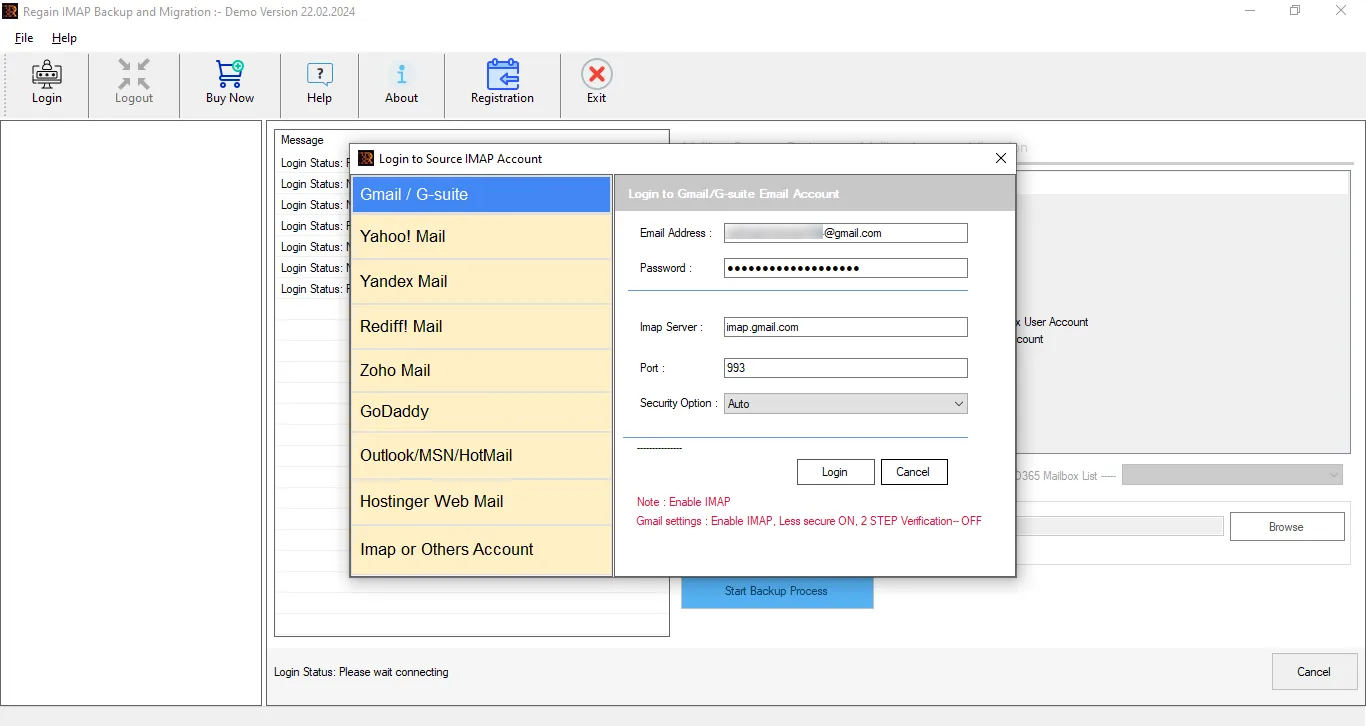
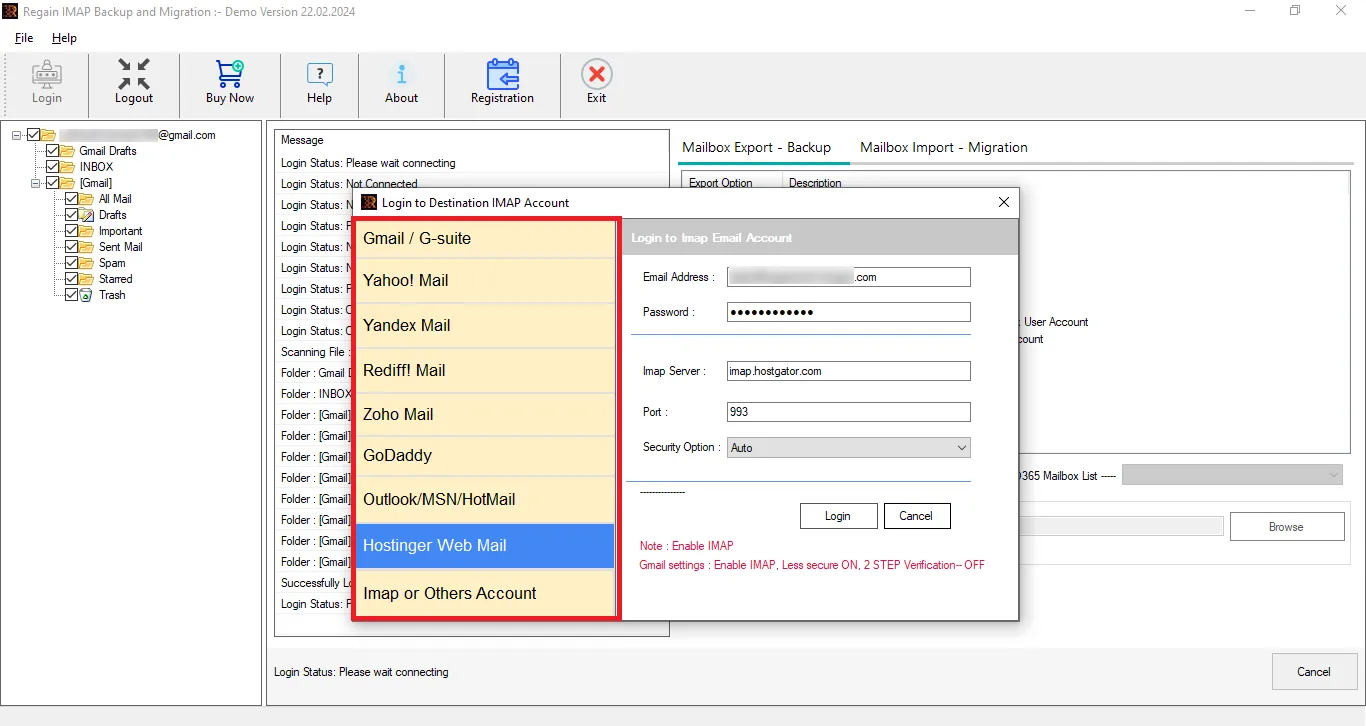
Step-2: Choose the Desired Webmail from all the available IMAP-based mail applications.
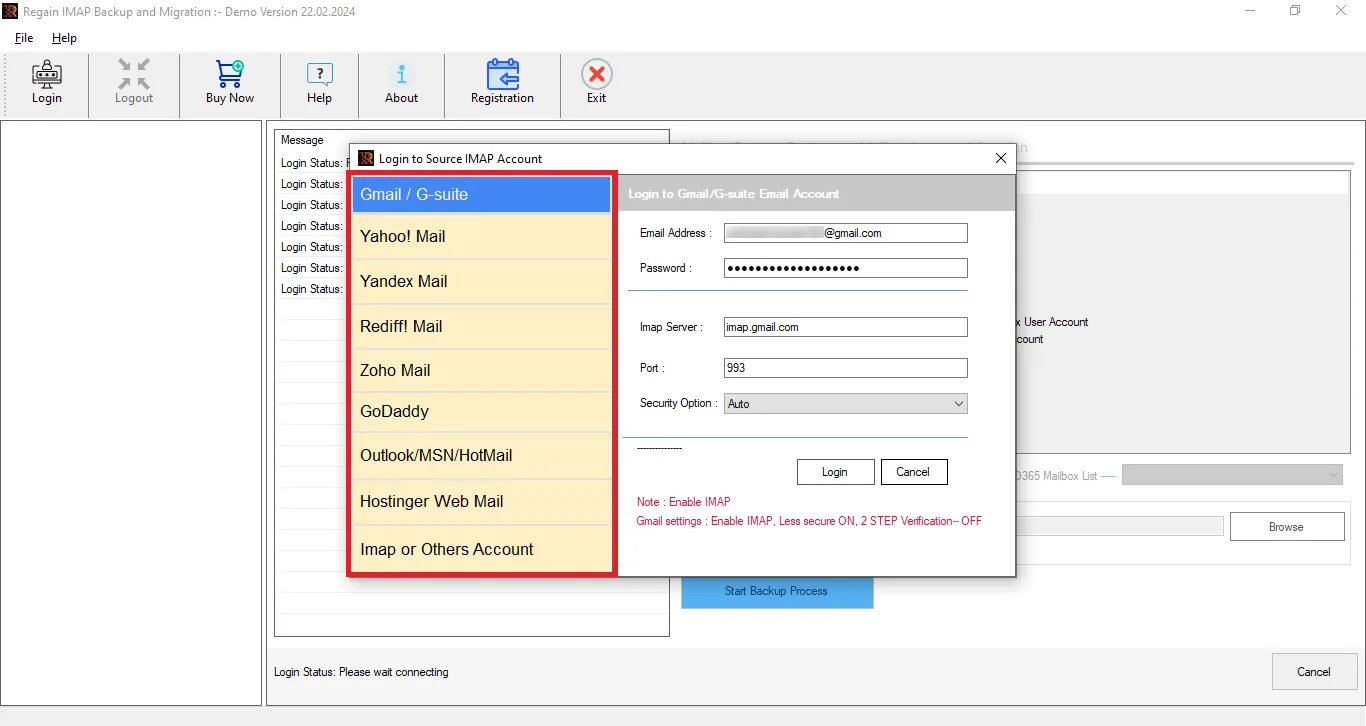
Step-3: After choosing the desired webmail application, enter the required details:
- Email Address:- Enter your email address in this field.
- Password :- Enter the Third-Party application password in this field.
- IMAP Server:- Input the IMAP Server name as “imap.your-domain.com”.
Note: Enter the domain of the webmail you want to access in place of “your-domain” - Port:- Enter the Port number as “993”.
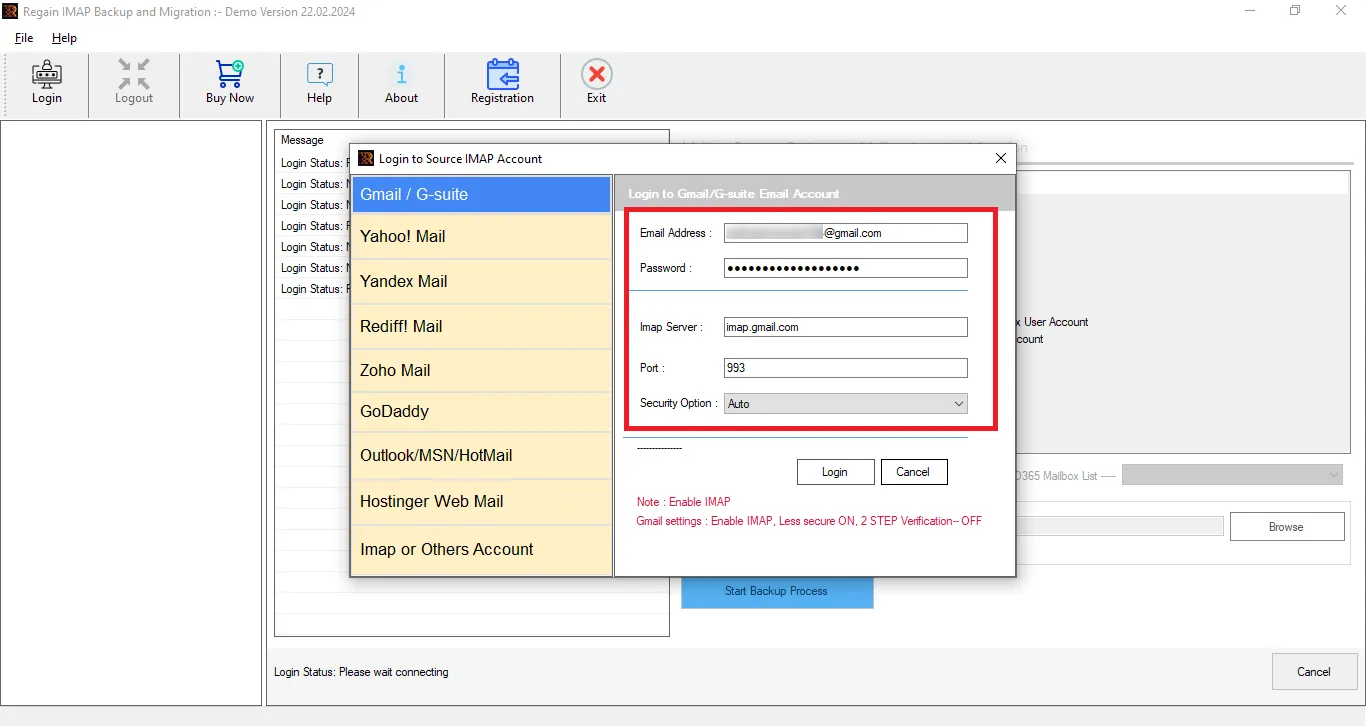
Step-4: After successfully entering the credentials click on the Login button to authenticate your webmail account.
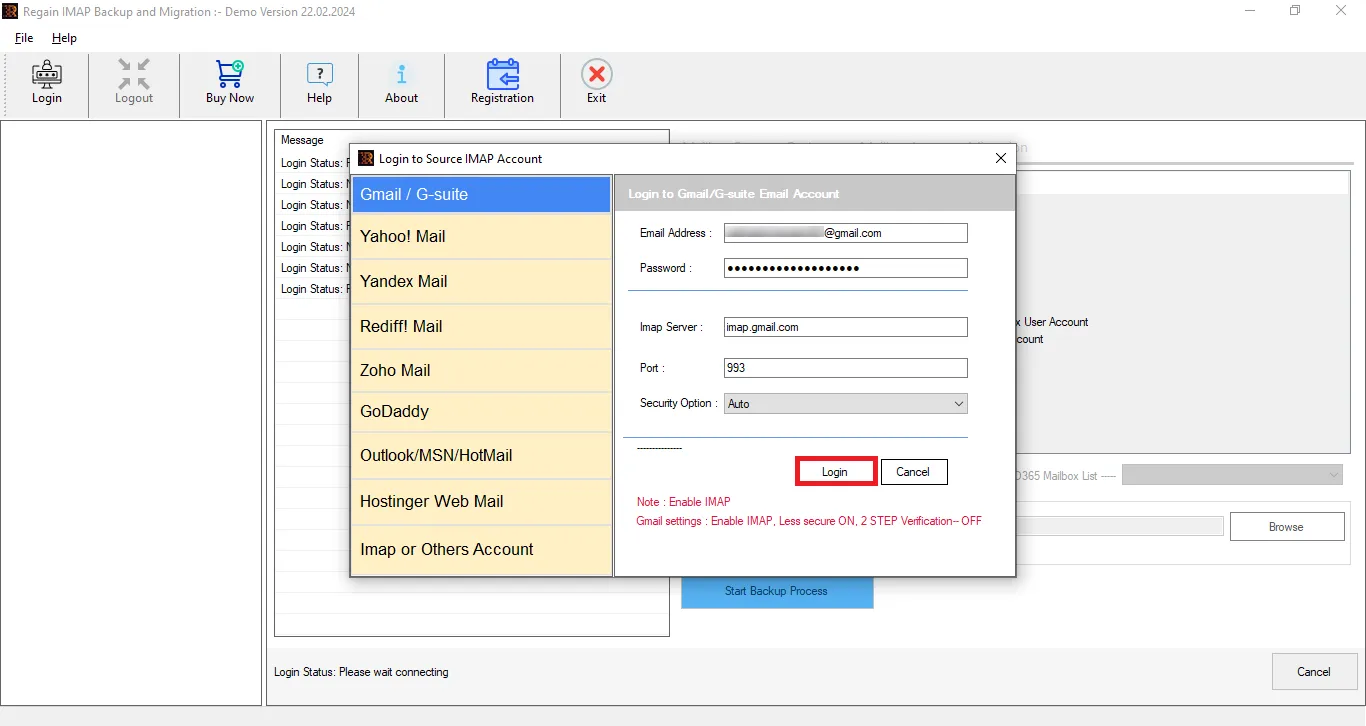
Step-5: Please wait a few seconds for the software to establish a connection to your account. Once authentication is successful, choose the desired files/folders from the tree structure format.
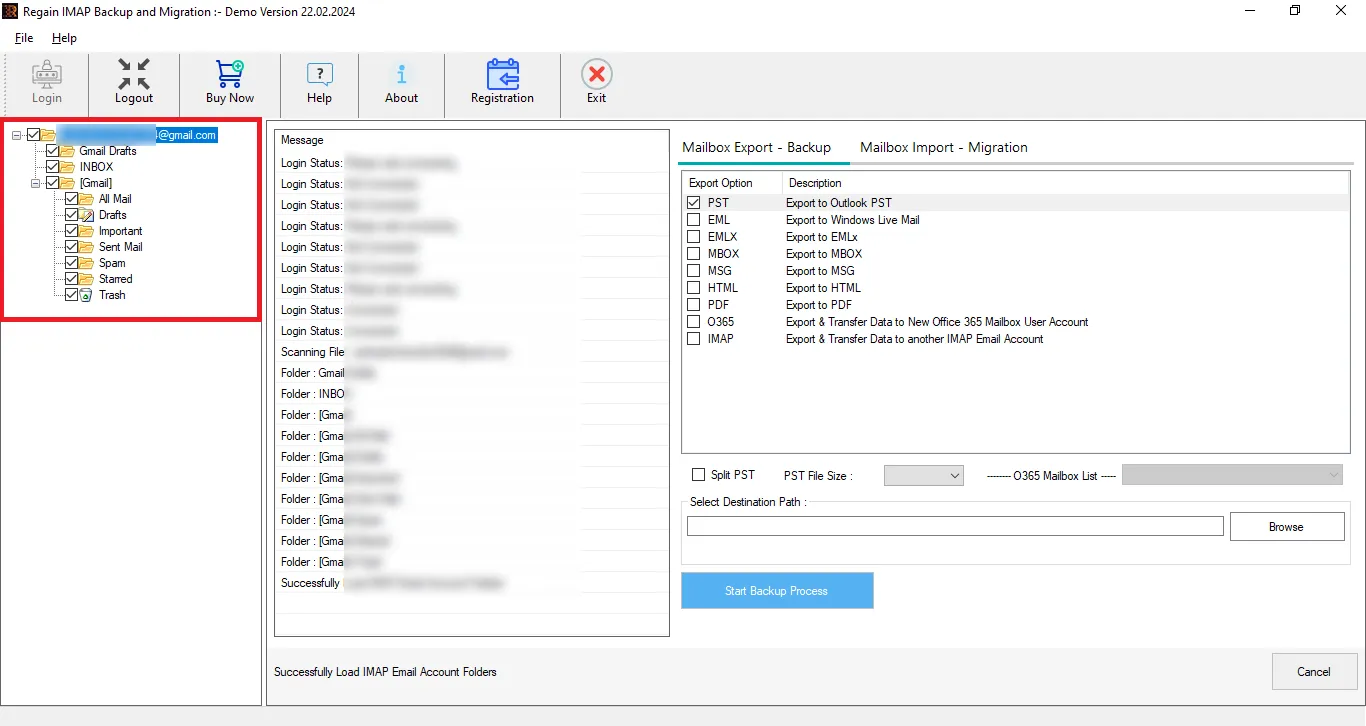
Below are the steps to either back up IMAP emails to your local system or migrate them to a cloud-based email client.
Back up the IMAP Emails to PST, EML, EMLX, MSG, HTML, MHTML, MBOX, PDF, and Thunderbird by following the steps below.
Step-6: Click on the option Mailbox Export - Backup to save the IMAP Emails to your system.

Step-7: Choose the Desired Saving format to which you want to save IMAP Emails.
Available Saving Formats:
Save in PST, MSG, EML, EMLX, HTML, MHTML, MBOX, PDF, and Thunderbird.

Step-8: Additionally, opt for the optional features and filters:
- Mail Filtering: - Choose this filter to back up IMAP emails of a specific date range.
- Split PST: - This feature allows the user to split large PST files into smaller PST files.
- Naming Convention: - Assign a custom name to the newly created folder.
- Saving Location: - This feature allows you to choose a desired destination for the newly created file.
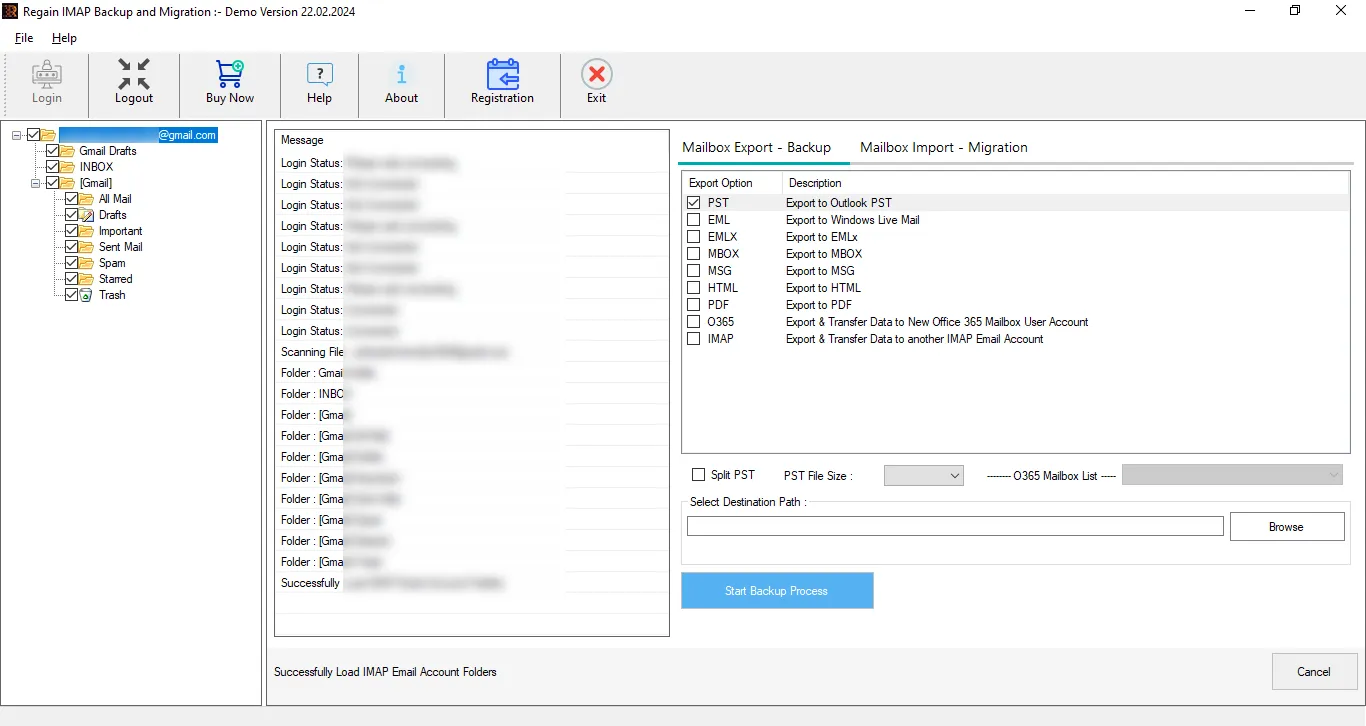
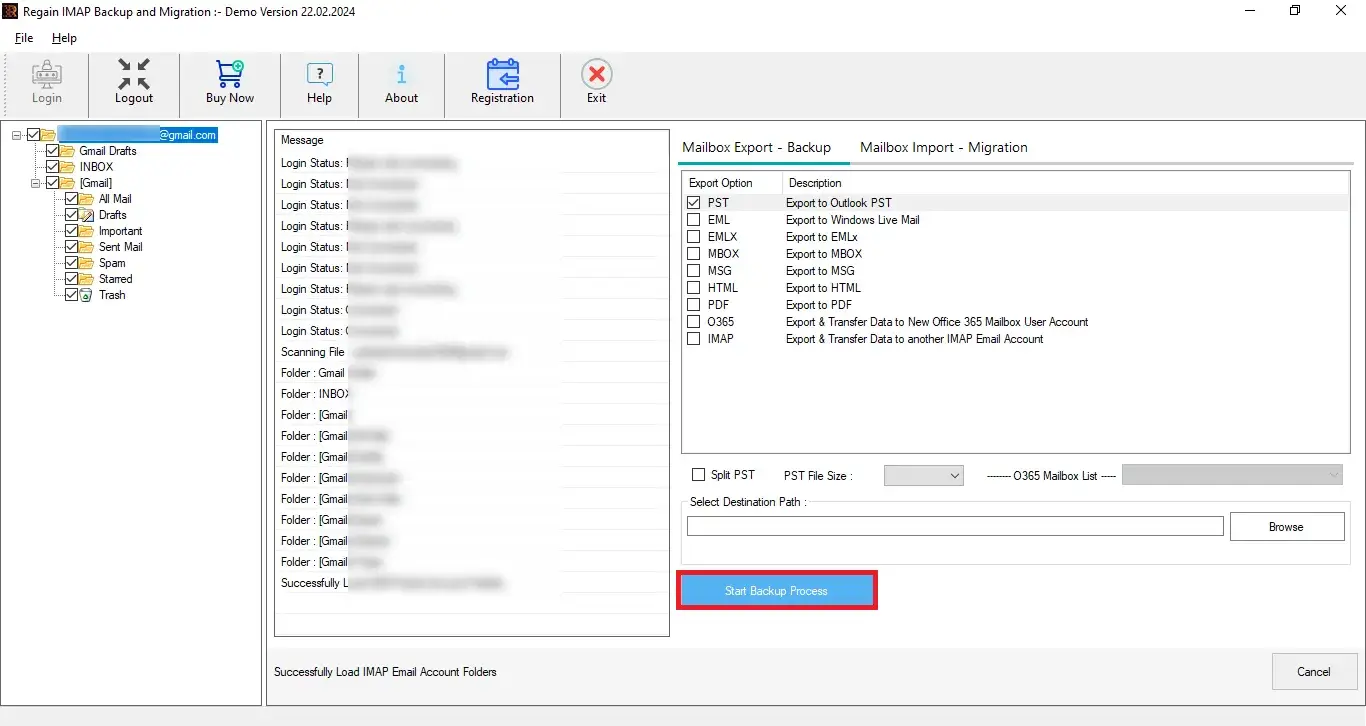
Step-9: Finally, click on the button Start Backup Process to initiate the backup of IMAP Emails.
Follow the steps mentioned below to migrate IMAP Emails to Cloud-based Email clients.
Note: Before proceeding, it's essential to enable IMAP in your email accounts. Additionally, create a third-party application password. These steps will ensure a safe and hassle-free migration.
User Guide: Steps to Create Third Party App Password and Setting
Step-6: Choose the Desired Email Client from the list. This tool can migrate IMAP Emails to Gmail, Yahoo, Yandex, Rediff, Zoho, Outlook, and other IMAP-supported email clients.
Import IMAP to Office 365:
Step-7: Select Office 365 from the list. The software will prompt a window where you need to enter your Username and Password. Then click on the Login button.
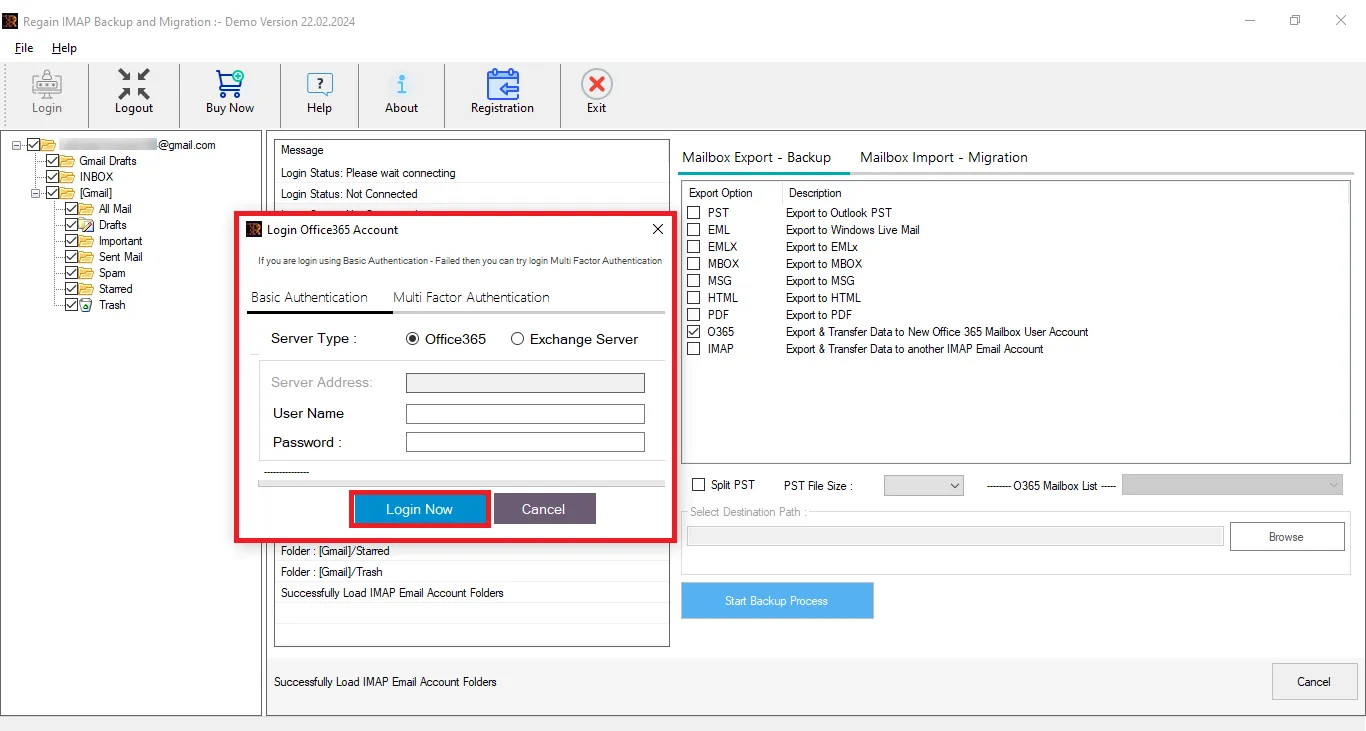
Step-8: Finally, click on the button Start Backup Process to initiate the migration of IMAP Emails.
Migrate IMAP to Gmail:
Step-7: Click on Gmail enter the required credentials and click on the Login button.
Note: - Use 16 digit App Password to Login Gmail into the Software instead of Original password. Here are the steps to Create App Password for Gmail.
Due to security reasons, Google does not allow any external software to access Gmail directly. That's why users need to create a Third Party App Password.
Step-8: Finally, click on the Convert button to initiate the migration.
Export IMAP to Yahoo Mail:
Step-7: Select the Import to Yahoo option from the cloud apps menu. Enter your Yahoo Mail account email address and third-party app password, then click the Authenticate Login button.
Note: - Use 16 digit App Password to Login Yahoo Mail into the Software instead of Original password. Here are the steps to Create App Password for Yahoo Mail.
Due to security reasons, Yahoo does not allow any external software to access Yahoo Mail directly. That's why users need to create a Third Party App Password.
Step-8: After the YahooMail account login process press the Import to Yahoo account button and start IMAP to Yahoo Migration.
Import IMAP to Outlook.com:
Step-7: Choose the Outlook.com option enter the Credentials and click on the Login button.
Note: - Use 16 digit App Password to Login Outlook into the Software instead of Original password. Here are the steps to Create App Password for Outlook.
Due to security reasons, Microsoft does not allow any external software to access Outlook directly. That's why users need to create a Third Party App Password.
Step-8: Click the Convert button on the newly opened screen to begin exporting emails from the IMAP account to Outlook.com/Hotmail.
Migrate IMAP Emails to Other IMAP Mail Clients:
Step-7: Choose the Import into IMAP option and input your IMAP account email address, password, Hostname, and port.
Step-8: Lastly, click on "Convert" and start transferring emails from one IMAP account to another.