A Complete Guide to Migrate SiteGround to Microsoft 365


Updated On - September 24, 2026 by Armaan | Reading Time: 3 minutes
Do you want to migrate emails from an email account hosted on SiteGround to Microsoft 365? If “Yes” is your answer, then this write-up is for you. In this blog, we will discuss different methods to migrate SiteGround to Microsoft 365, including a manual approach and a professional solution that allows you to transfer your emails safely without losing any data.
Let’s Have A Quick Overview of SiteGround and Microsoft 365
SiteGround is a popular web hosting provider based in Bulgaria. It offers website, cloud, WordPress, and business email hosting. In addition to web hosting, SiteGround includes professional email hosting, allowing users to create custom domain email addresses.
Software-as-a-service (SaaS) Microsoft 365 is a cloud-based productivity and collaboration suite designed for businesses and individual users. Microsoft 365 includes services such as Outlook for email, Word, Excel, PowerPoint, OneNote, and Teams for communication and collaboration.
Why Do Users Migrate SiteGround to Microsoft 365?
Below are the main reasons why users decide to shift their SiteGround emails to Microsoft 365:
1) Better Collaboration with Microsoft 365
Microsoft 365 integrates email with productivity tools such as Outlook, Teams, OneDrive, SharePoint, Word, Excel, and PowerPoint.
2) Access from Anywhere
With Microsoft 365, users can securely access their emails, calendars, contacts, and files from desktops, web browsers, smartphones, and tablets.
3) Larger Mailbox Storage
SiteGround email storage depends on your hosting plan, which may become restrictive as your mailbox grows. Microsoft 365 offers significantly larger mailbox capacities, allowing users to store more emails without frequently deleting old messages. Users can choose the plan as per their needs.
4) Easy Scalability
You can quickly add new mailboxes and users whenever required. This makes Microsoft 365 a flexible solution for business growth. Moreover, users can upgrade the plan as per their needs.
Methods to Migrate SiteGround Emails to Office 365
Here, we will discuss two methodologies for accomplishing the migration process of SiteGround emails. After evaluating both of them, you can choose accordingly.
Manual Method:
Here are the steps to migrate SiteGround to Microsoft 365 using Outlook with IMAP configuration.
- Firstly, open Microsoft Outlook on your computer.

- Add your SiteGround email account using its IMAP settings.
- Add your Microsoft 365 account to the same Outlook profile.
- Wait until both mailboxes are fully synchronized.
- Select the emails or folders you want to transfer from the SiteGround mailbox.
- Drag and drop the emails from your SiteGround mailbox to the Microsoft 365 mailbox.
- Allow Outlook to upload the emails to Microsoft 365.
- Verify that all emails have been successfully migrated.


Moreover, if users have PSTs or want to create PSTs, then they also use the Import/Export method to import PSTs to an Office 365 mailbox. But all manual methods come with shortcomings and limitations.
Limitations and Drawbacks of the Manual Method
You can use the manual method given above, but it may come with several issues, which are as follows:
- Risk of data loss during synchronization.
- Time-consuming for large SiteGround mailboxes.
- Not suitable for large mailboxes.
- Occasionally, the original folder hierarchy is not maintained properly.
- The item preview and filter facility is not available.
Professionally Migrate Emails with Regain IMAP to Office 365 Migration Software
By using the Regain SiteGround Email Migration Tool (also known as the Regain IMAP to Office 365 Migration Tool), you can easily transfer SiteGround email. This tool can migrate SiteGround emails in bulk. Its simple and friendly graphic design is also useful for non-technical users.
Free Download100% Secure Buy NowPrice: $49
- Step1: First, install and launch the Regain SiteGround Migration Tool on your system.
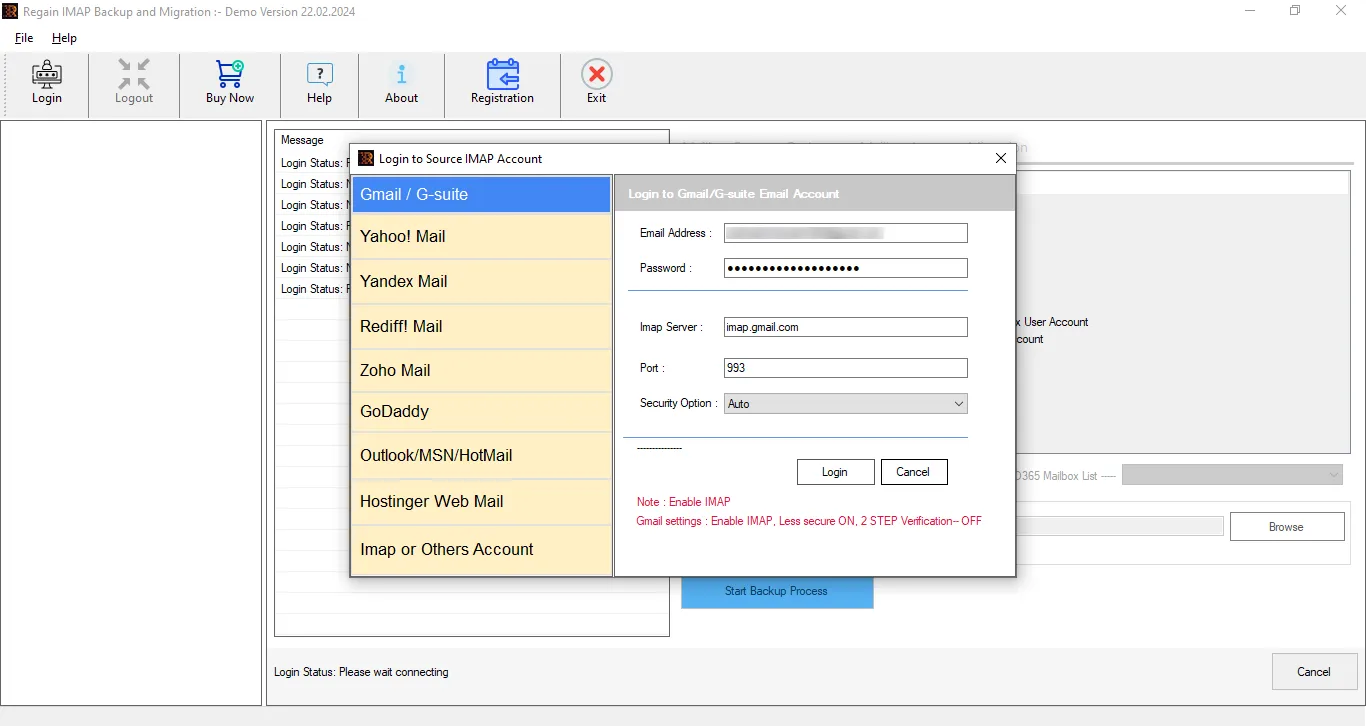
- Step2: Now, select the IMAP or Other Account option, and enter the login credentials of your SiteGround account.
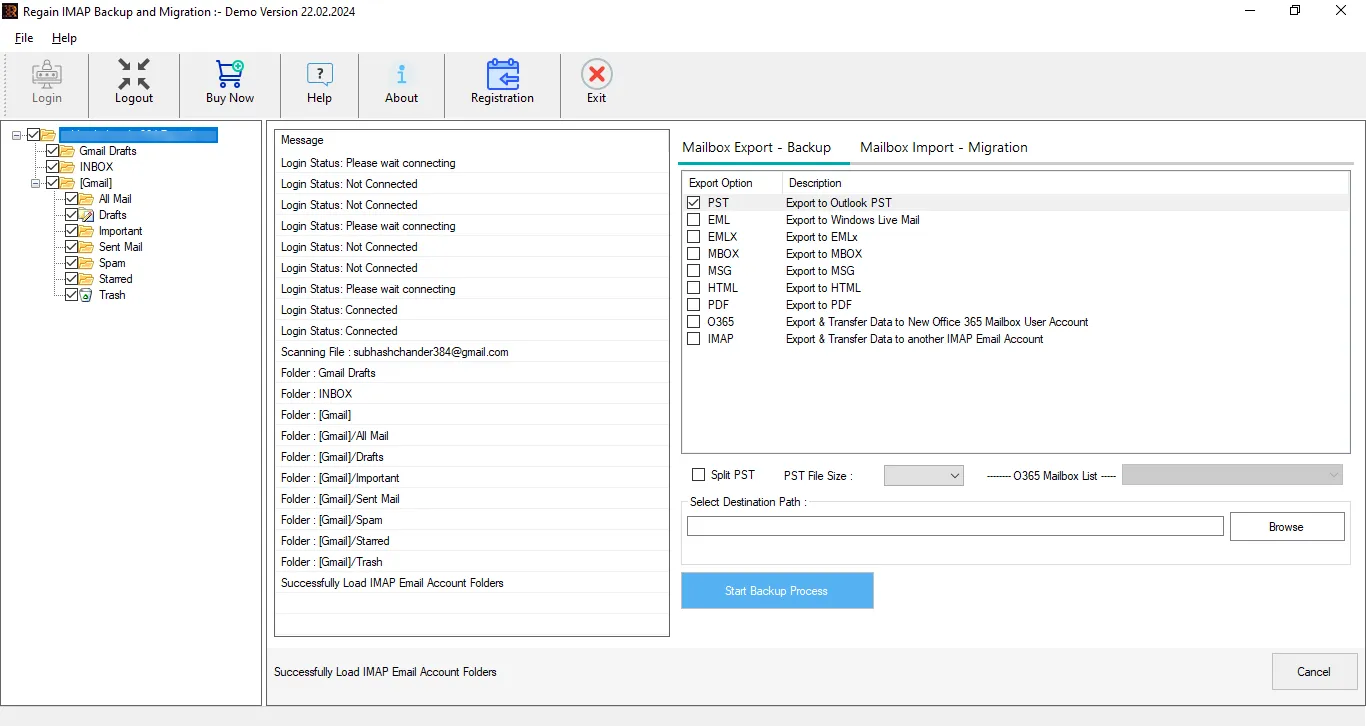
- Step3: Then, the software will provide a preview of the mailbox. Here, you can select/unselect the folders as per your needs.
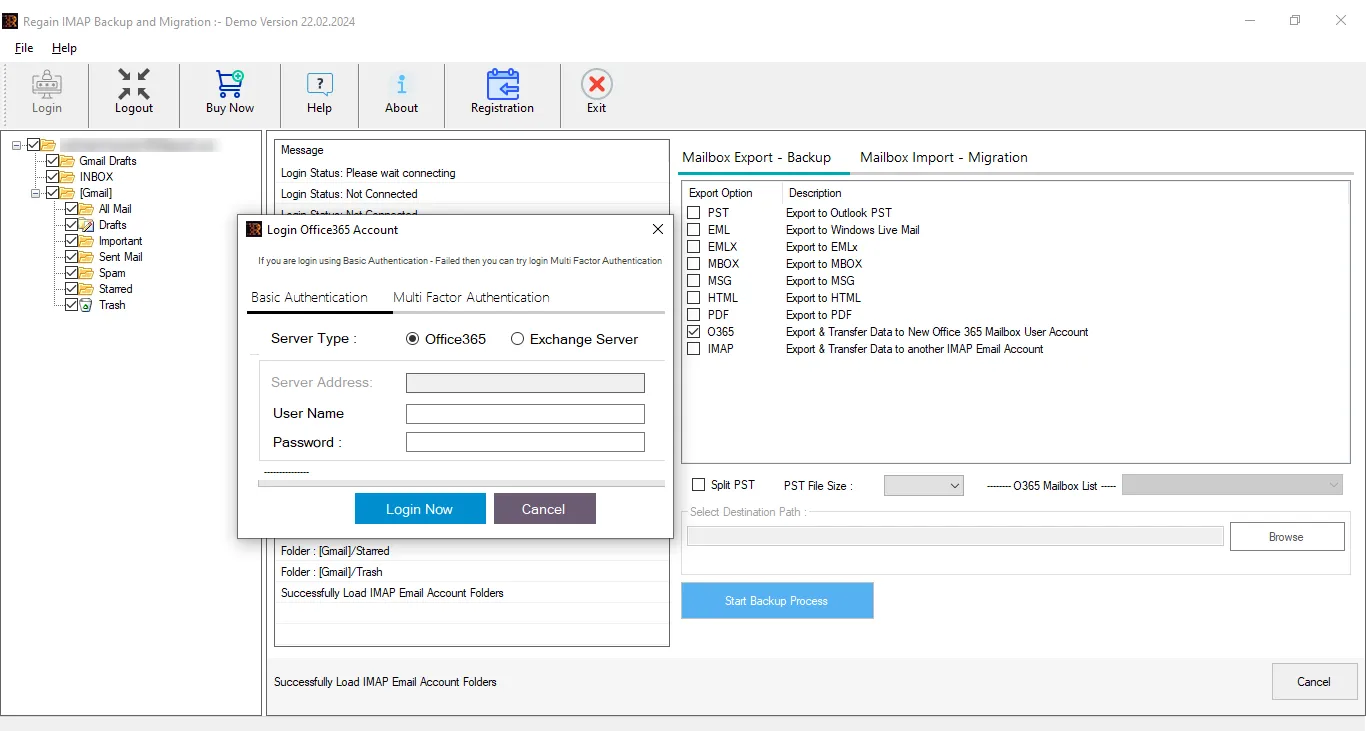
- Step4: Choose your target email service (Microsoft 365). Log in by entering your Microsoft 365 details.
- Step5: Proceed accordingly, and the software will start the migration process.
Other Exclusive Features of the Regain SiteGround Migration Tool:
- This IMAP Migration tool offer users the ability to export from any IMAP (like SiteGround, Gmail, Yahoo )to another IMAP email client/server.
- No size or number limitations on the mailbox for backup/migration.
- Backup email data in various file formats like PST, EML, MSG, MBOX, HTML, MHTML, and PDF.
- Users can directly migrate to Office 365 and Google Workspace.
- This utility is compatible with all versions of Windows OS.
- The Regain Email Migration Tool also offers a free demo version of the software.
Gist of the Blog:
The decision to migrate SiteGround to Microsoft 365 can improve your email security, collaboration, and overall productivity. Although manual methods are available, they often require technical expertise and can be time-consuming, especially when migrating multiple mailboxes or large amounts of email data. Regain IMAP to Microsoft 365 Migration Tool makes this process efficient and effortless. It offers a secure and automated way to transfer SiteGround emails to Microsoft 365 while preserving folder hierarchy and email properties.

