One-Stop Solution to Migrate Qmail to Microsoft 365 /Google Workspace/Outlook


Published On - September 23, 2026 by Nasir Khan | Reading Time: 4 minutes
Once adopted for security and high performance, users are now planning to move their emails from Qmail to another platform. Many users choose to migrate Qmail to Microsoft 365, Gmail (Google Workspace), Outlook, or other email services for better features and other reasons. This guide explains how to migrate Qmail to Gmail (Google Workspace), Outlook, and Microsoft 365, including manual approaches, their limitations, and the best automated method for large or complex migrations.
Qmail at a Glance
Written by Daniel J. Bernstein for Unix, Qmail is a mail transfer agent (MTA) that is responsible for sending and receiving emails. Organizations use it to handle email communication through their own mail servers. Some organizations move from traditional email servers to cloud platforms such as Microsoft 365 and Google Workspace for cloud-based email management and collaboration.
What Initiates Users to Migrate Qmail Emails?
Before discussing the migration process, let’s understand why organizations choose Microsoft 365, Outlook, and Google Workspace over Qmail.
- Better Collaboration: Microsoft 365 and Google Workspace provide additional tools for teamwork and communication. Users can work together, share files, manage calendars, and communicate more easily through integrated services. All common services are under one roof.
- Modern Security Features: Microsoft 365 and Google Workspace provide advanced security features such as authentication controls, spam protection, and administrative security settings. Users can use these features to help protect their email accounts and data.
- Improved Email Management: Cloud email platforms offer centralized tools to manage users, email accounts, and security settings. This makes it easier for users to manage business email requirements from one place. Moreover, Outlook is a prominent email client to handle emails professionally.
- Better Scalability: As a business grows, it may need to add new employees and email accounts. Cloud-based email platforms provide account and service options that can support changing business requirements. Moreover, users get all essential services in a single subscription.
Methods to Migrate Qmail Emails: Manual Workarounds and Professionals’ Way
There are mainly two methodologies to migrate Qmail Emails. Below, we have covered both manual and professional methods.
1- Manual Methods
i) Migrate Qmail to Microsoft 365 Using IMAP
- Firstly, launch Microsoft Outlook and go to File >> Add Account.

- Enter your Qmail email address and click Connect.
- Choose IMAP as the account type to configure your Qmail email account.
- Enter the following IMAP settings:
- Incoming Server: mail.yourdomain.com
- Port: 993
- Encryption: SSL
- Outgoing Server: mail.yourdomain.com
- Port: 465
- Encryption: SSL
- Enter your Qmail email account password and click Connect to complete the setup.
- Go to File >> Add Account again and enter your Microsoft 365 credentials.
- Select the emails or folders from your Qmail account and copy or drag them to the Microsoft 365 mailbox in Outlook.
- Open your Microsoft 365 mailbox and check whether all selected emails have been transferred successfully.


ii) Migrate Qmail to Google Workspace Using IMAP
- Open the Google Workspace Admin Console
- Go to Menu >> Data >> Data Import & Export >> Data Migration.
- Choose IMAP Server as the migration source.
- Enter Qmail IMAP Settings
- Enter the required Qmail server details:
- IMAP Server: mail.yourdomain.com
- Port: 993
- Encryption: SSL
- Choose the date range for the emails you want to migrate.
- Enter the Qmail email addresses and corresponding Google Workspace accounts.
- Click Start to begin migrating emails from Qmail to Google Workspace.
- Open Gmail and check whether the emails have been transferred successfully.
Moreover, you can also import using Gmail settings:
- Login to Gmail> Settings>> See All Settings
- Under the Accounts and Import tab, go to Import mail and contacts.
- Enter your Qmail credentials and start importing Qmail to Gmail.


iii) Qmail to Outlook using the Import/Export Feature of Outlook
- Configure your Qmail account in Outlook.
- Go to File >> Open & Export >> Import/Export.
- Select Export to a file >>Next.
- Select Outlook Data File (.pst) and click Next.
- Select the Qmail mailbox folders and export the data.


Now, you can add the resulting PST file to any Outlook account and access the email data of Qmail in Outlook.
Shortcomings and Drawbacks of the Manual Methods:
Although the manual methods work, they have several drawbacks; hence, professionals don’t use them.
- Very time-consuming process and requires technical configuration/expertise.
- Always comes with the risk of data loss during synchronization.
- Not suitable for large mailboxes. Bulk migration becomes difficult.
- No option for customization; users may compromise on the results.
Because of these limitations, professionals prefer an automated/professional solution.
2. Professional Method: Migrate Qmail Emails with the Regain Software
Regain Email Migration Tool is a one-stop solution for all Qmail migration needs. Because of its features, it is the first choice of professionals. See what it offers:
Free Download100% Secure Buy NowPrice: $49
- No limitations on mailbox size or number of mailboxes.
- Users can save their emails into PST, MBOX, EML, EMLX, PDF, MSG, and HTML formats.
- The Regain Email Migration tool maintains folder hierarchy and email structure after the migration process.
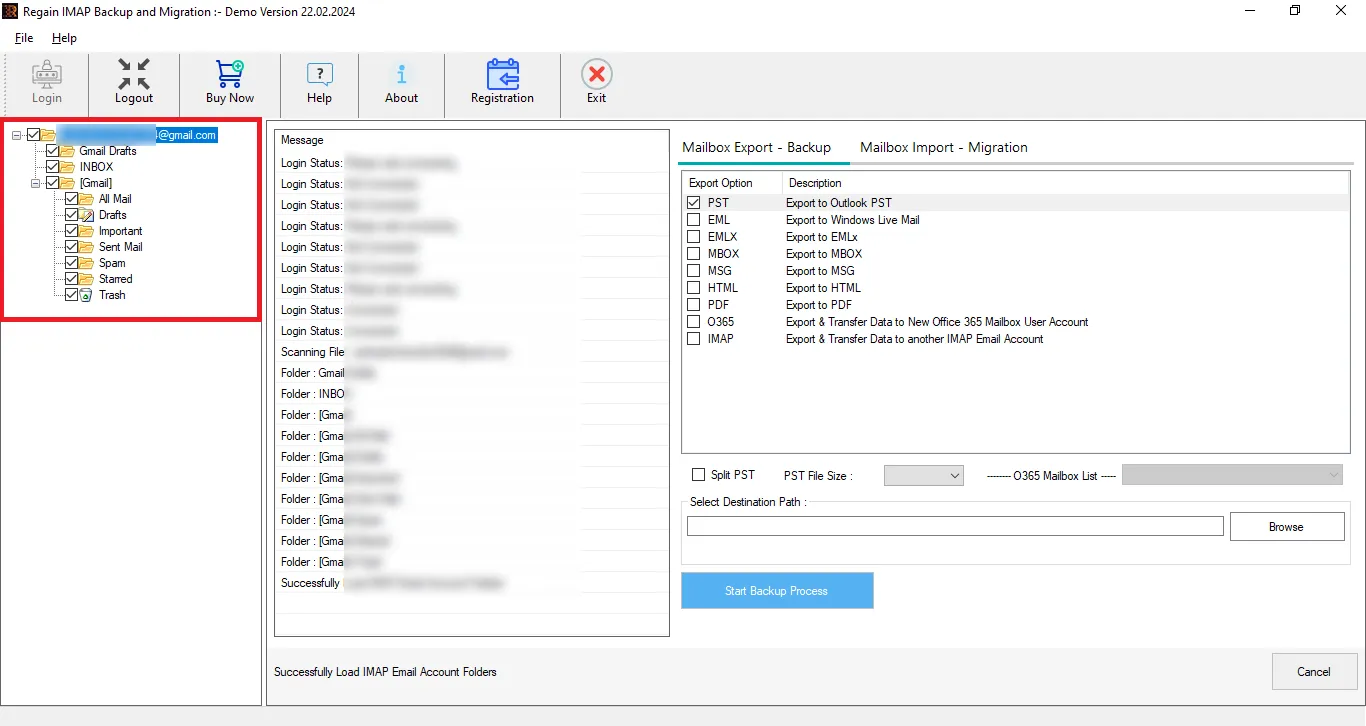
- It offers a data preview facility before migration to select/deselect folders.
- Users can directly migrate to Microsoft 365 mailboxes/ Exchange Server (On-Premises) mailboxes, Google Workspace and all IMAP-enabled email platforms.
- It offers a free demo version of the software to check its compatibility.
- The Regain Email Migration Tool is compatible with all Windows OS and provides free technical support to users.
Simple Steps to Migrate QQ Emails Efficiently and Effectively:
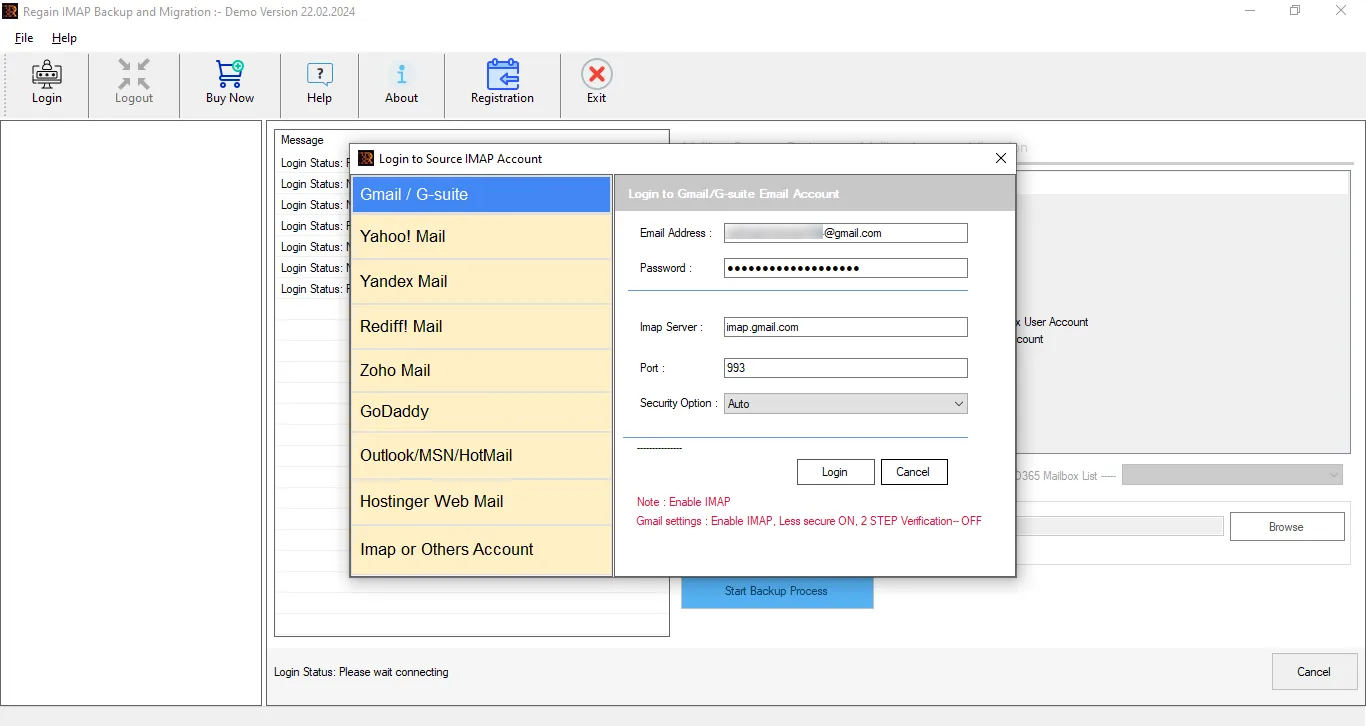
- Step 1: Firstly, install and launch the Regain Qmail Migration Tool (Regain Email Migration Software)
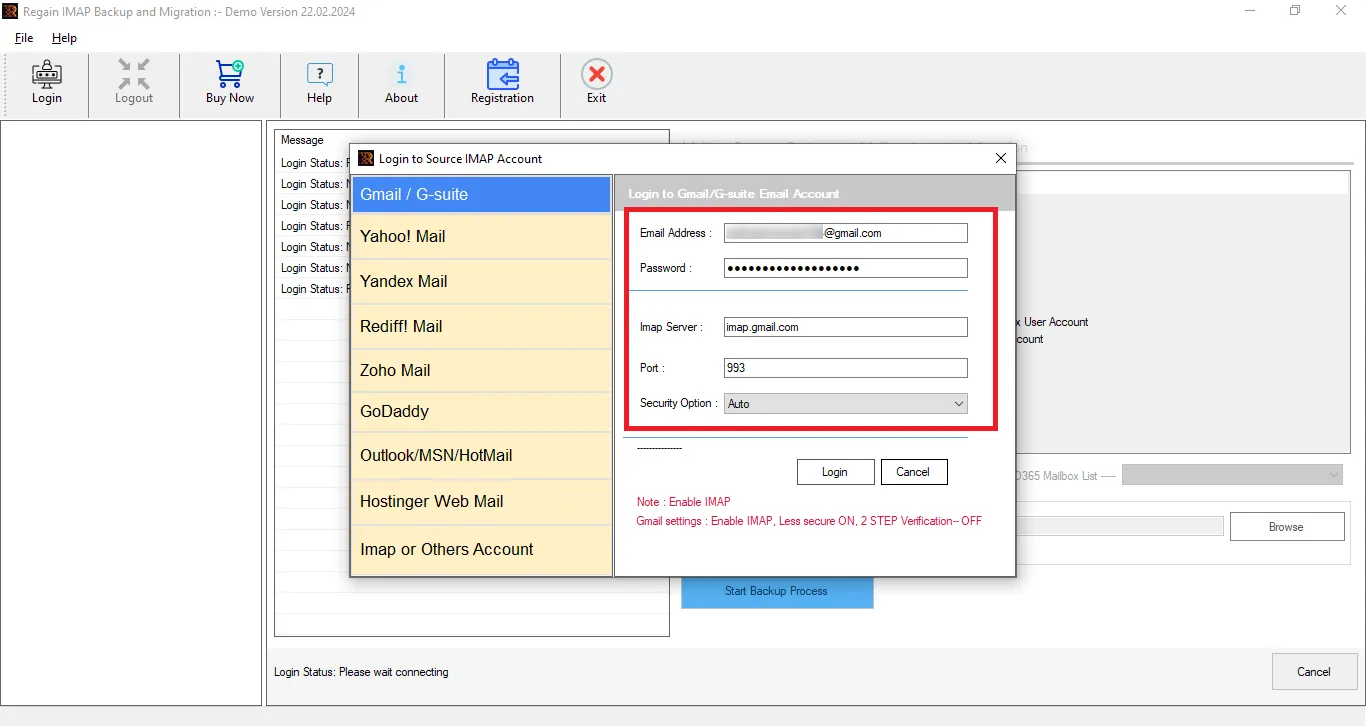
- Step 2: Now, click on IMAP or Other Accounts and enter the login credentials for your Qmail account.
- Step 3: Then, the software will provide a preview of the mailbox. Here, you can uncheck the folder to deselect it.
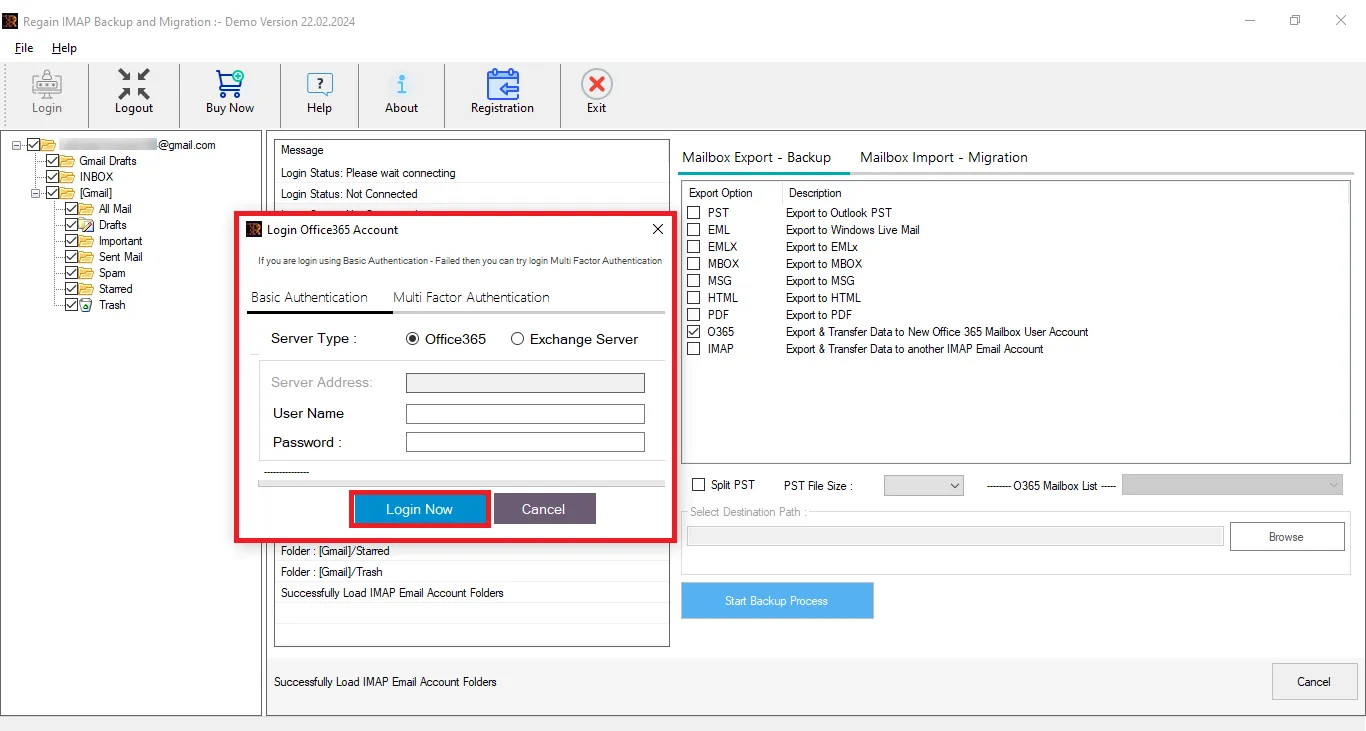
- Step 4: Now, select and enter the destination account (Google Workspace, Microsoft 365) credentials. Moreover, you can select the file format if you want to export it. Select the PST file format if you want to access your Qmail emails in the Outlook email client.
- Step 5: Move ahead to start migration. Your Qmail data will be exported to the selected source.
Gist of the Blog:
This blog explains how to migrate emails from Qmail to popular email platforms, including Microsoft 365, Google Workspace, and Outlook. It covers the reasons for migrating from Qmail and explains both manual and professional migration methods.
Regain Email Migration Tool is a one-stop solution for Qmail email migration, helping users simplify the migration process and move their emails to their preferred platform. A free trial version of this utility is also available.

