Migrate Greatmail to Microsoft 365: Migrate Mailbox Professionally


Updated On - September 24, 2026 by Armaan | Reading Time: 5 minutes
Changing email servers is a crucial decision and if you are currently using Greatmail as your email hosting service and want to migrate to Microsoft 365 (Exchange Online Server); you are at the right place. In this blog, we will explain everything you need to know about migrating from Greatmail to Microsoft 365 (Exchange Online). We will also discuss manual migration methods, their limitations, and the easiest automated solution.
Source and Target At A Glance:
Greatmail is an email hosting service. It offers secure business email accounts, spam protection, webmail access, and support for standard email protocols like IMAP, POP3, and SMTP. Although Greatmail provides reliable email hosting, many users eventually migrate to Microsoft 365 to access modern collaboration tools and security features. Greatmail is preferably for small businesses.
On the other side, Microsoft 365 (formerly Office 365) is a cloud-based productivity platform developed by Microsoft. Along with professional email hosting through Exchange Online, it includes applications such as Word, Excel, PowerPoint, Teams, SharePoint, etc…
Why Is Market Tilted Toward Microsoft 365/Office 365?
Here are some of the common reasons due to which users want to migrate Greatmail to Microsoft 365. However, every user may have their own reason.
● Multiple Services In a Single Subscription
Greatmail offers only basic features, while Microsoft 365 provides multiple tools/applications such as Outlook, Teams, SharePoint, Excel, Word and OneDrive in a single plan. Moreover, Microsoft comes with flexible plans. If your team is expanding, Microsoft is a good alternative.
● Advanced Security
Office 365 offers better security features, including Multi-Factor Authentication (MFA), anti-spam protection, and advanced threat detection to protect important data. Moreover, Microsoft’s name is enough to make you feel secure.
● Access From Anywhere
Users can securely access their emails, calendars, contacts, and files from desktops, laptops, smartphones, or any web browsers. Moreover, other applications/ services of Microsoft 365 can also be accessed.
Methods to Migrate Greatmail Emails to Microsoft 365
Here, we will discuss two ways for accomplishing the migration process of Greatmail emails. After evaluating both of them, you can choose accordingly.
Manual Method to Migrate Greatmail to Microsoft 365:
- Firstly, set up your Office 365 account and create user mailboxes.
- Configure the login details for each mailbox.
- Now go to the Exchange Admin Center and create a new IMAP migration job using your Greatmail server information.
- Then create a CSV file with the mailbox details and upload it while creating a new migration batch.
- Now start the migration batch. Office 365 will begin copying emails from Greatmail to the selected Office 365 mailboxes.
- At last, change your domain’s MX records to Microsoft 365. After the DNS changes are updated, a
- All new emails will be delivered directly to your Office 365 mailboxes.
Drawbacks of the Manual Methods: Know Before Migration
You can use the manual method given above, but it may come with several issues, which are as follows:
- Requires Technical Knowledge: Users need to be technically sound to understand the manual server settings.
- No Bulk Migration Support: Managing multiple mailboxes manually can be difficult and inefficient.
- Time-Consuming Process: Migrating emails manually can take a significant amount of time, especially for large mailboxes.
- May Lose the Folder Hierarchy: If not handled properly, you may lose your folder hierarchy. You will not have proper control over the target.
Migrate with Professional Greatmail to Microsoft Migration Tool
With the help of the Regain IMAP to Office 365 Migration Tool ( Regain Greatmail to Office 365 Migration Tool), you can perform all the migration processes very easily and with complete accuracy. To perform this migration process, you need to follow some simple steps, which are as follows:
Free Download100% Secure Buy NowPrice: $49
- Step1: First, install and launch the Regain IMAP to Office 365 Migration Tool on your system.

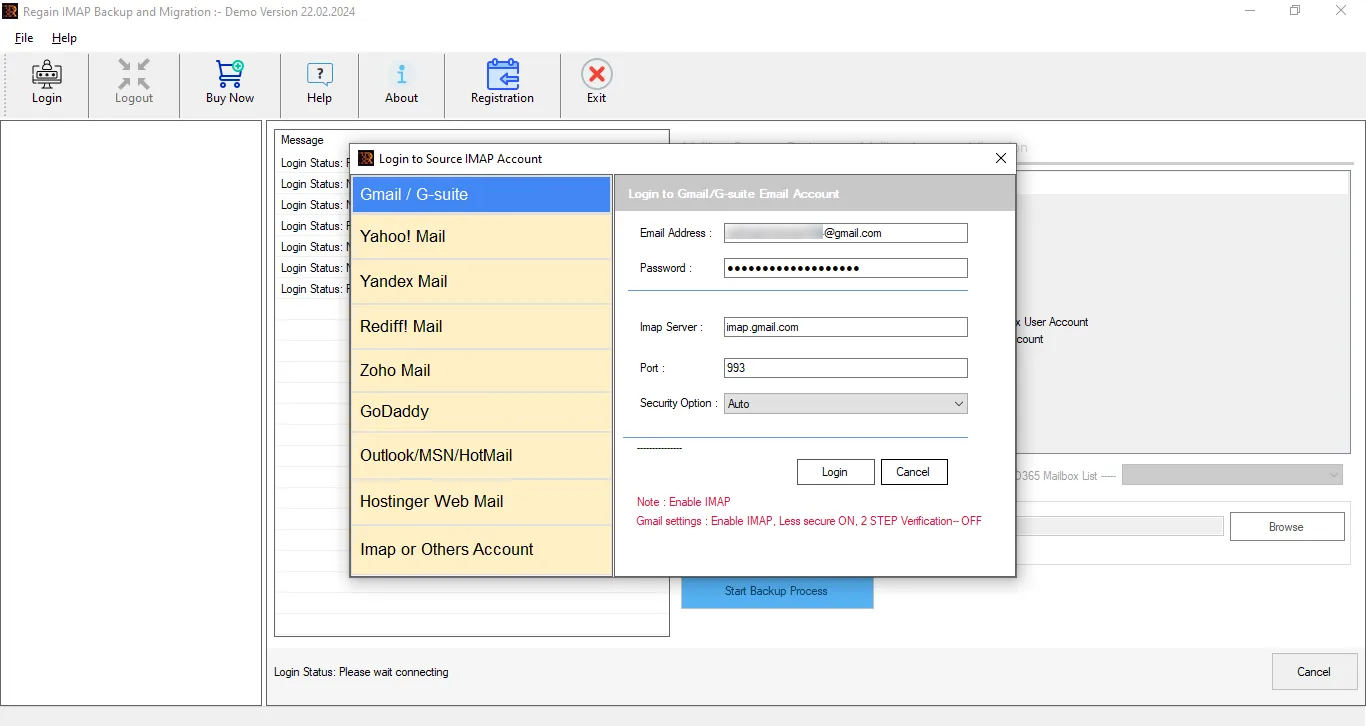
- Step2: Then, enter the Greatmail Emails login credentials (like username, password, and other things) of your account after clicking on IMAP or Other Account.
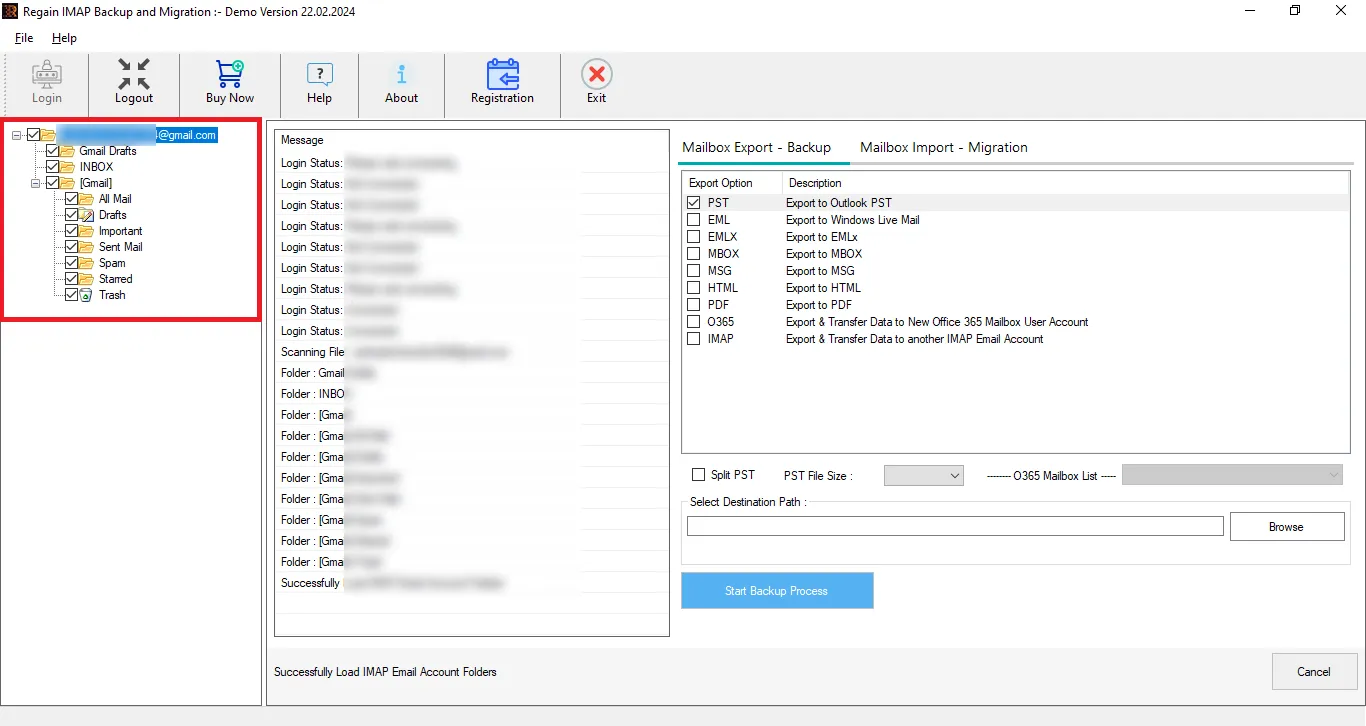
- Step3: You can also select/deselect the folder with the help of the Regain Greatmail emails migration tool preview facility. Uncheck the folders to skip them.
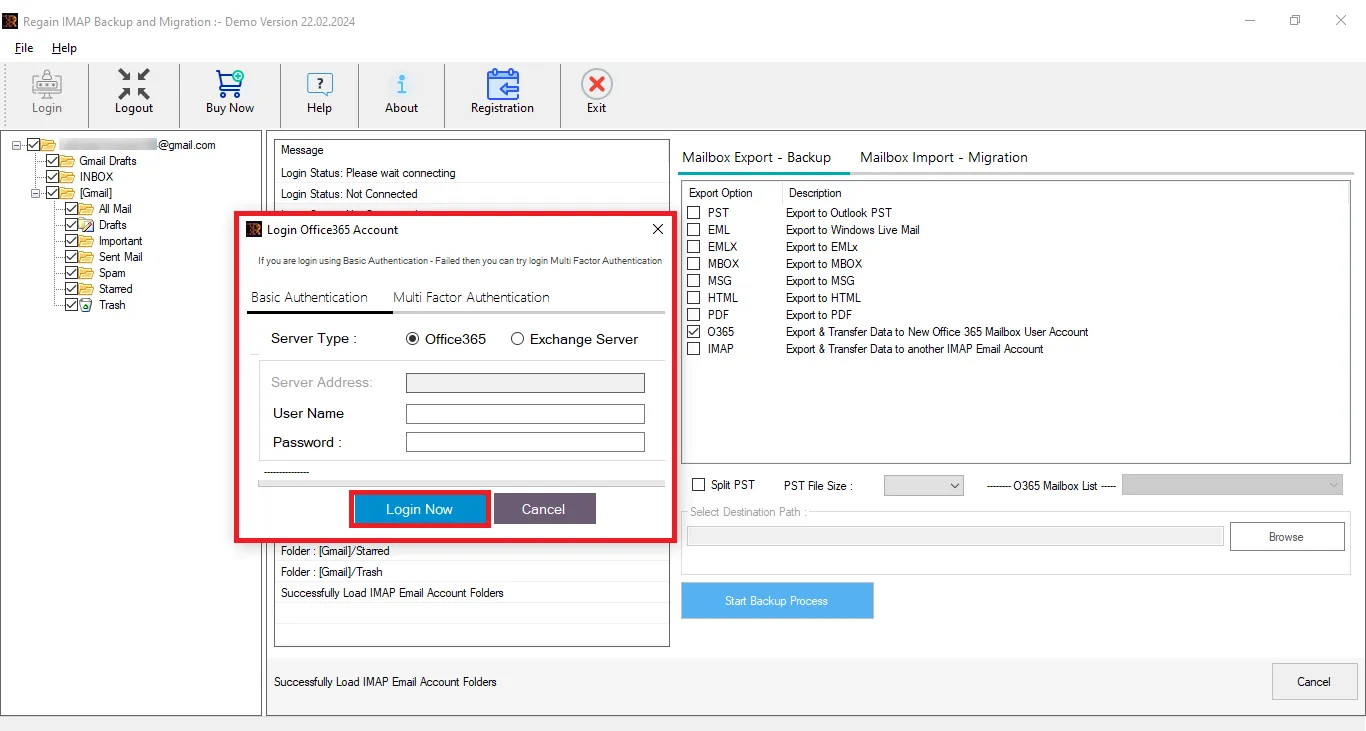
- Step4: Now, select and enter the destination account credentials (Office 365).
- Step5: And start exporting.
Other Exclusive Features of the Regain Greatmail Migration Tool:
- Regain Greatmail to Office 365 Migration Tool offers users the ability to export from any IMAP platform to another IMAP email client/server.
- It can directly migrate Greatmail to Microsoft 365 and Google Workspace.
- This utility also offers saving/ backup email data in the PST, EML, MSG, PDF and HTML like popular file formats.
- Users get a preview before exporting to select/deselect folders.
- No size limitations on the mailbox for backup/migration. Users can migrate multiple mailboxes.
- It ensures that the original folder structure of your emails remains intact throughout the migration process.
- The Regain Greatmail Migration Tool is suitable/compatible with all Windows OS versions.
- Users also get a free demo version of the software before purchasing it.
Wrapping Up:
In this blog, we discussed two effective methods to migrate Greatmail to Office 365: the manual IMAP migration method and a professional migration tool. While the manual approach may be an option for small migrations, it only transfers emails and requires technical expertise. On the other hand, a professional IMAP to Office 365 migration tool (Regain IMAP Backup and Migration Tool) provides a faster, more secure, and more efficient way to migrate multiple mailboxes with minimal downtime.
Frequently Asked Questions:
Q1. Is there any alternative to the Exchange Admin Centre method to migrate Greatmail to Microsoft 365?
A. If transferring through the Exchange Admin Centre is not a feasible option for you then using the professional tool is recommended. Regain Greatmail Migration Tool is a one-stop solution for all professional needs.
Q2. How much time will it take to migrate mailbox data from Greatmail to Office 365?
A. The migration time depends on various factors hence can be different for each task as per the clients’ environments. Mailbox size, internet speed, Microsoft’s throttling policy are some of the common reasons.
Q3. How is this demo version of the software different from the licensed version?
A. The demo version is just a restricted version of the full version. The free trial version allows processing the 30 items per folder while there are no such limitations with the full/licensed version.
Q4. Is there any way to skip the folders that I don’t want to migrate from Greatmail to Office 365?
A. This email migration tool offers a preview of the source mailbox and users can easily uncheck the folders to skip them. In this way users can migrate only the required folders and skip folders like “Spam”.

