Migrate MDaemon to Microsoft 365/ Google Workspace/ Other Email Platforms


Published On - October 7, 2026 by Nasir Khan | Reading Time: 3 minutes
Are you looking for an easy way to migrate MDaemon emails to Microsoft 365, Gmail, Google Workspace, Outlook, or other platforms? If so, you have landed on the right post. In this blog, we will explore manual migration methods, their limitations, and the best automated solution to help you choose the right approach for a smooth and hassle-free migration.
An Overview of MDaemon
MDaemon is an email server developed by MDaemon Technologies, designed to help businesses manage email communication and mailbox data. MDaemon also offers features such as spam filtering, email security, and centralized email administration. It offers various deployment options like on-premise, hosted and MSP/ISP.
Why Microsoft 365 and Google Workspace are Shadowing MDaemon?
Users may want to migrate MDaemon emails to another email platform (M365, Google Workspace, or any other) for several reasons. Let’s look at some common ones.
- Improved Collaboration: Platforms like Microsoft 365 and Google Workspace provide collaboration tools that help teams communicate, share files, and work efficiently. They provide a one-stop solution for various services and applications used by organizations.
- Enhanced Security: Users may prefer platforms that offer advanced security features, centralized administration, protection against hacking and cyber threats, and built-in safeguards against email-based attacks. Microsoft 365 comes with MFA, a layered defense approach and Microsoft Entra ID management.
- Better Accessibility and Control: Moving to a cloud-based platform like Microsoft 365 or Google Workspace allows users to access their emails from different devices and locations. Moreover, the admin center lets admins manage various tasks.
- Business Growth: As a business grows, it may need a better email platform that can handle more users, provide more storage, and support its changing needs. Moreover, a single subscription is enough to manage new joiners or expansion.
Explore Ways to Transfer MDaemon Emails:
Here we have discussed two methods by which you can transfer MDaemon emails: the first is the manual method, and the second is the professional method ( a one-stop solution). You can choose the method as per your needs.
Manual Workarounds
Migrate MDaemon Emails to Gmail Using Thunderbird
- Download and install Mozilla Thunderbird on your computer.
- Add your MDaemon email account using the correct IMAP server settings and login credentials.
Incoming Server: imap.gmail.com (Port 993, SSL)
Outgoing Server: smtp.gmail.com (Port 587, TLS)
- Add your Gmail account and complete Google’s required authentication process.
- Ensure that both accounts are connected and their emails are synchronized.
- Open your MDaemon account and select the emails or folders you want to migrate.
- Drag and drop or copy the selected emails into the appropriate folders under your Gmail.
- Allow Thunderbird to upload the selected emails to Gmail.
- Log in to Gmail and check whether the emails and attachments have been transferred successfully.


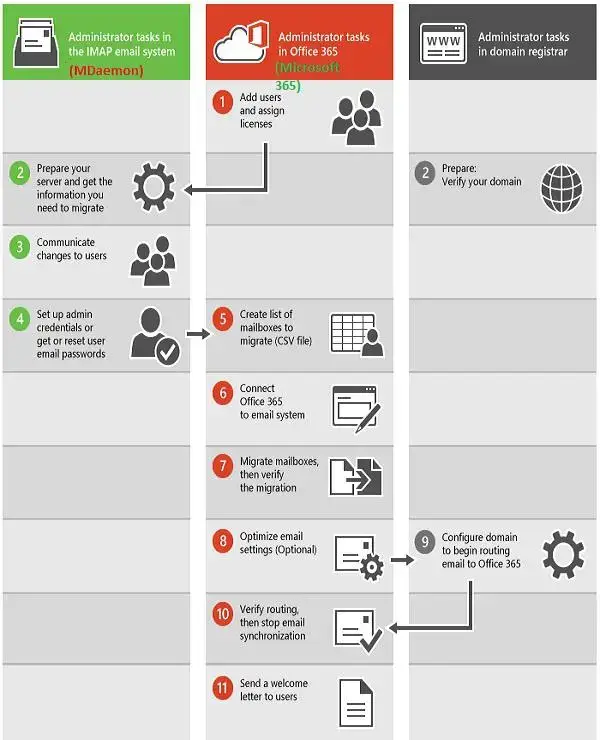
Steps to Migrate MDaemon Emails to Office 365 (Exchange Online) Using IMAP
- Firstly, create the required user accounts and mailboxes in Microsoft 365.
- Then, prepare a CSV file containing the source mailbox credentials and destination email addresses.
- Next, open the Exchange Admin Center and navigate to the Migration section.
- After that, create an IMAP migration endpoint using the MDaemon server details.
- Then, create a migration batch and upload the prepared CSV file.
- Now, start the migration process and monitor its progress.
- Finally, open Outlook on the web and verify the migrated emails and attachments.
Limitations of Manual Methods: Why Professionals Avoid Them?
Although manual methods are free, they have several drawbacks. A professional must be aware of them before using them.
- Very time-consuming process, as you have a monotonous task.
- Not suitable for bulk migration, as it may take days to accomplish a small mailbox migration.
- Risk of data loss; chances of human error are always there.
- Folder hierarchy may not be maintained. The doer should be technically sound.
Professional Solution with the Regain Software (Regain Email Migration Tool)
Free Download100% Secure Buy NowPrice: $49
Simple Steps to Migrate MDaemon Emails:
- Step 1: Firstly, install and launch the Regain MDaemon Migration Tool (Regain Email Migration Software).
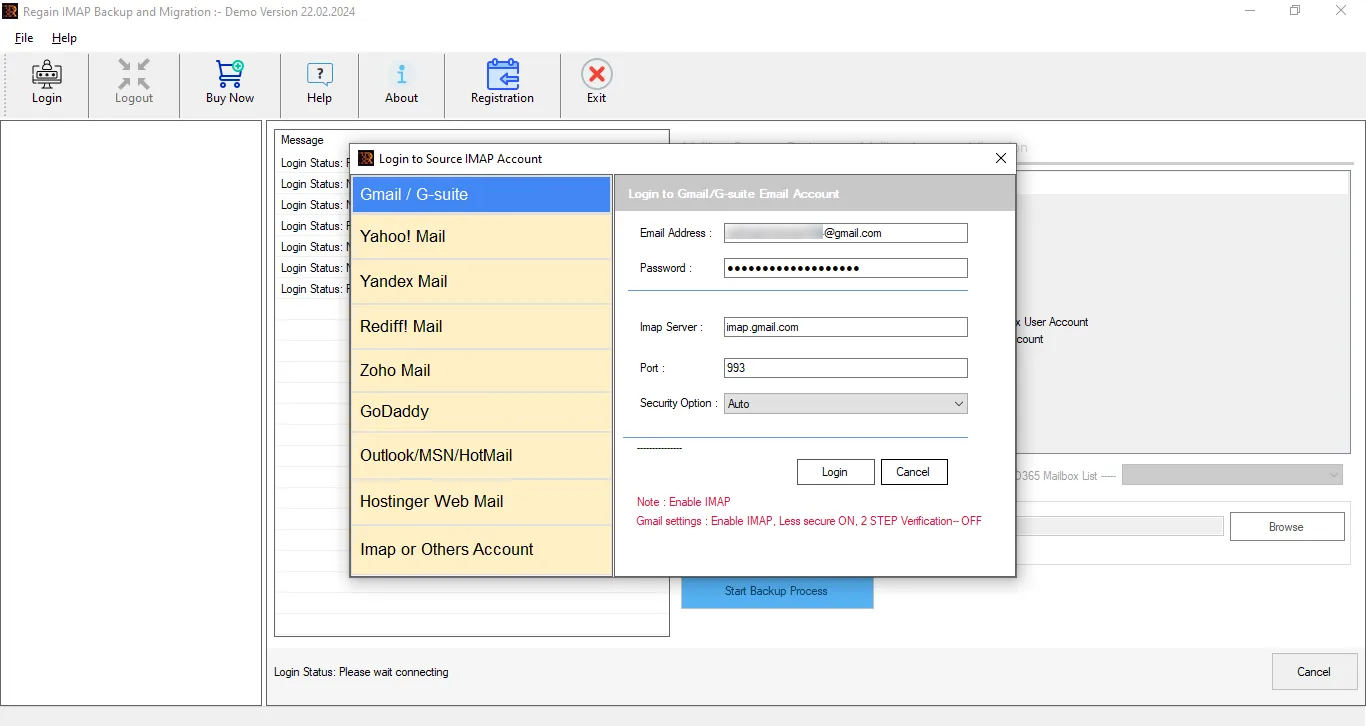
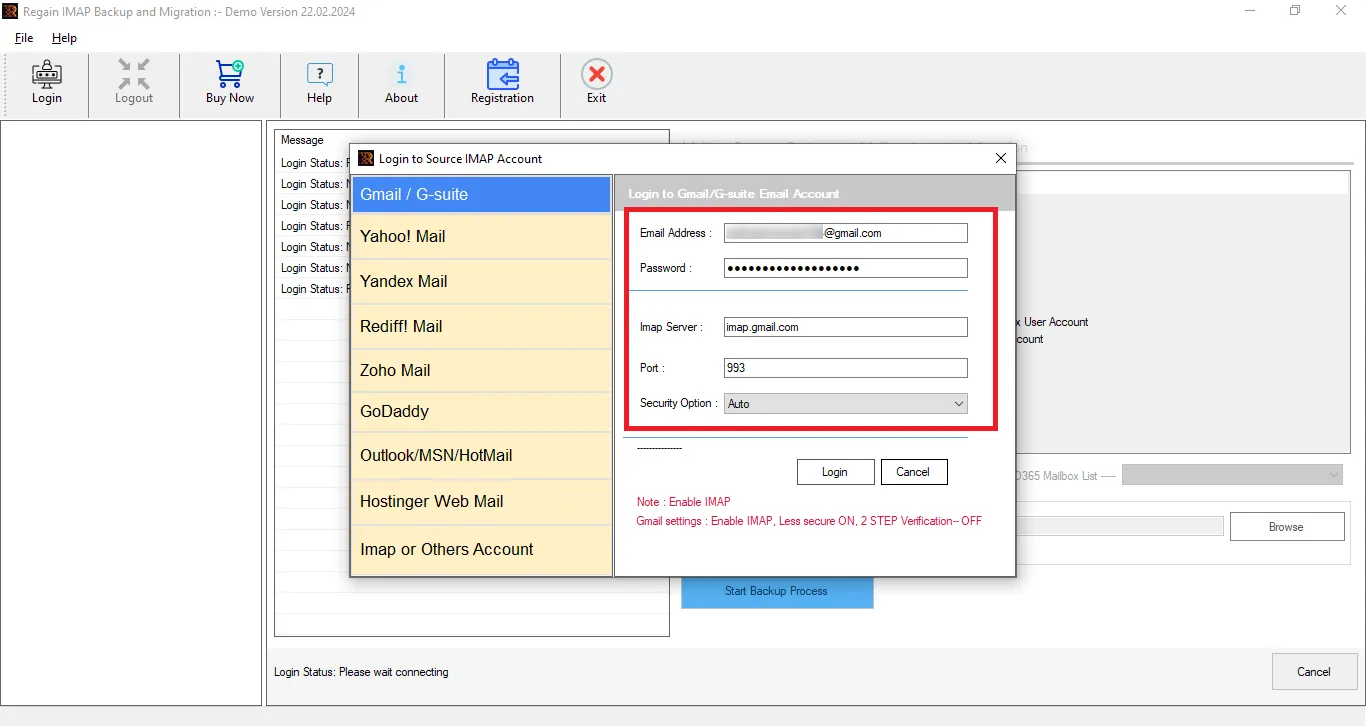
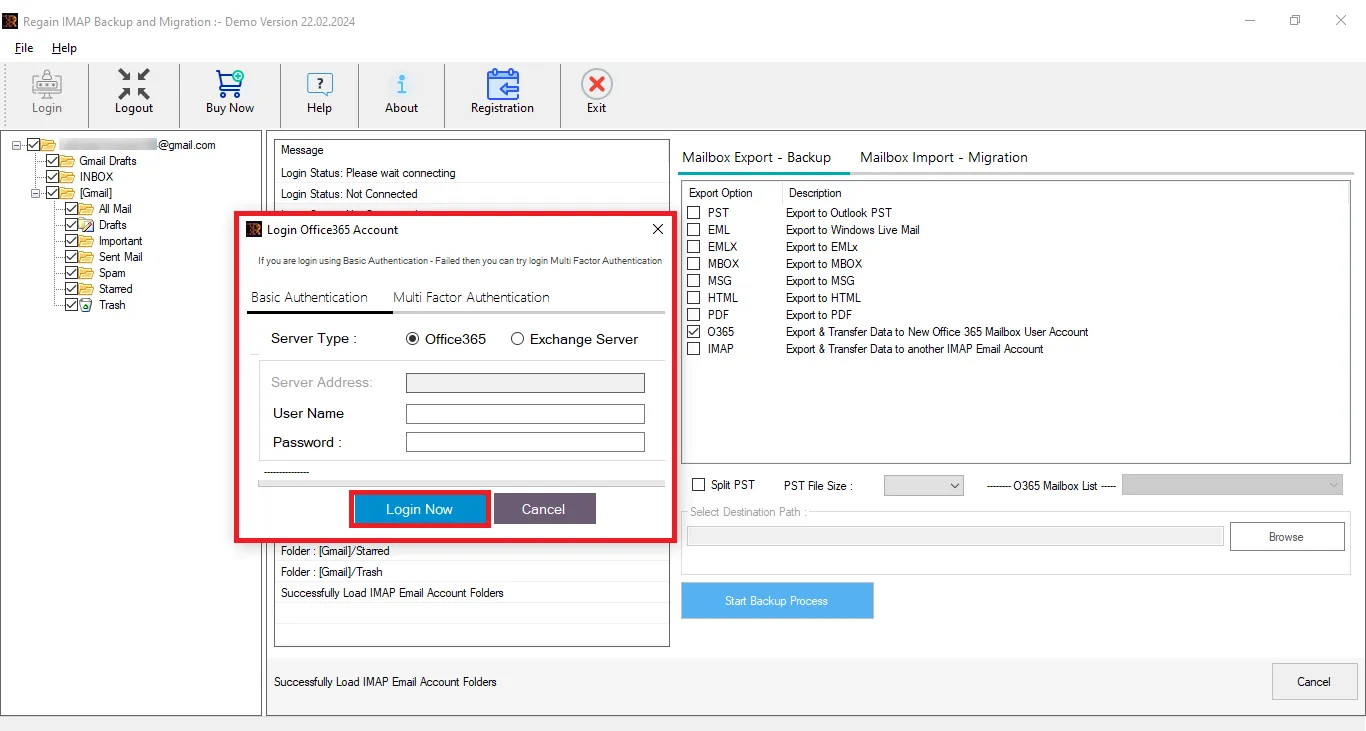
- Step 2: Next, select IMAP, enter your MDaemon account credentials and required server settings, and click Login to connect.
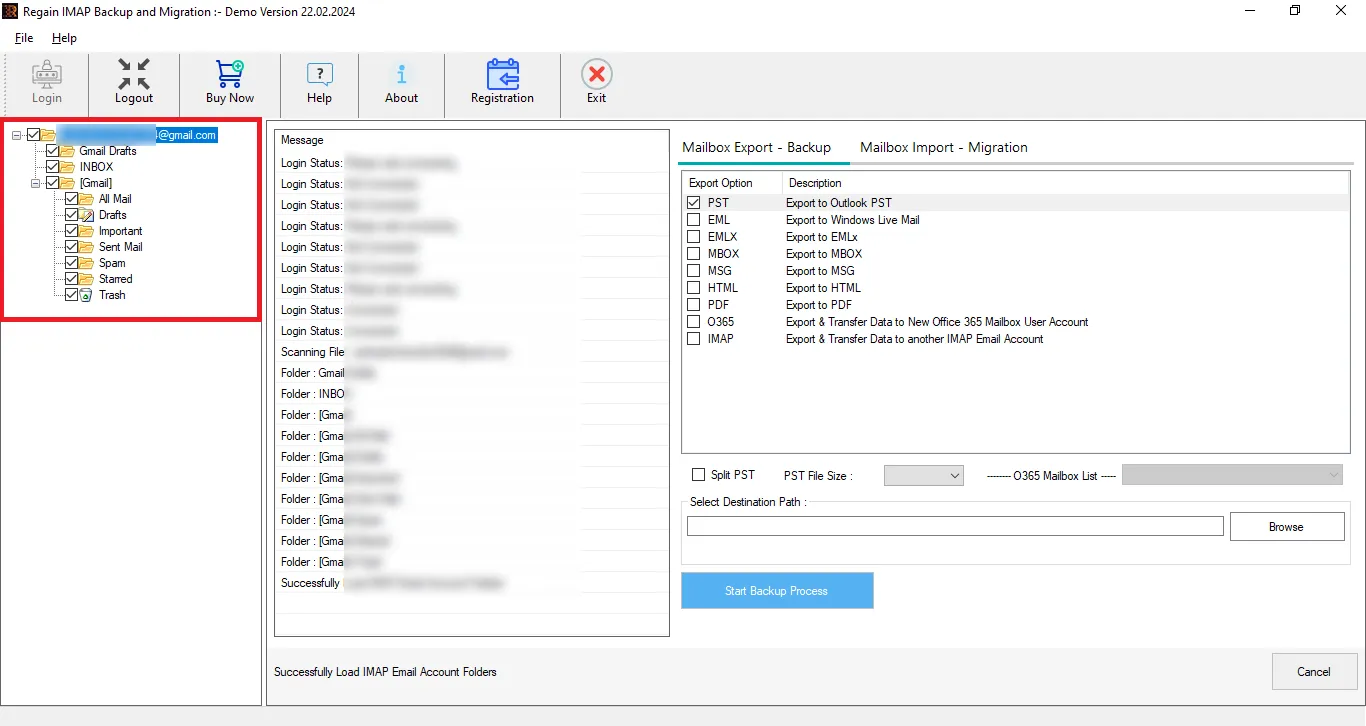
- Step 3: Then, the software will provide a preview of the mailbox.
- Step 4: Now, select and enter the destination account (Google Workspace, Microsoft 365, or Others) credentials. Moreover, you can select the file format if you want to export in it. Then start the migration.
Other Salient Features of the Regain Email Migration Tool:
- Directly migrate to Exchange Online, Exchange on-premises, and Google Workspace.
- Migrate MDaemon to any IMAP-enabled email platform like Gmail, Zoho, or Yahoo.
- With the Regain MDaemon Email Migration Tool, there are no limitations on mailbox size or number.
- Save the mailbox data of MDaemon to Outlook PST, EML, MSG, MBOX, MHT, PDF, and similar formats.
- You can preview emails and their details before starting the migration to ensure the correct data is selected.
- Migrate or save emails along with their attachments.
- Maintain the original email folder hierarchy during migration.
- It offers a free demo version of the software to check its compatibility.
- The Regain MDaemon Email Migration Tool is compatible with all Windows OS and provides free technical support to users.
Gist of the Blog:
The decision to migrate MDaemon emails to platforms like Microsoft 365, Gmail, or Google Workspace can improve email accessibility and simplify email management. Users can choose manual methods, but these may require technical configuration and additional effort. Professionals don’t want to risk their data. For a more convenient and safe approach, Regain Email Migrator Software helps simplify the migration process while reducing manual work. Choose Regain Email Migrator Software for a smooth, secure, and efficient email migration experience.

