Transfer BigPond Emails to Gmail, Microsoft 365, and Other Email Platforms


Published On - September 9, 2026 by Armaan | Reading Time: 3 minutes
If you rely on BigPond (Telstra) for your email management and now you want to transfer your emails to more modern platforms, then you have come to the right place. In this detailed guide, you will explore how to transfer BigPond Email to Gmail, Office 365, Outlook, and other email accounts. We will also discuss the limitations of manual methods and explain why a professional migration tool is often the safest and most efficient option.
A Quick Overview of BigPond Email and Reasons to Migrate from It:
BigPond Email is an email service provided by Telstra, one of Australia’s leading telecommunications companies. It is widely used by individuals and businesses for sending, receiving, and managing emails. But many users choose to migrate their BigPond mailbox to modern platforms like Gmail, Outlook, or Microsoft 365.
Reasons to Migrate BigPond Emails to Gmail, Office 365, or Any Other Platform:
- Integration with Advanced Productivity Tools: Gmail integrates with Google services like Google Drive and Google Meet, while Microsoft 365 (Outlook) comes with tools such as Word, Excel, and Teams.
- Storage and Performance: Email services such as Gmail (Google Workspace) and Microsoft 365 provide significantly more storage than BigPond, allowing users to keep emails, attachments, and important documents without frequently deleting old messages.
- Advanced Security: Modern email platforms provide strong security features such as two-factor authentication, spam protection, and encryption.
- Cost-efficiency: When talking about an email platform change, cost-efficiency is a turning point. Growing organizations often look for platforms that can provide large-scale management at pocket-friendly prices.
Two Proven Methods to Transfer BigPond Emails:
Here we have discussed two methods by which you can transfer BigPond emails: the first is the manual method and the second is the professional method. You can choose the method as per your need.
Manual Method (Manual Workarounds)
1) Manual Method to Transfer BigPond Emails to Gmail
- First, sign in to your Gmail account and click Settings (Gear icon).
- Next, select See all settings.

- Now, open the Accounts and Import tab.
- Click the “Import mail and contacts” option.
- Then enter your BigPond email address and click Continue.
- Now sign in to your BigPond account using your email credentials.
- Allow Gmail to access your BigPond mailbox when prompted.
- Select the data you want to import, such as emails and contacts.
- Click the Start Import button to begin the migration process.


2) Manual Method to Transfer BigPond Emails to Microsoft 365
- Firstly, sign in to your Microsoft 365 Outlook account.
- Next, click Settings and select View all Outlook settings.
- After that, navigate to Mail > Sync email.
- Enter your BigPond email address and password.
- Then, select IMAP as the account type.
- Enter the BigPond IMAP server details, including the incoming and outgoing mail server settings.
- Verify the account information and click Connect or Save.
- Wait while Microsoft 365 syncs your BigPond mailbox.
- Finally, once the synchronization is complete, your BigPond emails will be available in your Microsoft 365 mailbox.
Things You Should Be Aware of Before Using the Manual Methods:
- Very Time-Consuming Process: Moving emails manually takes a lot of time, especially for large mailboxes.
- Risk of Data Loss: Some emails may be missed, or the transfer may not be fully completed.
- Folder Structure Issues: The original folder setup may not stay the same. Many users have reported loss of hierarchy after the email transfer.
- Requires Advanced Technical Knowledge: Users need to understand technical server settings.
Professional BigPond Email Migration Tool: Simple and Straight Way
Regain BigPond Migration Tool provides a secure and automated way to transfer BigPond email to any other email platform.
Free Download100% Secure Buy NowPrice: $49
Steps to Migrate BigPond Emails Using a Professional Tool
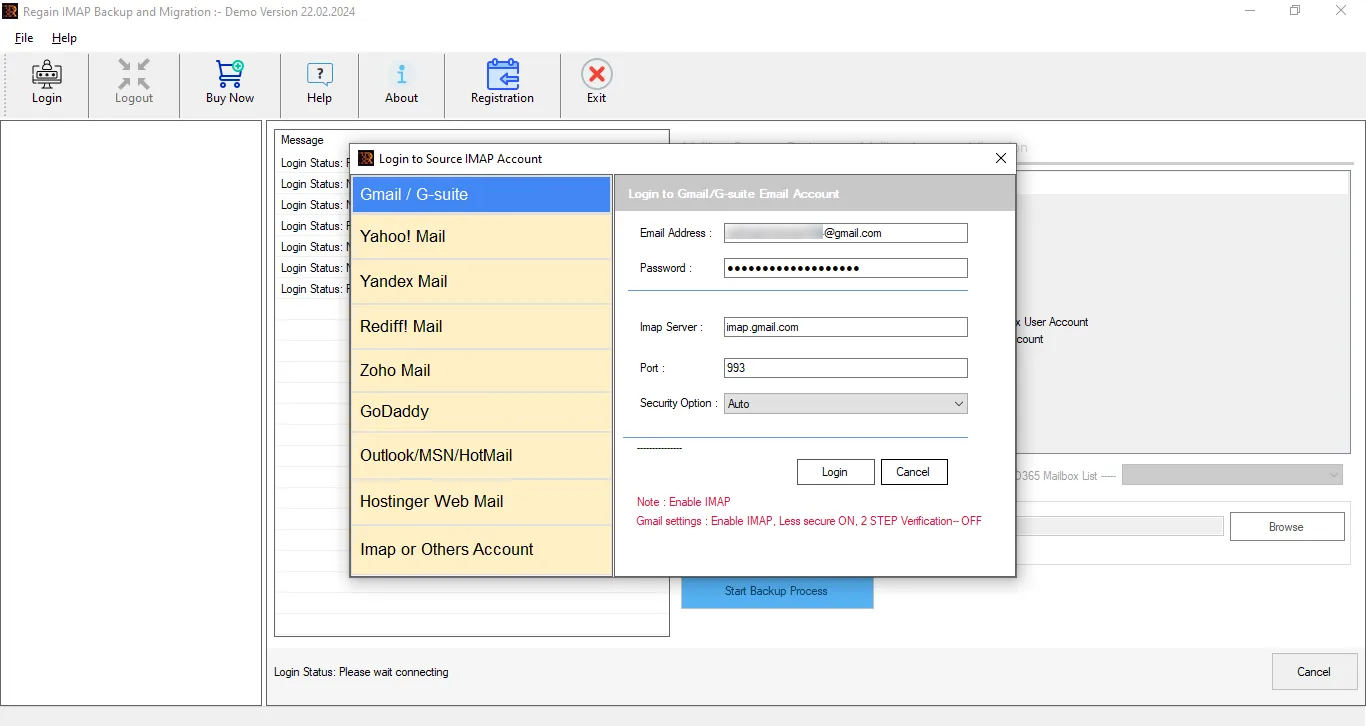
- Step1: Download and install the Regain BigPond Mail Migration Tool/ Email Migration Tool on your system.
- Step2: Select the IMAP or Other Accounts and enter your BigPond Mail email address and password.
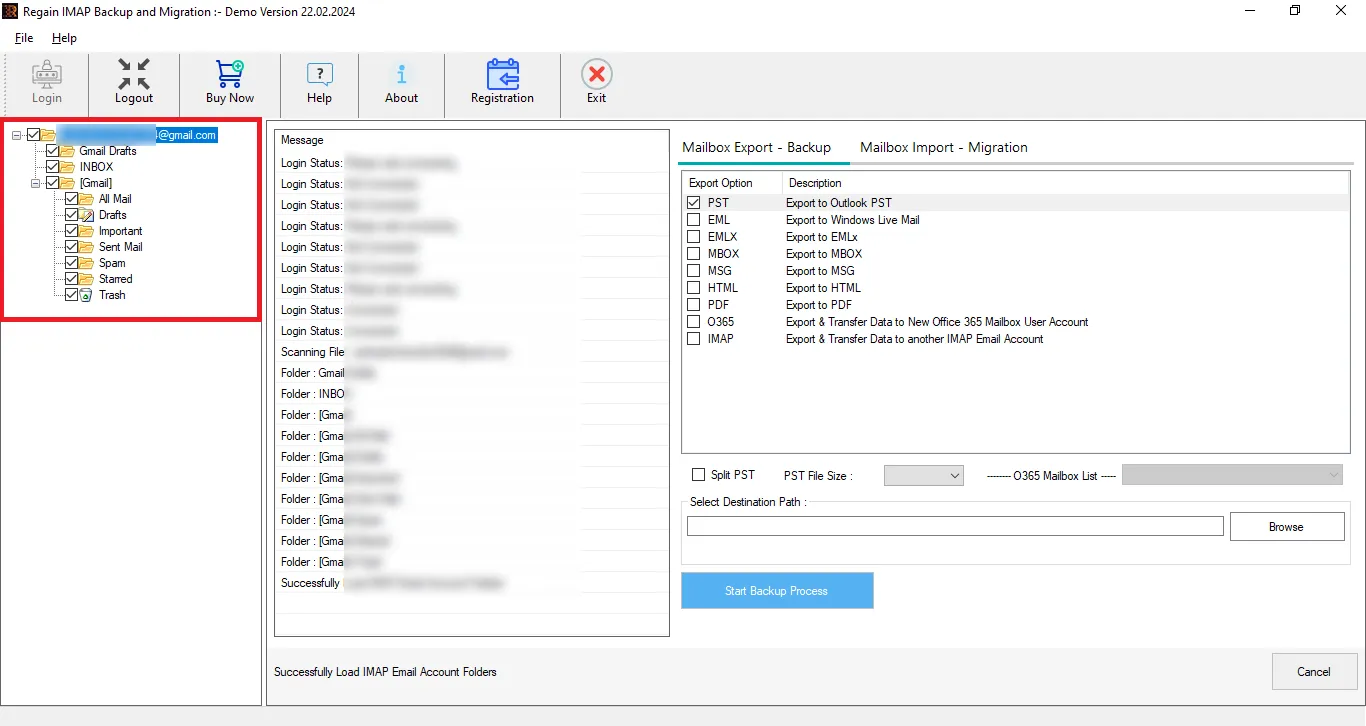
- Step3: Now you can preview your BigPond mailbox. You can also uncheck the folders in order to eliminate them.
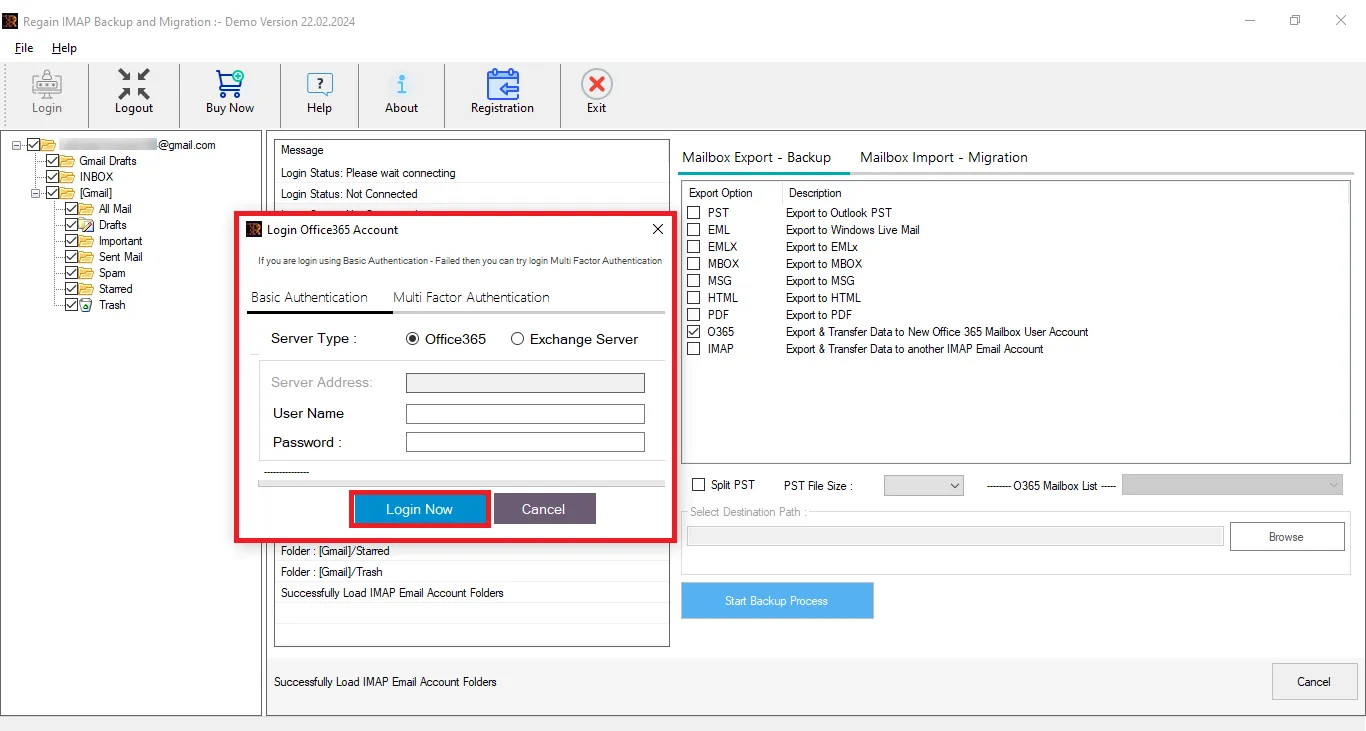
- Step4: Choose your target email service, like Google Workspace, Microsoft 365, or any IMAP server.
- Step5: After connecting to the destination, just start exporting.
Features Offered By the Regain BigPond Email Migration Tool
- Regain BigPond Export Tool allows users to export from any IMAP (like BigPond) to another IMAP enabled email/client server.
- Users get a preview before exporting and can select/deselect folders before migration.
- Users can also save their BigPond emails into PST, MBOX, EML, PDF, and MSG file formats.
- This tool ensures that the original folder structure of your emails and hierarchy remains intact throughout the complete export process.
- This software facilitates users exporting from BigPond emails to Office 365, Exchange on-premises (all versions), and Google Workspace (Gmail).
- Regain also offers a free demo version of the software to check its compatibility.
Wrapping Up:
In this article, we discussed different ways to transfer BigPond emails to Gmail, Outlook, Microsoft 365, and other email accounts. While the manual workarounds can be suitable for transferring a small number of emails, they can be time-consuming and may not preserve your complete mailbox structure. For users with large mailboxes or multiple accounts, a professional migration tool (Regain Email Migration Tool) provides a faster, more secure, and reliable solution.

