Migrate Namecheap Email to Office 365: Transfer Mailbox Professionally


Updated On - September 24, 2026 by Nasir Khan | Reading Time: 3 minutes
Are you planning to migrate Namecheap Email to Office 365 but are confused about where to start? This article will help you to understand all the available methods. Here, in this blog, you will learn how to migrate emails from Namecheap to Office 365 using both manual and professional methods, their limitations, and the most professional solution to simplify the process.
Source and Targets At A Glance:
Namecheap offers affordable email hosting services that allow users to create custom email addresses based on their domain names. It provides basic spam protection and supports IMAP/POP3 protocols, making it a popular choice among small businesses and individuals.
On the other hand, Microsoft Office 365 is a cloud-based platform that provides premium email services through Outlook along with tools like Word, Excel, Teams, and OneDrive.
Why Do Users Initiate a Namecheap Email to Office 365 Migration?
Here are the main key facts why users migrate from Namecheap Email to Microsoft Office 365:
- Namecheap email offers only basic features, while Microsoft 365 provides tools such as Outlook, Teams, SharePoint, and OneDrive.
- Namecheap provides basic spam protection, but Office 365 includes advanced security features. Moreover, Namecheap plans often have limited mailbox storage.
- Microsoft 365 provides larger storage and better performance for daily use
- With Office 365, users can access emails, files, and apps anytime, anywhere from any device with an internet connection.
- Namecheap is suitable for small setups, but it becomes limited as businesses grow. Microsoft 365 allows easy addition of users, mailboxes, and services anytime.
Available Methods for Migrating Namecheap Emails to Office 365:
Here, we will elaborate on two solutions for accomplishing the migration process from Namecheap to Office 365. After reading both of them, you can choose accordingly.
1- Manual Method
Migrate Via IMAP
- Firstly, log in to the Office 365 Admin Centre.
- Then open the Exchange Admin Centre.
- Now, go to Recipients and select Migrate to Exchange Online.
- Select IMAP Migration.
- Enter IMAP Server:
- mail.privateemail.com
- Port: 993
- Encryption: SSL/TLS
- Now, upload the Namecheap Email credentials.
- Validate the mailboxes and start the migration process.
- Office 365 will automatically import emails from Namecheap mailboxes.
- After migration, update MX records in your Namecheap DNS settings to start receiving emails in Office 365.
2) Migrate Using Outlook
- Open Microsoft Outlook on your system
- Click on File > Add Account

- Enter your Namecheap email address and password.
- Select IMAP and enter the following settings:
- Incoming Mail Server (IMAP)
- Server: mail.privateemail.com
- Port: 993
- Encryption: SSL/TLS
- Outgoing Mail Server (SMTP)
- Server: mail.privateemail.com
- Port: 465
- Encryption: SSL/TLS
- Complete the setup and let Outlook sync all emails
- Again, click File > Add Account.
- Sign in with your Office 365 account and complete the setup.
- Open the Namecheap mailbox in Outlook
- Drag and drop them into the Office 365 folders.
- Log in to Office 365 and check whether all emails have been migrated successfully.


Drawbacks of Manual Methods:
- High Risk of Data Loss – Important emails may be missed or accidentally deleted during the transfer.
- Requires Technical Knowledge – Users need to configure email accounts and settings correctly.
- No Bulk Migration Support – Managing multiple mailboxes manually can be difficult and inefficient.
- Time-Consuming Process – Migrating emails manually can take a significant amount of time, especially for large mailboxes.
Method 2: Professional Namecheap Mail Migration Tool (Recommended)
Regain Namecheap Email to Office 365 Migration Tool provides a secure and automated way to transfer emails from Namecheap Mail to Office 365.
Free Download100% Secure Buy NowPrice: $49
You can complete this export process easily by following just a few steps.
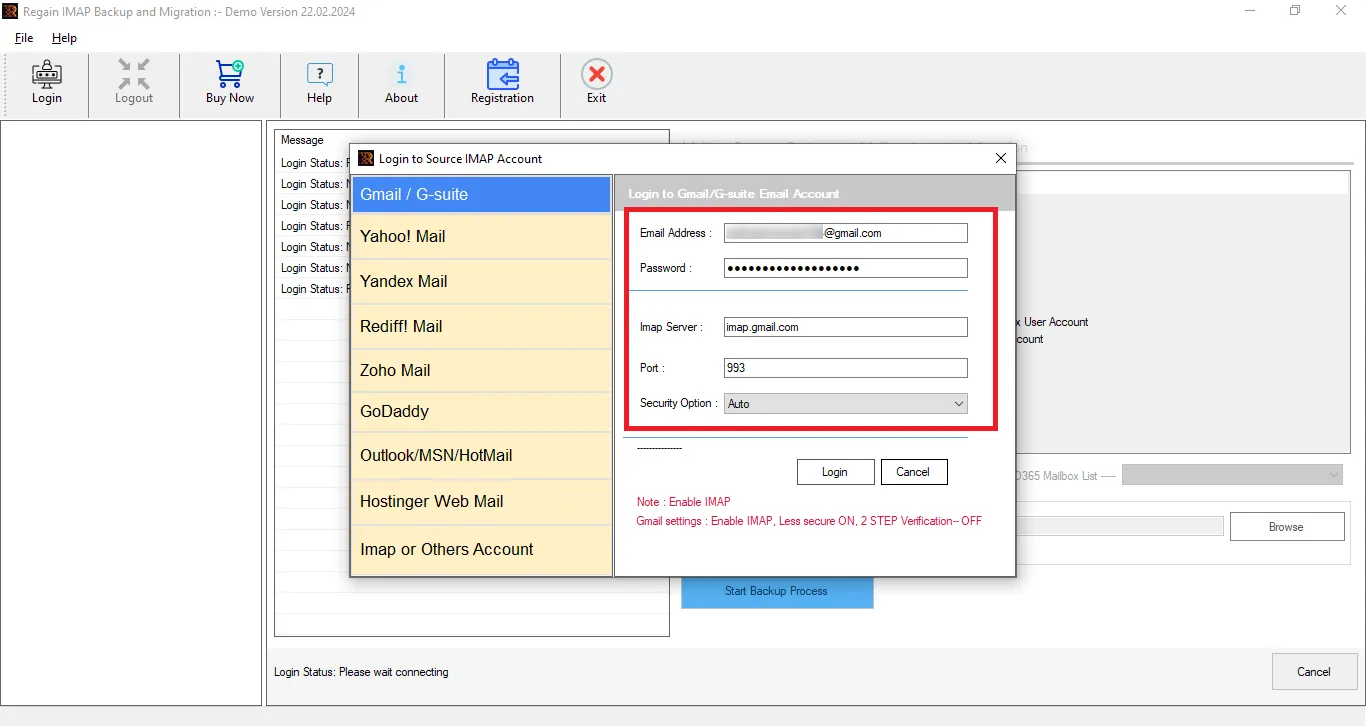
- Download and install the Regain Namecheap Email Migration Tool/ IMAP to Office 365 Migration Tool on your system.
- Go to IMAP and Other Accounts and enter your Namecheap email address and password.
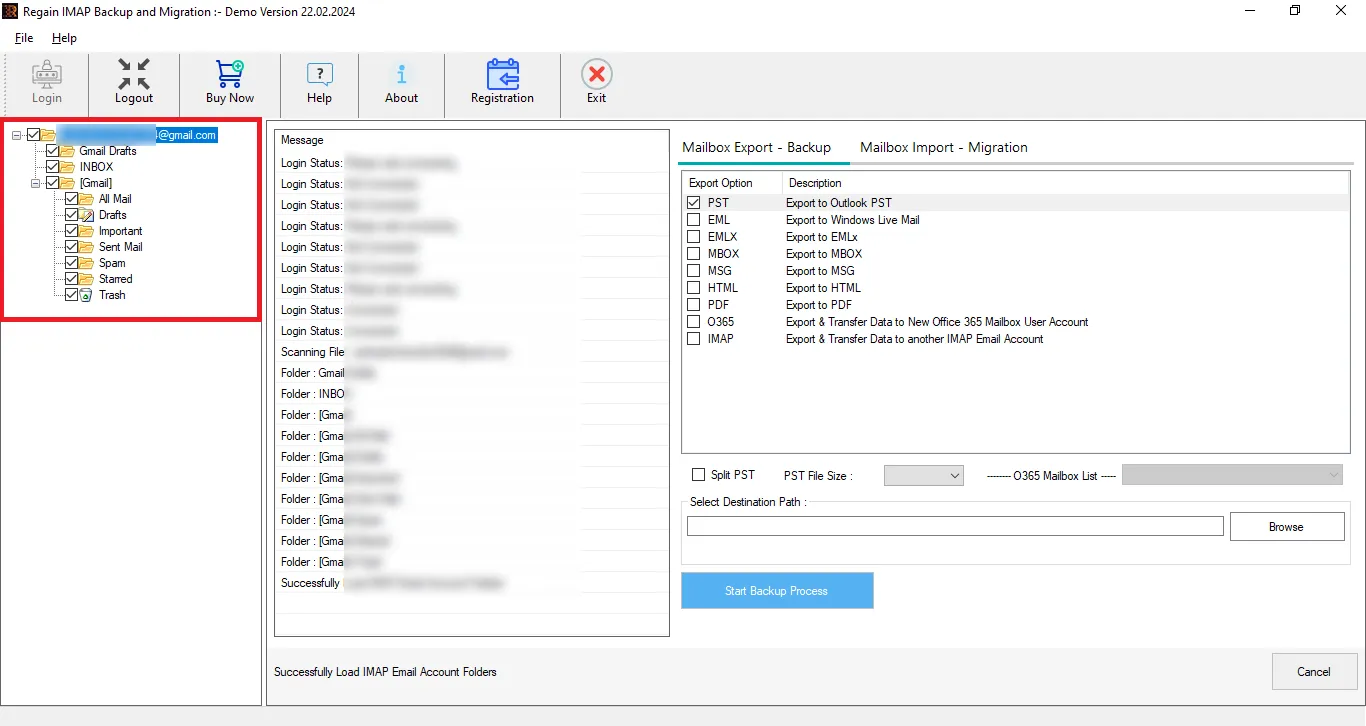
- Now you can have a preview of your Namecheap mailbox. You can also uncheck the folders in order to eliminate them.
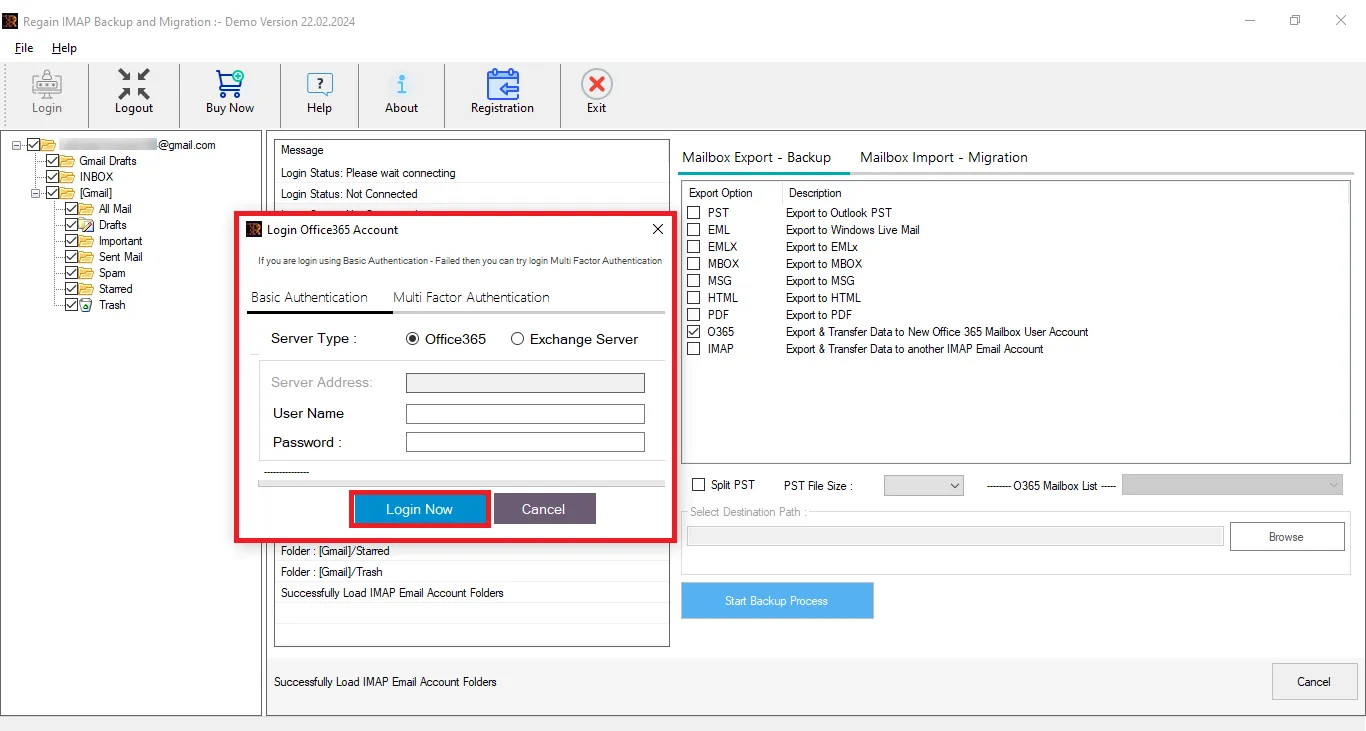
- Now, select and enter the destination account credentials ( Office 365)
- And start exporting.
Other Exclusive Features of the Regain Namecheap Email to Office 365 Migration Tool:
- It offers users the ability to export from any IMAP to another IMAP email client/ server, along with Microsoft 365 and Google Workspace.
- Users get a preview before exporting to select/deselect folders.
- No size limitations on the mailbox for backup/migration.
- Back up data in various file formats like PST, EML, MSG, MBOX, HTML, MHTML and PDF.
- Moreover, users can set the size of the resultant PST file when taking a backup in the Outlook PST file format.
- The Regain Namecheap Export Tool ensures that the original folder structure of your emails remains intact throughout the migration process.
- Users also get a free demo version of the software before purchasing it.
Gist of the Blog:
Migrating Namecheap Email to Office 365 allows users to benefit from Microsoft’s advanced email platform, enhanced security, larger mailbox storage, and seamless collaboration tools. However, manual migration methods often require technical expertise and may become challenging when dealing with large mailboxes or multiple user accounts. To simplify the process, consider using the Regain Namecheap to Office 365 Migration Tool. The software provides a secure and efficient way to transfer emails directly to Office 365 while preserving folder hierarchy and email integrity.

