Guide to Transfer IceWarp Emails to Gmail, Microsoft 365 and Outlook


Updated On - September 24, 2026 by Nasir Khan | Reading Time: 3 minutes
In recent times, many users have been searching for reliable ways to transfer IceWarp emails to other platforms like Gmail, Outlook, or Office 365. IceWarp is a powerful email and collaboration server, but due to reasons such as better accessibility, advanced features, or business migration, users often look to move their data to other email services.
Through this blog, we will guide you step-by-step on how to transfer IceWarp emails using both manual methods and a professional solution. This guide will help you choose the best method based on your needs.
What is IceWarp Email Server?
Quick Overview
IceWarp is an email server and collaboration platform that offers email services, calendars, contacts, file sharing, and team collaboration tools. It is widely used by businesses for secure communication and internal management.
Why Do Users Transfer IceWarp Emails?
There are several reasons why users migrate from IceWarp to another platform:
- Switching to Modern Cloud Platforms: Many users prefer cloud-based services like Gmail or Microsoft 365 for better scalability and accessibility.
- Better User Interface: Modern email platforms provide a more user-friendly and easy-to-use interface.
- To Free Up Space: IceWarp mailboxes may have storage limits, so exporting old or unnecessary emails helps free up space. This keeps your mailbox organized and ensures your important emails remain safe and easily accessible.
- Offline Access: By exporting IceWarp emails, you can access your data even without an internet connection. Once saved to your system or another email account, you can read, search, and manage your emails anytime.
Note: Explore our Microsoft 365 Email Migration Guide to learn how to migrate emails from popular webmail services and legacy email platforms to Microsoft 365 while maintaining mailbox integrity and accessibility.
Possible Methods to Export Emails from IceWarp
In this section, we will explain two ways (manual workarounds and professional utility) to export IceWarp emails. After going through both methods, you can choose the one that best suits your needs.
Manual Method to Migrate IceWarp Emails:
Transfer IceWarp Emails to Outlook
Steps:
- Open Microsoft Outlook
- Go to File → Add Account

- Choose Manual Setup
- Select IMAP
- Enter IceWarp credentials:
-
- Incoming Server: mail.yourdomain.com
- Port: 993 (SSL)
- Outgoing Server: SMTP (Port 587)
-
- Click Next and finish the setup.

Emails will start syncing automatically.
Transfer IceWarp Emails to Gmail
Steps:
Enable IMAP
- IceWarp: Enable IMAP in settings
- Gmail: Settings → Forwarding & POP/IMAP → Enable IMAP
- Add IceWarp to an email client (Outlook/Thunderbird).
- Email: your IceWarp ID
● Server: mail.yourdomain.com
● Port: 993 (SSL)
● Add Gmail to the Same Client - Log in with Gmail credentials (IMAP)
Transfer Emails - Drag & drop emails/folders from IceWarp to Gmail
- Verify

Log in to Gmail and check emails
Limitations and Drawbacks of the Manual Methods:
- Time-Consuming Process: Transferring emails manually takes a lot of time, especially for large mailboxes.
- Risk of Data Loss: There is always a chance of missing emails or incomplete transfers during syncing.
- Folder Structure Issues: Sometimes, the original folder hierarchy is not maintained properly.
- Requires Technical Knowledge: Users need to be technically sound to understand the manual server settings.
A Professional Solution with the Regain Software (Regain IMAP Email Backup and Migration Tool)
By using the Regain IceWarp Email Export Tool (also known as the Regain IMAP Backup and Migration Tool), you can easily transfer IceWarp email. This tool can export IceWarp email in bulk. Its simple and friendly graphic design is also useful for non-technical users.
Free Download100% Secure Buy NowPrice: $49
You can complete this export process easily by following just a few steps.
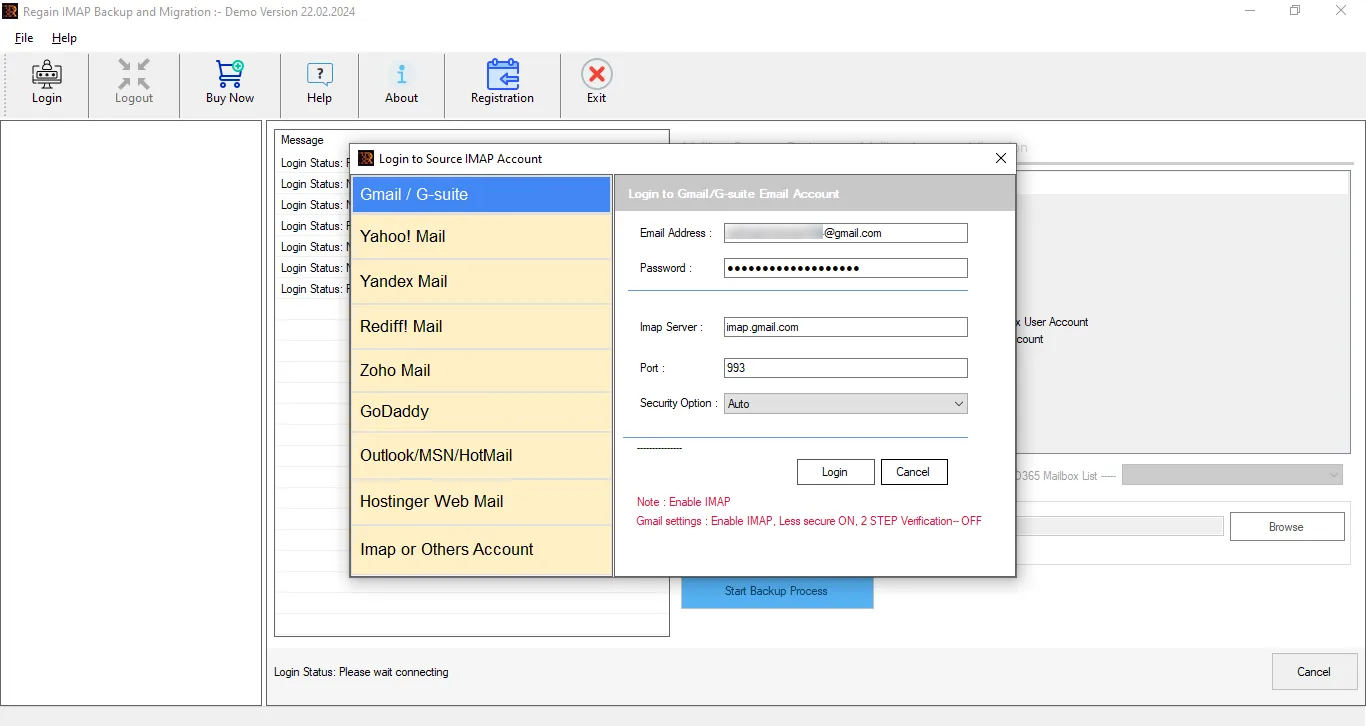
- Step1: Firstly, launch the Regain IceWarp Export Tool on your screen. Select IMAP and Other Accounts.
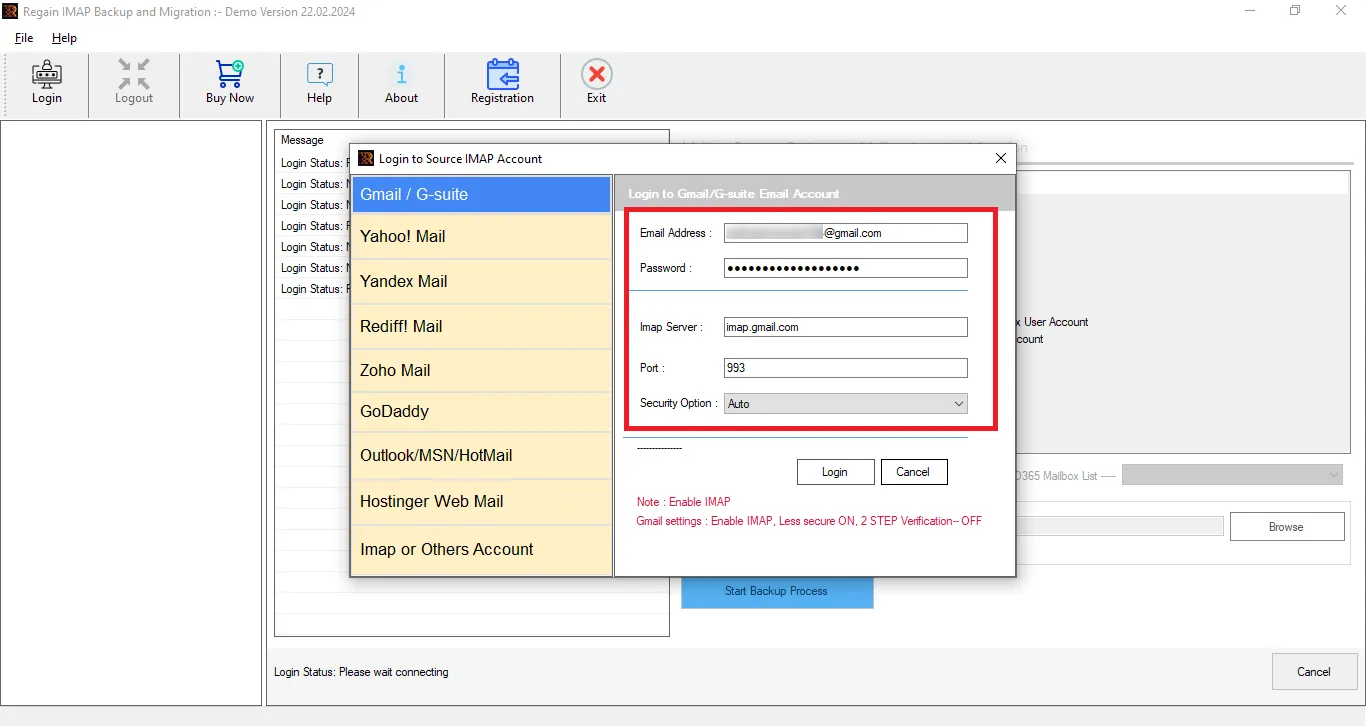
- Step2: Now, enter the login credentials of your IceWarp account.
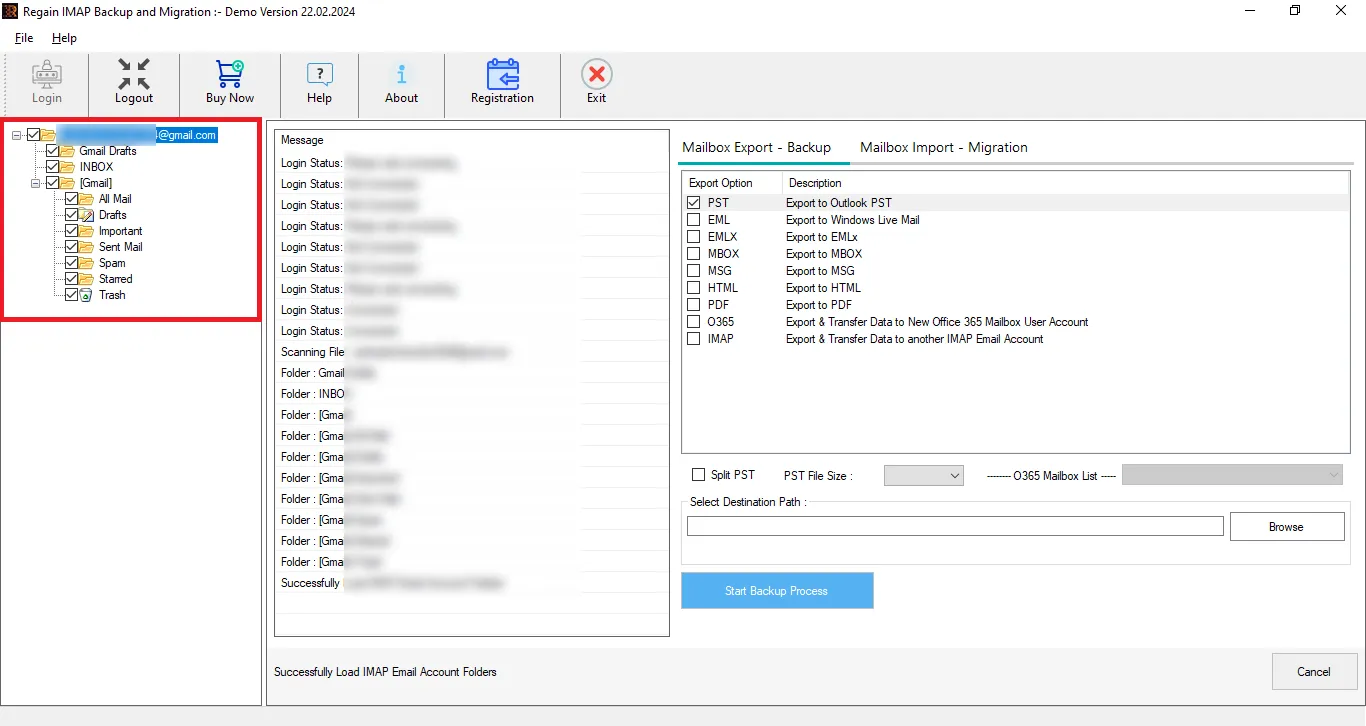
- Step3: Then, the software will provide a preview of the mailbox.
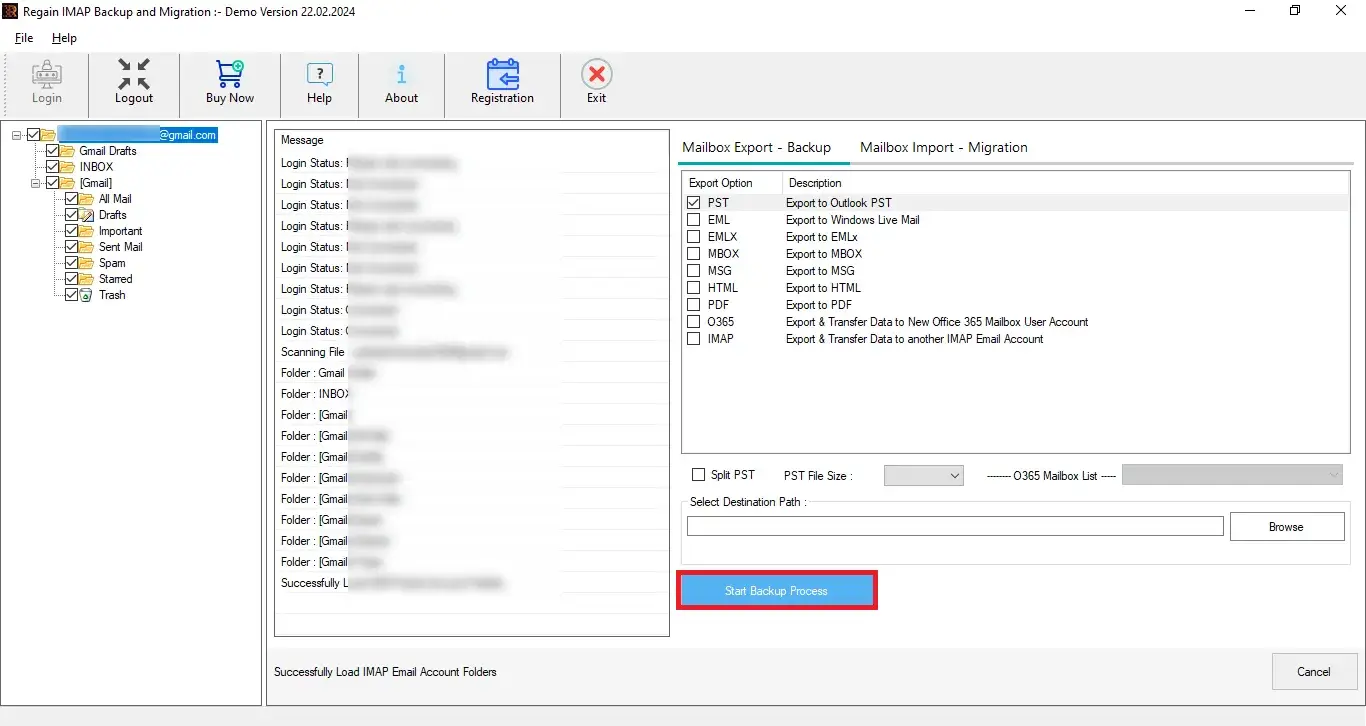
- Step4: Now, select and enter the destination account credentials. If exporting to any file format, then simply select the file format.
- Step5: And start exporting.
Other Exclusive Features of the Regain IMAP Backup and Migration Tool:
- It offers users the ability to export from any IMAP to another IMAP email client/ server.
- Users get a preview before exporting to select/deselect folders.
- No size limitations on the mailbox for backup/migration.
- This tool supports Zoho / Yahoo / Gmail / Outlook / Yandex and IMAP accounts.
- This software facilitates users exporting from IceWarp emails to Office 365, Exchange on-premises and Google Workspace.
- It offers a free demo version of the software to check its compatibility.
Final Verdict:
Transferring IceWarp emails can be done using manual methods like IMAP configuration, but these methods often require time, effort, and technical understanding. They may also lead to issues like data loss or incomplete migration, especially when dealing with large mailboxes. For a smooth and reliable experience, using a professional IMAP Migration Tool, is a better choice. It simplifies the entire process, saves time, and ensures that all your emails are transferred safely without any loss. A free demo of this utility is also available to download.
Related Articles:

