Export Walla Mail to Gmail, Outlook, Office 365 and Various Targets


Updated On - June 29, 2026 by Nasir Khan | Reading Time: 4 minutes
Have you been using Walla Mail for many years to manage your personal or business emails? Over the period, your inbox may have stored thousands of important messages, attachments, and other details. While Walla Mail is reliable, many users eventually look for ways to export Walla Mail emails to multiple accounts for backup, easier access, or account migration.
In this blog, we will explain why exporting emails from Walla Mail is important and provide simple, effective methods to export/backup your Walla Mail emails safely to multiple email accounts and various file formats .
Walla Mail: At a Glance
Walla Mail is a web-based email service provided by Walla! Communications Ltd., one of Israel’s well-known internet companies.
Walla Mail is an email platform that allows users to:
- Send and receive emails.
- Store messages and attachments.
- Organize emails into folders.
- Access mail through a web browser.
Note: Explore our Microsoft 365 Email Migration Guide to learn how to migrate emails from popular webmail services and legacy email platforms to Microsoft 365 while maintaining mailbox integrity and accessibility.
Why Do People Export Emails from Walla Mail?
Here are the main reasons why people export Walla Mail emails.
- Backup and Data Safety: People export emails from Walla Mail to create a secure backup of their emails. This protects important messages from accidental deletion and hacking.
- Better Email Management: Modern email platforms (like Gmail, Yahoo, and Outlook) offer advanced search, filters, and 2-factor data authentication, which encourages users to export Walla Mail data.
- Free up space: There may be a limitation in storing more emails in Walla Mail, so by transferring your old or unused emails, you can keep your important emails safe and keep free space.
- Offline Access: Exporting emails from Walla Mail also allows you to access your emails offline. By saving them to your computer or another email account, you can read, search, and organize messages without needing the internet.
Possible Methods to Export Emails from Walla Webmail
In this section, we will explain two ways (Manual Strategies and Professional Utility) to export Walla Webmail emails. After going through both methods, you can choose the one that best suits your needs.
Manual Methods:
1. Exporting Emails from Walla Mail to Gmail
- Firstly, log in to your Walla Mail account.
- Now, go to Settings → Forwarding & POP/IMAP.
- Log in to your Gmail account.
- Go to Settings → Accounts and Import → Check mail from other accounts.

- Click Add a mail account.
- Now enter your Walla Mail email address.
- Choose Import emails from my other account (POP3) or, if available, IMAP.
- Enter the password for Walla Mail.
- Fill in the server settings:
- Incoming server: imap.walla.co.il
- Port: 993
- Security: SSL/TLS enabled
- Click Add Account.
- Gmail will now start importing your Walla Mail emails.


2. Export Walla Mail Emails to Outlook
-
- First, log in to your Walla Mail account.
- Go to Settings → Forwarding & POP/IMAP and make sure IMAP is enabled.
- Open Outlook on your computer.
- Navigate to File → Add Account.
- Enter your Walla Mail email address.
- Select IMAP as the account type.
- Type in your Walla Mail password.
- Enter the following server details:
- Incoming server: imap.walla.co.il
- Port: 993
- Security: SSL/TLS enabled
- Outgoing server: smtp.walla.co.il
- Port: 465 or 587
- Security: SSL/TLS enabled
- Click Next or Add Account to finish.
- Outlook will begin syncing your Walla Mail emails.
Drawbacks of the Manual Method: Why Do Professionals Avoid Them?
- This process takes more effort and lots of time.
- You will need sufficient technical knowledge to perform the manual method.
- Just one wrong setting can increase the chances of data loss.
- There is a risk of file corruption during the synchronization process.
- For bulk data export it is not preferred as various risks are associated.
Professional Solution with the Regain Software (Regain IMAP Backup and Migration Tool)
The Regain IMAP Backup and Migration Tool is the best and most reliable method to export Walla Mail. The utility allows users to export all emails from Walla Mail to Gmail (Google Workspace), Yahoo Mail, Office 365, Zoho Mail, etc.
Free Download100% Secure Buy NowPrice: $99
You can complete this export process easily by following just a few steps.
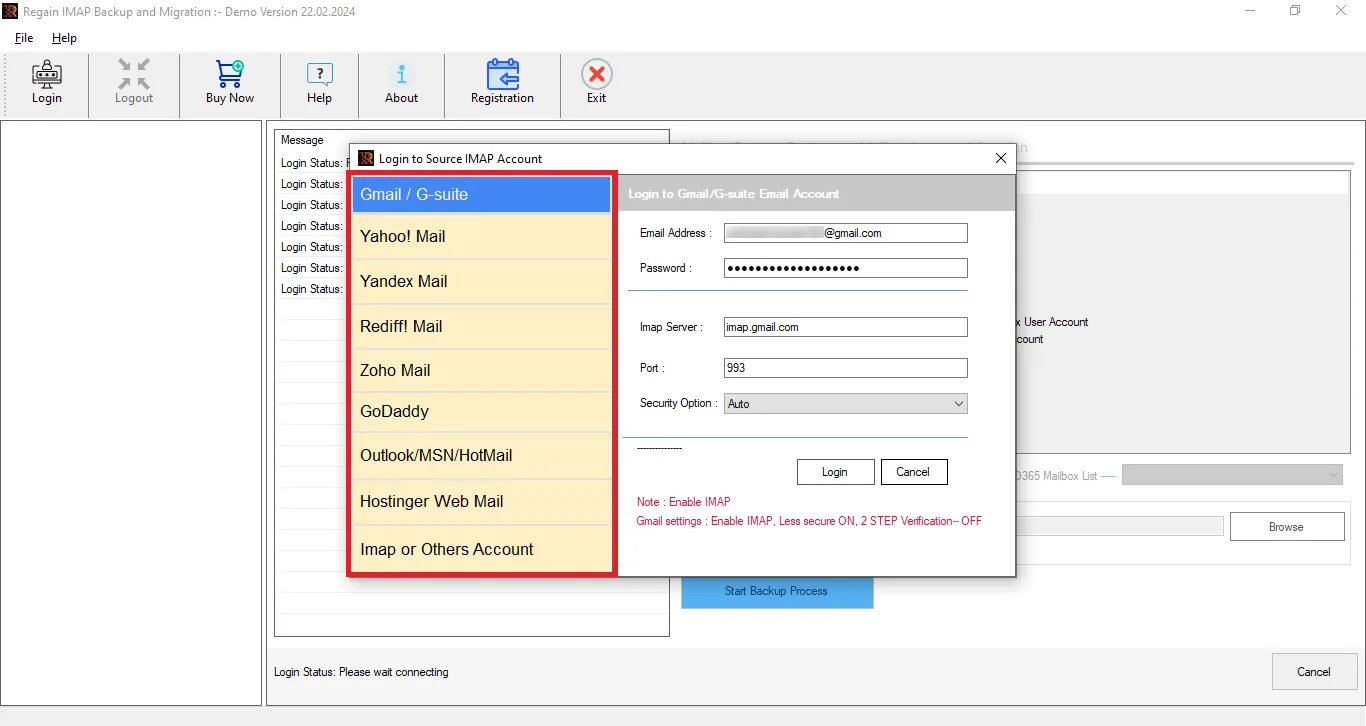
- Step1: Firstly, install and launch the Regain IMAP Migration Tool on your system.
- Step2: Now select the IMAP or Other Accounts option from the left pane, enter the login credentials of Walla Mail to connect it.
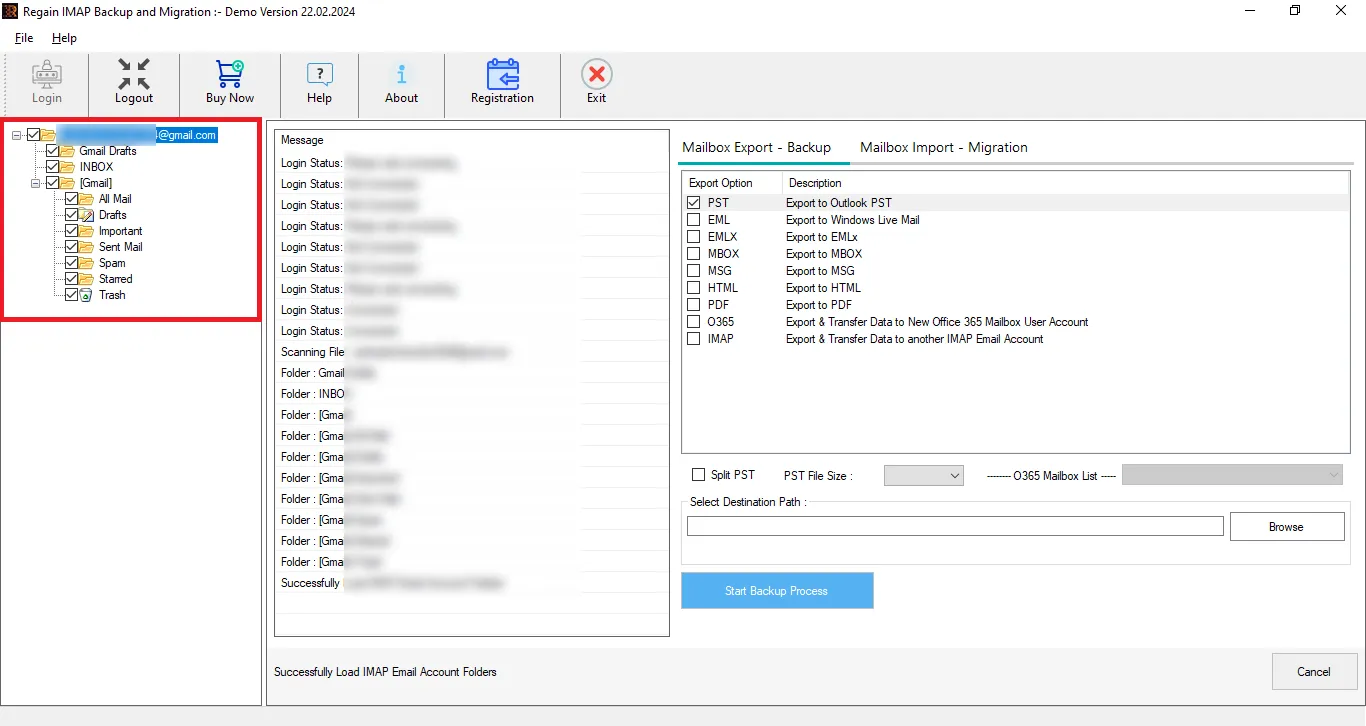
- Step3: Here, you can preview the files and folder details per your requirements.
- Step4: Now, select the destination, and if it is a server, enter the destination account credentials. To backup, select the desired file format.
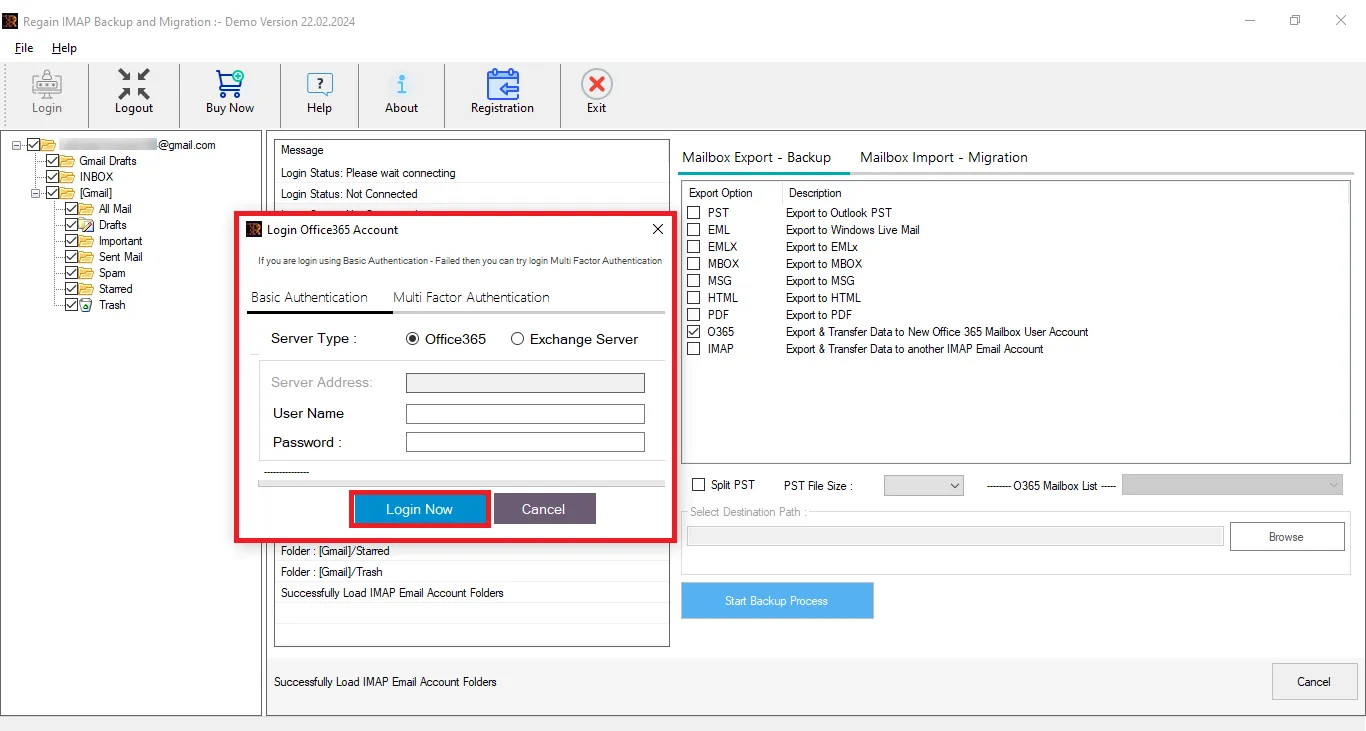
- Step5: You can also directly migrate to Microsoft 365/ Exchange Server/Any IMAP, enter the credentials.
- Step6: Click on the Export Now to start the email exporting.
Soon, all your Walla Mail emails will be exported.
Benefits of Using Regain Walla Mail Migration Tool:
- No restriction on the number and size of the mailboxes.
- It can migrate Walla Mail to any MAP Email account like Gmail, Zoho.
- Supports exporting to Office 365 as well as Exchange Server.
- Multiple file formats like PST (to access emails in Outlook), PDF, MBOX, EML, MSG are available for the backup.
- This professional utility properly maintains the folder hierarchy.
- Facility to preview the mailbox data.
- A free demo version and 24*7 technical support is available.
Conclusion:
Exporting emails from Walla Mail is a smart decision for users who want better email management, data safety, and easy access across platforms. Overall, exporting Walla Mail emails ensures long-term access to your data and a smoother email experience. The manual method can be time-consuming and require extra effort and can cause data loss, so we suggest you Regain Walla Mail Export Tool (Regain IMAP Backup and Migration Tool), which can do your export task in just a few steps and that too in a very safe manner. A free demo version is also available.

