Migrate QQ Emails to Outlook, Gmail, Microsoft 365, and Other Targets


Updated On - September 24, 2026 by Nasir Khan | Reading Time: 8 minutes
If you are using QQ Mail for email management but now want to switch to another email platform, such as Microsoft 365, Gmail (Google Workspace), or any other email client, then migrating your QQ emails becomes necessary. Many users move their emails to a new platform for better features, improved accessibility, or easier email management. Moreover, if you want to export emails for backup purposes, then here is the solution for you.
In this blog, we will discuss different methods to migrate QQ emails, including manual approach and a professional solution that allows you to transfer your QQ emails safely without losing any data.
A Quick Overview of QQ Mail:
QQ Mail is a well-known email service developed by Tencent and is widely used for sending, receiving, and managing emails. It provides users with a secure and reliable platform for personal as well as professional communication.
Reasons to Migrate QQ Mail to Outlook, Gmail, Office 365 or Any Other Platform:
- Better Email Accessibility: Platforms like Gmail and Microsoft 365 allow easy access to emails from any device and location.
- Advanced Security: Modern email platforms provide strong security features such as two-factor authentication, spam protection, and encryption.
- Integration with Productivity Tools: Gmail integrates with Google services like Google Drive and Google Meet, while Microsoft 365 integrates with tools such as Word, Excel, and Teams.
- Access without Internet and Back-up Purposes: Exporting emails from QQ Emails also allows you to access your emails offline. By saving them to your computer or another email account, you can read, search, and organize messages without needing the internet.
Note: Want to explore more migration methods? Visit our Microsoft 365 Email Migration Guide for step-by-step instructions, migration best practices, and solutions for moving emails from various platforms to Microsoft 365.
How to Migrate QQ Mail Emails – 4 Manual Methods
In this section, we will explain Five ways to migrate emails from QQ Mail to other email platforms, such as Outlook, Gmail and Microsoft 365. The first four method is a manual, and the Fifth method is a professional utility.
After reading all methods, you can choose the option that best matches your requirements and technical knowledge.
Method1: Migrate QQ Mail to Outlook Using IMAP
- Sign in to QQ Mail and go to Settings → Accounts. Under POP3/IMAP/SMTP Service, enable IMAP/SMTP Service.
- Follow QQ Mail’s verification process to generate an authorization code. Save this code because it will be used as the password in Outlook.
- Open Classic Outlook → File → Add Account. Enter your QQ Mail address, select Advanced options → Let me set up my account manually → Connect, and choose IMAP.
- When Outlook asks for the password, enter the QQ Mail authorization code, not your regular QQ Mail password.
- Once Outlook connects successfully, QQ Mail folders and messages will begin synchronizing with Outlook.
- To migrate the emails to another mailbox, add the destination account to Outlook and copy or move the required emails/folders from the QQ Mail account to the destination account.
Method2: Download QQ Mail Emails Using POP3
You can download QQ Mail emails to an email client such as Outlook using POP3.
- Enable POP3 in QQ Mail: Go to Settings → Accounts and enable POP3/SMTP Service.
- Generate an authorization code: Complete QQ Mail’s verification process and save the authorization code. Microsoft confirms that this code is used instead of the regular QQ Mail password when adding the account to Outlook.
- Add QQ Mail to Outlook: Open Outlook → File → Add Account → Advanced options → Let me set up my account manually → POP.
- Enter the QQ Mail credentials: Enter your QQ email address and use the authorization code as the password.
- Download emails: Outlook will download the available QQ Mail messages to your computer.
Note: POP3 is mainly suitable for downloading or backing up emails. For a complete mailbox migration with better folder synchronization, IMAP is generally the preferred method.
Method3: Migrate QQ Mail to Gmail Using IMAP
- Enable IMAP in QQ Mail: Open QQ Mail → Settings → Accounts and enable IMAP/SMTP Service.
- Generate an authorization code: QQ Mail requires an authorization code for third-party email applications. Save this code for authentication.
- Add QQ Mail to an email client: Configure QQ Mail using IMAP and the authorization code.
- Add your Gmail account to the same email client.
- Transfer emails: Select the required QQ Mail folders/emails and copy or move them to the corresponding Gmail folders.
- Allow synchronization to complete and verify the migrated emails in Gmail.
Method4: Migrate QQ Mail to Microsoft 365 Using IMAP
- Create the target mailboxes in Microsoft 365 and assign the required licenses.
- Enable IMAP in QQ Mail and obtain the required authorization code.
- In the Exchange Admin Center, create an IMAP migration endpoint using the QQ Mail IMAP server details. Microsoft requires the source IMAP server information and uses port 993 with SSL for IMAP connections.
- Prepare the migration CSV containing the Microsoft 365 email address and the required QQ Mail mailbox credentials.
- Create an IMAP migration batch in the Exchange Admin Center and upload the CSV.
- Start the migration and monitor the batch until synchronization is complete.
- Verify the migrated emails and then change the MX record to route new mail to Microsoft 365.
Important limitation: Microsoft 365’s IMAP migration moves email messages and folders, but it does not migrate contacts, calendars, or tasks.
Limitations of Manual Methods:
Although the manual methods work, they have several drawbacks, hence professionals don’t use them.
- The process is time-consuming.
- Requires technical configuration.
- Risk of data loss during synchronization.
- Not suitable for large mailboxes.
- Bulk migration becomes difficult.
Because of these limitations, professionals prefer an automated/professional solution.
QQ Mail IMAP/POP3 Settings
Use the following settings when configuring QQ Mail in an email client such as Outlook, Gmail or Microsoft 365:
| Setting | IMAP | POP3 | SMTP Server |
|---|---|---|---|
| Incoming Server | imap.qq.com | pop.qq.com | smtp.qq.com |
| Port | 993 | 995 | 465 |
| Encryption | SSL/TLS | SSL/TLS | SSL/TLS |
| Username | Your full QQ Mail address | Your full QQ Mail address | Your full QQ Mail address |
| Password | QQ Mail Authorization Code | QQ Mail Authorization Code | QQ Mail Authorization Code |
Note: Before connecting, enable IMAP/SMTP or POP3/SMTP in QQ Mail under Settings → Accounts. QQ Mail uses an authorization code instead of your regular password when connecting through third-party email clients.
How to Generate QQ Mail Authorization Code
QQ Mail requires an authorization code when you connect your account to third-party email clients such as Outlook, Gmail, Microsoft 365 or any other third party tool like Regain Software. Your regular QQ Mail password is not used for this connection.
Steps to generate the authorization code:
- Sign in to your QQ Mail account.
- Go to Settings → Accounts.
- Under POP3/IMAP/SMTP Service, enable POP3/SMTP Service and/or IMAP/SMTP Service.
- Complete the verification shown on the screen.
- If required, switch the QQ Mail interface to Simplified Chinese.
- In the same service section, select the option to generate an authorization code.
- Follow the verification instructions, which may require sending a verification code from your mobile phone.
- After successful verification, QQ Mail will display an authorization code. Copy and save it securely.
Why is it required?
The authorization code acts as a separate password for third-party email applications. When adding QQ Mail to Outlook or another email client, enter this authorization code instead of your regular QQ Mail password.
Method5: Professional tool for QQ Mail Migration (Regain IMAP Migration Tool)
By using the Regain QQ Mail Migration Tool (AKA Regain IMAP to IMAP Migration Tool), you can easily export QQ Email to various other email platforms. This tool is a trusted, tried and tested by users and experts. This tool can export QQ mail in bulk. Its simple and friendly graphic design is also useful for non-technical users.
Free Download100% Secure Buy NowPrice: $49
Following are the Steps to Migrate QQ Mail email to Gmail and other Email server:
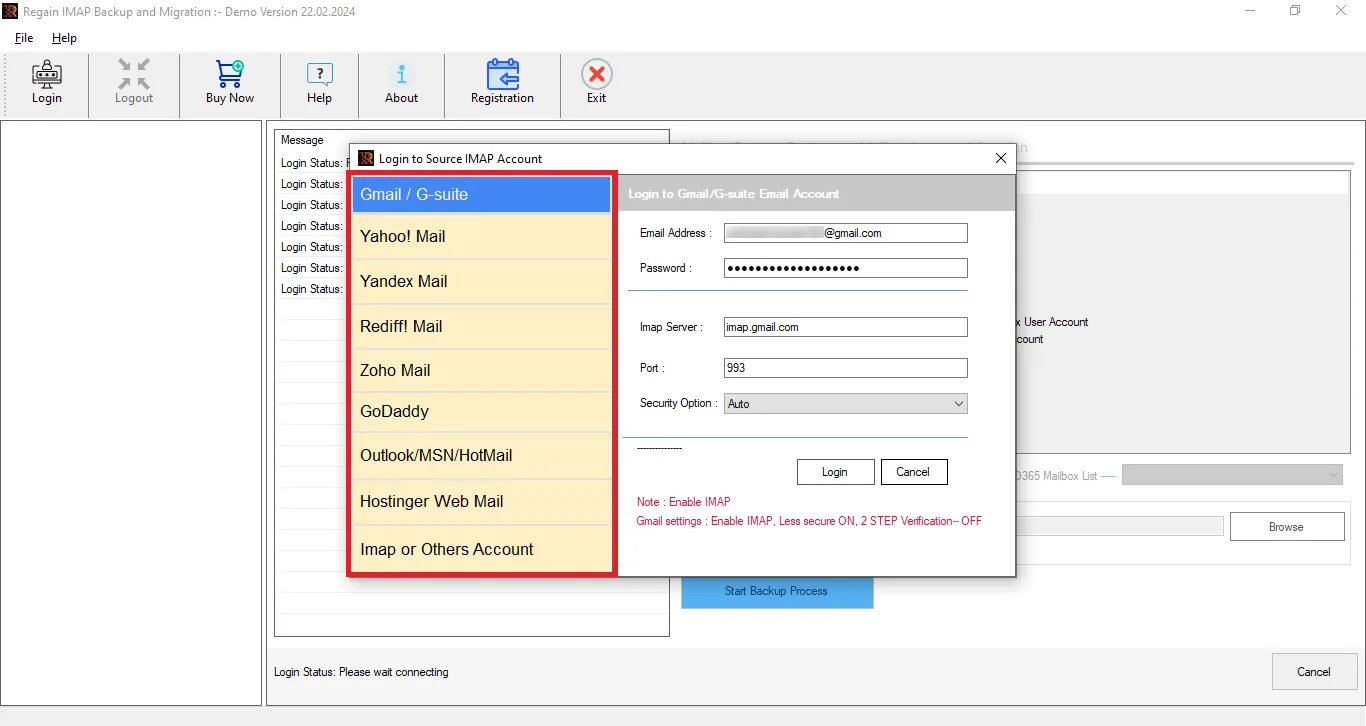
- Step1: Firstly, launch the Regain QQ Mail Migration Tool on your screen.
- Step2: Now, click on the IMAP or Other Accounts and enter the login credentials of your account.

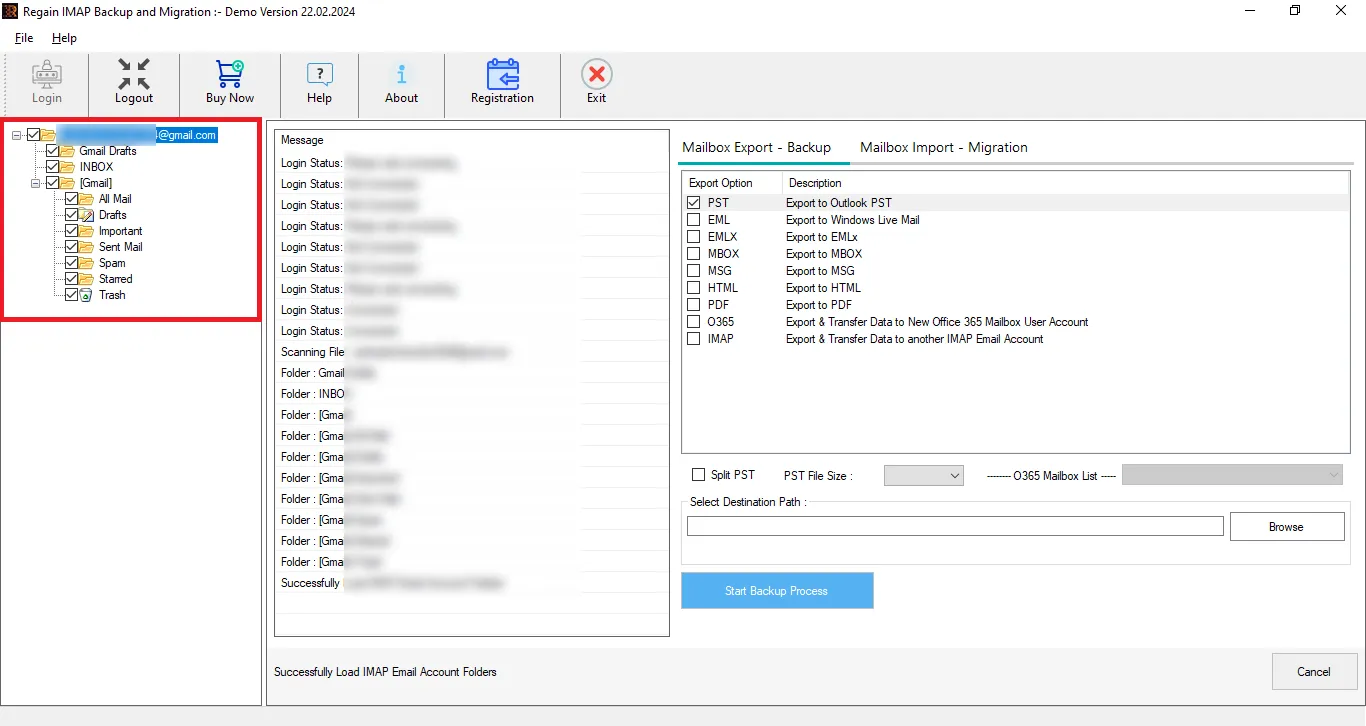
- Step3: Then, the software will provide a preview of the mailbox.
- Step4: Now, select and enter the destination account (Google Workspace, Microsoft 365) credentials. Moreover, you can select the file format if you want to export within it.)
- Step5: And start exporting.

Other Salient Features of the Regain IMAP Backup and Migration Tool:
- Regain QQ Email Migration Tool (Regain IMAP Migration Tool) supports Zoho, Yahoo, Gmail (Google Workspace), Yandex, and all IMAP accounts.
- The Regain IMAP Backup and Migration tool offers a preview facility before exporting to select/deselect folders.
- Users can save their QQ emails into PST, MBOX, EML, PDF, and MSG formats.
- The Regain IMAP Backup and Migration tool maintains folder hierarchy and email structure after the export process.
- This software facilitates users exporting from QQ emails to Office 365 and Exchange on-premises.
- It offers a free demo version of the software to check its compatibility.
- The Regain QQ Mail Migration Tool is compatible with all Windows OS and provides free technical support to users.
Gist of the Blog:
Migrating emails from QQ Mail to modern email platforms like Gmail and Microsoft 365 can help users improve email accessibility, security, and overall management. In this blog, we discussed manual methods that allow users to transfer their emails using IMAP configuration and email clients.
However, these manual methods can be time-consuming and may require technical knowledge, especially when dealing with large email mailboxes. Therefore, if you want a faster and more reliable solution, using a professional migration tool (Regain QQ Mail Migration Tool) can make the process much easier and safer.
Frequently Asked Questions
Q1. Can I migrate QQ Mail emails without third-party software?
Yes. You can manually migrate QQ Mail using IMAP and an email client such as Outlook.
Q2. Why do I need a QQ Mail authorization code?
QQ Mail uses an authorization code for third-party email clients such as Outlook instead of your regular account password.
Q3. Can I migrate QQ Mail to Gmail using IMAP?
Yes. You can configure QQ Mail and Gmail in an IMAP-supported email client and copy emails between the accounts. To make all the process easy use Regain IMAP Migration tool. It takes few minutes to complete your tasks.
Q4. Can I migrate QQ Mail to Microsoft 365?
Yes. Microsoft 365 supports IMAP-based email migration, allowing you to migrate QQ Mail messages and folders to Microsoft 365. However, IMAP migration does not transfer contacts or calendars.
Q5. What is better for QQ Mail migration: IMAP or POP3?
IMAP is generally better for migration because it synchronizes mail folders and messages. POP3 is more suitable for downloading or backing up emails.
Q6. Is there an easier way to migrate QQ Mail emails?
Yes. If you have a large QQ Mail mailbox or want to avoid the limitations of manual IMAP/POP3 migration, you can use the Regain QQ Email Migration Tool. Yes. If you have a large QQ Mail mailbox or want to avoid the limitations of manual IMAP/POP3 migration, you can use the Regain QQ Email Migration Tool. It is easy, safe and fast migration process. Whenever be user require any help, Our support team always ready to help.

