Juno Email Migration – Professional Guide


Updated On - June 29, 2026 by Nasir Khan | Reading Time: 4 minutes
Are you planning to migrate your Juno emails to another email service like Gmail, Outlook, Yahoo, Office 365, or Thunderbird? If yes is your answer, then you’re in the right place. This complete guide will help you understand Juno Mail, why users migrate from it, all possible manual methods, their limitations, and the best professional solution to ensure a 100% safe and successful migration without data loss.
What is Juno Email?
Before the Juno email migration process, let’s look at Juno emails. Juno is a popular email service that was launched in the 1990s by United Online. It allows users to send, receive, and manage their emails through a web browser.
Why Do Users Migrate Juno Emails?
- Limited Storage Space: Juno offers very low email storage. Once the mailbox becomes full, users cannot send or receive emails smoothly. Therefore, people switch to platforms like Gmail and Outlook that offer much larger storage capacity.
- Security Concerns: Modern email services offer 2-factor authentication, encryption, spam protection, and advanced security filters. Juno lacks these features, so users migrate to safer platforms.
- Risk of Data Loss: If the email storage reaches its limit or the Juno server faces downtime, important emails might get lost. Having another copy of email data ensures data safety and long-term access.
- Anywhere Access and All-in-One Plans: Modern email platforms sync automatically across devices and provide cloud storage. Users migrate to platforms that offer accessibility from anywhere. Office 365 is a one-stop solution for email management as well as other services.
Note: Explore our Microsoft 365 Email Migration Guide to learn how to migrate emails from popular webmail services and legacy email platforms to Microsoft 365 while maintaining mailbox integrity and accessibility.
Methods to Migrate Juno Emails
Here, we will discuss two solutions for accomplishing the migration process of Juno emails. After evaluating both of them, you can choose accordingly; however, professionals always go with the advanced third-party solution.
Manual Method to Migrate Juno Mail to Office 365 by Adding to Outlook:
- Open MS Outlook → Click File → Add Account.
- Choose manual setup or additional server types.
- Select POP or IMAP.
- Enter your details:
- Email: yourname@juno.com
- IMAP Server: imap.juno.com
- SMTP Server: smtp.juno.com
- Port 993 (IMAP) / 587 (SMTP)
- Go to More Settings → Outgoing Server → Enable Authentication
- Click Advanced → Select SSL/TLS
- Click on Test Account Settings.
- Click Finish.
Note: Now, you can create a PST file out of the Outlook of Juno Mail account. After that you can choose any manual method like Network Upload or directly Export Juno Mail to Office 365.
Manual Method to Migrate Juno Emails to Gmail
- Firstly, log into your Gmail account.
- Click Settings → See all settings.

- Now, go to the Accounts and Export tab and click Add a Mail Account.
- Now, enter your Juno email address and click Next.
- Choose Import emails from my other account (POP3) → Next.
- Enter your Juno username, password, and POP server details.
- Click Add Account.
- Select Finish to complete the setup.


Limitations and Shortcomings of Manual Methods:
- Inefficient: The process is extremely time-consuming for any significant number of emails.
- Requires Technical Skill: This manual method may require technical expertise or tough settings for users.
- Accidental Deletion: Using the manual method can lead to accidental deletion and missing files when you are exporting large data.
- Missing Hierarchy: By exporting using the manual method, you may lose the hierarchy and structure of your folders.
Method 2 – Migrate with Professional Tool (Regain Juno Email Migration Tool)
The Regain Juno Email Migration Tool is a professional’s acclaimed, reliable method to transfer Juno Email. The utility allows users to migrate all emails from Juno Mail to Gmail, Yahoo Mail, Office 365, Zoho Mail, etc.
Free Download100% Secure Buy NowPrice: $99
To perform this export task, you need to follow some simple steps, which are as follows:
Step1: First, install the Regain IMAP Backup and Migration Tool on your system.
Step2: Now, select IMAP or others and enter the login credentials (username and password) of your account. 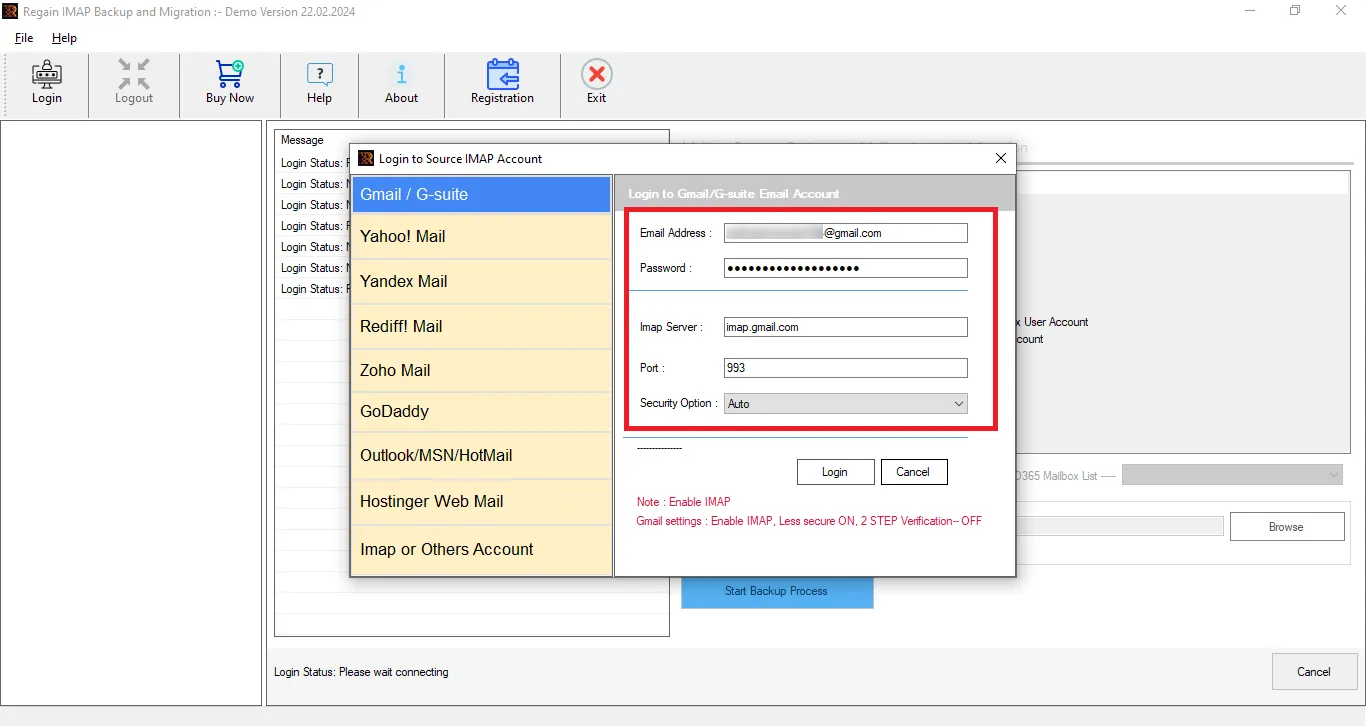
Step3: Here, you can preview the files and folder details per your requirements. 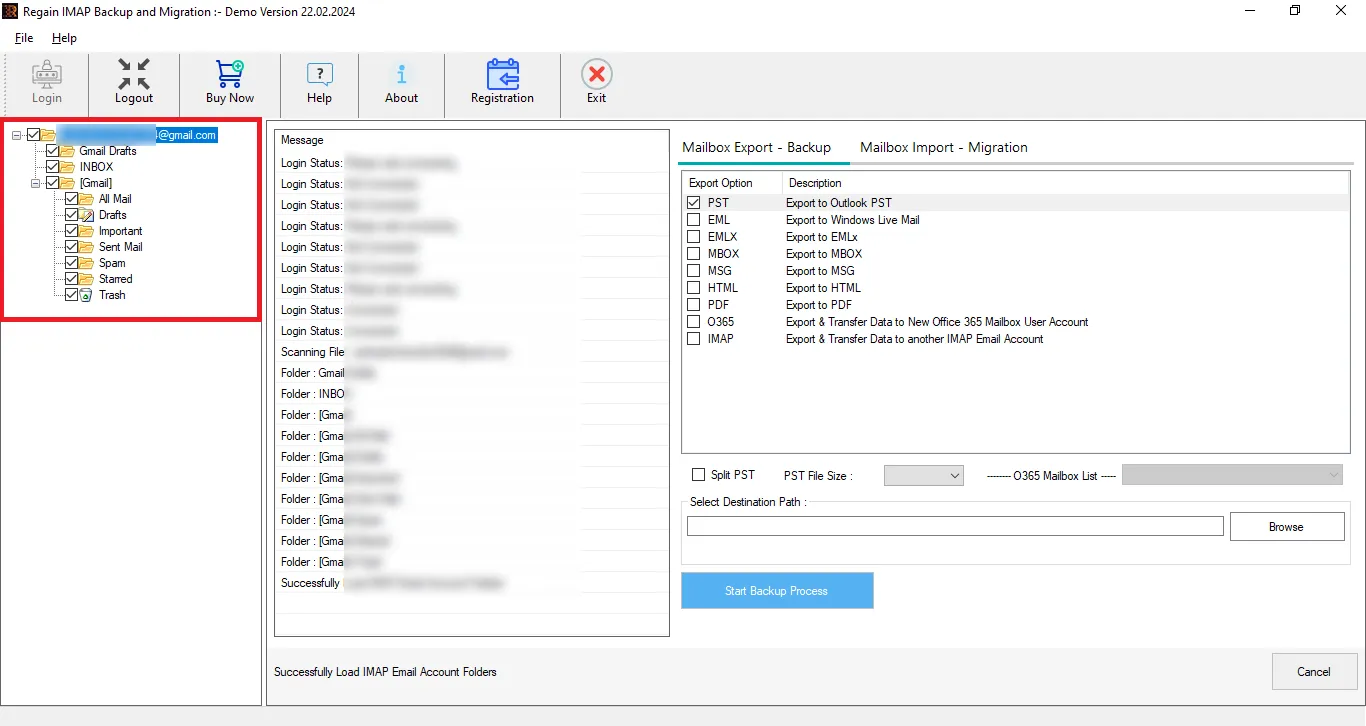
Step4: Now, select mailbox Import-Migration option, select target and enter the target account credentials. 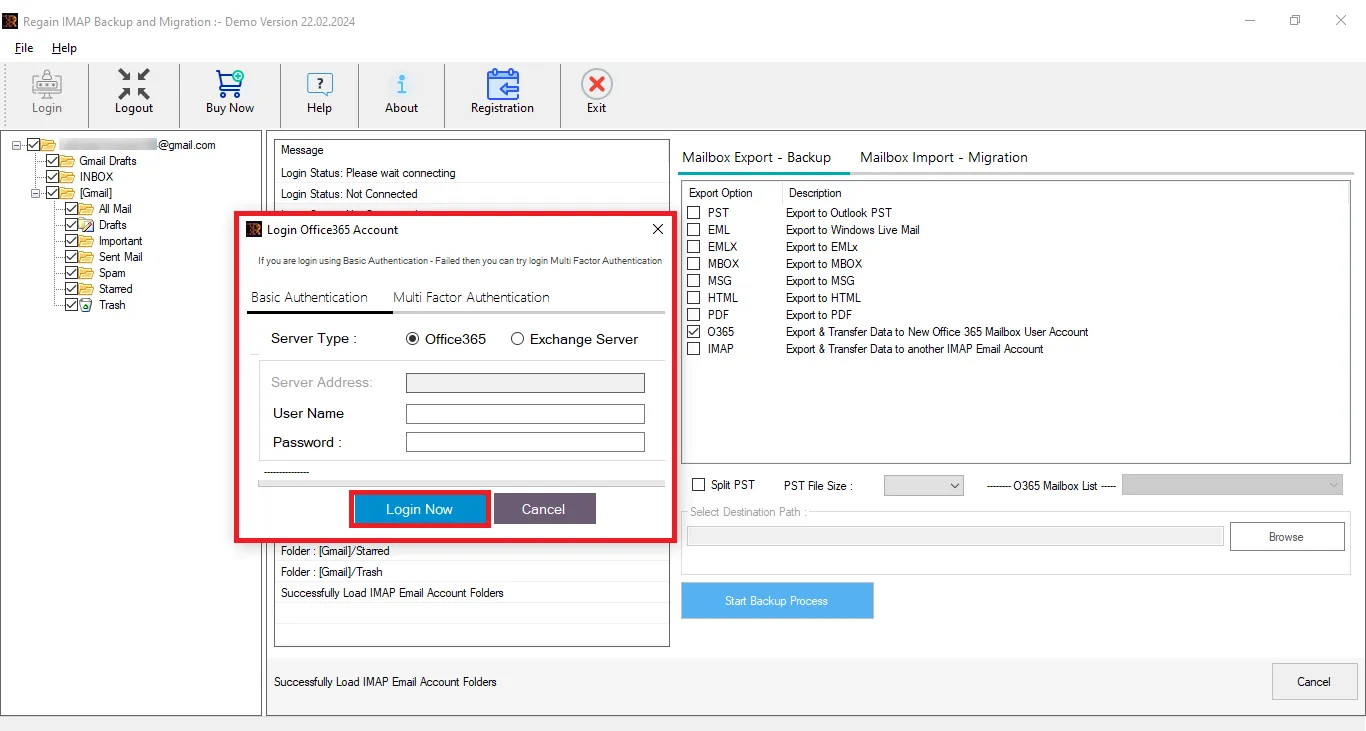
Step5: And it is time to start migrating.
Other Salient Features of the Regain Juno Email Backup and Migration Tool
- Regain Juno Email Migration Tool (Juno IMAP Backup and Migration Tool) supports Yahoo, Gmail, Yandex, and all IMAP accounts, including Juno.
- You can save your Juno emails in PST, MBOX, EML, PDF, and MSG formats.
- The Regain Juno Email Migration tool gives users the option to preview emails before migrating them.
- There are no size limitations on the mailbox for backup/migration.
- The Regain Juno Email Migration Tool maintains folder hierarchy and email structure after the migration process.
- Regain Juno Email Migration Tool is compatible with all Windows OS.
- This software offers a free demo version to evaluate its compatibility before purchase.
Final Words:
Juno email was once a useful service, but today it lacks modern features like cloud backup, high security, mobile synchronization, and quick access. Therefore, users are migrating to Gmail, Outlook, Yahoo, or Office 365 as per your need. Manual methods work only for a few emails, while a professional tool (Regain Email Migration Tool) is best for complete and secure migration.
Frequently Asked Questions:
Q1. Can I export my entire Juno mailbox at once?
A. Yes, with the help of the Regain Juno Email Migration tool, you can transfer a complete mailbox at once.
Q2. Does the tool support migration to Gmail, Outlook & Office 365?
A. Yes. The Juno Email Migration Tool supports multiple platforms, such as Imap to Google Workspace, Outlook / Office 365. Yahoo Mail and Zoho.
Q3. Is there any tool to migrate Juno emails automatically with all attachments?
A. Yes! A Regain Juno Email Migration Tool allows you to migrate all your emails with attachments, folders, metadata, and formatting.
Q4. Do I need technical skills to use this tool?
A. No! The software is designed with ease. It offers a simple, step-by-step interface that anyone can use easily.
Q5. Can I try the software before purchasing?
A. Yes, the tool provides a free demo version. You can test its compatibility before purchasing it.

