NetZero Email Migration – Read All Steps


Updated On - September 24, 2026 by Nasir Khan | Reading Time: 3 minutes
Many people still use NetZero email, but now they want to move to better platforms like Gmail, Outlook, Zoho Mail, or Office 365. NetZero has limited features and very little storage, so users prefer shifting to modern email services.
In this guide, you will learn why users move from NetZero, how you can migrate NetZero emails, and the easiest method to transfer all emails safely.
What is NetZero Email?
NetZero is an email service used by many people in the US. It gives a free email account but has limited features. Because of slow performance and less storage, users want to switch to other email services.
Why Do Users Migrate NetZero Emails?
Below are the main reasons why users decide to shift their NetZero mailbox to another email service:
- Moving to Better Email Platforms: People want smooth access, high speed, and modern features, which NetZero cannot provide. Switching to Gmail, Outlook, Yahoo, or Office 365 improves performance and reliability.
- Less Storage Space: NetZero gives very limited mailbox storage compared to modern services. When the inbox becomes full, new emails stop arriving.
- Limited Security Features: NetZero does not offer strong security options like 2-step verification or advanced spam protection. For secure communication, users migrate to services like Gmail or Office 365.
Note: Need additional migration resources? Our Microsoft 365 Email Migration Guide covers email clients, mail servers, and hosted platforms, helping you to migrate mailbox data securely and efficiently.
Methods to Migrate NetZero Emails
Here, we will discuss two solutions for accomplishing the migration process of NetZero emails. After evaluating both of them, you can choose accordingly; however, professionals always go with the advanced third-party professional solution.
1- Manual Methods
Manual Method to Migrate NetZero Emails to Gmail
- Log in to your Gmail account.
- Click the Settings (gear icon) → Select See all settings.

- Go to the Accounts and Import tab.
- Click Add a mail account under “Check mail from other accounts.”
- Enter your NetZero email address → Click Next.
- Choose Import emails from my other account (POP3) → Click Next.
- Now enter the required details:
- Username: Your full NetZero email address
- Password: NetZero email password
- POP Server: pop.netzero.net
- Port: 995
- Note: Check Always use SSL.
- Click Add Account to connect.
- Click Finish.


Manual Method to Export NetZero Emails to Yahoo Mail
- Sign in to your Yahoo Mail account.
- Click on the Settings icon → Select More Settings.
- Go to the Mailboxes tab.
- Click Add mailbox under “Mailbox list.”
- Select Other (POP) as the mailbox type.
- Enter your NetZero email address and click Next.
- Enter the following details:
- Username: Full NetZero email
- Password: NetZero email password
- Incoming POP Server: pop.netzero.net
- Port: 995
Note: Turn on SSL.
- Click Save to connect your NetZero account.
- Yahoo Mail will now start importing your NetZero emails.
Limitations and Drawbacks of the Manual Methods.
You can use the manual method given above, but it may come with several issues, which are as follows:
- The user must be technically sound while performing this export process, as a wrong setting may lead to your data loss.
- Manual methods may cost you more time and effort. It is not as simple as it looks.
- Using the manual method can lead to accidental deletion and missing files when you are exporting large data.
- You may lose the email hierarchy and other meta-properties.
Method 2: Migrate with Professional Tool (Regain IMAP Migration Tool)
With the help of Regain IMAP to IMAP Migration Tool, you can perform all the migration processes very easily and with complete accuracy. To perform this migration process, you need to follow some simple steps, which are as follows:
Free Download100% Secure Buy NowPrice: $49
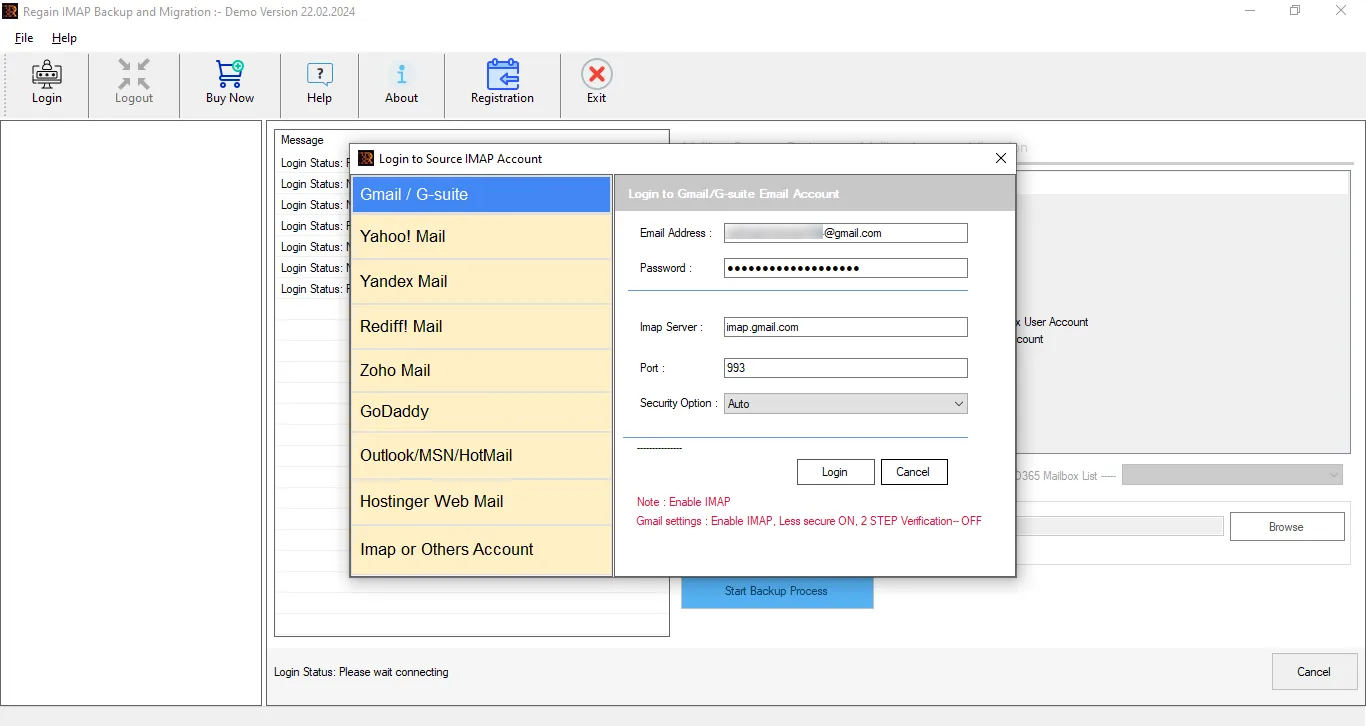
- Step1: First, install and open the Regain IMAP Migration Tool on your system.
- Step2: Then, enter the NetZero Emails login credentials (like username, password, and other things) of your account after clicking on IMAP or Other Account.
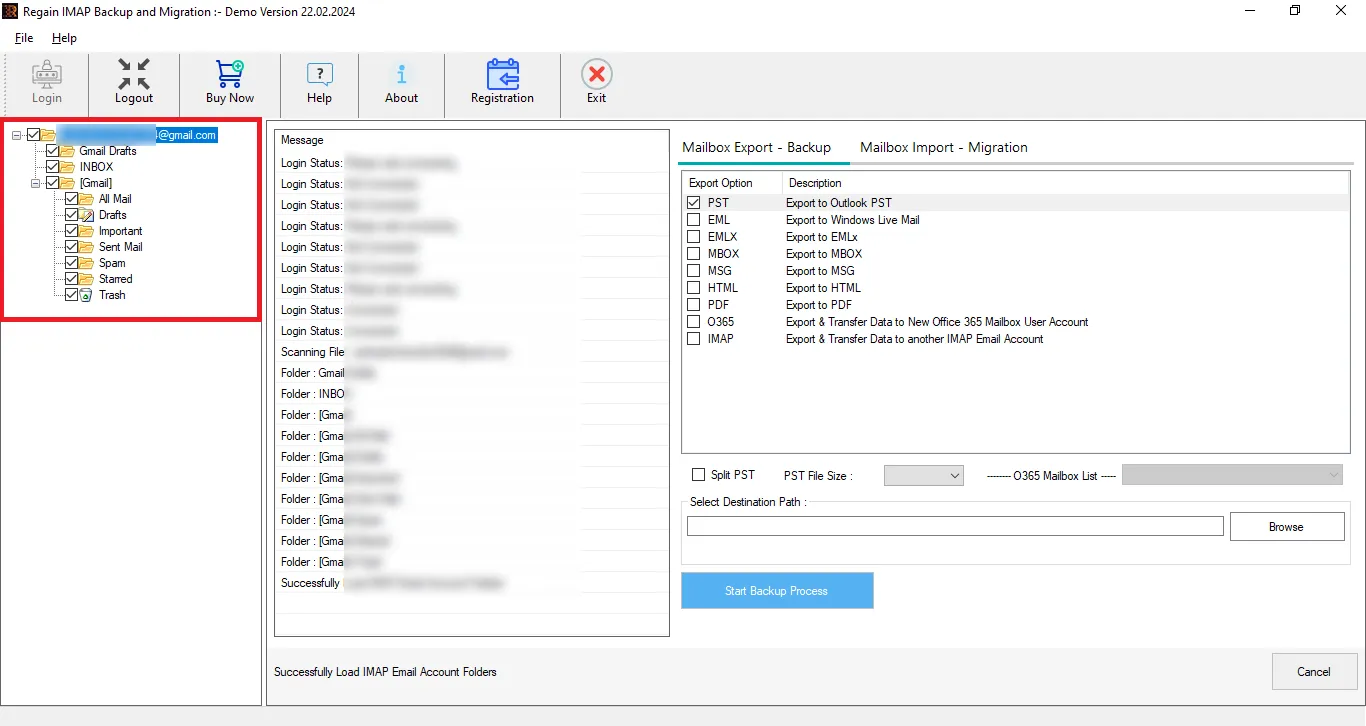
- Step3: You can also select and deselect the folder with the help of the Regain NetZero Emails migration tool preview facility.
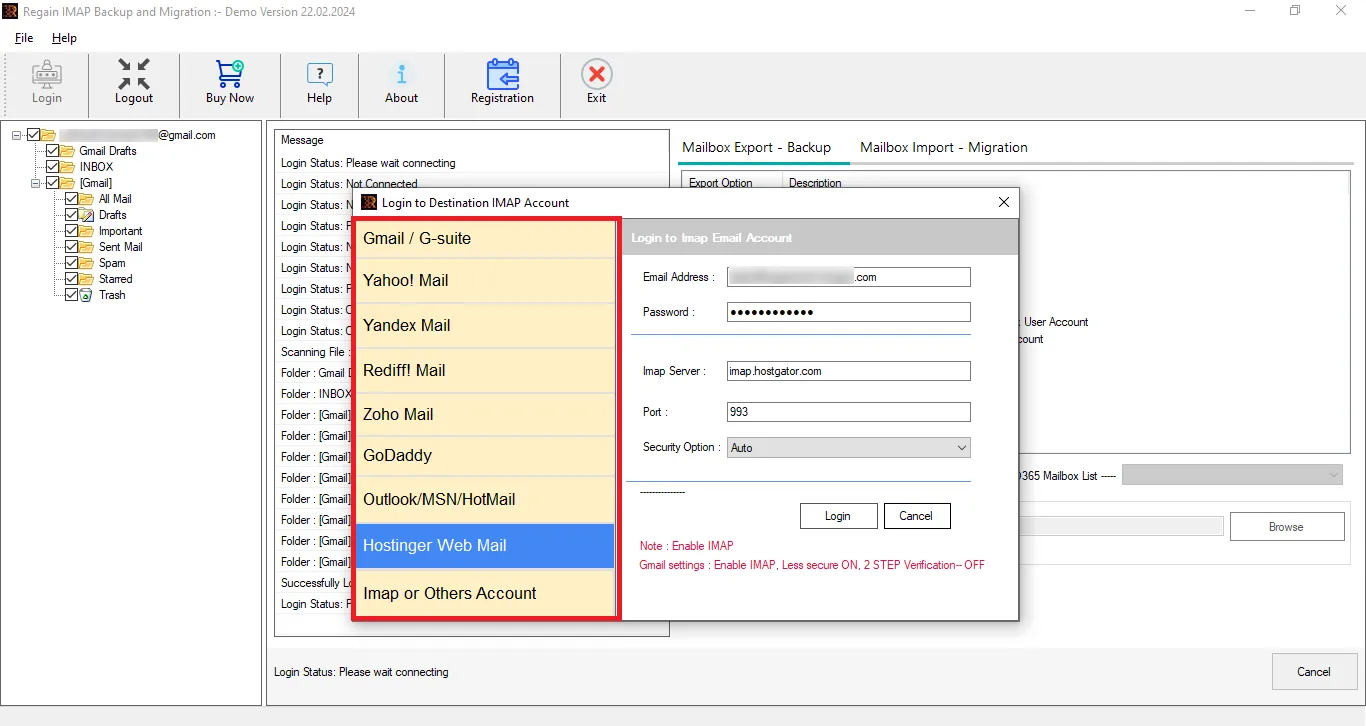
- Step4: Now, select the Mailbox Import-Migration option and enter the target account credentials for cloud migration. You can also back up the email in various file formats.
- Step5: Move accordingly, and the NetZero email migration process will start.
Other Salient Features of the Regain IMAP Backup and Migration Tool
- Regain NetZero Email Migration Tool (Regain IMAP Migration Tool) supports Zoho, Yahoo, Gmail, Yandex, and all IMAP accounts.
- The Regain IMAP Backup and Migration tool offers a preview facility before exporting to select/deselect folders.
- Users can save their NetZero emails into PST, MBOX, EML, PDF, and MSG formats.
- The Regain IMAP Backup and Migration tool maintains folder hierarchy and email structure after the export process.
- This software facilitates users exporting from NetZero Emails to Office 365, Exchange On-Premises and Google Workspace.
- The Regain IMAP Backup and Migration tool offers a free demo version of the software to check its compatibility.
Gist of the Blog:
Exporting NetZero emails to Gmail, Outlook, Office 365, Yahoo, or any other platform becomes essential when users want more advanced features, better storage, and a modern email experience. While manual methods exist, they are often slow, limited, and risky for large data. Using a professional solution like Regain Email Migration Tool is the simplest, fastest, and most secure solution—suitable for all users, including non-technical ones. Users also get 24*7 free technical support facility with Regain Software.

