Simplify Email Migration from Mweb to Office 365, Google Workspace, Outlook & Others


Updated On - September 24, 2026 by Armaan | Reading Time: 4 minutes
In recent years, many users have started looking for ways to export their Mweb emails. Whether it’s for backup, migration, or better accessibility, exporting emails has become an essential task for both individuals and businesses. If you are one of those users wondering how to migrate Mweb mail, this guide will walk you through everything—from manual methods to a professional solution.
Mweb Mail In A Glance:
Mweb Mail is an email service provided by Mweb, a South African internet service provider. It allows users to send, receive, and manage emails efficiently. However, due to limitations like storage restrictions, lack of advanced features, or switching to platforms like Gmail or Outlook, users often need to export their emails.
What Initiates Users to Migrate Mweb Emails?
There are several reasons why Mweb email users choose to migrate to Gmail/ Google Workspace, Outlook, Office 365, etc. Some of the key factors are outlined below:
- Better Features – Platforms like Office 365 and Google Workspace offer advanced tools and integrations. Mweb users miss the complete work-environment setup, as they find with Google Workspace or Microsoft 365.
- Increased Storage – Modern email services provide larger storage capacity compared to Mweb.
- Improved Security – Enhanced spam filters and data protection. It lacks impersonation protection, MFA and anti-phishing settings.
- Accessibility –To access emails anytime, anywhere, users migrate/export emails. Many users also take a regular backup of emails and save them in the preferred file format, like Outlook PST or MBOX.
Note: Want to explore more migration methods? Visit our Microsoft 365 Email Migration Guide for step-by-step instructions, migration best practices, and solutions for moving emails from various platforms to Microsoft 365.
Methods to Migrate Mweb Emails:
Here, we will discuss two ways to accomplish the migration process of Mweb emails. After evaluating both of them, you can choose accordingly; however, professionals always go with the advanced third-party professional solution.
Manual Methods
1) Manual Method to Migrate Mweb to Outlook
- Open Microsoft Outlook
- Go to File → Add Account.

- Choose Manual Setup (IMAP)
- Enter Details:
- IMAP Server: imap.Mweb.co.za
- Port: 993 (SSL)
- SMTP Server: smtp.Mweb.co.za
- Port: 587 (TLS)
- Enter login credentials.
- Finish setup
- After syncing:
- Go to File → Open & Export → Import/Export
- Export to a file >> Outlook data file and then Next.


2) Mweb to Office 365 Migration
Steps:
- Log in to your Office 365 account (Outlook Web App).
- Go to Settings → Mail → Sync Email.
- Select Other Email Account.
- Enter your Mweb details:
- Email address
- Password
- IMAP Server: imap.Mweb.co.za
- Port: 993 (SSL)
- Click Connect.
Office 365 will start syncing your Mweb emails.
3) Manual Method to Migrate Mweb to Google Workspace (Gmail)
- Log in to your Gmail account.
- Go to Settings → Accounts and Import.
- Click on “Add a mail account.”
- Enter your Mweb email address.
- Choose “Import emails using POP3.”
- Enter details:
- POP Server: pop.Mweb.co.za
- Port: 995
- Enable SSL
- Click “Add Account.”
- Gmail will begin importing your emails.


Limitations of Manual Methods: Why Professionals Avoid Them?
Although manual methods are free, they have several drawbacks. A professional must be aware of them before using.
- Time-consuming process as you have to monotonous task.
- Not suitable for bulk migration, as it may take days to accomplish a small mailbox migration.
- Risk of data loss; chances of human error are always there.
- No advanced filtering options.
- Requires technical knowledge, as you may encounter issues.
- Folder hierarchy may not be maintained.
Method 2: Migrate with Professional Tool (Regain IMAP Migration Tool)
To make the migration process fast, secure, and hassle-free, using the Regain Mweb Email Migration Tool (Regain IMAP Backup and Migration Tool) is highly recommended. This utility offers all the required features expected from a professional solution.
Free Download100% Secure Buy NowPrice: $49
Simple Steps to Migrate Mweb Emails:
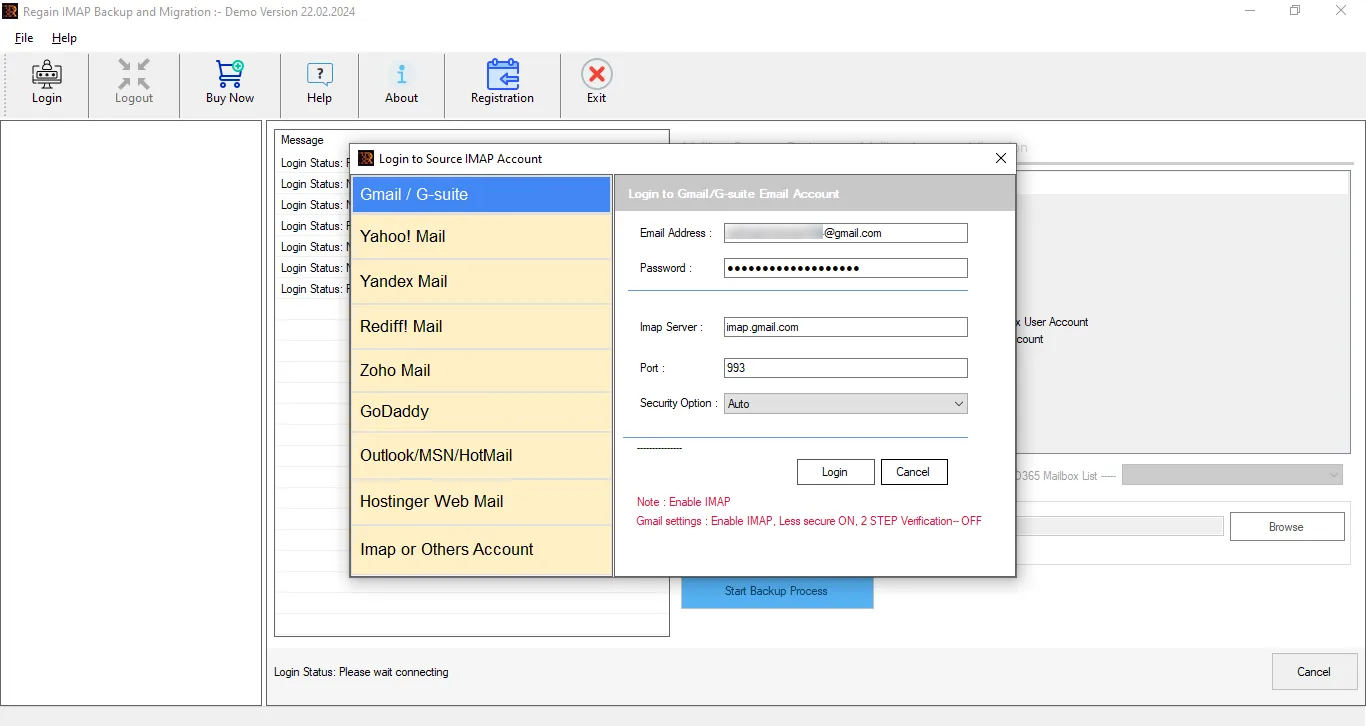
- Step1: First, install and open the Regain IMAP Migration Tool on your system.
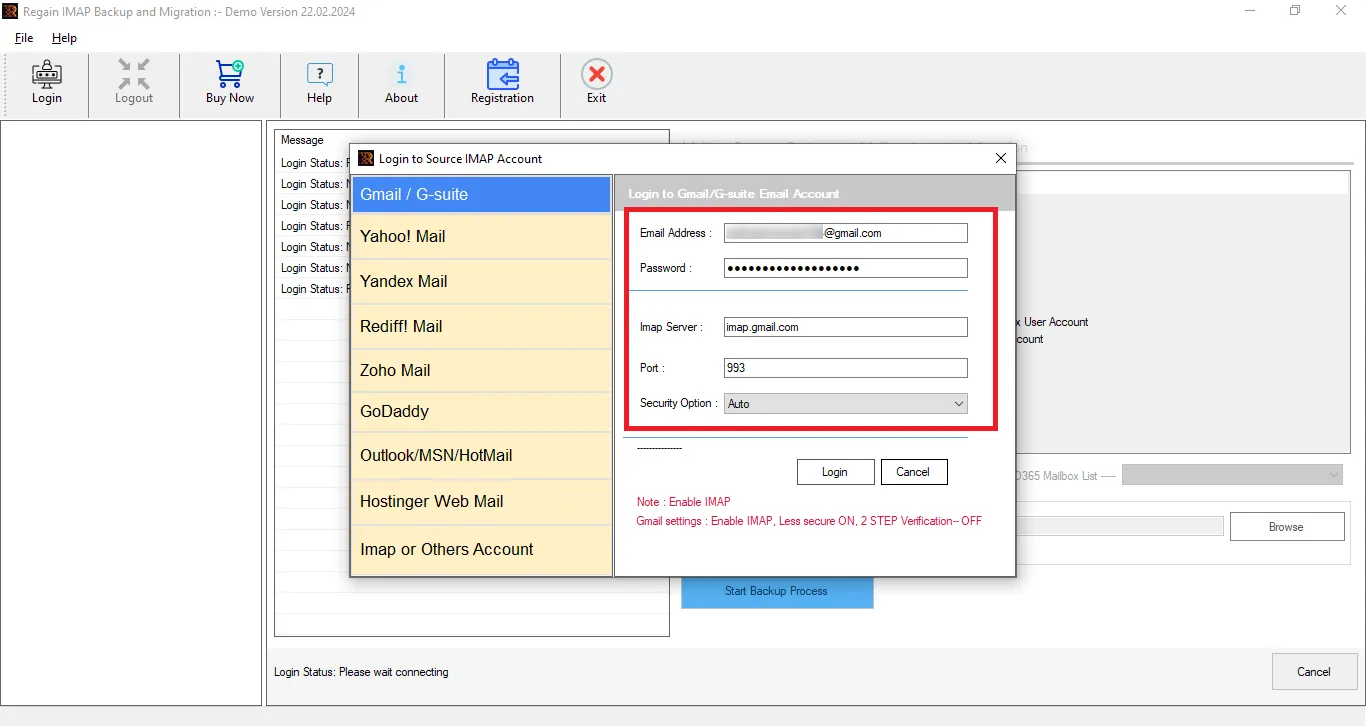
- Step2: Then, enter the Mweb emails login credentials after clicking on IMAP or Other Account (like username, password, and other things) of your account after clicking on IMAP or Other Account.
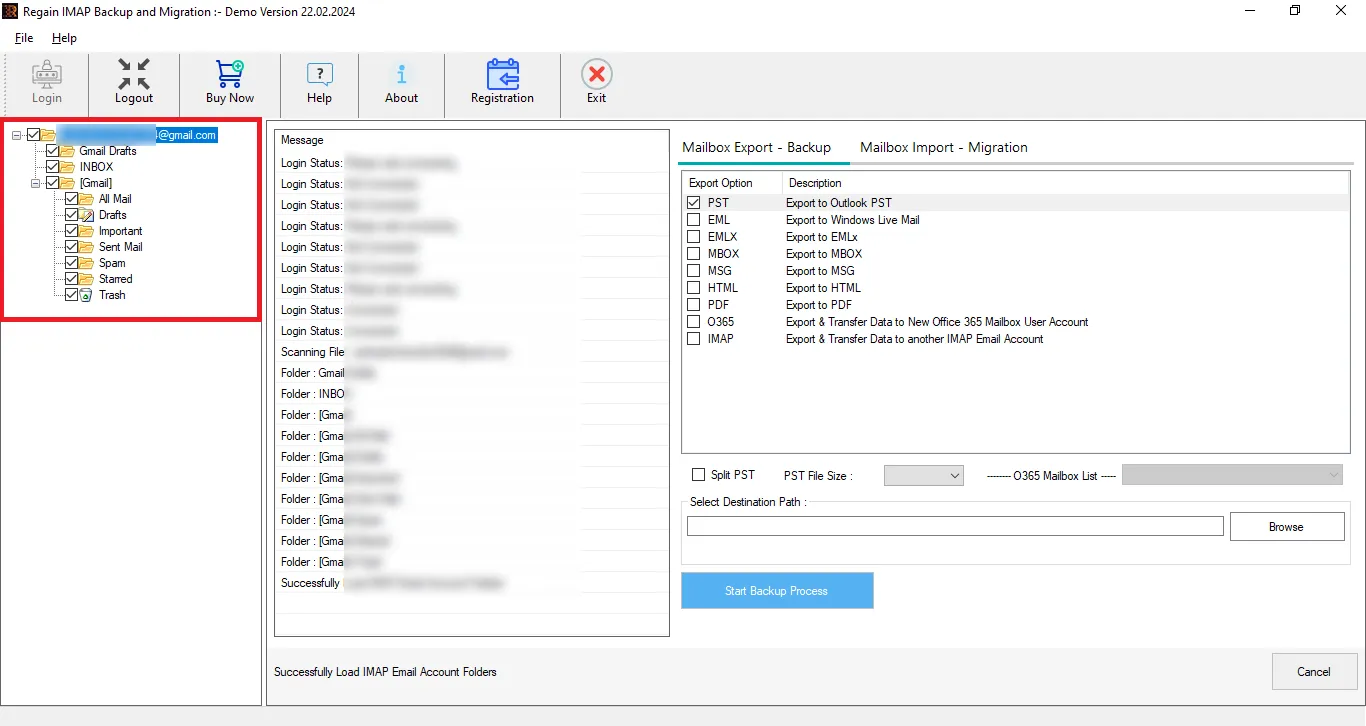
- Step3: You can also select and deselect the folder with the help of the Regain Mweb Emails Migration Tool preview facility.
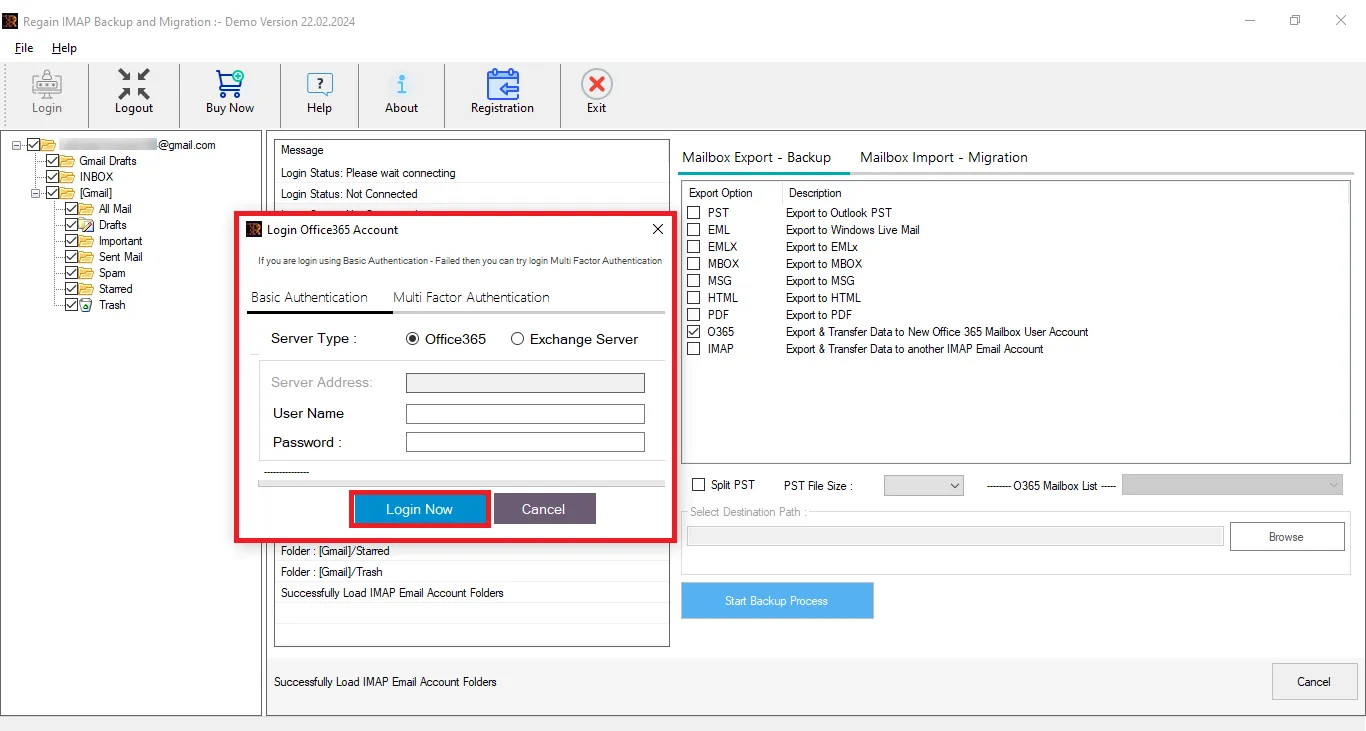
- Step4: Now, select the Mailbox Import-Migration option and enter the target account credentials for cloud migration. You can also back up the email in various file formats using the Mailbox Export-Backup option.
- Step5: Move accordingly, and the Mweb email migration process will start.
Highlighted Features of the Regain Mweb Migration Tool:
- Along with the Mweb, it supports all the IMAP-enabled email clients/servers.
- Users can migrate multiple Mweb accounts without any size limitations.
- It also offers saving emails in PST, MBOX, EMLX, EML, and PDF, like popular file formats
- Regain IMAP Backup and Migration Tool can migrate to another IMAP email account, like Gmail/Google Workspace, Yahoo, and Webmail.
- It can also export directly to Exchange Server On-Premises and Exchange Online(Microsoft 365).
- It supports all versions of Windows OS.
Gist of the Blog:
In conclusion, Mweb to Office 365, Google Workspace, Outlook, and Yahoo migrations can be performed using both manual and professional methods. However, if you are looking for a faster, more accurate, and hassle-free approach, using a reliable solution like the Regain IMAP Backup and Migration Tool is the perfect choice. A free version of this utility is also available to download.
Frequently Asked Questions (FAQs):
Q1. Can I preview Mweb emails before migration?
A. Yes, the Regain Mweb Migration Tool offers a built-in preview feature that allows you to view all emails along with attachments before starting the migration.
Q2. Will the folder structure remain intact after migration?
A. Yes, the tool ensures that the original folder hierarchy is maintained throughout the migration process.
Q3. Does this software allow selecting or deselecting specific emails?
A. Absolutely. This email migration tool provides advanced options to select or deselect specific folders or emails, so you can migrate only the data that matters to you.
Q4. Can I migrate Mweb email in bulk with Regain Software?
A. Yes, the tool is designed to handle bulk migration efficiently. You can transfer entire mailboxes or multiple emails at once without any data loss or performance issues.
Q5. Is there a demo version available?
A. Yes, this utility offers a free demo version of the Mweb Migration Tool. Users can simply install and run the software to evaluate it. The trial version processes 10items/folder for free, and after entering the license, it activates into the full version.
Related Articles:

