Transfer Lycos Emails to Exchange Server/Gmail/PST


Updated On - June 29, 2026 by Nasir Khan | Reading Time: 4 minutes
“On the internet, there are many queries from users asking how they can transfer their emails from Lycos Mail to other email platforms. Many users want to migrate their old emails, attachments, and important data to the local file system or if migrating, then to a more advanced, reliable email service while keeping their existing mailbox safe.”
Through this blog, we will explain how you can transfer Lycos emails to different email platforms such as Gmail, Microsoft Outlook, Yahoo Mail, and Microsoft 365. If you are also planning to move your Lycos emails to another platform, this blog will help you understand the complete migration process.
An Intro About Lycos Mail:
Lycos Mail is one of the early web-based email services that allowed users to send and receive emails through the internet. It provides basic email features such as the following:
- Sending and receiving emails
- Organizing emails
- Spam filtering
- Basic storage for a message
Note: Want to explore more migration methods? Visit our Microsoft 365 Email Migration Guide for step-by-step instructions, migration best practices, and solutions for moving emails from various platforms to Microsoft 365.
Why Users Transfer Lycos Emails?
There are several reasons why users may migrate their emails from Lycos to another platform. Some of the common ones are listed below:
- Limited Features: Lycos offers only basic email functionality compared to modern platforms.
- Better Security: Modern services like Gmail and Microsoft 365 provide strong security features such as two-factor authentication and advanced spam protection.
- More Storage Space: Many users migrate because modern platforms offer larger mailbox storage.
- Integration with Other Tools: Services like Microsoft Outlook integrate with productivity tools, calendars, and cloud storage.
- Pricing Comparison: Lycos has closed the free services, and only paid plans are available now.
- Long-Term Reliability: Users want to keep their important emails safe on widely used platforms like Microsoft Environment or Google Environment.
Available Methods to Transfer Lycos Emails
There are two common ways to transfer Lycos emails:
- Manual Methods (Manual Steps)
- Professional Email Migration Tool
Manual Methods:
1. Export Lycos Emails to Gmail
Manually, you can transfer your Lycos emails into Gmail using IMAP settings.
Steps:
- Log in to your Lycos account.
- Open your Gmail account.
- Go to Settings > Accounts and Import.

- Click on “Add a mail account.”
- Enter your Lycos email address.
- Choose “Import emails using IMAP.”
- Enter Lycos IMAP settings:
- IMAP Server: imap.lycos.com
- Port: 993
- SSL: Yes
- Click “Add Account.”
- Gmail will now start importing your Lycos Mail emails.


2. Export Lycos Emails to Outlook
Steps:
- Open Microsoft Outlook
- Go to File > Add Account
- Enter your Lycos email credentials.
- Choose Manual Setup (IMAP)
- Enter server details:
- IMAP Server: imap.lycos.com
- SMTP Server: smtp.lycos.com
- Complete setup, and after syncing, your emails will appear in Outlook.

Limitations of the Manual Methods:
Although the IMAP method can transfer emails, it also has some limitations:
- The process can be time-consuming.
- Requires correct server configuration.
- Not suitable for bulk or large mailbox migration.
- There is a risk of missing some emails or attachments.
- Technical knowledge required.
Because of these limitations, many users prefer a professional migration tool to transfer emails quickly and securely.
A Professional Solution with Regain Lycos Mail Migration Tool (Regain IMAP Backup and Migration Tool)
The Regain IMAP Backup and Migration Tool is the best and most reliable method to export or transfer emails from Lycos Mail. The utility allows users to convert all emails from Lycos Mail to Gmail/ Google Workspace, Yahoo Mail, Office 365, Zoho Mail, etc. Moreover, users can save Lycos emails to Outlook PST, EML, MSG, MBOX, vCard, and HTML, like popular file formats.
Free Download100% Secure Buy NowPrice: $99
You can complete this export process easily by following just a few steps.
- Step1: Firstly, install and launch the Regain IMAP Migration and Backup Tool on your system.
- Step2: Now, enter the login credentials of Lycos Mail to connect it.
- Step3: Here, you can preview the folder details per your requirements.
- Step4: Now, select the destination, and if it is an email server, enter the destination account credentials.
- Step5: Click on the Export Now to start the email exporting.
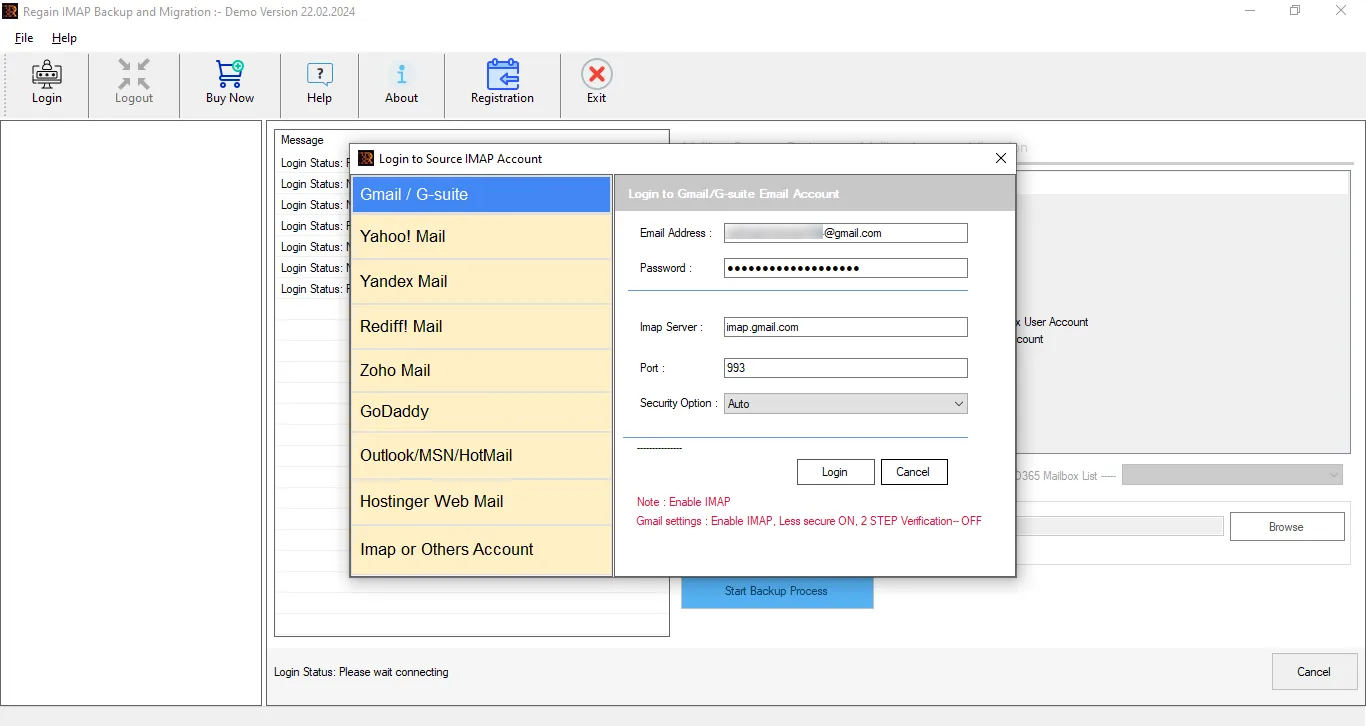
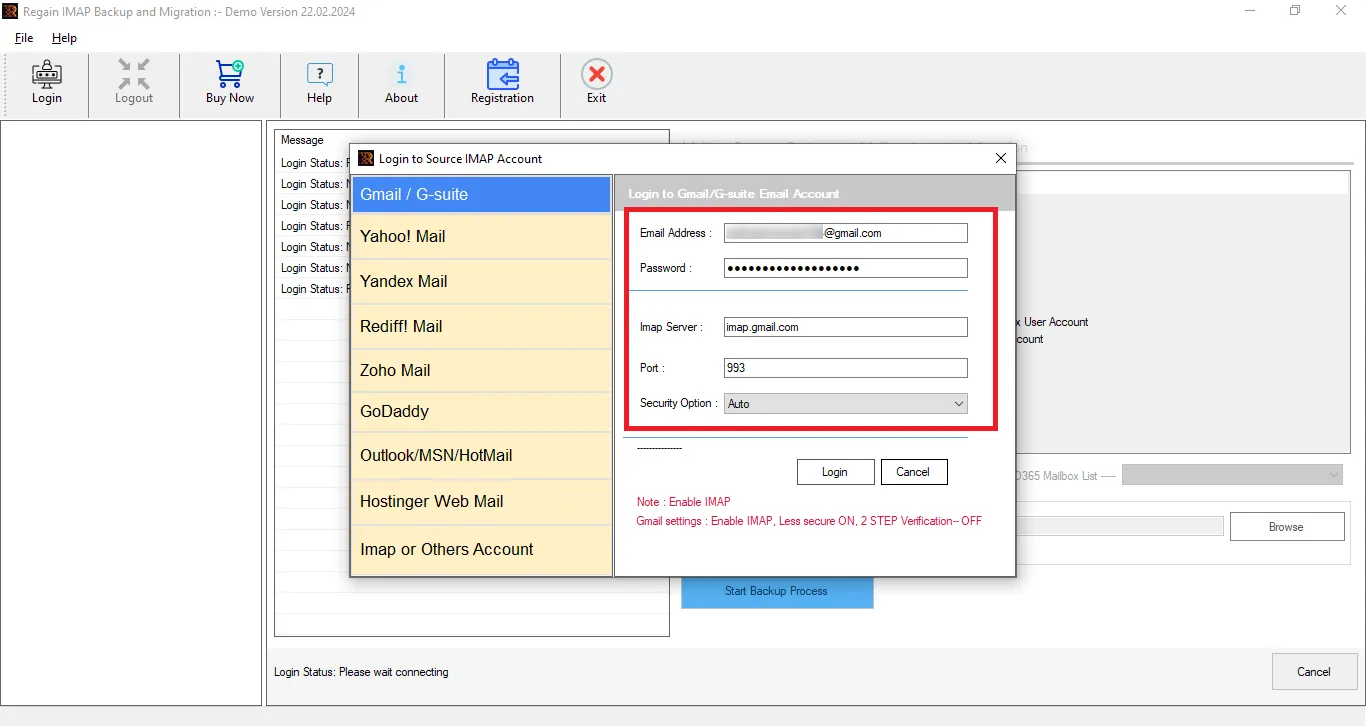
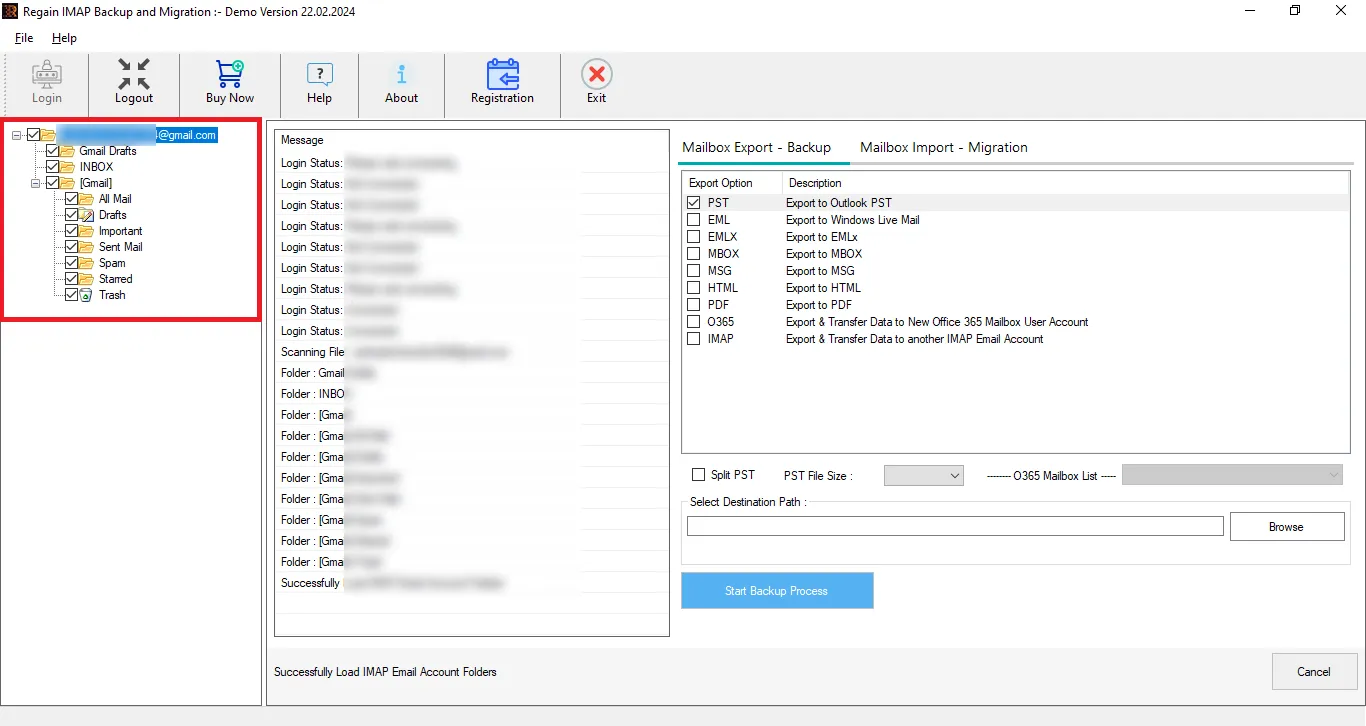
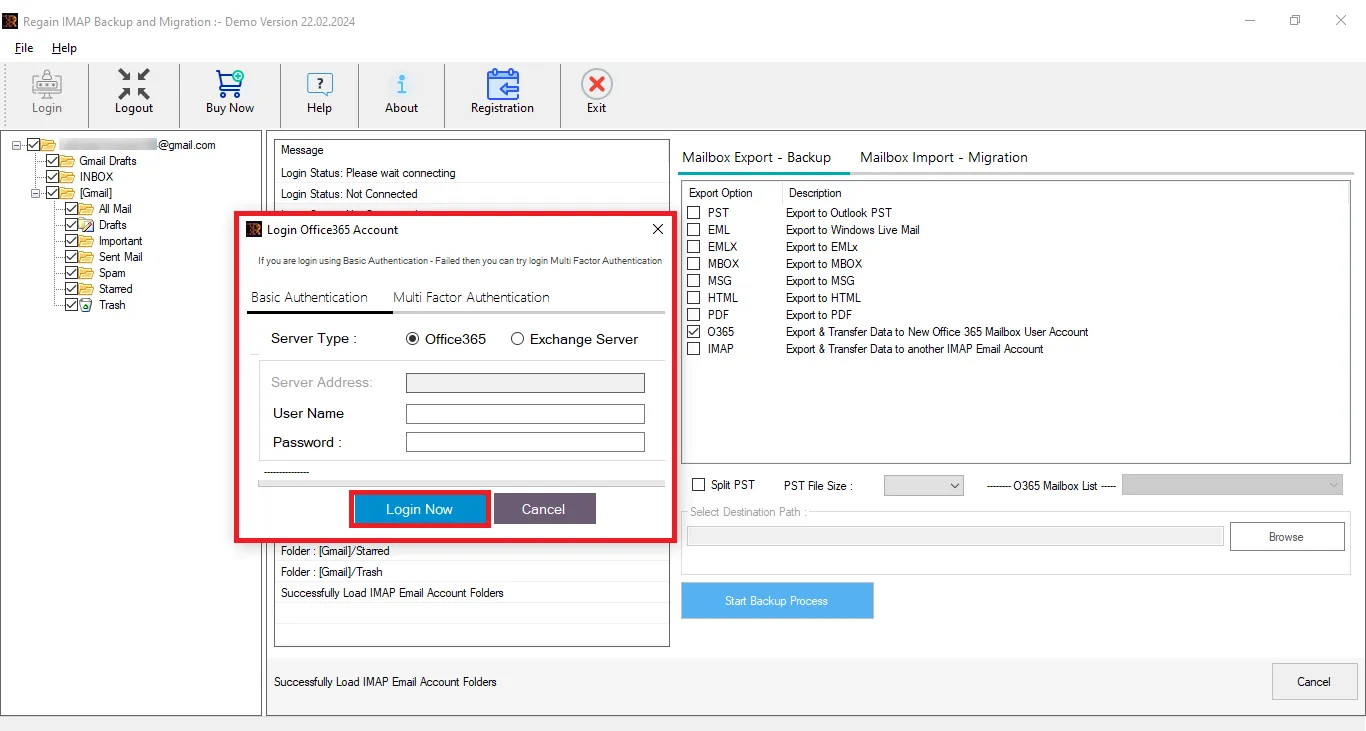
Soon, all your Lycos mail will be exported.
Gist of the Blog:
Migrating emails from Lycos Mail to modern email platforms has become a common requirement for many users who want better features, security, and storage. While the manual IMAP method can help in transferring emails, it may take a significant amount of time and also requires proper technical knowledge for server configuration. Additionally, users with large mailboxes may face difficulties during the migration process.
Therefore, if you want a faster and more reliable way to transfer Lycos emails without the risk of data loss, using a professional email migration tool like Regain Lycos Email Migration Tool is a better option. A free version of this advanced utility is also available to download.
Frequently Asked Questions:
Q1. Do I need separate licenses to export emails from Lycos to an Office 365 mailbox, as well as to save them in Outlook PST file format?
A. Using the Regain IMAP Backup and Migration Tool, you can do both tasks: Lycos emails to Office 365 as well as saving Lycos emails to Outlook PST.
Q2. What will be the hierarchy of the emails if I transfer using the tool offered by the Regain Software?
A. The software maintains the folder hierarchy, hence you will get the exact copy of your emails in the target with the same order.
Q3. How is this demo version of the software different from the full paid version?
A. The demo version is just a restricted version of the software. The demo allows processing 30 items per folder, whereas the licensed version has no such restrictions.
Q4. If I export Lycos mail to Outlook PST, can I open it with any version of Outlook?
A. Yes, you can open the resultant PST file with any Outlook account and access the Lycos emails in Outlook.
Related Articles:
- Export IceWarp Emails to Gmail, Microsoft 365 and Outlook
- Export QQ Emails to Gmail, Microsoft 365, and Other Targets
- Export Fastweb Mail to Gmail, Microsoft 365 and Outlook
- Export KPN Mail to Gmail and Microsoft 365
- Migrate Hushmail Emails to Outlook, Gmail or Microsoft 365
- Export Walla Mail to Gmail, Outlook, Office 365

