Learn the Simple Steps to Export TalkTalk Emails


Updated On - June 29, 2026 by Nasir Khan | Reading Time: 3 minutes
If you rely on TalkTalk for your email management and now you want to export your emails to new platforms, then you have come to the right place. In this complete blog, we will provide you with all the information regarding TalkTalk, like why users export TalkTalk emails, the manual method of exporting TalkTalk, and, along with it, how to export TalkTalk emails professionally. Be with the blog till the end and know the simple steps to export TalkTalk.
Why Do People Export TalkTalk Emails?
There may be many reasons for exporting TalkTalk emails, some of which are as follows:
- Switching to Modern Platforms: Users can improve their email management by exporting their TalkTalk emails to Zoho, Yahoo, Google Workspace, Office 365, or other modern platforms.
- Advanced Security: You can export TalkTalk emails to an email client like Gmail, which allows you features like two-factor authentication and spam filtering, which makes your account even more secure.
- Avoiding Data Loss: It is common to accidentally delete emails or lose them due to a technical issue, but if you have exported your emails, you can easily restore them.
- To Free up Space: By exporting your old or unused TalkTalk emails, you can free up space in CenturyLink, which will make it easier to manage your important emails.
Note: Looking for more migration solutions? Explore our Microsoft 365 Email Migration Guide to learn how to migrate emails from webmail, IMAP, hosting providers, and email servers to Microsoft 365.
Methods to Export TalkTalk Emails:
Here we have discussed two ways by which you can export TalkTalk emails. The first is the manual method, and the second is the professional method. You can choose the method as per your need. However, professionals always search for an advanced third-party application.
Manual Methods:
1) Export TalkTalk to Outlook (PST)
Phase 1) Add TalkTalk to Outlook
- Firstly, open Outlook.
- Go to File.

- Now, click on the Add Account.
- Now enter your TalkTalk email credentials.
- Enter the following TalkTalk email configuration details:
- Incoming Mail Server: imap.talktalk.net Port: 993 Encryption: SSL
- Outgoing Mail Server: smtp. talktalk.net Port: 587 Encryption: SSL


Phase 2) Export Emails
- Let it sync completely.
- Now go to the File.
- Click Open&Export and then Import/Export.
- Select Export to a file (Outlook data file .pst).
- Choose the TalkTalk mailbox and select the location to save the .pst file.
- Tap on Finish.


2) Export TalkTalk to Gmail
- Log in to your Gmail account and click on the settings gear icon, and select See all settings.
- Go with the “Accounts and Import”.
- Click on the “Add a mail account” next to “Check mail from other accounts”.
- Now enter the email address >> Next.
- Go with the “Import emails from my other account” and enter the requested details.
- Finally, click on the Add Account.


Users May Face the Following Challenges with the Manual Method:
- Difficult for Non-Technical Users: If you are not a tech expert, the manual method might be too difficult for you.
- Time- and effort-consuming: Exporting using the manual method can be very time- and effort-consuming for users.
- Data Loss: Just one wrong setting can make you lose your very important data.
- Losing Hierarchy and Folder Structure: You may lose the hierarchy and folder structure of your emails after exporting using the manual method.
Professional Method: Simple Steps to Export TalkTalk Emails with Regain Software
You can export your TalkTalk emails very easily through the Regain TalkTalk Export Tool. To complete the export process, you have to follow some simple steps, which are given below:
Free Download100% Secure Buy NowPrice: $99
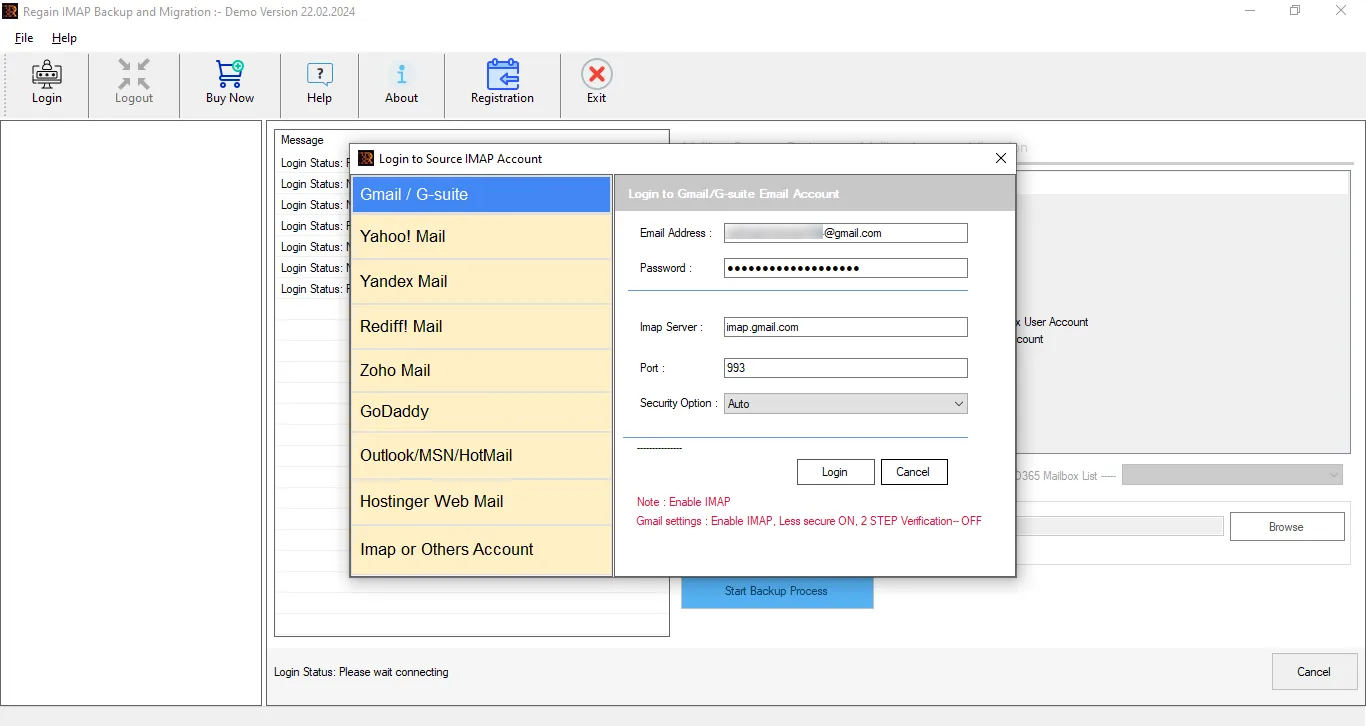
- Step 1: Firstly, launch the Regain TalkTalk Email Migration Tool on your computer screen.
- Step 2: Now, enter the login credentials of your account (name, password, etc.).
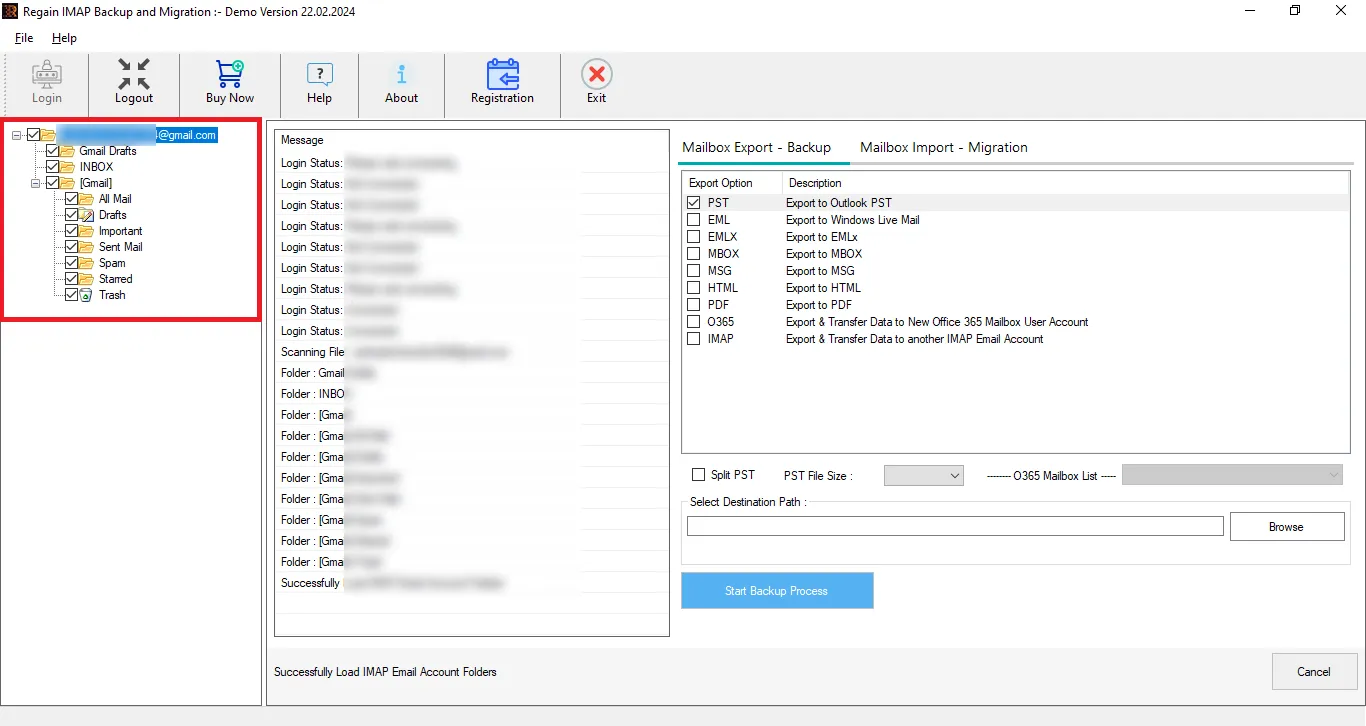
- Step 3: Then, select the target to export. Select “Mailbox Backup-Export” and “Mailbox Import-Migration” tab as per the need.
- Step 4: Now, enter the destination account credentials, connect, and export.
Some Highlighted Features of Regain TalkTalk Export Tool:
- Regain TalkTalkExport Tool offers users the ability to export from any IMAP to another IMAP email/client server.
- Users get a preview before exporting to select/deselect folders.
- This tool ensures that the original folder structure of your emails and hierarchy remains intact throughout the complete export process.
- The Regain TalkTalkExport tool supports Zoho, Yahoo, Office 365, Gmail, Outlook, Yandex, and IMAP accounts.
- It also allows saving data in the PST, EML, MSG, and MBOX, like prominent file formats.
- There are no size limitations on the mailbox for backup/export.
- The Regain TalkTalk Export Tool is compatible with all Windows OS.
Gist of the Blog:
Exporting your TalkTalk emails becomes important when you want to manage your emails better or wish to back up your emails. Through this article, we have provided you with all the information regarding TalkTalk and also informed you about the method to export it. Manual methods can create a lot of difficulties in your export process, so the Regain TalkTalk Email Migration Tool, which experts have tested, will make your export process very easy and accurate. You can also have a demo of this utility for free.

