An Ultimate Solution to Export SmarterMail Emails to Various Targets


Published On - September 22, 2025 by Nasir Khan | Reading Time: 5 minutes
We all know how important emails are for communication and record-keeping. SmarterMail is a popular email platform to send, receive, and manage emails. But sometimes, users need to export their SmarterMail emails to take a backup, move to another email platform, or keep a copy for safety. This article will cover everything you need to know about exporting SmarterMail emails, including the reasons, manual methods, professional solutions, etc.
What Initiates Users to Export SmarterMail Emails?
Before getting into the SmarterMail email export process, let’s take a look at the reasons why users may consider exporting SmarterMail emails. However, the reasons may vary for each user, but some of the common ones are:
- Moving to Updated Platform: Many users are exporting from SmarterMail to updated modern platforms like Yahoo, Gmail, Office 365, etc., to get a better email management platform.
- For Backup Security: By backing up your emails, you ensure that you don’t lose your important emails even after accidental deletion or a server problem.
- To free up space: By exporting your old or unused emails, you can keep your important emails safe and keep free space in your SmarterMail folder.
Methodologies of Exporting SmarterMail Emails:
There are mainly two approaches to exporting SmarterMail data: manual methods and automated professional methods. Let’s explore them in detail.
1 – Manual Methods to Export SmarterMail Emails
Using Outlook
- Open Microsoft Outlook on your system.
- Now, go to File > Add Account.
- Enter your SmarterMail login credentials.
- Choose IMAP/POP configuration.
- Enter the SmarterMail server settings.
- Once connected, Outlook will sync your SmarterMail mailbox.
- Now go to File > Open & Export > Import/Export.
- Select Export to a File > Outlook Data File (.PST).
- Choose the SmarterMail account folder and click the Finish button.
Note: By following above steps you can export SmarterMail email data to Outlook PST file format.
Using Thunderbird
- Download and launch Mozilla Thunderbird.
- Add your SmarterMail account via IMAP configuration.
- Once synced, install the ImportExportTools NG add-on.
- Right-click on the folder you want to export.
- Choose ImportExportTools NG > Export Folder.
- Save the emails in EML, MBOX, or other supported formats.
- Tap on the Finish option.
Note: By following above steps, you can have SmarterMail email data in EML and MBOX file format.
Limitations of the Manual Methods Due to Which Professionals Need Automated Solution:
You can use the manual method given above, but it may come with several issues, which are as follows:
- The manual method will be different for every task like SmarterMail to Office 365 will be completely different from SmarterMail to Gmail migration task.
- You may lose the email hierarchy and other meta-properties.
- The user must be technically sound while performing this export process, as a wrong setting may lead to data loss.
- Using the manual method increases the chances of accidental deletion and file corruption.
- Manual methods may cost you more time and effort. It is not as simple as it looks.
Method 2: Export with Professional Tool (Regain IMAP Backup and Migration Tool)
With the help of Regain IMAP Backup and Migration Tool, you can perform all the export processes very easily and that too with complete accuracy. To perform this export task, you need to follow some simple steps, which are as follows:
Free Download100% Secure Buy NowPrice: $99
- Step1: First, install and open the Regain SmarterMail Export Tool (IMAP Backup and Migration Tool).
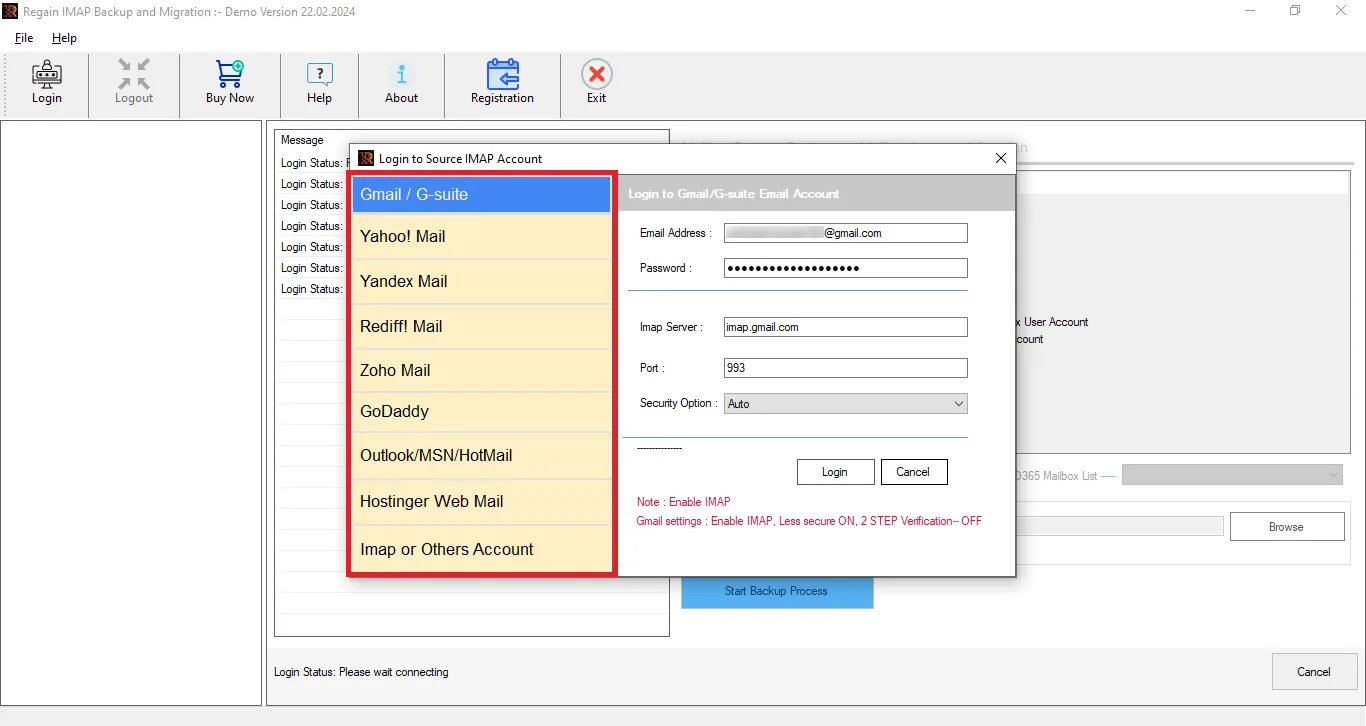
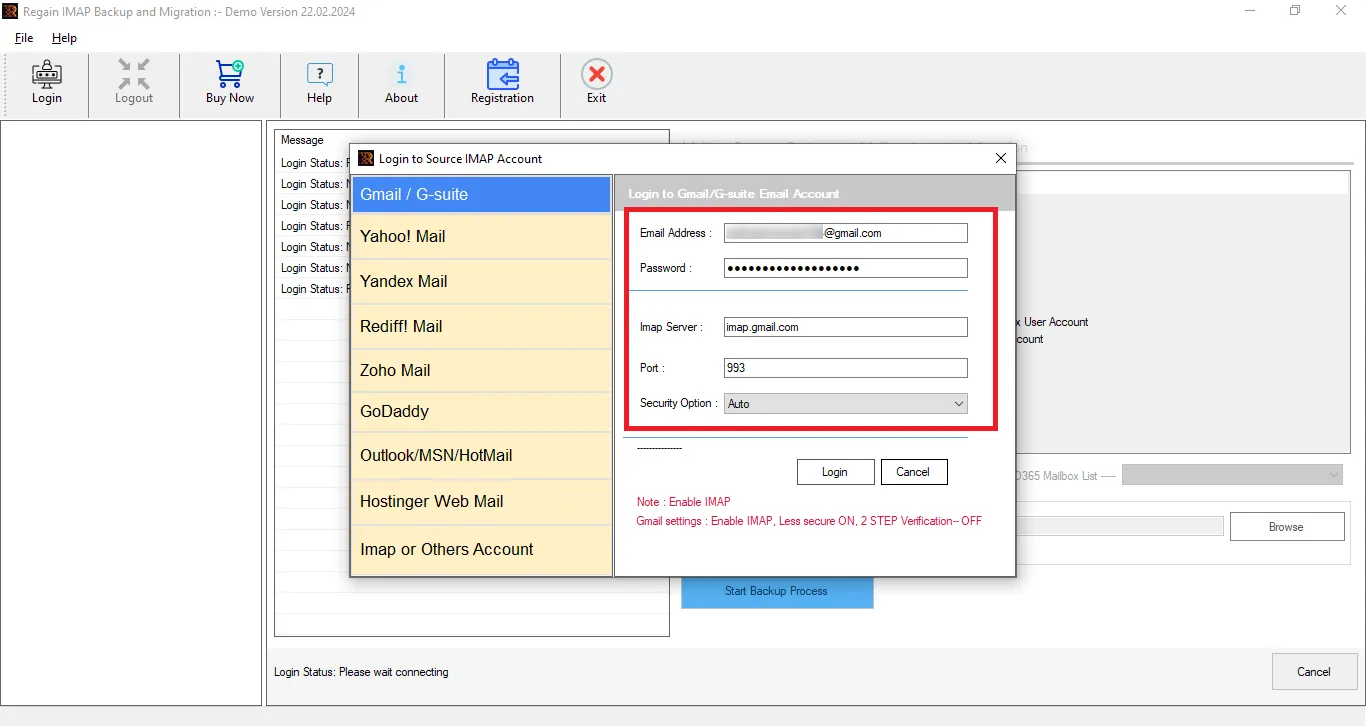
- Step2: Now, enter the SmarterMail login credentials (like username, password, and other things) of your Account.
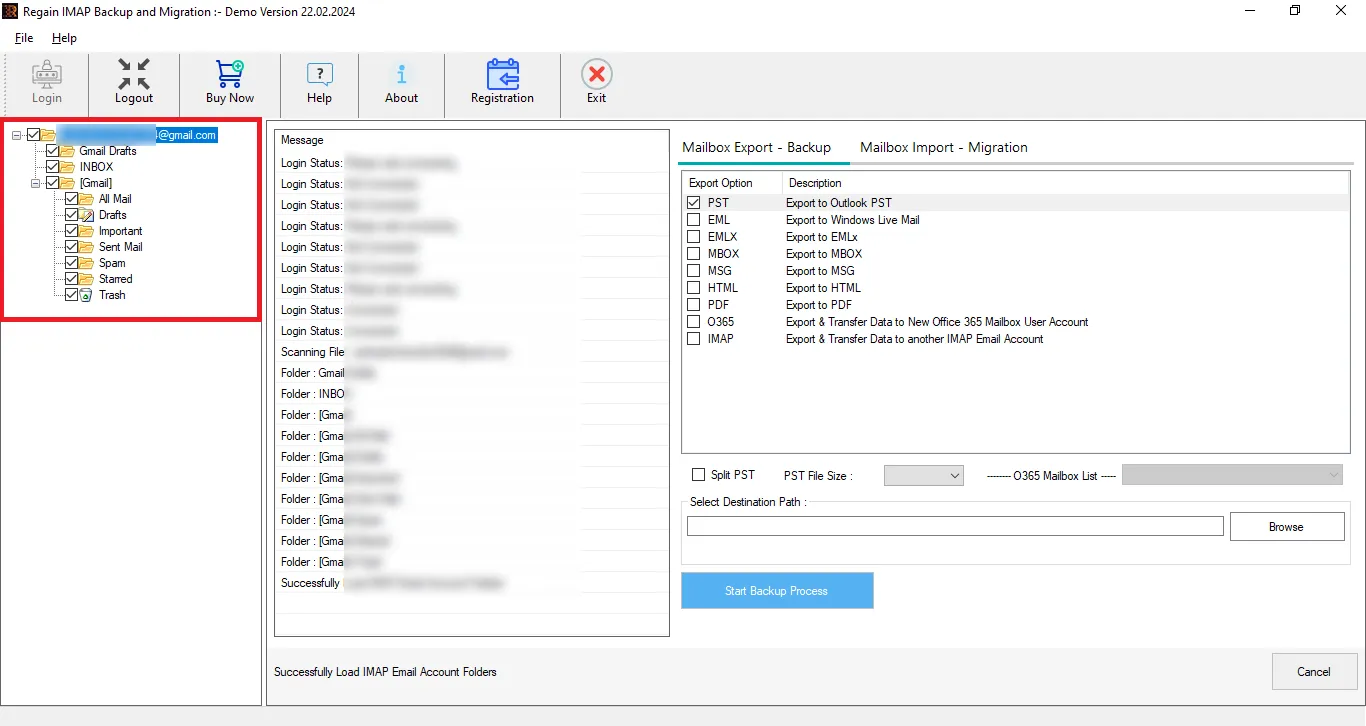
- Step3: Regain IMAP Backup and Migration Tool will preview the folders; here, you can also select/deselect the folders.
- Step4: Now, select the target; enter the Target account credentials for cloud migration.

- Step5: Move accordingly, and the SmarterMail email export process will start.
Other Salient Features of the Regain IMAP Backup and Migration Tool
- With the help of this tool, you can export from any IMAP email client/server to another IMAP email client.
- Regain IMAP Backup and Migration tool supports Yahoo, Zoho, Gmail, Yandex, and all IMAP accounts.
- It also facilitates export from SmarterMail to Office 365 and Exchange On-Premises.
- This tool offers a preview facility before exporting to select/deselect folders.
- This software maintains folder hierarchy and email structure after the export process.
- It is fast, accurate and simple to use hence preferred by the professionals. There are no restrictions on the mailbox size.
- Users get a free demo version of the software to check its compatibility.
- Regain IMAP Backup and Migration tool supports all Windows OS.
Wrapping Up:
Exporting SmarterMail emails is an essential task for users who want to migrate, back up, or archive their data. There are manual methods but they are time-consuming and limited for large-scale export. For professional or business purposes, using the robust Regain SmarterMail Export Tool is highly recommended, as it saves time, maintains data integrity, and offers multiple export formats.
Frequently Asked Questions
Q. Can I export emails from SmarterMail to Zoho Mail with this software developed by Regain Software?
Yes, you can easily export SmarterMail emails to Zoho Mail with the help of this Regain SmarterMail Export Tool.
Q. Is there any size limitation on the mailbox for exporting?
A. No, the Regain IMAP Backup and Migration Tool does not put any restrictions/limitations on the size of the mailbox for exporting.
Q. Is the manual method considered risky in the SmarterMail Export process?
A. To do the manual method, you have to be technically sound; otherwise, a wrong setting done by you can cause you to lose data, and your file can also get corrupted.
Q. Where can I get information about the Regain IMAP Migration and Backup Tool?
A. If you have any queries about this tool, then you can get information from our support team at support@regainsoftware.com. Moreover, you can directly connect with our product expert through the live chat facility.
Q. Can I get a demo of the Regain IMAP Backup and Migration Tool before purchasing it?
A. This tool provides a demo version of the software available for install. The demo version will allow the migration of 10 items per folder.
Q. I want to export SmarterMail to a PST file format, but I don’t want the PST file to be a big size. How can I handle this, as my mailbox is very large?
A. The software offers an option to split the resultant PST file. You can set a size for a PST file, and the software will split the File on reaching the recommended size limit.
Related Articles:


