Export BlueTie/ Old Excite Email to Outlook/Gmail/Microsoft 365 and Other Platforms


Updated On - September 24, 2026 by Nasir Khan | Reading Time: 3 minutes
If you are an old Excite Email user who has shifted to BlueTie or an existing BlueTie user, and use it for your email management, you might find it limited compared to modern email platforms like Gmail, Outlook, Zoho and others. Exporting your emails allows you to manage them more efficiently, access them offline, and create a secure backup.
In this blog, we will explain why users export emails, manual methods to move BlueTie-hosted email to Google Workspace/ Office 365 and other platforms. Moreover, we will introduce a one-stop professional solution to export old Excite emails to other email services or file formats.
An Overview of BlueTie Email Service and Excite Email:
Excite Email was a web-based email service provided by Excite, offering basic emailing features such as sending, receiving, and managing emails. While it was suitable for simple communication, it lacked advanced tools like cloud collaboration, large storage, and high-level security. In 2021, Excite shut its email services, and users migrated to various platforms, mostly to BueTie email hosting.
Many users also backed up their Excite email data in various file formats, but now want to move it somewhere as per the suitability.
Note: Want to explore more migration methods? Visit our Microsoft 365 Email Migration Guide for step-by-step instructions, migration best practices, and solutions for moving emails from various platforms to Microsoft 365.
Methods to Migrate BlueTie/ Old Excite Emails:
In this guide, we will cover two methods to migrate BlueTie/Old Excite emails. You can choose the one that suits your needs, but professionals typically prefer using the advanced third-party Email Migration tool for a faster, safer, and more reliable migration.
1. Manual Method to Export Excite Email to Google Workspace
Step-by-Step Method Using Google Workspace (POP3)
- Sign in to your Google Workspace Gmail account.
- Click on the Settings (gear icon) → See all settings.
- Open the Accounts and Import tab.
- Under Check mail from other accounts, click Add a mail account.
- Enter your email address and click Next.
- Choose Import emails from my other account (POP3).
- Enter your username and password.
- Use the email hosting POP server details. (Enable SSL).
- Click Add Account and finish the setup.
2. Manual Method to Export BueTie Email to Outlook
Steps to Add BlueTie Email to Outlook (IMAP)
- Open Microsoft Outlook on your system.
- Click File → Add Account.
- Enter your email address and click Connect.
- Choose IMAP as the account type.
- Enter the following server details:
- Incoming Mail (IMAP):
- Port: 993
- Encryption: SSL/TLS
- Outgoing Mail (SMTP):
- Port: 465
- Encryption: SSL/TLS
- Enter your email account password.
- Click Next → Finish.
3. Manual Method to Migrate BlueTie Email to Yahoo Mail
- Sign in to your Yahoo Mail account.
- Click on the Settings (gear icon) → More Settings.
- Go to Mailboxes → Add mailbox → select Other Mailbox.
- Enter your email address and password.
- Use the following POP server settings.
- Port: 995
- Encryption: SSL
- Click Next → Save.
- Lastly, finish the task.
Limitations and Drawbacks of the Manual Methods:
- The user must be technically sound while performing this export process, as a wrong setting may lead to data loss.
- Time-consuming process, especially for large mailboxes.
- Does not fully preserve folder structure and metadata.
- Not suitable for bulk or large migration.
- Users don’t get advanced options for professional data management.
2 – A Professional Solution with the Regain Email Export Tool (Regain IMAP Backup and Migration Tool):
By using the Regain BlueTie Email Export Tool, you can easily export emails without any size limitations. This tool is a trusted tool, tried and tested by users and experts. This tool can export BlueTie Email in bulk, and its simple, user-friendly graphic design makes it easy for non-technical users.
Free Download100% Secure Buy NowPrice: $49
You can complete this export process easily with Regain IMAP Backup and Migration Tool by following just a few steps.
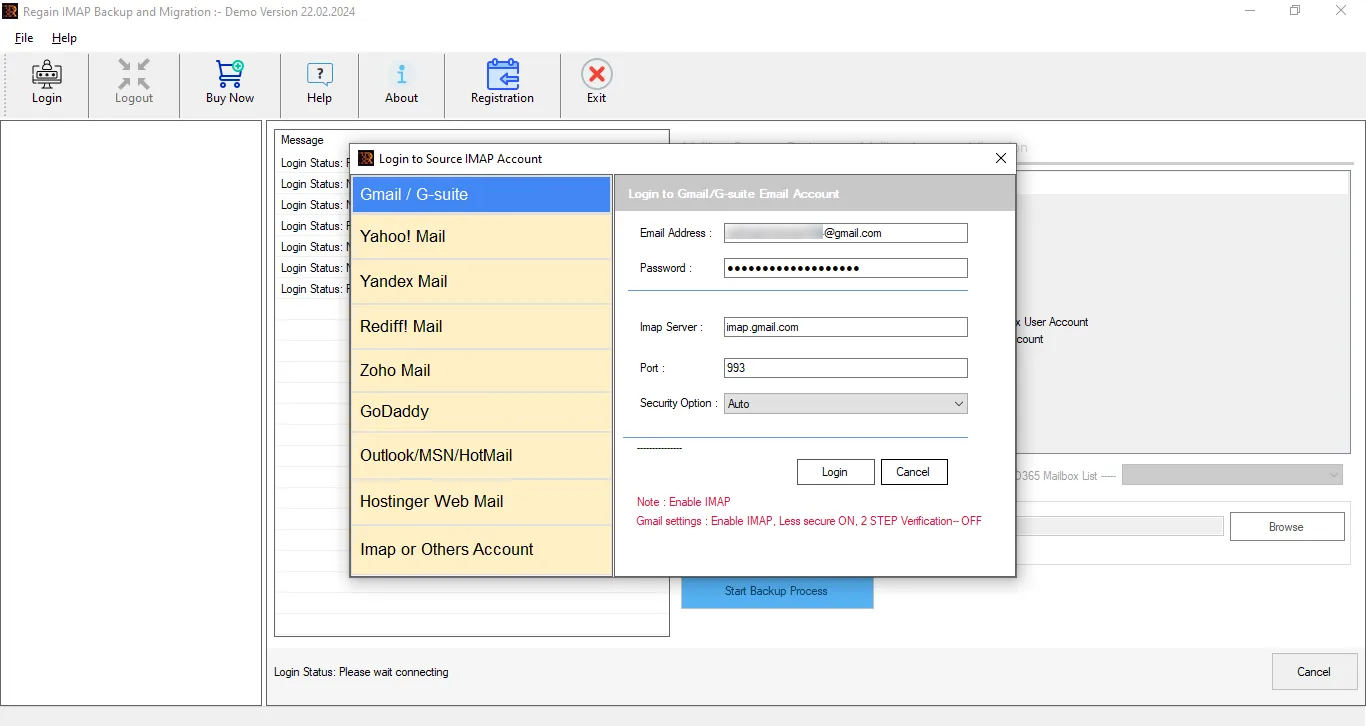
- Step1: Firstly, install and launch the Regain IMAP to IMAP Migration Tool.

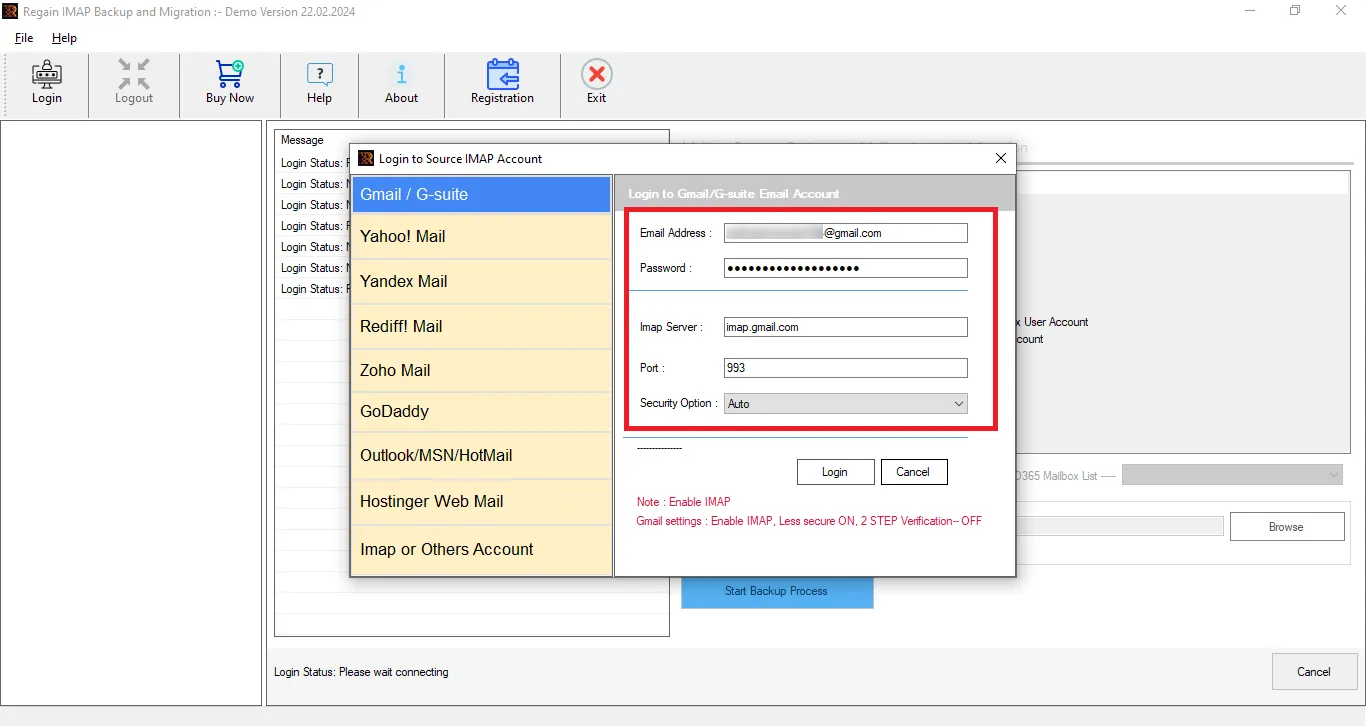
- Step2: Now, select the IMAP or other Account and enter the login credentials of your account.
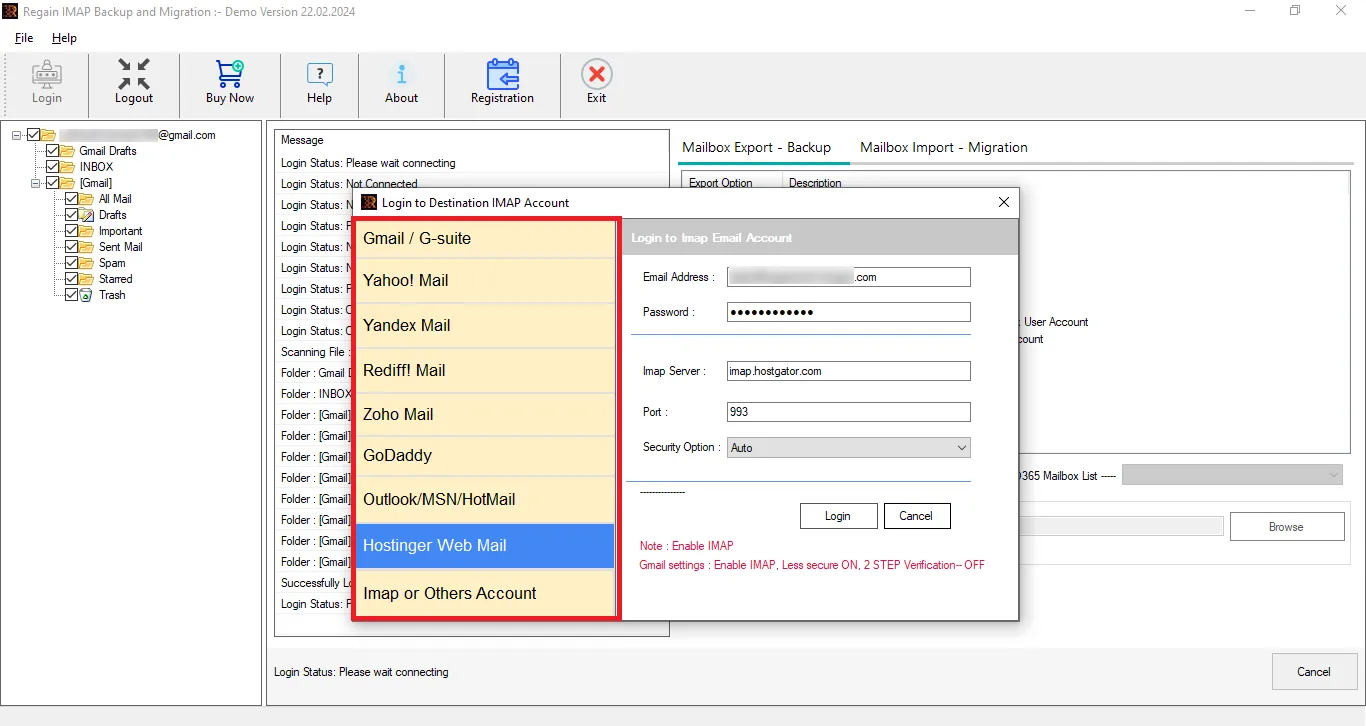
- Step3: Here, you can see the account email data with folders.
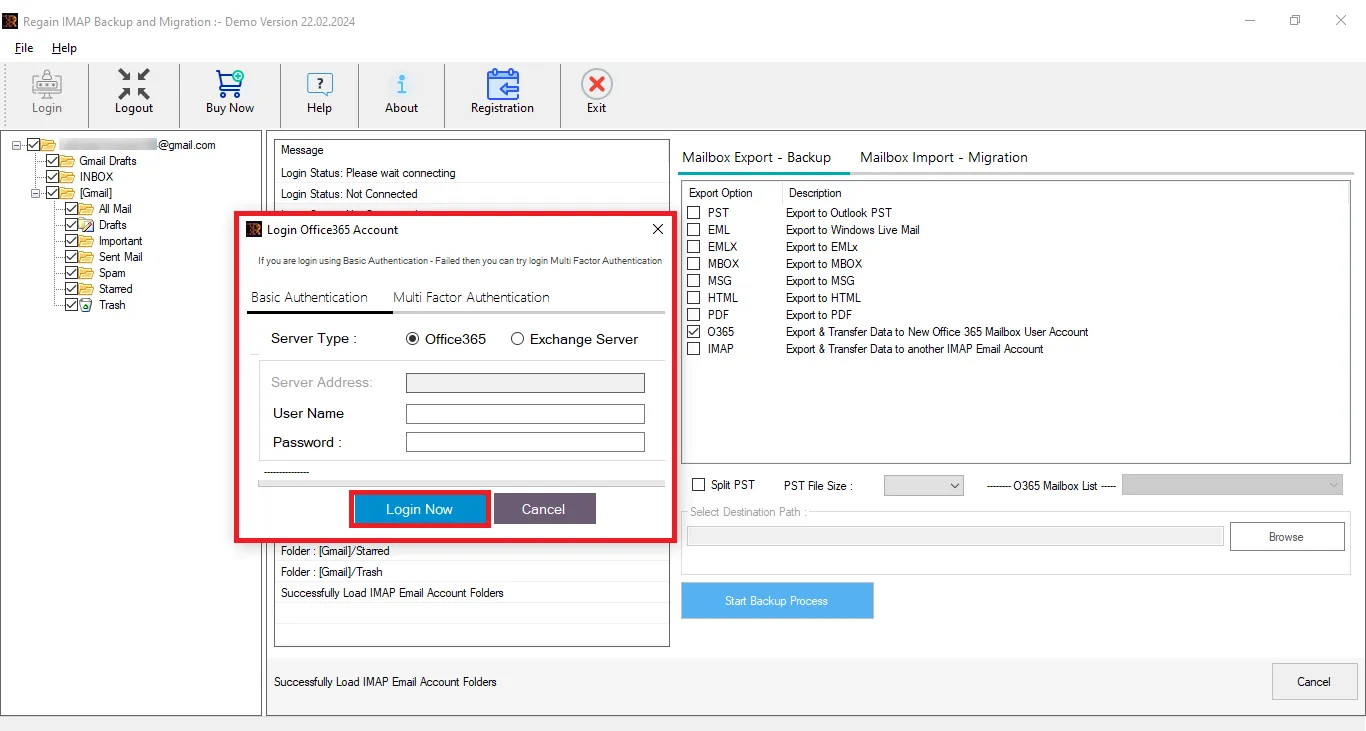
- Step4: Now, select the destination account and enter the account credentials.
- Step5: When all is done, start exporting.
Other key features offered by the Regain BlueTie Email Export Tool:
- The Regain BlueTie Email Export Tool/ IMAP Migration Tool ensures that the original folder structure of your emails remains intact throughout the export process.
- Users get a preview before exporting to select/deselect folders.
- This tool supports Zoho / Yahoo / Google Workspace / Outlook / Yandex and all IMAP accounts.
- There are no size limitations on the mailbox for backup/migration.
- Users can easily migrate emails to Exchange Online as well as Exchange On-Premises (All versions supported).
- The Regain BlueTie Email Export Tool is compatible with all Windows OS.
- This software offers a free demo version to evaluate its compatibility before purchase.
Final Verdict:
Exporting BlueTie/ Old Excite Email to Outlook or Google Workspace is essential for better email management, organizational needs, and secure backups. While the manual method works for small mailboxes, it comes with several limitations.
For a faster, safer, and more reliable solution—especially for large mailboxes—a professional Regain BlueTie Email Export Tool (Regain IMAP Migration Tool) is highly recommended. Trusted, user-friendly, and capable of bulk migration, such a tool ensures your emails are moved accurately, with all folders, attachments, and metadata intact. A dedicated technical support team is always available to assist users.

