One-Stop Solution to Export Bluewin Mail to Various Platforms


Published On - September 15, 2025 by Nasir Khan | Reading Time: 5 minutes
Managing emails efficiently is crucial for both personal and business professionals. Many users depend on Bluewin Mail. However, there are many scenarios where there is a need to export your Bluewin emails, whether it’s for creating a backup or moving to a different email client. In this article, we will cover everything you need to know about exporting Bluewin Mail, including what Bluewin Mail is, why users export their emails, the different methods available, the drawbacks of manual techniques, and the best method.
Bluewin Mail In A Glance:
Before we dive into the export process of Bluewin Mail, let us first look at what Bluewin Mail is.
- Bluewin Mail is the email service provided by Swisscom, one of the leading telecommunications companies in Switzerland. It offers secure and reliable email communication and webmail access.
- Many individuals and businesses rely on Bluewin Mail for daily communication.
- Bluewin supports IMAP/ SMTP, Exchange or POP3.
Why Do Users Export Bluewin Emails?
Here are some common reasons why Bluewin Mail users look for an export solution:
- Freeing Up Storage Space: Exporting emails can help clear space in your Bluewin account while keeping a secure offline copy.
- Backup and Safety: To protect important emails against accidental deletion, hacking, corruption, or technical failures.
- Offline Access: Users can access exported emails anytime, even without an internet connection.
- Moving to Another Updated Email Platform: Many users are exporting from Bluewin Mail to different platforms like Google Workspace, Zoho Mail, Yahoo, Office 365, etc., so that they can get more advanced features like more cloud storage, better email management, etc.
Methods to Export Bluewin Mail
There are both manual methods and professional methods to export Bluewin emails. Let’s have a look and decide what suits your needs.
1 – Manual Methods
● Export Using Email Clients
You can configure your Bluewin Mail account in popular email clients such as Microsoft Outlook, Mozilla Thunderbird, or Apple Mail.
Steps:
- Open your preferred email client (e.g., Outlook).
- Go to Add Account and enter your Bluewin credentials.
- Use the following IMAP settings:
Incoming Server: imap.bluewin.ch
Port: 993 (SSL)
Outgoing Server: smtpauth.bluewin.ch - After configuration, emails will sync into your email client.
- Once the configuration task is successful, click on Finish to complete the setup.
● Forward Emails Manually
If you only need a few emails, you can forward them to another email account.
Steps:
- Log in to Bluewin Webmail.
- Open the email you want to export.
- Click Forward and enter your other email address.
- Finish the task.
● Save Emails as PDF
You can also save important emails as PDF files directly from the webmail.
Steps:
- Log in to Bluewin Webmail.
- Open an email.
- Press Ctrl + P (Windows) or Command + P (Mac).
- In the printer settings, select Save as PDF.
- Now choose a location to save the file.
Drawbacks and Limitations of Manual Methods:
- Inefficient: The process is extremely time-consuming for any significant number of emails.
- Prone to Error: Manual selection and transfer are tedious and increase the risk of mistakes.
- Incomplete Transfer: Important structural elements like folders, labels, and metadata are often left behind.
- Requires Technical Skill: These manual methods may require technical expertise or tough settings for users.
Method 2: Professional Solution to Export Bluewin Mail
The Regain Email Migration Tool is the best and most reliable method to export or transfer Bluewin Mail. The utility allows users to convert all emails from Bluewin Mail to Gmail, Yahoo Mail, Office 365, Zoho Mail, etc.
You can complete this export process easily by following just a few steps.
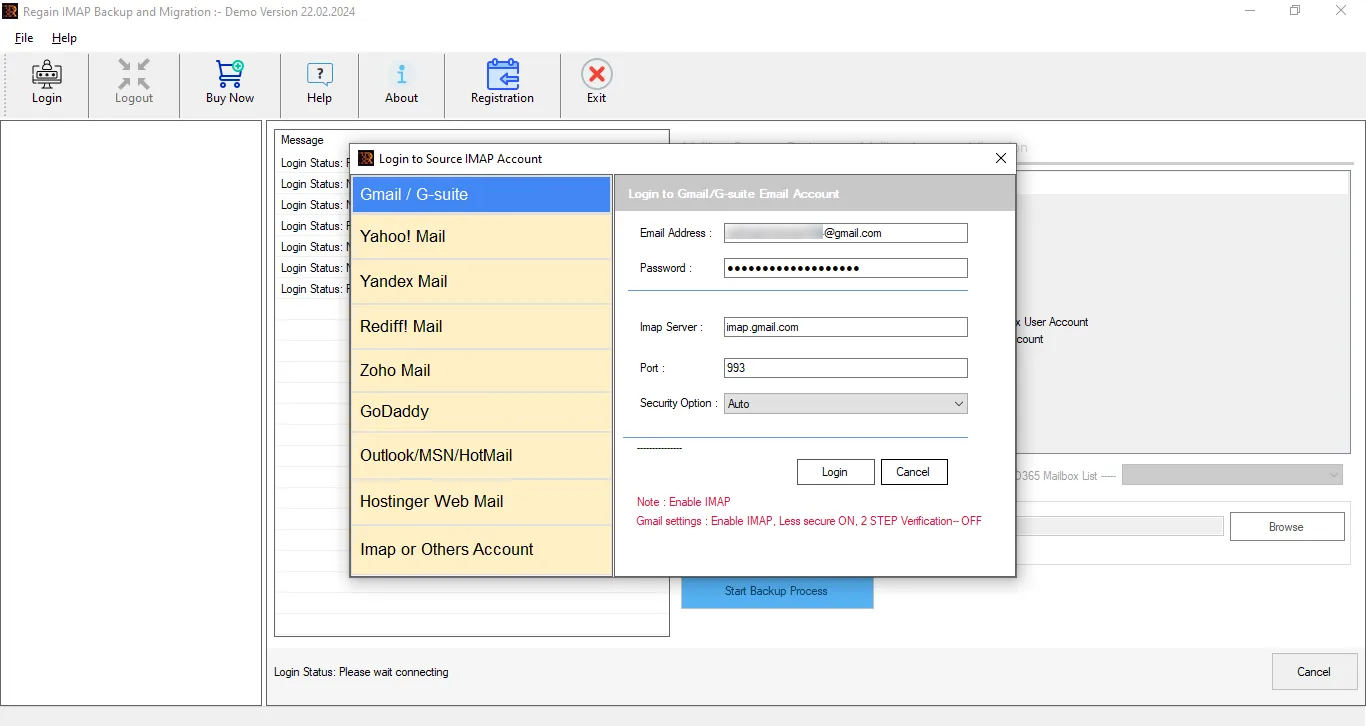
- Step 1: Firstly, install and launch the Regain IMAP Migration and Backup Tool AKA Regain Bluewin Mail Export Tool on your system.
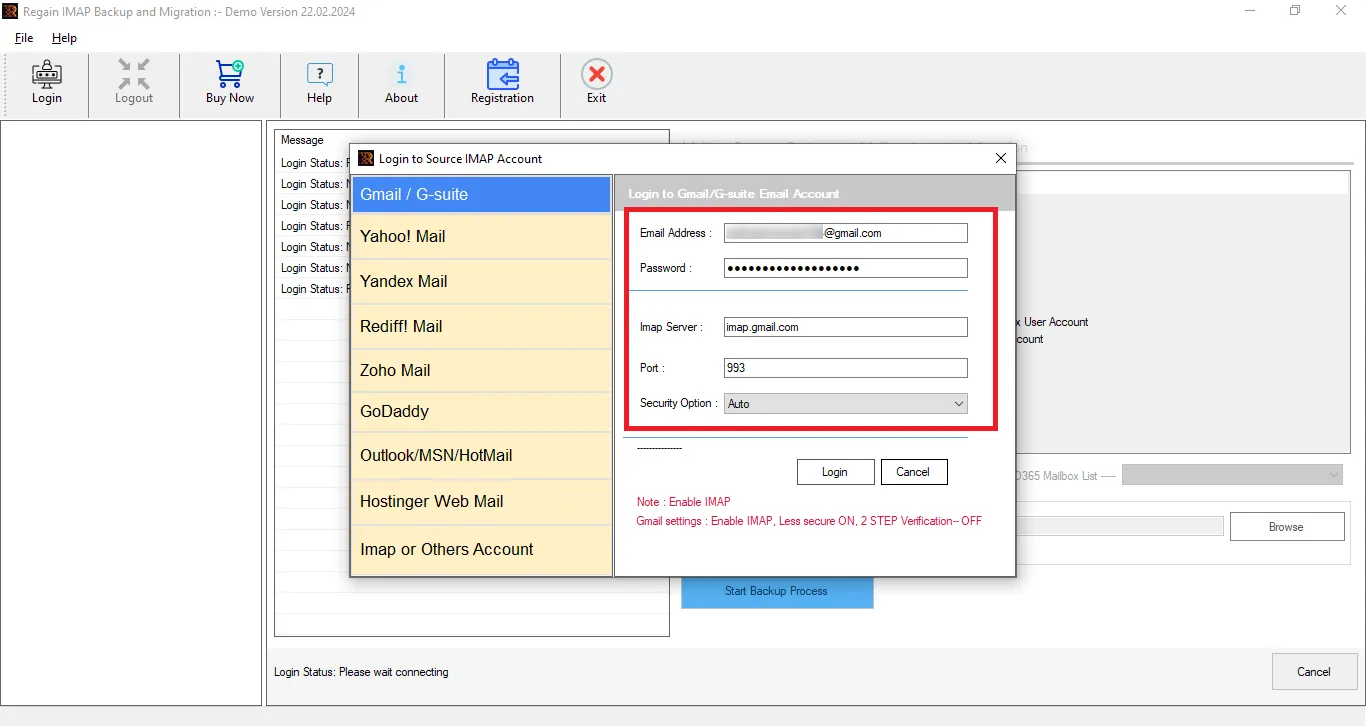
- Step 2: Now, enter the login credentials of Bluewin Email Account to connect it.
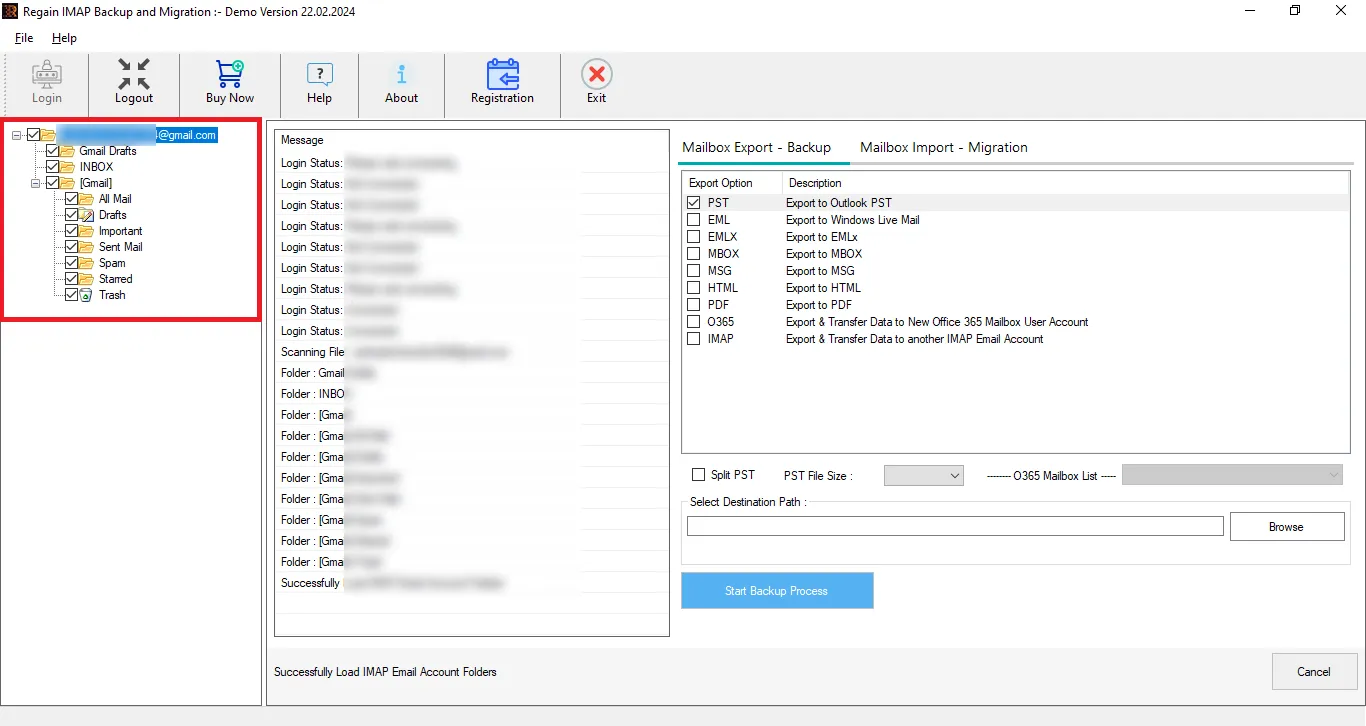
- Step 3: Here, you can preview the files and folder details per your requirements.
- Step 4: Now, select the destination, and if it is a server, enter the destination account credentials.
- Step 5: Click on the Export Now to start the email exporting.
Soon, all your Bluewin mails will be exported.
Some Prominent Features Offered by the Regain Email Migration Tool
- This software supports exporting to Gmail/Yahoo/Zoho/Outlook/Yandex/O365 and all IMAP email accounts.
- Along with migrating from Bluewin, it can also migrate emails from any IMAP enabled email client/server.
- Users get a preview to cross-check their emails before exporting them.
- It also facilitates exporting to PST, EML, MSG, MBOX, PDF, etc cetera
- No size limitations on the mailbox for backup/migration.
- Regain IMAP Backup and Migration Tool is compatible with all Windows OS.
- This software offers a free demo version to evaluate its compatibility before purchase.
Conclusion
Exporting Bluewin Mail is a crucial step for users who want to safeguard their data, migrate to another platform, or create reliable backups. Manual methods come with many limitations; they can be time-consuming and effortful for users. Regain Email Migration Tool can easily export Bluewin mail without any data loss. Moreover, users can try this utility before buying the license.
Frequently Asked Questions
Q. Will I have the option to preview the mailbox before export?
A. Regain Bluewin Migration Tool offers high-quality preview features. So that users are assured whether the data they are exporting is completely accurate or not.
Q. What if I have thousands of emails in my Bluewin account?
A. Manual methods will be slow and error-prone for large mailboxes. In such cases, it is recommended to use the Regain IMAP Backup and Migration tool.
Q. Is there a risk of data loss during manual export?
A. Yes. Incorrect configuration or large mailbox exports can result in missing emails or corrupted files.
Q. Can I export emails from Bluewin to Zoho?
A. Yes, you can easily export Bluewin emails to Zoho with the help of this Regain Migration and Backup Tool.
Q. Where can I get information about the Regain IMAP Backup and Migration tool?
A. If you have any queries about this tool, then you can get information from our support team at support@regainsoftware.com or connect us through live chat. Regain Software provides a free technical support facility.
Q. Does this tool provide a demo version to users?
A. The Regain IMAP Migration tool provides a free demo version to users so that they can know its features and capacity before purchasing it.
Related Articles:


