T-Online Email Migration: A Complete Guide to Transfer Emails


Published On - November 6, 2026 by Nasir Khan | Reading Time: 4 minutes
If you are using a T-Online (t-online.de or magenta.de) email account and looking for the best way to migrate T-Online emails to another email platform, this write-up is for you. Whether you want to move your mailbox data to Gmail (Google Workspace), Microsoft 365, or any other IMAP-supported email service like Zoho or Zimbra, choosing the right migration method is essential for a smooth transfer.
In this article, you will learn the best ways to migrate T-Online emails to different email platforms. We will explain both manual migration methods and an advanced automated approach commonly preferred by professionals.
A Quick Overview of T-Online Email and Reasons to Migrate from it:
T-Online, provided by Deutsche Telekom, is a widely used email service in Germany that allows users to send, receive, and manage their email communications. However, users may sometimes need to move their mailbox data to another email platform due to better email management or a preference for a different email service.
Reasons to Migrate T-Online Emails to Gmail, Microsoft 365, or Any Other Platform:
Better Integration with Other Applications: Platforms like Gmail and Microsoft 365 provide integration with various productivity and collaboration applications. This allows users to manage emails alongside other essential tasks, documents, calendars, and communication tools.
Access to More Email Management Features: Different email platforms offer features such as advanced search, email filtering, spam protection, labels, two-factor authentication, encryption, and inbox organization. It can help users manage their email communication according to their preferences.
Easy Access Across Devices: Users may want to access their emails through different devices, such as mobile phones, laptops, and desktop computers. Moving to a cloud-based email platform can make email access more convenient.
More Storage Space and Cost-Efficiency: Sometimes, users need more storage space to save their emails and attachments. They may move their T-Online emails to another platform that offers storage options according to their needs.
For Business Needs
Users often have important emails related to their work, business, or personal communication. Moving these emails to another platform helps them keep an additional copy of their important messages. Moreover, business decisions like acquisitions or mergers also initiate the migration.
Methods to Transfer T-Online Emails:
Here we have discussed two methods by which you can transfer T-Online emails: the first is the manual method and the second is the professional method. You can choose the method as per your needs; however, professionals always prefer an automated migration utility.
1 – Manual Method
Migrate T-Online Emails to Gmail Using Thunderbird
- Download and install Mozilla Thunderbird on your computer.
- Open Thunderbird and add your T-Online email account using IMAP settings.

- Enter your T-Online email address and email program password.
- Now, add your Gmail account to Thunderbird.
- Sign in to Gmail and allow Thunderbird to access your account.
- Open your T-Online mailbox and select the emails you want to migrate.
- Right-click the selected emails and choose Copy To.
- Select your Gmail account and choose the destination folder.
- Wait for the emails to synchronize with Gmail.
- Log in to Gmail and verify the migrated emails and attachments.


Migrate T-Online Emails to Microsoft 365 Using Thunderbird
- Install and launch Mozilla Thunderbird on your computer.
- Add your T-Online email account using the required IMAP settings.
- Enter your email address and password to complete the configuration.
- Now, add your Microsoft 365 account to Thunderbird.
- Sign in using your Microsoft 365 credentials and complete the authentication process.
- Open your T-Online mailbox and select the emails you want to transfer.
- Right-click the selected emails and choose Copy To.
- Select your Microsoft 365 mailbox and choose the destination folder.
- Allow Thunderbird to upload and synchronize the selected emails.
- Open your Microsoft 365 account and check the transferred emails.
Transfer T-Online Emails to Office 365 (Exchange Online) Using Outlook
- Download and install Microsoft Outlook on your computer.
- Open Outlook and click Add Account.
- Enter your T-Online email address and email program password.
- Select IMAP and enter the incoming server, port 993, with SSL/TLS.
- Enter the outgoing server, port 465, with SSL encryption.
- After configuring T-Online, click Add Account again.
- Enter your Office 365 email address and sign in.
- Open your T-Online mailbox and select the emails you want to transfer.
- Copy the selected emails and paste them into the required Office 365 folder.
- Wait for synchronization and verify the transferred emails and attachments in Office 365.


Limitations You Face When You Transfer T-Online Emails Manually:
- The user must be technically sound while performing this export process, as a wrong setting may lead to data loss.
- Manual methods may cost you more time and effort. It is not as simple as it looks.
- Sometimes, the original folder hierarchy is not maintained properly.
- There is always a chance of missing emails or incomplete transfers during syncing.
- You may have to compromise on the results in the target.
A Professional Solution with the Regain T-Online Emails Migration Tool
Steps Needed for the Migration of T-Online Emails:
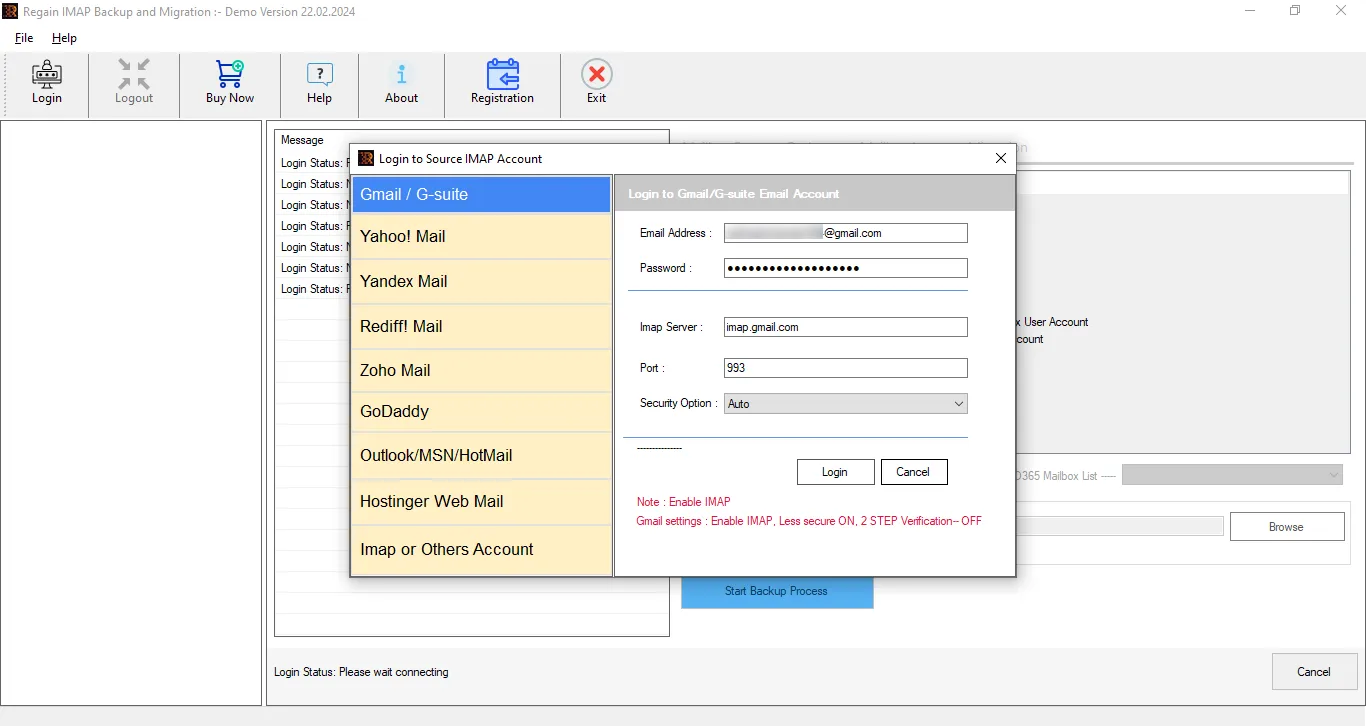
- Step 1: First, launch the Regain Email Migration Tool and enter the T-Online login credentials.
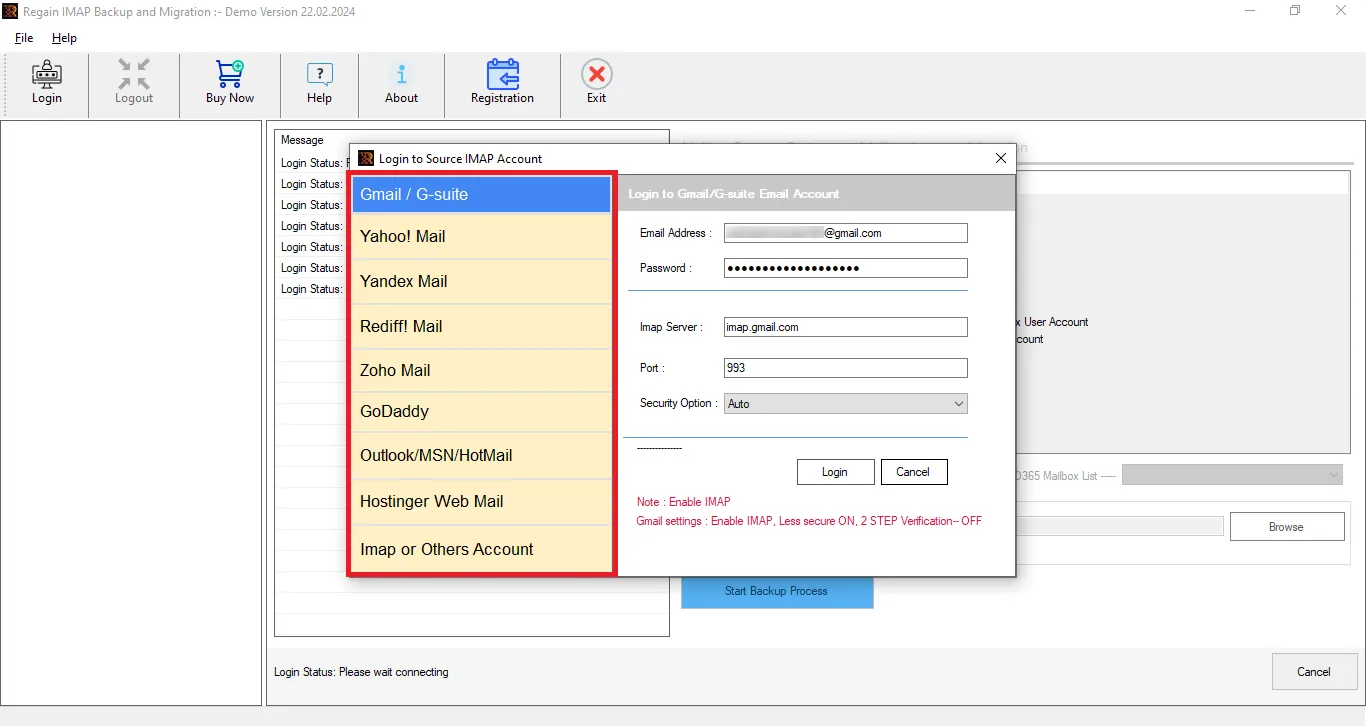
- Step 2: Select the IMAP or Other Accounts and enter your T-Online email address and password. You may need an app password to log in.
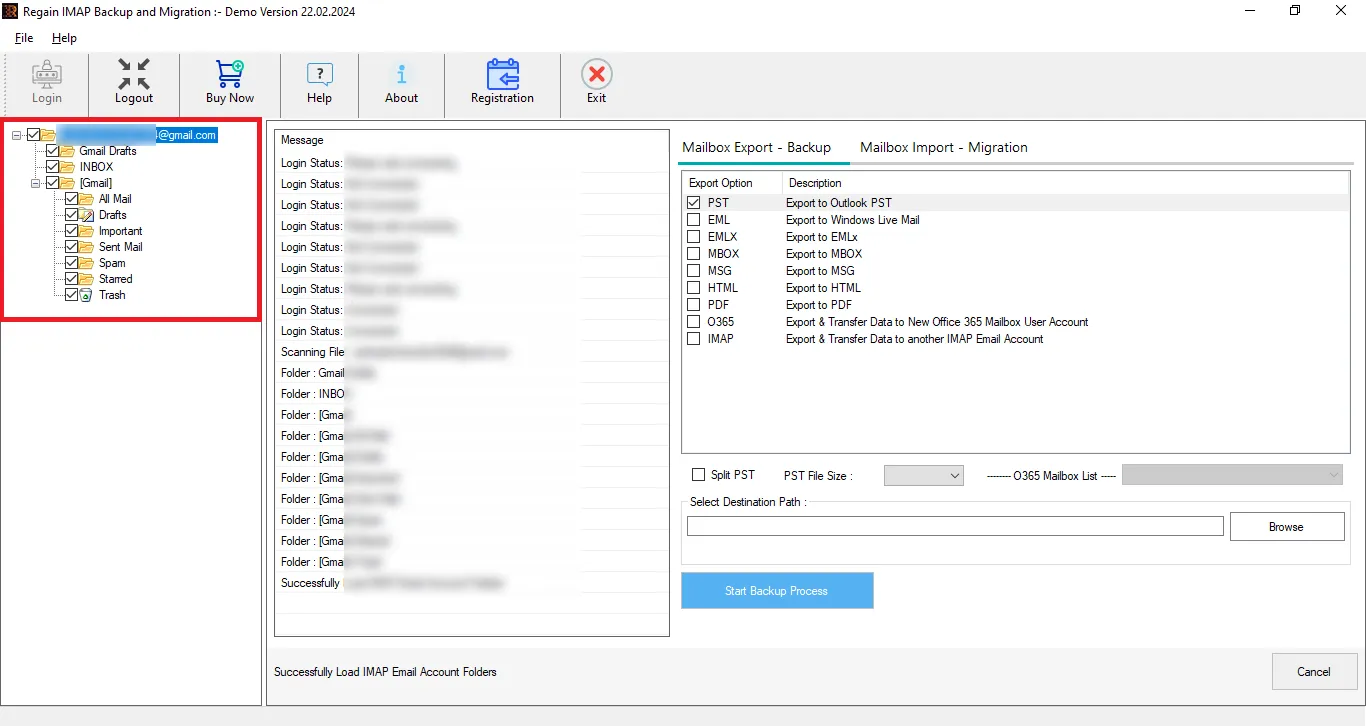
- Step 3: Now you can preview your T-Online mailbox. You can also uncheck the folders in order to eliminate them.
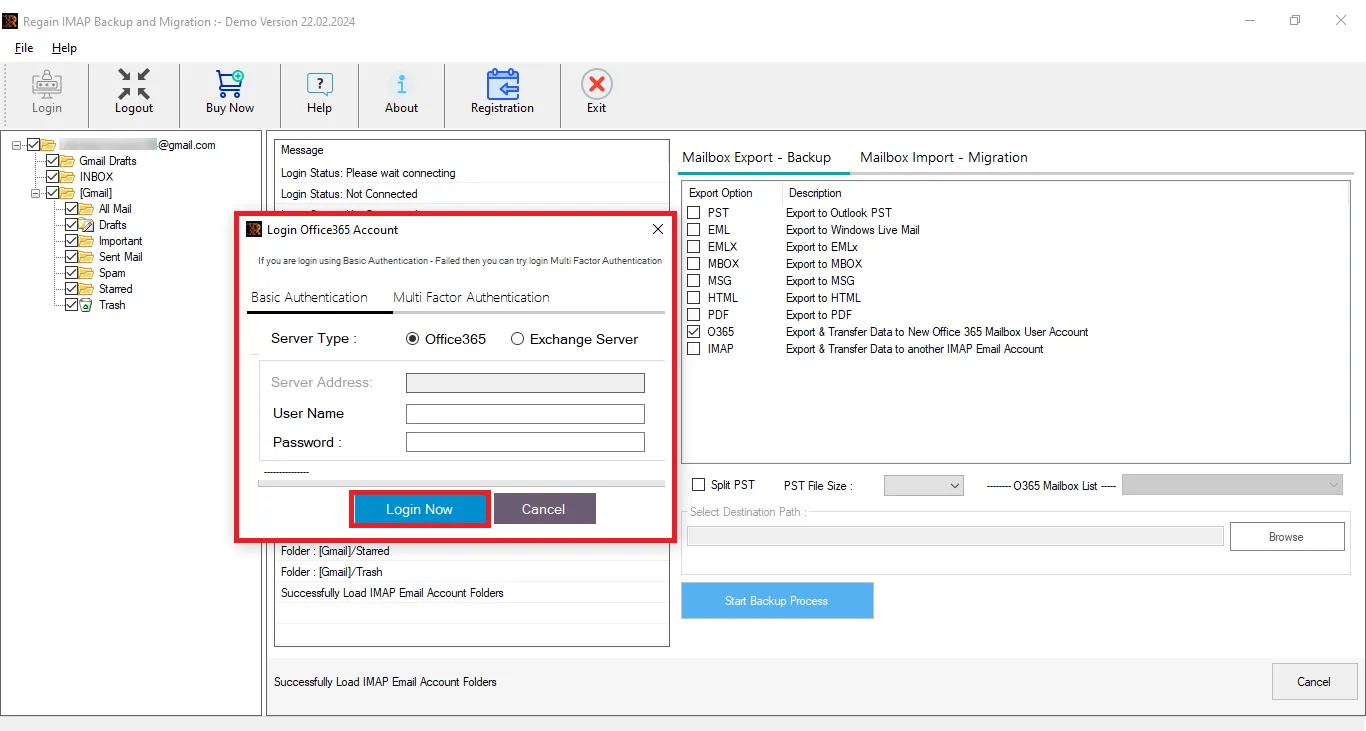
- Step 4: Choose your target email service, like Microsoft 365, Google Workspace, or any IMAP server/email platform.
- Step 5: After connecting to the destination, just start exporting.
Exclusive Features of the Regain T-Online Emails Migration Tool:
- This tool allows you to migrate T-Online to Microsoft 365 / Zoho / Yahoo / Gmail / Outlook / Yandex and IMAP accounts.
- It offers users the ability to export from any IMAP to another IMAP email client/server.
- Users get a preview before exporting to select/deselect folders. Moreover, users also get free technical support for any kind of assistance.
- Users can save their T-Online emails into PST, MBOX, EML, PDF, and MSG formats.
- The Regain T-Online Emails Migration Tool maintains folder hierarchy and email structure after the export process.
- The Regain IMAP Backup and Migration tool offers a free demo version of the software to check its compatibility.
Final Thoughts:
In this blog, we discussed how to migrate T-Online emails to Gmail, Microsoft 365, and Outlook using manual methods and a professional automated tool. We also explained the limitations of manual migration and how the professional T-Online email export tool (Regain Email Migration Tool) makes the process easier, faster, and more convenient. Moreover, a free demo version of this T-Online migration tool is also available to download. So, it is suggested to professionals that using an automated tool is a wiser and safer decision.

