How to Export PostMaster Emails to Gmail, Outlook, or Microsoft 365?


Updated On - September 28, 2026 by Armaan | Reading Time: 6 minutes
Quick Answer
To migrate PostMaster emails to Gmail, Outlook, or Microsoft 365, you can configure the PostMaster account manually or use a professional Email migration tool. Regain Email Migration Tool provides a simpler option to migrate PostMaster emails directly to Gmail or Microsoft 365, or export them to PST and other formats while preserving the mailbox folder structure.
If you are still using a PostMaster email and looking for a reliable way to export PostMaster emails to Gmail, Outlook, or Microsoft 365, this blog will guide you through the complete process. It helps users choose the most suitable approach. We will cover both manual and professional approaches using a dedicated Email migration tool to transfer emails securely without data loss.
Some Common Reasons to Export PostMaster Emails:
There are several reasons why users choose to export PostMaster emails to Gmail, Outlook, and Microsoft 365. Some of the most common reasons include:
- Modern email platforms (Google Workspace and Microsoft 365) offer advanced mailbox management features as well as user-centric services. Access emails from anywhere using cloud-based platforms.
- Improved email security and spam protection.
- Cloud-based email services offer larger storage capacities and scalable plans.
- Exporting emails creates an additional layer of protection against accidental data loss.
Available Methods for Exporting PostMaster Emails:
In this section, we will explain two ways (manual workarounds and professional utility) to export PostMaster emails. After going through both methods, you can choose the one that best suits your needs.
Manual Methods to Migrate PostMaster Emails
1) Transfer PostMaster Emails to Outlook
- Firstly, launch Microsoft Outlook.
- Click File > Add Account.

- Enter your PostMaster email address.
- Select Advanced Options.
- Choose Let me set up my account manually.
- Now choose the IMAP account type.
- Enter incoming and outgoing server settings.
- Provide username and password.
- And complete the configuration.


Steps to Get PostMaster Emails in the Outlook PST
- Click File and select Open & Export.
- Click Import/Export.
- Choose Export to a File.
- Select Outlook Data File (.pst).
- Choose folders to export.
- Lastly, save the PST file.


2) Transfer PostMaster Emails to Gmail
Step 1: Enable IMAP in Gmail
- Firstly, sign in to your Gmail account.
- Click the Settings icon.
- Select See All Settings.
- Open the POP/IMAP tab.
- Enable IMAP.

Step 2: Add a PostMaster Account in Gmail
- Open Gmail.
- Go to Settings.
- Click Accounts and Import.
- Enter your PostMaster email address.
- Choose Import emails from my other account (POP3).
- Enter the required server credentials.
- Complete the setup process.
- Gmail will start importing emails from the PostMaster account.

3) Export PostMaster Emails to Microsoft 365
- Sign in to your Microsoft 365 account. (Open Outlook Web App associated with your Microsoft 365 account.)
- Open Outlook and select Add Account.
- Enter your PostMaster email address.
- Choose IMAP as the account type.
- Enter the PostMaster server details and password.
- Complete the account setup.
- Wait for Outlook to sync the mailbox.
- Copy or move emails to the Microsoft 365 mailbox.
- Verify that all emails and folders have been migrated successfully.
Limitations of Manual Methods: Why Do Professionals Avoid Them?
Although manual methods are free, they have several drawbacks. A professional must be aware of them before using.
- Risk of data loss; chances of human error are always there.
- Requires technical knowledge, as you may encounter issues.
- Not suitable for bulk migration, as it may take days to accomplish a small mailbox migration.
- Sometimes, the original folder hierarchy is not maintained properly.
One-Stop Solution to Migrate PostMaster to Gmail, Outlook, and Microsoft 365 (Professionals’ Way)
To make the migration process fast, secure, and hassle-free, using the Regain PostMaster email export tool (Regain Email Migration Tool) is highly recommended.
Free Download100% Secure Buy NowPrice: $99
Simple Steps to Migrate PostMaster Emails:
- Step1: First, install and open the Regain Email Migration Tool on your system.
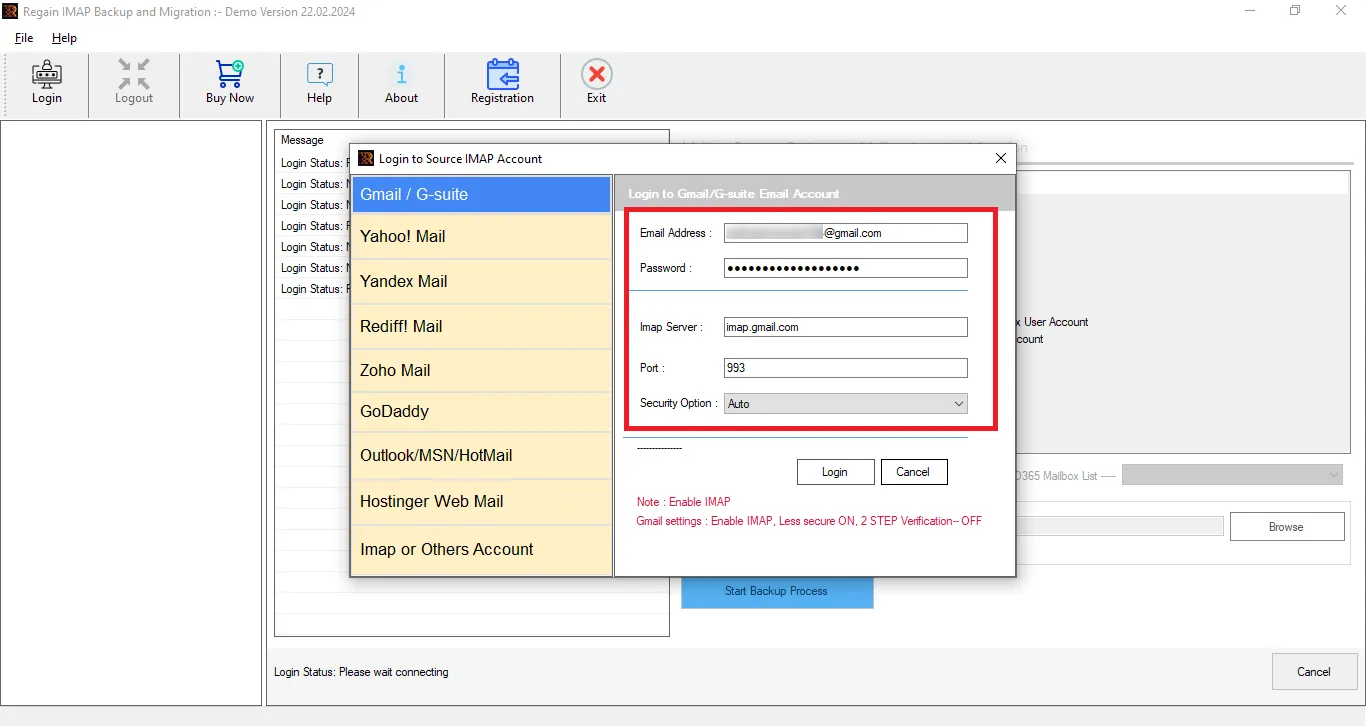
- Step2: Enter the PostMaster email login credentials after clicking IMAP or Other Account (like username, password, and other settings).
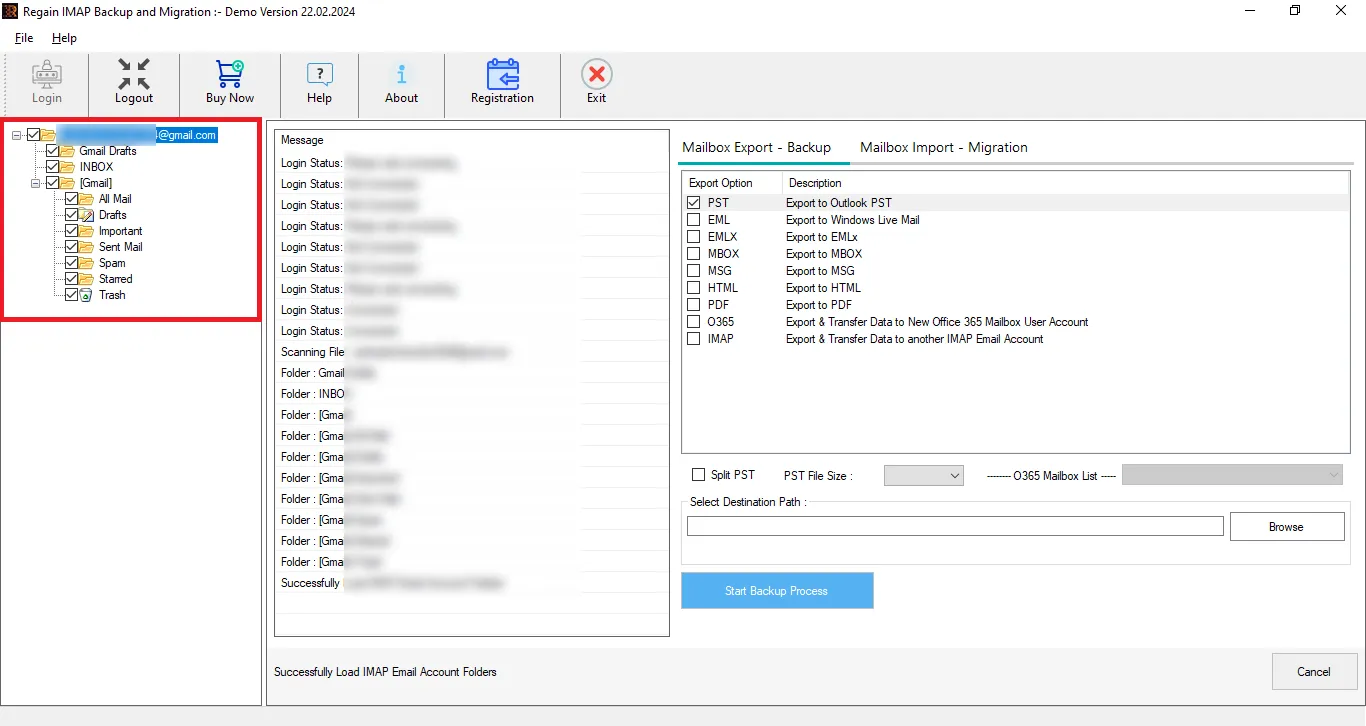
- Step3: You can also select or deselect the folder using the Regain PostMaster Emails Export Tool’s preview feature.
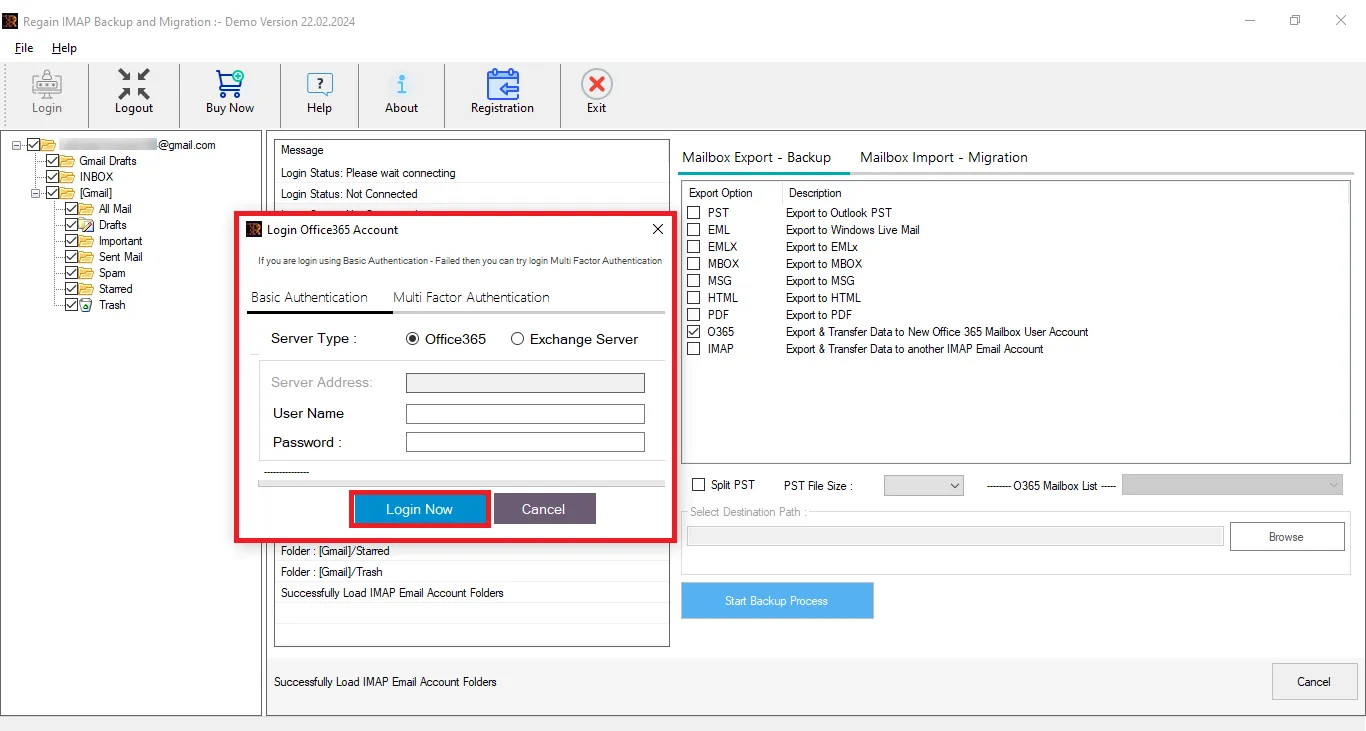
- Step4: Now, select the Mailbox Import-Migration option and enter the target account credentials (Gmail or Microsoft 365) for cloud migration. For Outlook, select PST file format as the target.
- Step5: Finally, move accordingly, and the PostMaster email migration process will start.
Other Exclusive Features of the Regain Email Migration Tool:
- Offers users to export from any IMAP to another IMAP email client/server ( Gmail, Zoho, Yahoo, Proton Mail, etc).
- Users get a preview before exporting to select/deselect folders.
- The Regain Email Migration Tool maintains folder hierarchy and email structure after the export process.
- Users can save their emails into PST, MBOX, EML, PDF, and MSG formats.
- It also facilitates users to directly migrate PostMaster emails to Microsoft 365 and Google Workspace.
- It is compatible with all Windows OS and provides free technical support to users.
- It offers a free demo version of the software to check its compatibility.
Final Thoughts:
In this article, we discussed how to migrate the PostMaster email server to Gmail, Outlook, or Microsoft/Office 365 using both manual and professional approaches. While manual methods are available, they can be time-consuming and error-prone.
To ensure a smooth, accurate, and secure migration experience, using a professional Regain Email Migration Tool (Regain PostMaster Export Tool) should be the preferred choice. This software simplifies the entire process and enables users to export PostMaster emails to Gmail, Outlook, or Microsoft 365 with minimal effort and maximum reliability.
Frequently Asked Questions:
Q1. How can I migrate PostMaster emails to Gmail?
Ans. You can configure the PostMaster account in Gmail and import emails manually. Alternatively, use Regain Email Migration Tool to migrate PostMaster emails directly to Gmail with fewer manual steps.
Q2. How do I transfer PostMaster emails to Outlook?
Ans. You can add the PostMaster account to Outlook using its IMAP settings and then export the mailbox to a PST file. Regain Email Migration Tool can also save PostMaster emails directly as a PST file for Outlook.
Q3. Can I migrate PostMaster emails to Microsoft 365?
Ans. Yes. You can configure the PostMaster account and move the emails to Microsoft 365 manually. Regain Email Migrator also supports direct migration of PostMaster emails to Microsoft 365.
Q4. Can I convert PostMaster emails to PST?
Ans. Yes. Regain Email Migration Tool can export PostMaster mailbox data to PST format, allowing you to open or import the emails in Microsoft Outlook.
Q5. Can I migrate PostMaster emails without Outlook?
Ans. Yes. You can use Regain Email Migration Tool to migrate PostMaster emails directly to Gmail or Microsoft 365 without first configuring the mailbox in Outlook.
Q6. Will my PostMaster folder structure be preserved?
Ans. Regain Email Migration Tool maintains the mailbox folder hierarchy during the migration process and help you to organize the emails in the destination mailbox.
Q7. Can I migrate selected PostMaster folders instead of the entire mailbox?
Ans. Yes. The tool provides a preview option that allows you to select or deselect specific folders before starting the migration.
Q8. What formats can I export PostMaster emails to?
Ans. You can save PostMaster emails to various email formats such as PST, MBOX, EML, MSG, and PDF. The tool can export directly from PostMaster mailbox to any IMAP supported email clients.
Q9. Is Regain Email Migration Tool suitable for large PostMaster mailboxes?
Ans. The tool is designed to simplify mailbox migration and can be used when migrating larger amounts of email data. Always ensure sufficient storage and verify the destination mailbox after migration.
Q10. Is there a free way to migrate PostMaster emails?
Ans. Manual migration methods are available, but they can require multiple configuration and copying steps. Regain Email Mailbox Migration Tool provides a dedicated workflow and a free demo version to test the migration before purchasing.
Related Articles:

