Guide to Export MailEnable Emails to Gmail, Office 365, and Other Targets


Published On - September 8, 2025 by Nasir Khan | Reading Time: 5 minutes
If you rely on MailEnable for your email management, and now you want to export your emails, then you have come to the right place. In this complete blog, we will provide you with all the information regarding MailEnable, like why users export MailEnable emails, the manual method of exporting MailEnable, and, along with it, how Professional Regain MailEnable exporter tool work to accomplished all these tasks..
Why Do Users Export MailEnable Emails?
There may be many reasons for exporting MailEnable emails, some of which are as follows:
- Switching to Modern Platforms: Users can improve their email management by exporting their MailEnable emails to Zoho, Yahoo, Google Workspace, Office 365, or more modern platforms.
- Advanced Security: You can export MailEnable emails to an email client like Gmail, which allows you features like two-factor authentication and spam filtering, which makes your account even more secure.
- Avoiding Data Loss: It is common to accidentally delete emails or lose them due to a technical issue, but if you have exported your emails, you can easily restore them.
- To Free Up Space: By exporting your old or unused MailEnable emails, you can free up space in MailEnable, which will make it easier to manage your important emails.
Ways to Export MailEnable Emails to Gmail, Office 365 and Various Platforms
Here, we have discussed two methods by which you can export MailEnable emails. The first is the manual method, and the second is the professional method. You can choose the process as per your need. The manual method will vary as per the target.
Manual Steps to Export MailEnable to Gmail
- Open the Gmail account.
- Now, select the “See All Settings” option from the Gear Icon.

- Under the Accounts and Import Tab, now, click on the Add a Mail Account.

- Now, enter your MailEnable credentials to connect and proceed.

- Select the Import Emails from Any Other Account and proceed to the Next. By doing all above mentioned steps, users can add the MailEnable account to Gmail but not import emails.
- If you want to import to Gmail, then select “Import mail and contacts”.

- Enter the email address of the MailEnable account to import and proceed to the next and click on Start Import.

2 – Manual Method to Export MailEnable to Outlook PST
Phase 1—Add MailEnable to Outlook
- Firstly, open Outlook.
- Go to File, then Add Account.
- Now enter your MailEnable email credentials.
- Enter the following MailEnable email configuration details:
- Incoming Mail Server: imap.MailEnable.net Port: 993 Encryption: SSL
- Outgoing Mail Server: smtp.MailEnable.net Port: 587 Encryption: SSL
Phase 2 – Export Emails
- Let it sync completely.
- Now go to the File.
- Click Import/Export.
- Select Export to a file. (Outlook data file .pst)
- Choose the MailEnable mailbox and select the location to save the .pst file.
- Tap on Finish.
Be Aware of these Facts Before Using the Manual Method:
These manual methods are not for professionals, as there are various drawbacks and limitations associated with the manual process. Some of them are:
- Data Loss: Just one wrong setting can make you lose your very important data.
- Difficult for Non-Technical Users: If you are not a tech expert, the manual method might be too difficult for you.
- Time-and Effort-Consuming: Exporting using the manual method can be very time-and effort-consuming for users. If you have multiple mailboxes for exporting, then this method is not for you.
- Hierarchy and Folder Structure: You may lose the hierarchy and folder structure of your emails after exporting using the manual method.
2 – Export with Professional Tool (Regain MailEnable Export Tool)
You can export your MailEnable emails very easily through the Regain MailEnable Export Tool.
Free Download100% Secure Buy NowPrice: $99
To complete the export process, you have to follow some simple steps, which are given below:
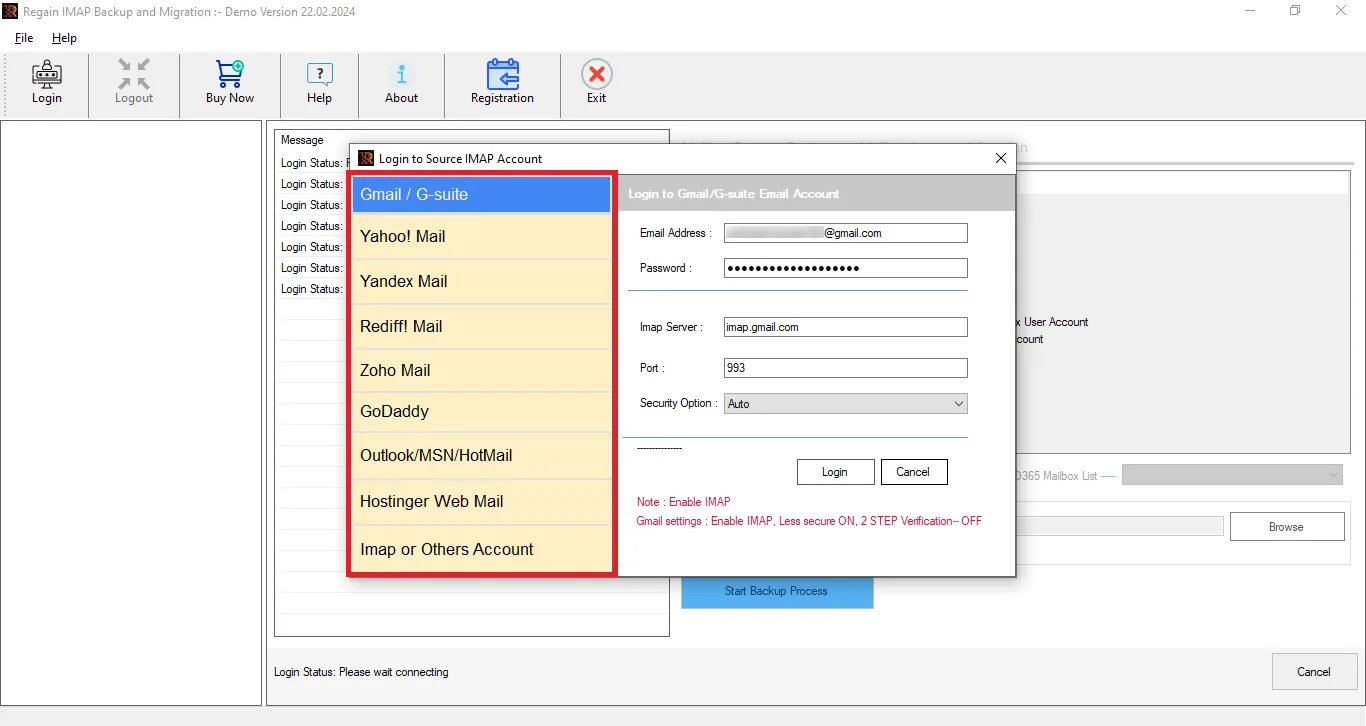
- Step 1: Firstly, launch the Regain MailEnable Export Tool.
- Step 2: Now, enter the login credentials of your account (email address, password, etc.).
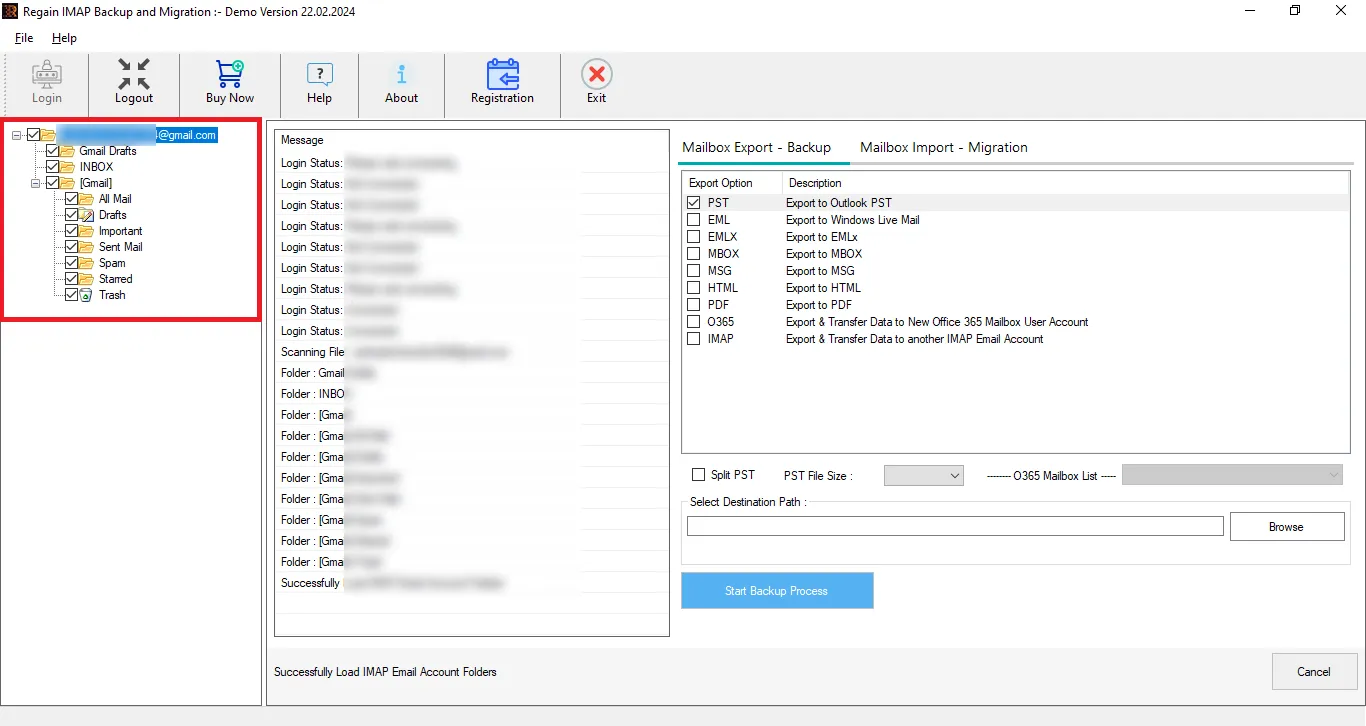
- Step 3: Have a preview of the mailbox, and if needed, then you can also select/deselect the folders for the migration. Select the target under Mailbox Import-Migration.
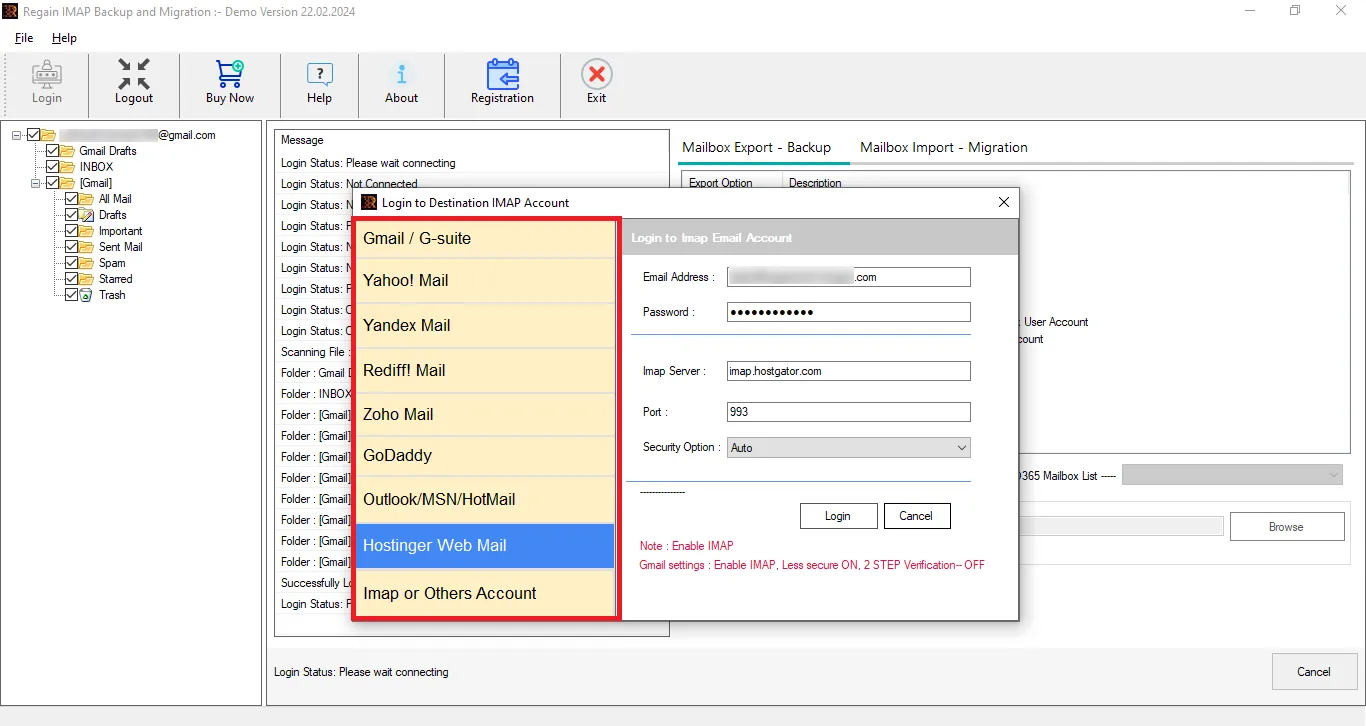
- Step 4: Now, enter the destination account credentials, connect and start email migration.
See How Regain MailEnable Export Tool Helps Users:
- Regain MailEnable Export Tool offers users the ability to export from any IMAP to another IMAP email/client server.
- This utility is also capable of backing up the mailbox data in PST, EML, HTML, MBOX and MSG.
- Users get a preview before exporting to select/deselect folders.
- This tool ensures that the original folder structure of your emails and hierarchy remains intact throughout the complete export process.
- The Regain MailEnable Export tool supports migrating emails to Zoho, Yahoo, Office 365, Gmail, Outlook, Yandex, and other IMAP accounts.
- There are no size limitations on the mailbox for backup/export.
- The Regain MailEnable Export Tool is suitable for all Windows OS.
Gist of the Blog:
Exporting your MailEnable emails becomes important when you want to manage your emails better or wish to back up your emails. Through this article, we have provided you with all the information regarding MailEnable and also informed you about the method to export it. Manual methods can create a lot of difficulties in your export process, so Regain MailEnable Export Tool, which is tested by experts, will make your export process very easy and accurate.
Frequently Asked Questions:
Q. Do I need an App Password to connect with my MailEnable account?
A. Yes, you may need an App Password. Today, most Email accounts have made it compulsory to use an App Password for third-party login. However, you can try with the user-password, but if it does not work, then create and use an App Password.
Q. I want to take a backup of the MailEnable account that is IMAP in PST; moreover, I want to migrate to Office 365; can I do both tasks with the same license?
A. Yes, you can. With this advanced tool, you can back up MailEnable in PST file format as well as migrate to the Office 365 mailbox.
Q. Can I use this utility for free?
A. Yes, you can use this MailEnable Export Tool for free as a demo. The demo allows processing the first 30 items per folder, but there is no such limitation with the licensed/paid version.
Q. Will my email from the source accounts get deleted once I complete the migration?
A. No, your emails will not get deleted automatically. The software only migrates a copy of the items.
Related Articles:


