Export Eircom Emails to Gmail, Outlook, Microsoft 365 and Others


Published On - January 29, 2026 by Nasir Khan | Reading Time: 3 minutes
If you want to transfer your emails from Eircom.net to a platform like Gmail, Outlook, or Microsoft 365, then you are at the right place. Moreover, if you want to export Eircom email data to local storage files, here is a one-stop solution. In this detailed guide, we will give you all the information related to Eircom email export.
Why do users transfer emails from Eircom?
Eircom Email is an email service originally provided by Eircom, one of Ireland’s main telecommunications companies. The service allows users to send, receive, and manage emails through webmail or email clients. However, the reason could be anything to Export Eircom Emails, like pricing or any organizational decision. Some of the common ones are:
Better Features:
- Eircom email offers limited storage and basic options.
- Modern email services provide more space for emails.
- They also have better spam filters and search tools.
- This makes managing emails easier and faster.
Easy Access on All Devices
- Eircom email may not work smoothly on all devices.
- New email services work well in all kinds of environments.
- Users can check emails anytime and anywhere.
- This improves daily communication and productivity.
Less Storage Space
- Eircom email offers limited mailbox storage.
- Large attachments quickly fill the inbox.
- Users may stop receiving new emails.
- New email services provide more storage space.
Methods to Export Eircom Emails:
Here, we will discuss two ways to accomplish the export process of Eircom mails. After evaluating both of them, you can choose accordingly; however, professionals always go with the advanced third-party professional solution.
Manual Methods to Transfer Eircom Emails:
1. Transfer Using Microsoft Outlook
Step1: Add Eircom Account to Outlook
- Open Microsoft Outlook.
- Go to File → Add Account.
- Choose Manual Setup.
- Select IMAP.
- Enter Eircom server details.
- Sign in successfully.
Step2: Add Your New Email Account
- Go to File → Add Account.
- Add your new email (Gmail, Outlook.com, etc.).
- Ensure both accounts appear in Outlook.
Step3: Move Emails Manually
- Select emails or folders from the Eircom account.
- Drag and drop them into your new email account.
- Wait for syncing to complete.
- Emails are now transferred to the new account.
2. Transfer Using Thunderbird
- Open Thunderbird.
- Click Menu ☰ → Account Settings → Account Actions → Add Mail Account.
- Enter your Eircom email address and password.
- Choose Configure manually.
- Set IMAP: imap.eircom.net, Port 993, SSL/TLS.
- Set SMTP: smtp.eircom.net, Port 465, SSL/TLS.
- Click Done and wait for folders to load.
- Add your new email account the same way.
- Select Eircom emails and drag-drop them to the new account.
Check the new email to confirm the transfer.
Limitations and Drawbacks of the Above-Mentioned Manual Methods:
- The user must be technically sound while performing this export process, as a wrong setting may lead to data loss.
- Manual methods may cost you more time and effort. It is not as simple as it looks.
- Using the manual method can lead to accidental deletion and missing files when you are exporting large amounts of data.
Professional Solution to Export Eircom Emails:
Free Download100% Secure Buy NowPrice: $99
- Step1: First, install the Regain Eircom Export Tool (Regain IMAP Backup and Migration Tool) on your system.
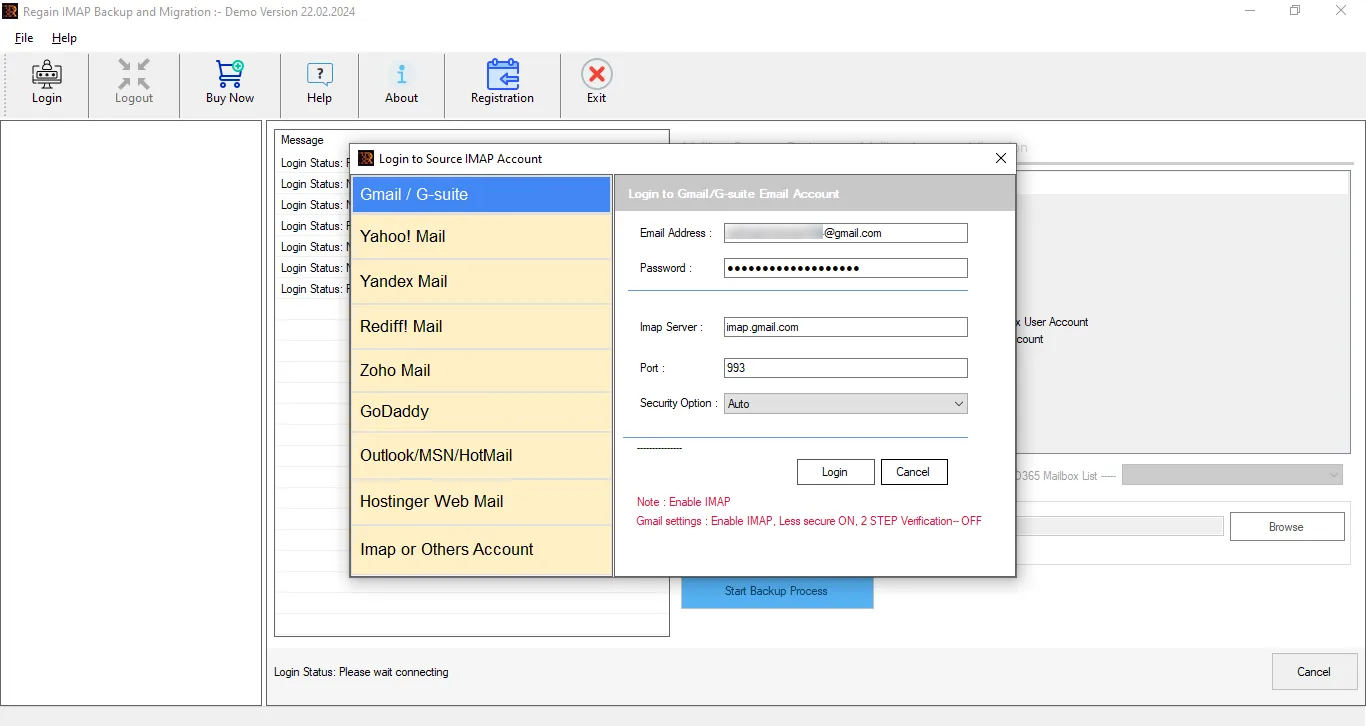
- Step2: Now, select the IMAP or Other Accounts option and enter the login credentials (username and password) of your account.
- Step3: The Regain IMAP Backup and Migration Tool will fetch mailbox details and preview the folders; here, you can also select/deselect the folders.
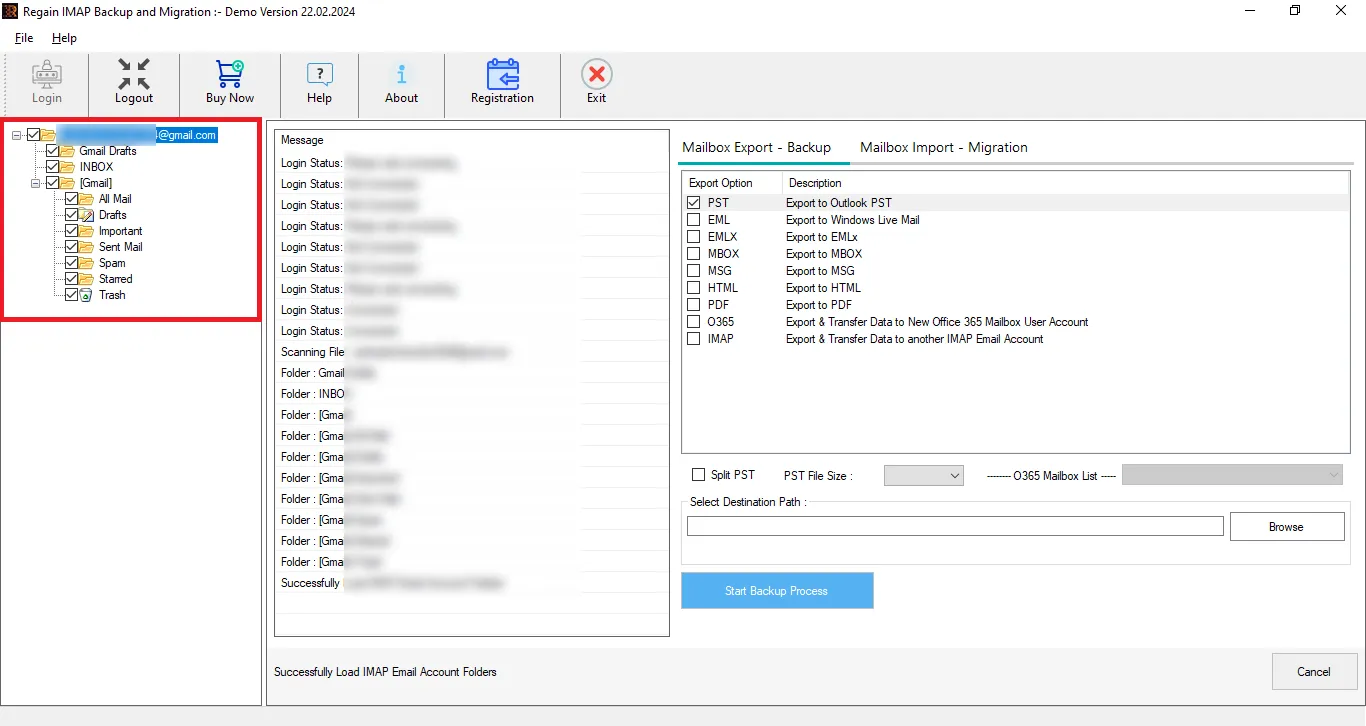
- Step4: Now, select the target from the Mailbox Export-Backup or Mailbox Import-Migration. Enter the Target account credentials for cloud migration.

- Step5: Move accordingly, and the Eircom Mail export process will start.
Other Salient Features of the Regain IMAP Backup and Migration Tool
- Regain Email Migration tool supports Yahoo, Zoho, Gmail, Yandex, and all IMAP accounts.
- There are no restrictions on mailbox size and mailbox number.
- This tool offers a preview facility before exporting to select/deselect folders.
- This software maintains folder hierarchy and email structure after the export process.
- Moreover, it allows saving the email data in PST (Outlook-supported), EML, MSG, PDF, and MBOX (Thunderbird-supported), like prominent file formats.
- With this utility, users can directly migrate to Google Workspace, Exchange Server and Microsoft 365.
- You get a free demo version of the Regain Eircom Mail Export Tool.
- Regain IMAP Backup and Migration Tool provides free 24/7 technical support for any query.
Gist of Blog:
Exporting your Eircom emails ensures all your important messages are safely backed up or moved to another account. You can do this manually or using the professional Regain IMAP Backup and Migration Tool, which automates the process, transfers emails, folders, and attachments efficiently, and reduces the risk of errors. Using such a tool boosts the process to export Eircom email while keeping your data safe and organized. You can also try the demo version of the software before purchasing the license.
Related Articles:


