How to Transfer Oi Mail Emails to Office 365/Gmail/Outlook?


Published On - January 2, 2026 by Nasir Khan | Reading Time: 3 minutes
Are you using Oi Mail but now planning to switch to a more secure and feature-rich email service? If yes is your answer then this guide is dedicated to you. Many users look for reliable ways to transfer Oi Mail emails when moving to popular platforms such as Gmail, Outlook, Yahoo Mail, or Office 365 due to limited storage and security concerns.
In this detailed guide, we will cover everything you need to know about exporting Oi Mail, including what Oi Mail is, why users export their emails, the different methods available, the drawbacks of manual techniques, and the best methods.
Oi Mail in a Glance:
Oi Mail is an email service provided by Oi Telecom, a well-known telecommunications company in Brazil. The Oi Mail allows users to send, receive, and manage emails through a web-based interface and standard email protocols.
Many individuals and business professionals rely on Oi Mail for daily communication.
Why Users Transfer Emails From Oi Mail?
- Limited Storage Space: Oi Mail provides restricted mailbox storage, which can quickly fill up and prevent users from receiving new emails.
- Lack of Advanced Security Features: Compared to modern platforms, Oi Mail offers fewer security options, such as advanced spam filtering and enhanced encryption.
- Switching to Popular Email Services: Users often move to Gmail, Outlook, Yahoo, or Office 365 for better performance, reliability, and features.
- Data Backup and Safety: Transferring emails helps users create a secure backup and avoid the risk of permanent data loss.
Methods to Export Oi Mail:
There are both manual and professional methods to export Oi emails. Let’s look at the most common ways:
1 – Manual Method
Transfer Oi Mail Emails to Gmail Using POP3
Steps:
- Log in to your Gmail account.
- Click on the Settings icon and select See all settings.

- Go to the Accounts and Import tab.

- Under Check mail from other accounts, click Add a mail account.

- Enter your Oi Mail email address and click Next.
- Select Import emails from my other account (POP3) and click Next.
- Enter your Oi Mail username and password.
- Enter the POP3 server details of Oi Mail.
- Click Add Account to start the email transfer.
Transfer Oi Mail Emails Using Outlook (IMAP)
- Open Microsoft Outlook on your system.
- Click File → Add Account.

- Choose manual setup or additional server types.
- Select IMAP and click Next.
- Enter your Oi Mail IMAP server details and login credentials.
- Add your destination email account (Gmail, Outlook, etc.) in Outlook.
- Select Oi Mail folders and drag and drop emails into the destination mailbox.
Limitations and Drawbacks of Manual Methods: Read Before Moving Ahead
- Time-Consuming Process: Manual transfer takes a lot of time, especially when the Oi Mail mailbox contains a large number of emails or folders.
- Risk of Data Loss: There is always a chance of missing emails, attachments, or folders during the manual migration process.
- Limited Transfer Capability: Manual methods do not support bulk migration, selective email transfer, or advanced filtering options.
- Requires Technical Knowledge: Users must correctly configure POP3 or IMAP settings, which can be difficult for non-technical users.
Method 2: Export Oi Mail Professionally
Regain Oi Mail Export Tool (Regain IMAP Migration and Backup Software) is the best and most reliable method to export or transfer Oi Mail. The utility allows users to export all emails from Oi Mail to Gmail, Yahoo Mail, Office 365, Zoho Mail, etc.
Free Download100% Secure Buy NowPrice: $99
You can complete this export process easily by following just a few steps.
- Step1: Firstly, install and launch the Regain IMAP Migration and Backup Tool on your system.
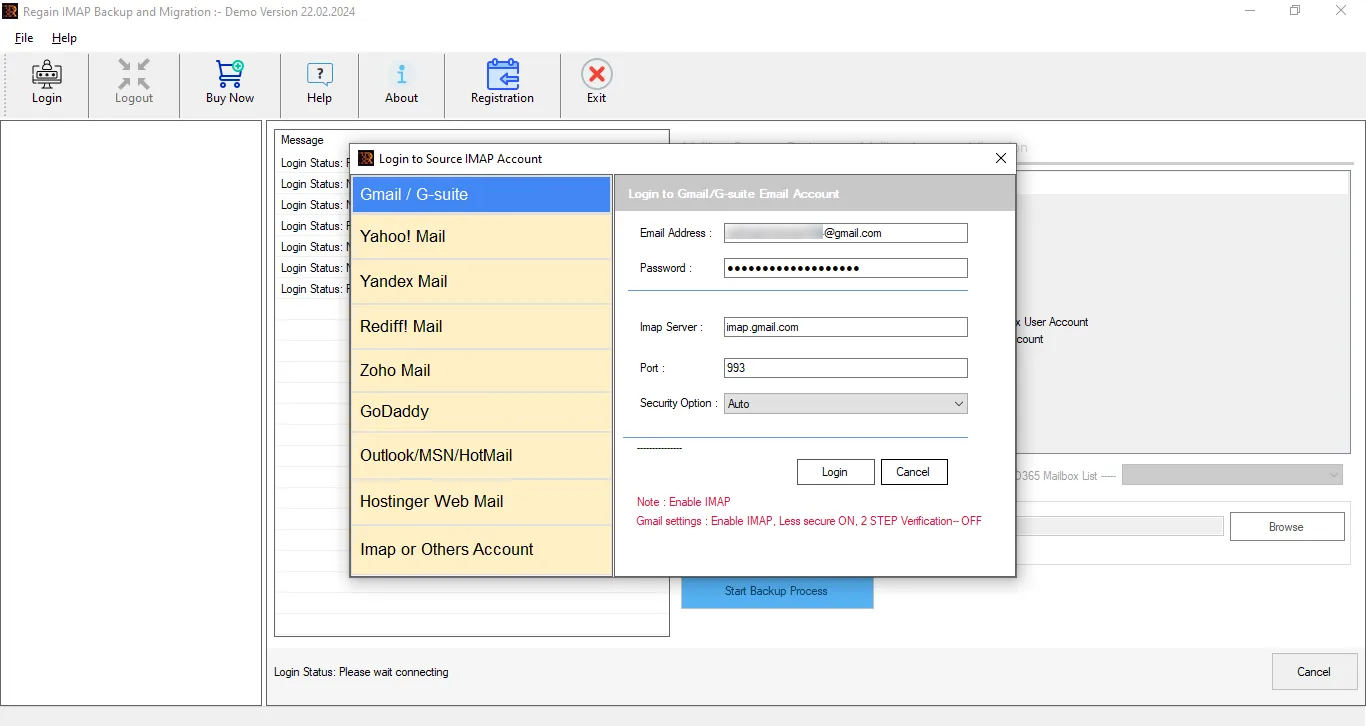
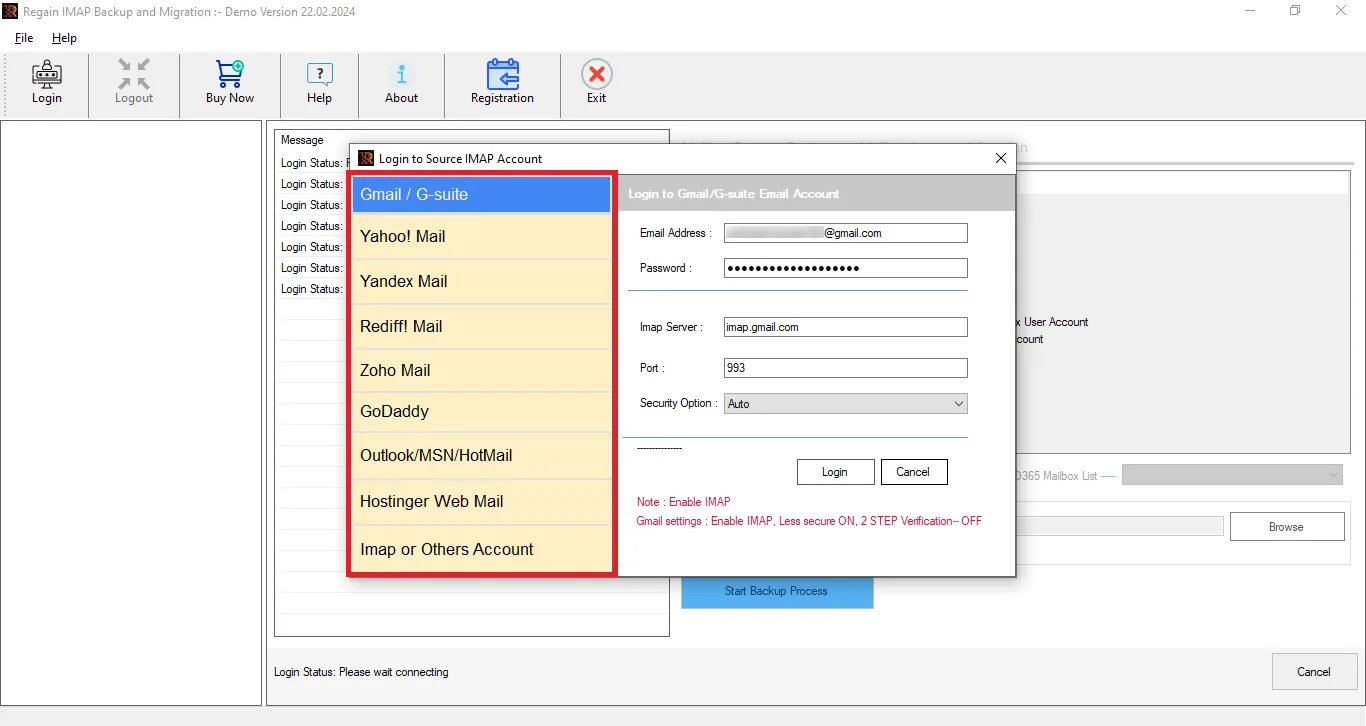
- Step2: Now, enter the login credentials of Oi Mail.
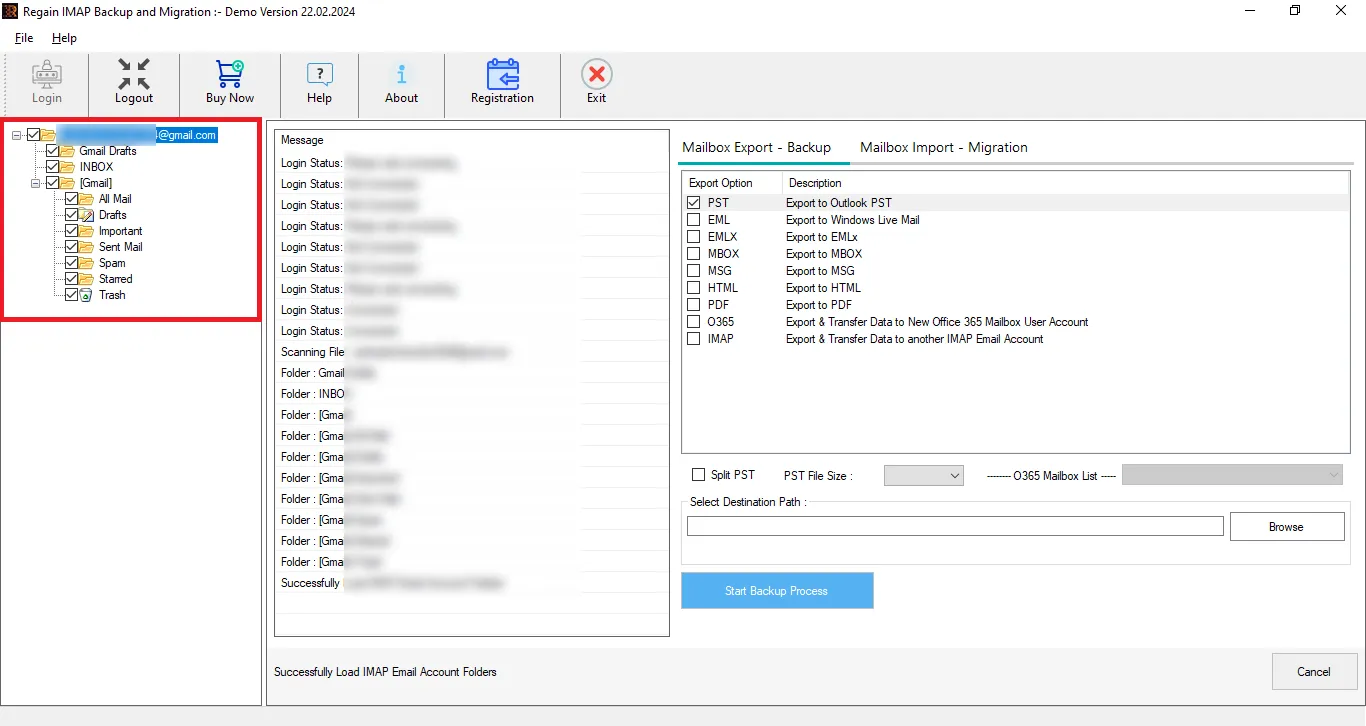
- Step3: Here, you can preview the mailbox details per your requirements.
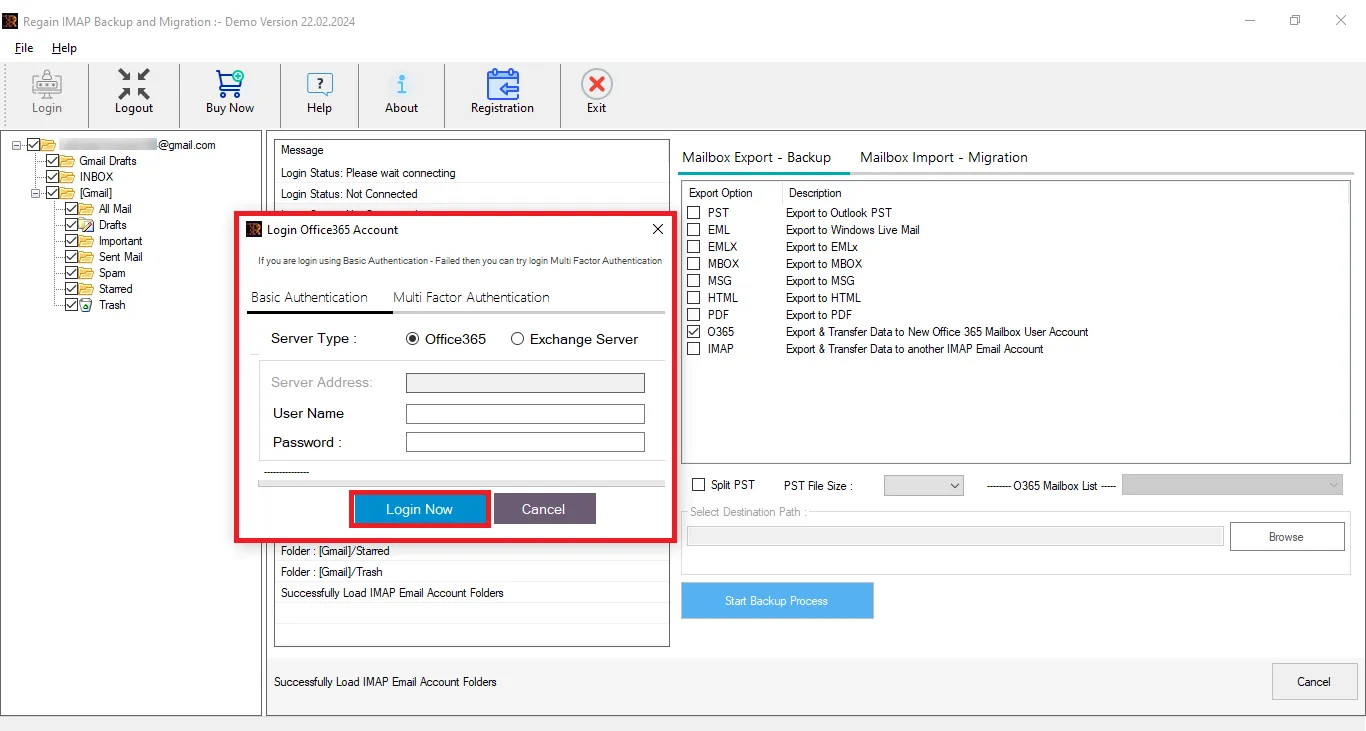
- Step4: Now, select the Mailbox Import-Migration option from the ribbon bar and enter the destination account credentials.
- Step5: And start exporting.
Soon, all your Oi mails will be exported.
Some prominent features of Regain IMAP Migration and Backup Software
- This software supports Gmail(Google Workspace) /Yahoo/Zoho/Outlook/Yandex all IMAP accounts.
- Folder hierarchy and email structure remain intact even after export.
- It also allows exporting Oi Mail data to some prominent file formats like PST (Outlook Supporting File Format), EML, MSG, MBOX, PDF et cetera.
- Regain Email Migration Tool offers mailbox preview before exporting to select/deselect folders.
- This software also facilitates export from Oi Mail to Office 365 and Exchange On-Premises.
- Regain IMAP Backup and Migration tool supports all Windows OS.
- Users get a free demo version of the software to check its compatibility.
Gist of the Blog:
Transferring emails from Oi Mail is an important step for users who want better security, higher storage, and advanced email features. Although manual methods can help move a small number of emails, they often come with limitations such as data loss risk, time consumption, and incomplete migration. For users with large mailboxes or important data, choosing a reliable and professional Regain IMAP Backup and Migration Tool ensures a safe, accurate, and hassle-free migration.
Related Articles:


