How to Export Bluehost Emails Directly and Speedily?


Updated On - September 2, 2025 by Nasir Khan | Reading Time: 5 minutes
As we know, email data is a valuable asset for both business professionals and individuals; hence, its export requires extra care. If you are using Bluehost for emailing and want to export to another platform, you have landed in the right place. In this article, we will guide you through the most effective and professional way to export Bluehost emails to Office 365, Gmail, Exchange On-premises, and other targets.
What is Bluehost?
Bluehost is one of the most popular web hosting companies, recognized for its reliable hosting solutions, domain registration services, and email management features. Many business professionals and individuals rely on Bluehost email accounts for daily communication.
Learn more about our Professional Regain IMAP to IMAP Migration tool
Why Do Users Export Emails from Bluehost?
Exporting emails from Bluehost is a user’s sole decision and can be initiated by any reason. Some of the common ones are:
1) Moving to Another Email Platform
Many users are migrating from Bluehost to various platforms, such as Microsoft 365, Google Workspace, and Zoho Mail, to access more advanced features, including increased cloud storage and enhanced spam filters.
2) Secure Email Backup
One of the common reasons users export their emails from Bluehost is to create a safe and secure backup, allowing them to recover accidentally deleted emails and recover from data loss.
3) To Free up Server Space
By exporting old and unused emails, you can free up space on your server, which will improve your webmail performance and be a cost-effective step.
Available Methods for Exporting Bluehost Emails:
Here, we will elaborate on two methodologies for accomplishing the export process of Bluehost email. After reading both of them, you can choose accordingly.
Manual Methods to Export Bluehost Emails:
Manual methods available are more centered on downloading or dragging and dropping. If you want to migrate Bluehost emails to Office 365 or Google Workspace directly, then don’t waste your time with the manual method and opt for a professional tool instead. However, let’s explore the manual available ways:
Download emails from Bluehost using webmail
- First, open your web browser and go to the Bluehost login page.
- Enter your username and password.
- Go to the Webmail section and choose the email account.
- Now, open the email you want to download from Bluehost.
- Then, go to the three dots and tap on the export option.
- Select the destination path to save the export emails from Bluehost.
- Finally, you will receive an exported file in your local storage.
Export using Email Client (Thunderbird):
- Firstly, open the Thunderbird email client.
- Now, add a new account and enter your Bluehost email credentials.
- Configure incoming and outgoing server settings.
- Allow the email client to sync your emails.
- Now, create a new folder locally.
- Open the email folder in Thunderbird from which you want to export emails.
- Now, press Ctrl+A to select the emails.
- Then, open the new folder and select emails.
- Now, drag and drop them, or you can simply get emails in MBOX file format (the default file format of Thunderbird).
Beware of These Points before Using the Manual Method:
- The manual method varies according to the target, and despite migrating to another server, it is primarily used for email backup by configuring a Bluehost email account, whether in Outlook or Thunderbird.
- This process requires more effort and considerable time.
- You will need sufficient technical knowledge to perform the manual method. Just one wrong setting can increase the chances of data loss.
- There is a risk of corruption during the synchronization process. Moreover, you will not get a direct method to export to Office 365, Gmail, Zoho, and Exchange On-premises.
- You will be restricted to the limited file formats available through the manual method that you have used.
A Direct Method to Export Bluehost Emails Used by Professionals:
By using the Regain Bluehost Export Tool, you can easily export Bluehost Email. This tool is a trusted and tested resource, tried and approved by users and experts. This tool can export Bluehost Email in bulk. It’sa simple and friendly graphic design that is also useful for non-technical users.
Free Download100% Secure Buy NowPrice: $99
Key features of the Regain Bluehost Export Tool:
- Speedily and directly migrate to Exchange Online/ Exchange On-Premises, Gmail, Zoho, or any other IMAP email client/server.
- There are no limitations on the number of emails and the size of the mailbox.
- Users receive a preview before exporting to select or deselect folders.
- Along with Bluehost, it can migrate emails from any IMAP email client, such as Gmail, Yahoo, Zoho, AOL, and others.
- The Regain Bluehost Export Tool ensures that the original folder structure of your emails remains intact throughout the export process.
- You can directly export Bluehost emails to PST, MBOX, EML, and MSG-like file formats.
- Regain Bluehost Export Tool is compatible with all Windows OS.
- A free demo version is also available for download, installation, and testing.
Professionally Export Bluehost Emails in a Few Steps:
- Firstly, launch the Regain Bluehost Export Tool on your system.
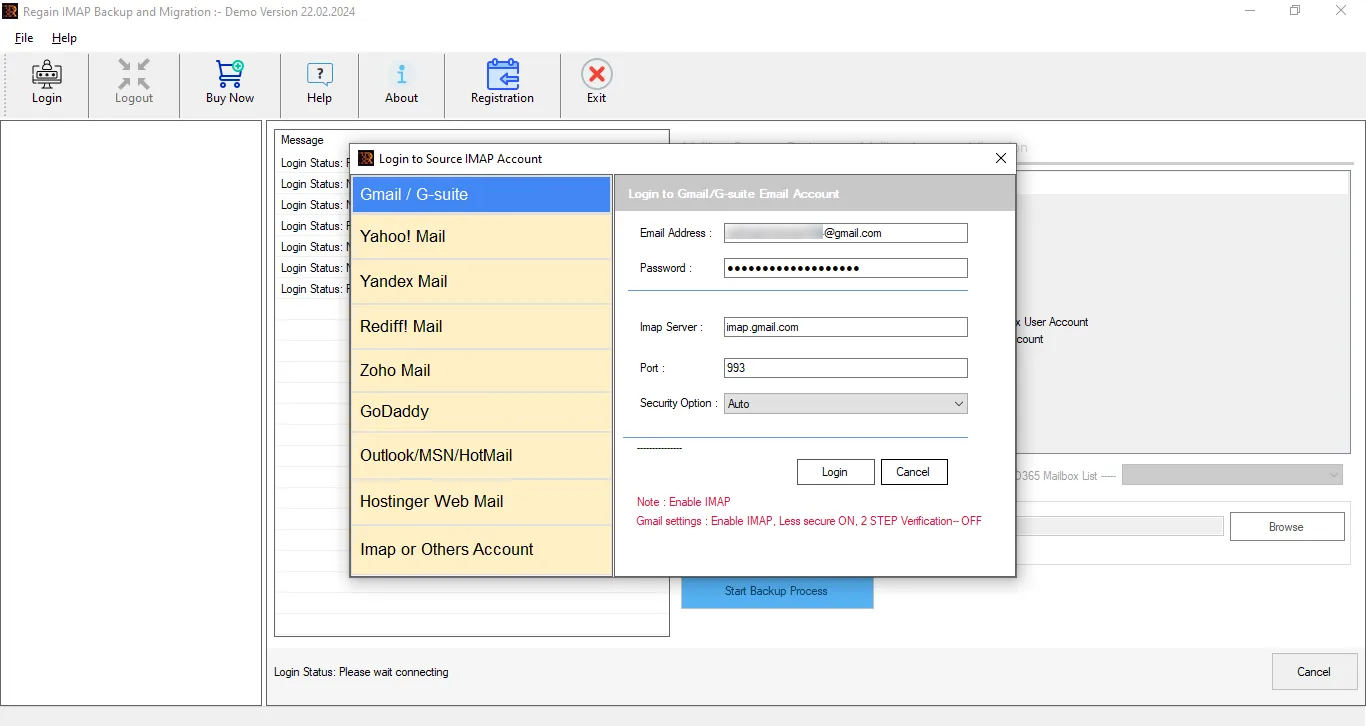
- Now, enter the login credentials of your Bluehost account.
- The software will now connect with the Bluehost account and preview the mailbox data. You can also filter the folders by unchecking them.
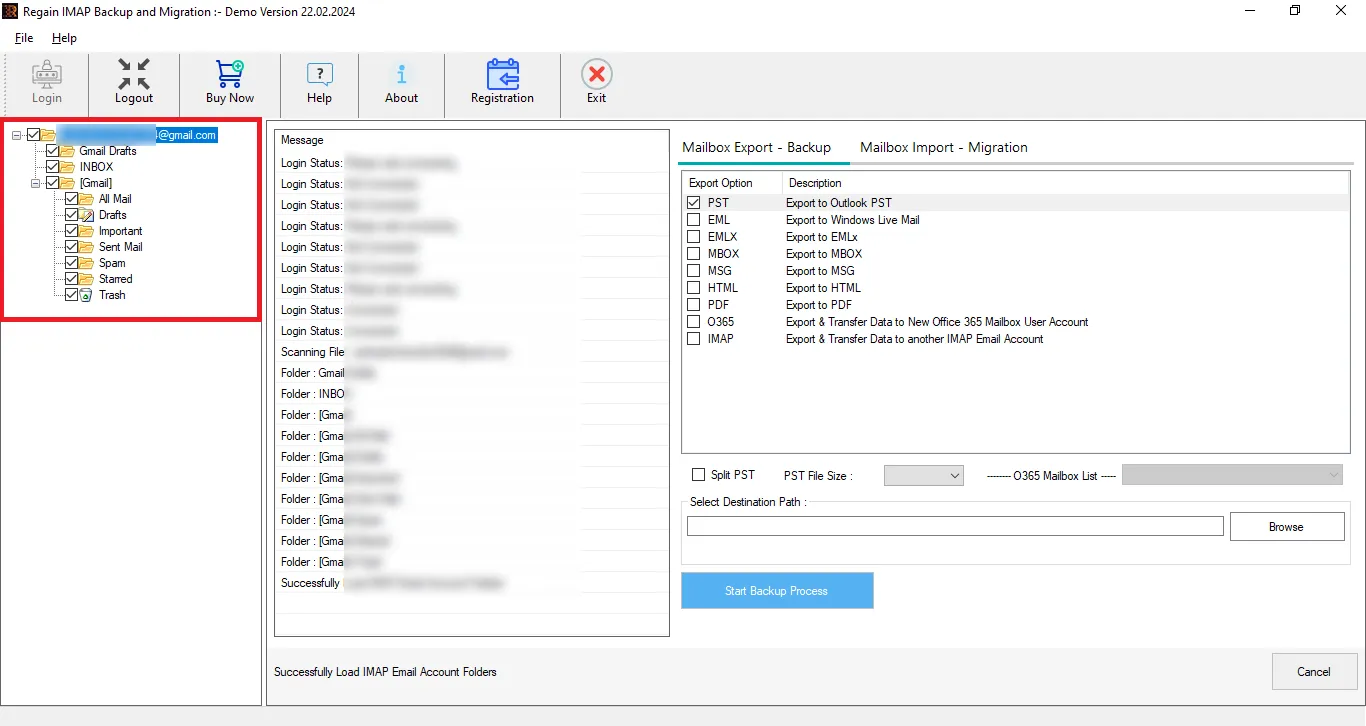
- Now, select your target. If you are migrating, then select the server; otherwise, select the desired file format and start exporting.

Final Words:
There could be any reason to export Bluehost emails, and the reasons vary from user to user. You can use both manual and professional methods to perform this export task; however, the manual process can be time-consuming, require extra effort, and potentially lead to data loss. For experienced users seeking a speedy Bluehost email export, we recommend using the Regain Bluehost Export Tool. A free demo version of this utility is also available to download.
Frequently Asked Questions:
Q. Can I export emails from Bluehost to Yahoo with this utility?
A. Yes, you can easily export Bluehost emails to Yahoo with the help of this Regain Bluehost Export Tool; there are no limitations on the number of emails and mailbox size.
Q. Will I have the option to preview the Bluehost mailbox before export?
A. Yes, the Regain Bluehost Export Tool comes with a high-quality preview feature. So that users are assured whether the data they are exporting is completely accurate or not.
Q. Will I get an organized hierarchy of folders after the export process?
A. Yes, folder hierarchy and meta properties remain intact even after export.
Q. Can I request a demo of this tool before making a purchase?
A. This tool provides a demo version of the software that is available for installation. The demo version will allow the migration of 10 items per folder. However, there are no such limitations with the fully licensed version.
Q. How can I reach the technical support team for the Regain Bluehost Export Tool?
A. If you would like to learn more about this tool, you can obtain information from our support team at support@regainsoftware.com, which is available at no cost. Additionally, a live chat option is available on the website. Technical support is free and available 24/7.
Related Articles:


