Methods to Export Fastweb Mail Data Without Data Loss


Published On - March 11, 2026 by Nasir Khan | Reading Time: 3 minutes
If you are using a Fastweb email account and want to create a backup or migrate your emails to another platform, exporting your Fastweb emails is the safest option. In this complete guide, we will explain what Fastweb email is and why users need to export Fastweb emails, manual methods to export them, limitations of manual solutions, and a professional way to export Fastweb emails securely and quickly.
What Initiates Users to Export Fastweb Emails?
There are several reasons why users choose to export their Fastweb mail data:
1. To Create a Backup
Keeping a local backup ensures your important emails remain safe even if your account gets hacked or deleted.
2. To Free Up Mailbox Space
Fastweb email storage is limited. Exporting old emails and deleting them from the server helps free up space.
3. Migration to Another Email Platform
If you are switching to Gmail, Microsoft 365, or Zoho Mail, you will need to export and migrate your Fastweb emails.
Methods to Migrate Fastweb Mail:
Here are two simple ways to move your Fastweb Mail to another account. Read both options and pick the one that works best for you.
Method 1: Export Fastweb Emails Using Outlook (Manual Method)
Step1: Add Fastweb Account in Outlook
- Open Outlook.
- Click on File > Add Account.

- Enter your Fastweb email address and password.

- Choose IMAP configuration.

- Enter IMAP and SMTP server details provided by Fastweb.

Step2: Sync Emails
Allow Outlook to fully sync all your Fastweb folders.
Step3: Export to PST File
- Go to File > Open & Export.

- Click Import/Export.
- Choose “Export to a file.”

- Select Outlook Data File (.pst).

- Choose folders to export.

- Select the destination path and finish.
Now your Fastweb emails are saved in PST format.
Method 2: Export Fastweb Emails Using Thunderbird (Manual Way)
Step1: Configure Fastweb Account
- Install Thunderbird.
- Click “Add Mail Account.”
- Enter Fastweb credentials.
- Choose IMAP configuration.
Step2: Export Emails
● Drag emails to the local folder or use add-ons to export emails in a local file format
This method allows you to save emails locally.
Limitations of Manual Methods
While manual methods are available, they have some drawbacks:
- Time-consuming for large mailboxes; not suitable for organizations.
- Risk of missing emails; professionals avoid risking their data.
- No selective export filters.
- Requires technical knowledge.
Method 3: Professional Fastweb Mail Migration Tool (Recommended by Tech Experts)
Regain Fastweb Migration/IMAP Backup and Migration Tool provides a secure and automated way to transfer emails from Fastweb Mail to any other email platform.
Free Download100% Secure Buy NowPrice: $99
You can complete this export process easily by following just a few steps.
- Step1: Firstly, launch the Regain Fastweb Mail Export Tool.
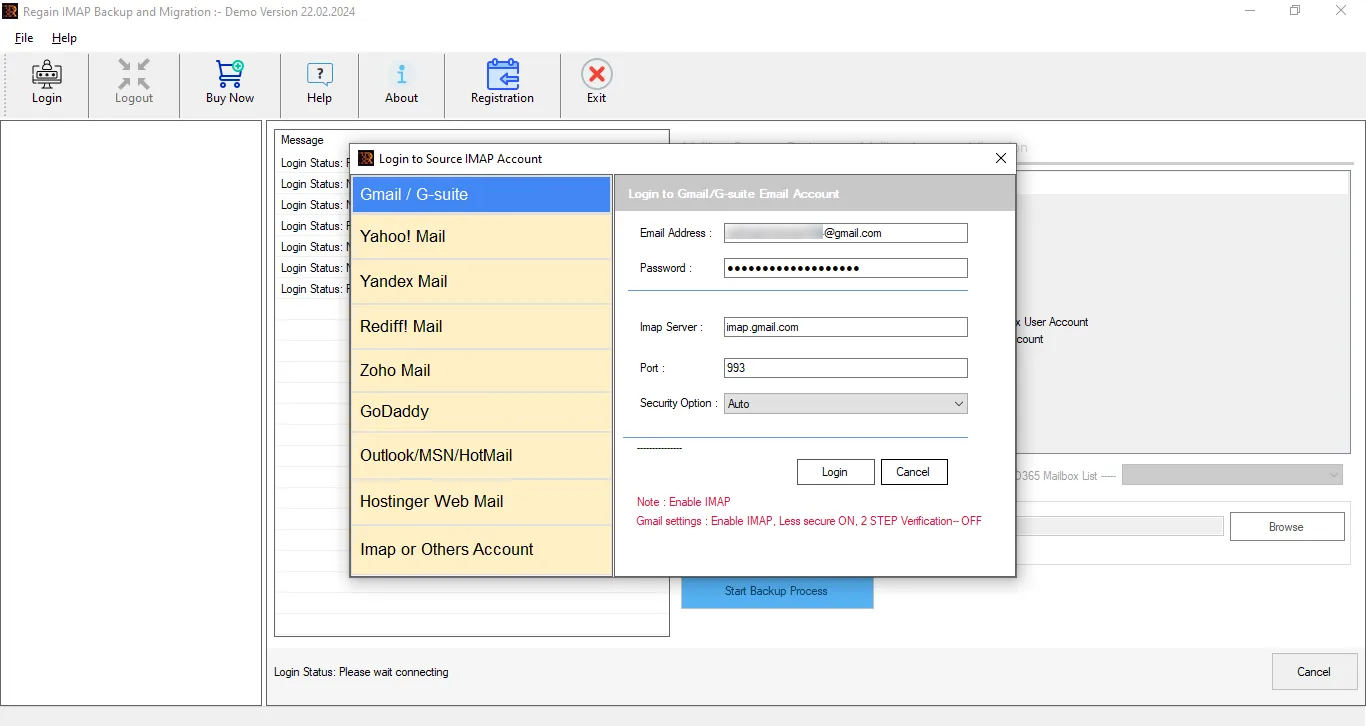
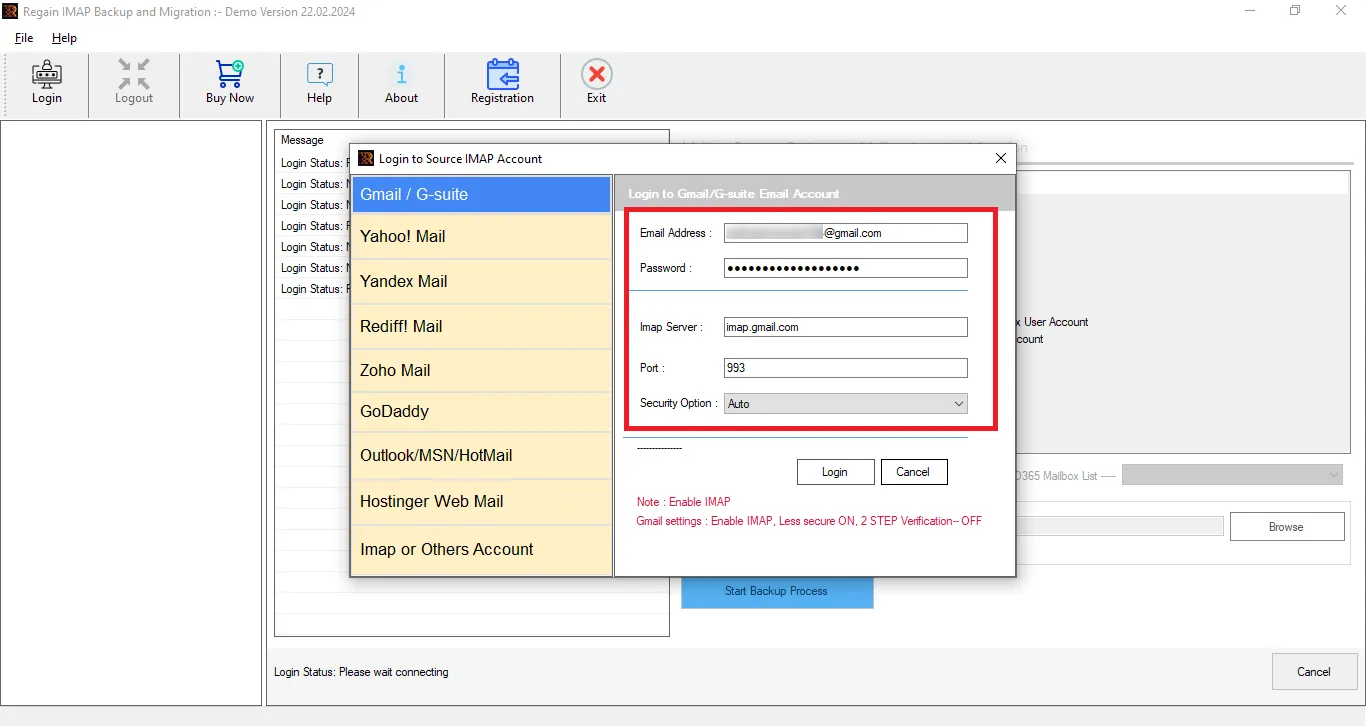
- Step2: Now, enter the login credentials of your account after selecting IMAP or others.
- Step3: Now, you can have a preview of your Fastweb Mail. You can also uncheck the folders in order to eliminate them.
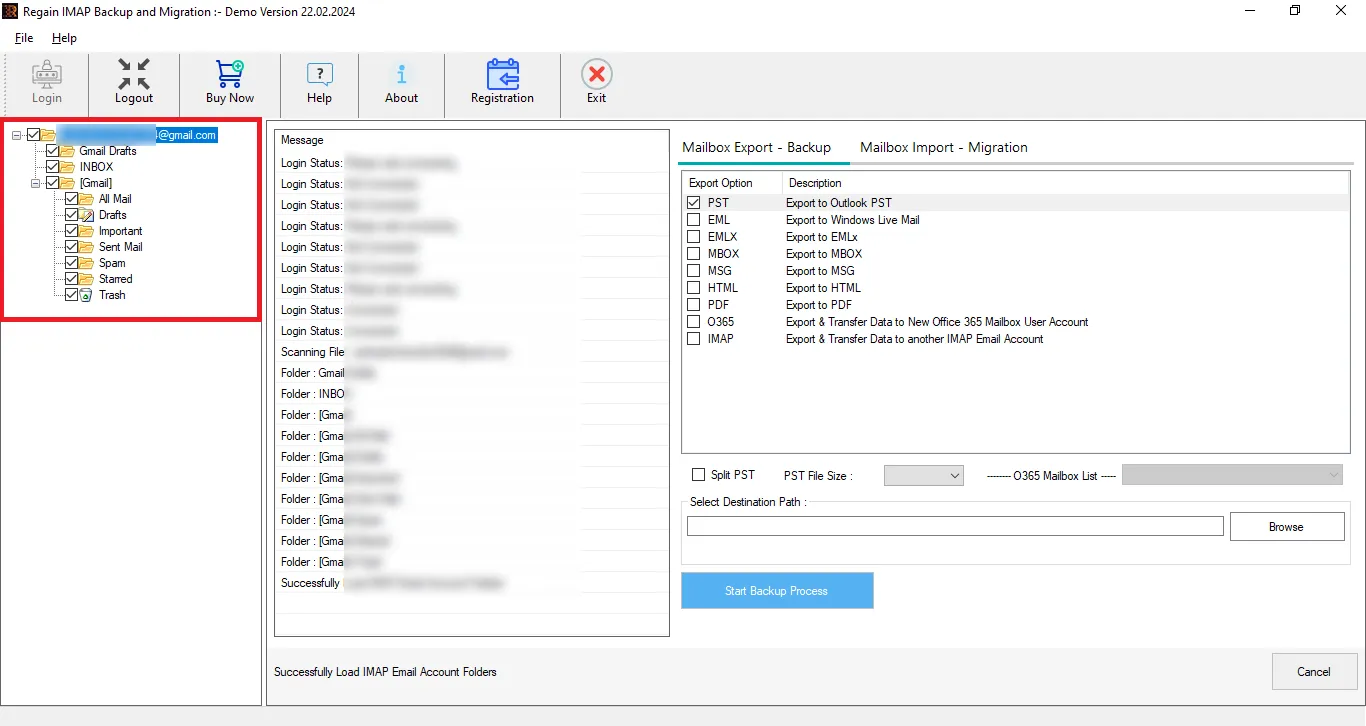
- Step4: Now, enter the destination account, like Gmail, Yahoo, Microsoft 365, or any other IMAP server. Moreover, select a file format as per the need.

- Step5: Tap on the migration button and start exporting.
What Makes the Regain Fastweb Mail Export Tool A Talk of the Town?
- The Regain Fastweb Mail Export tool supports Zoho / Yahoo / Office 365 / Gmail( Google Workspace) / Outlook / Yandex and IMAP accounts as a target.
- It offers users the ability to export from one IMAP to another IMAP email/client server.
- Users get a preview before exporting to select/deselect folders.
- This email migration tool ensures that the original folder structure of your emails and hierarchy remains intact throughout the complete export process.
- Export and save your data in multiple popular file formats like Outlook-supported PST, MBOX, EML, MSG, and PDF.
- There are no size limitations on the mailbox for backup/export.
- The Regain Fastweb Mail Export Tool is suitable for all Windows OS.
Wrapping Up:
In this blog, you learned about two main methods to export Fastweb emails — the manual method and the professional method. The manual approach is available to use, but it can be time-consuming, technical, and risky especially when dealing with a large mailbox. That’s why, if your data is important or your mailbox size is large, using a professional backup or migration tool is considered the better option. The Regain Fastweb Mail Export Tool ensures faster performance, better security, complete data transfer, and maintains folder hierarchy along with attachments.
Related Articles:


