Backup and Migrate UK2 Emails Easily – One-Stop Solution for All Your Needs


Published On - January 9, 2026 by Nasir Khan | Reading Time: 4 minutes
Are you using UK2 webmail but planning to move your emails to a more advanced and reliable email service like Gmail, Outlook, Microsoft 365 or any IMAP? Many users face issues such as limited storage, outdated features, or business migration needs, which make email migration essential. Or, for reasons like security and space management, you want to take a backup in any commonly used file format like Outlook PST file, MBOX or others.
In this blog, we will explain everything about how to migrate UK2 emails or back up, including manual methods, limitations, and a professional solution to make the process smooth and secure.
UK2 Mail: At A Glance
UK2 Mail is an email hosting service provided by UK2 Group, mainly used by businesses. It allows users to send, receive, and manage emails. Although UK2 webmail is reliable, it lacks advanced collaboration features, automation, and modern security tools that users now expect from email platforms like Google Workspace or Microsoft 365.
What Initiates Users to Migrate Emails from UK2 Mail?
There may be various reasons, as every user has their own needs. Users choose to migrate to UK2 Mail for several reasons:
- Limited Storage Space: UK2.net offers limited mailbox storage, which becomes a problem as emails grow over time. Users often struggle with full inbox issues and cannot store important emails. Migrating to modern platforms provides larger and more scalable storage options.
- For Advanced Features: UK2 Mail lacks modern features such as smart search, advanced filtering and collaboration tools. Users migrate to platforms like Gmail or Office 365 for better productivity and ease of use.
- Better Security and Spam Protection: Modern email services provide advanced security, encryption, and powerful spam filters. UK2 Mail does not offer the same level of protection, which encourages users to move their data from UK2 Mail.
- Various Backup Reasons: Emails are an important asset for any professional, hence, for backup purposes, users take regular backups. Moreover, data in local storage file formats like PST and MBOX provides an extra edge of viewing in prominent email clients like Outlook and Thunderbird, respectively. Moreover, an offline copy comes in handy in many situations.
Methods to Migrate UK2 Emails:
There are mainly two methodologies to migrate UK2 emails: manual and an automated professional tool.
Manual Method to Migrate UK2 Mail to Gmail
Step1: Sign in to Gmail
- Log in to your Gmail account.
- Click on Settings → See all settings.

- Open the Accounts and Import tab.

Step2: Add UK2 Mail Account
- Click on Add a mail account.
- Enter your UK2 email address and click Next.

- Choose Import emails from my other account (POP3).
Step3: Enter UK2 Mail Server Details
- Username: UK2 email address
- Password: UK2 mail password
- POP Server: pop.uk2.net
- Port: 995
- Encryption: SSL
- Click Add Account.
Step4: Start Importing
Gmail will start importing emails from UK2 Mail.
Manual Method to Migrate UK2 Mail to Microsoft 365
Step1: Log in to Office 365 Admin Center
- Sign in to Microsoft 365 Admin Center.
- Go to Settings → Migration.
Step2: Create a Migration Batch
- Select IMAP migration as the migration type.
- Upload a CSV file containing UK2 email credentials.
Step3: Enter UK2 Mail IMAP Settings
- IMAP Server: imap.uk2.net
- Port: 993
- Encryption: SSL
Step4: Start Migration
- Select destination mailboxes.
- Start the migration batch.
- Emails from UK2 Mail will sync to Office 365.
Users can also dive into the deep for the Network Upload method, but should be aware of all limitations of manual methods that are mentioned below:
Beware of These Points Before Using Manual Methods:
- Folder Structure Issues: Manual migration may not preserve the original folder hierarchy of UK2 Mail.
- No Bulk Migration: The manual method does not support migrating multiple UK2 Mail accounts at once. This makes it unsuitable for businesses and organizations.
- Requires Technical Knowledge: Users must have knowledge of email servers. Non-technical users may face configuration errors.
- Time-Consuming Process: Manual migration takes a lot of time, especially when the mailbox contains a large number of emails.
Professional Method to Migrate UK2 Emails (Regain IMAP Backup and Migration Tool)
The software allows users to transfer all emails from UK2 Mail to Gmail, Yahoo Mail, Office 365, Zoho Mail, etc.
Free Download100% Secure Buy NowPrice: $99
You can complete this export task easily by following just a few steps.
- Step1: Firstly, install and launch the Regain IMAP Migration and Backup Tool on your system.
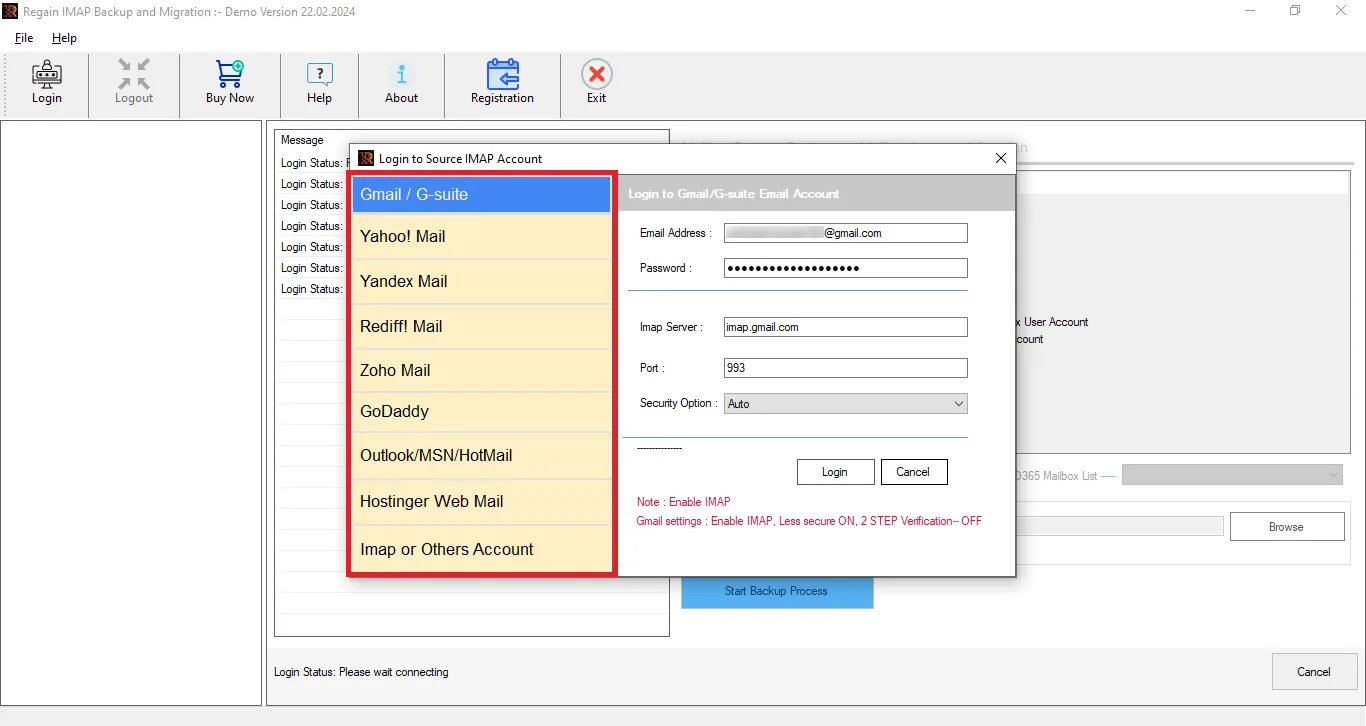
- Step2: Now, click on the IMAP and Others Account and enter the login credentials of the UK2 Mail account to connect it.
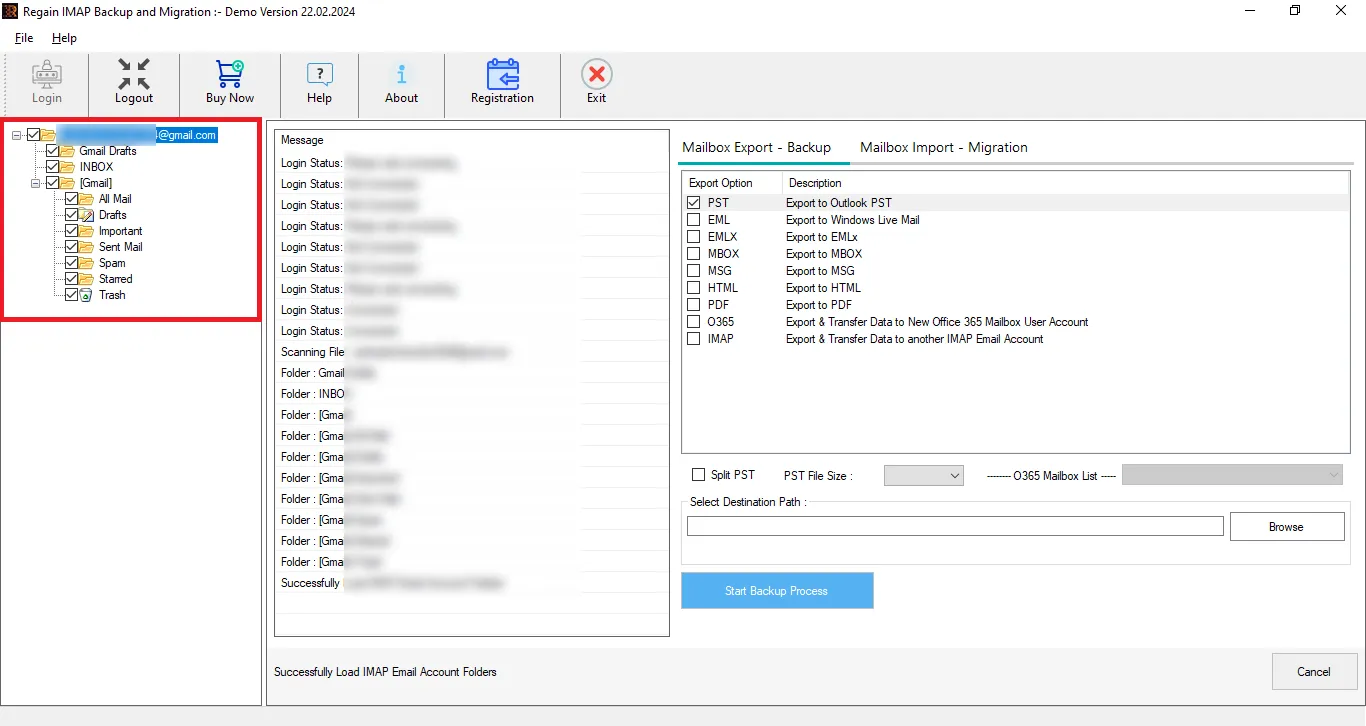
- Step3: Here, you can preview the folder details per your requirements. Moreover, you can select/unselect the folders as per our needs.
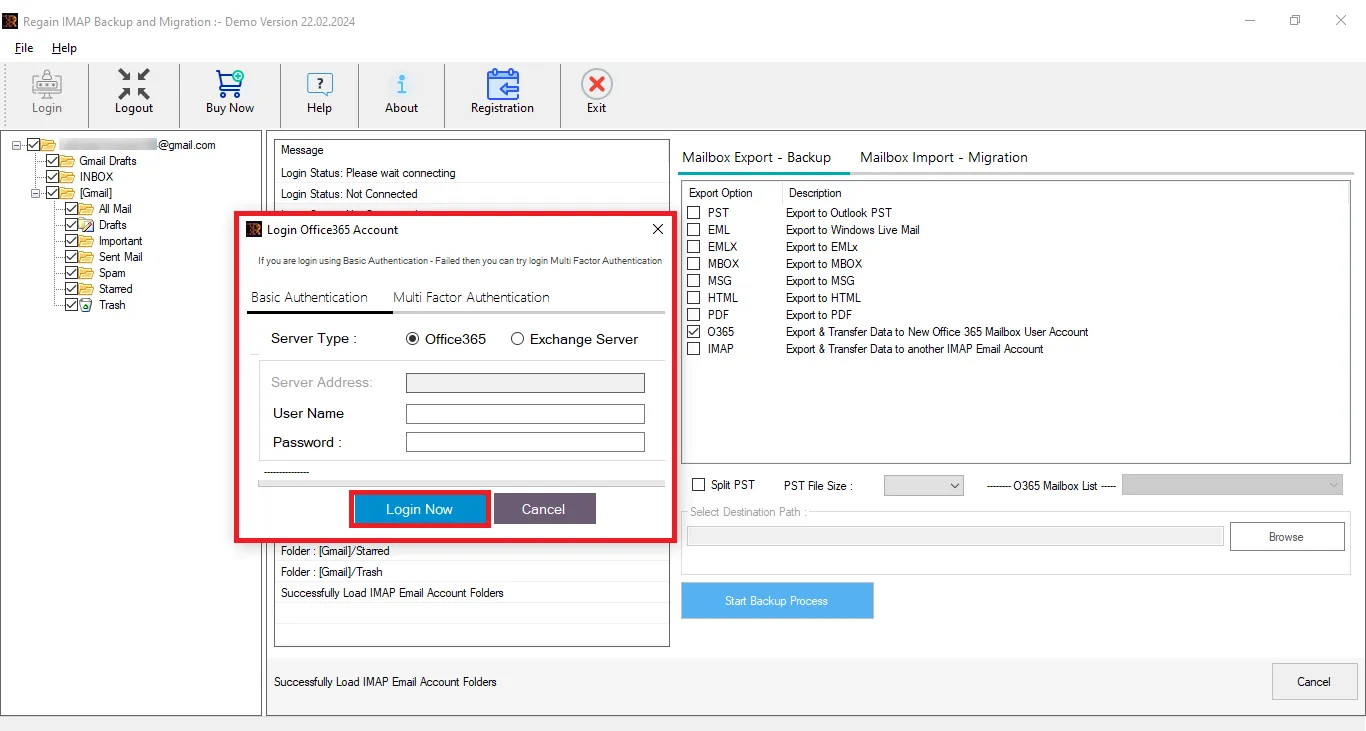
- Step4: Now, select the destination, and for migration, enter the destination account credentials.
- Step5: Now, click on the Export Now to start the email exporting.
Soon, all your UK2 emails will be exported.
Key Features Offered by the Regain UK2 Mail Migration Tool
- The Regain Email Migration tool (UK2 Mail Migration Tool) supports several IMAP – enabled email clients like Gmail/Google Workspace, Zoho Mail, Yahoo Mail, Outlook, etc.
- Users can save their UK2 emails into PST, MBOX, EML, PDF and MSG like popular formats.
- The Regain IMAP Backup and Migration tool maintains folder hierarchy and email structure after the export process.
- This software offers a preview of emails before exporting them.
- This software facilitates users to export from UK2 Mail to Microsoft 365 and Exchange On-Premises.
- The Regain IMAP to IMAP Migration tool offers a free demo version of the software to check its compatibility.
Closing Notes:
The process to migrate UK2 emails is a crucial step for users seeking improved storage, enhanced security, and advanced email features. Although the manual method may work for a few emails, it has several limitations, including the risk of data loss, being time-consuming, and lacking support for bulk migration. For a smooth, secure, and hassle-free migration experience, using the Regain IMAP Backup and Migration Tool, a professional email migration solution, is the most reliable option. It ensures complete data transfer while saving time and effort. A demo of this software is also available to try before purchasing the license.
Related Articles:


