Effortlessly Migrate Hushmail Emails to Outlook, Gmail or Microsoft 365


Published On - February 21, 2026 by Nasir Khan | Reading Time: 5 minutes
Are you a Hushmail user who wants to upgrade email experience to a more advanced level? If yes, then here is a one-stop solution to migrate your emails from Hushmail to Outlook, Gmail, Zoho, Microsoft 365, and other platforms.
In today’s time, businesses and professionals not only want an email service but a complete ecosystem like Microsoft 365, Google Workspace to manage various services under a single roof. If you are currently using Hushmail and want to shift to platforms like Gmail, any IMAP-enabled email client or Office 365, then this blog is perfect for you. This blog will help you to understand how to migrate from Hushmail to various platforms smoothly and securely using the right approach and tool.
Why Migrate from Hushmail?
Hushmail is famous for its strong encryption (PGP-encrypted emails) and privacy features. But in today’s many services under a single roof ecosystem, users search for:
- Many services in a single plan
- Better team collaboration
- Cloud storage integration
- Video meetings and shared calendars
- Centralized admin control
- Large mailbox storage
- A complete ecosystem with emailing as a part, like others.
These are the common reasons why users prefer to migrate to different platforms like Gmail (Google Workspace) or Microsoft 365. However, for every end user, the reason may be different and the platform may vary.
Ways to Transfer Email from Hushmail:
To migrate emails from Hushmail, there are a few manual workarounds as well as a direct utility developed by professionals for professionals.
Manual Hushmail Migration Methods:
If you have less data and are mitigating it for personal use, then you can use a manual method.
Gmail’s Built-in Import Option
In Gmail, there is an inbuilt feature by which you can import from another email account.
Steps:
- Log in to Gmail.
- Settings→Open Accounts and Import tab.

- Select the “Import mail and contacts” option.

- Enter your Hushmail email.

- Fill IMAP/POP details.
- Start the import process.
Limitations:
- Takes time for large mailboxes.
- Folder structure gets not properly maintained.
- You don’t have full control over the process.
- This method is suitable for small processes/ when transferring only a few emails.
2) Manual Drag & Drop Through Outlook
Steps:
- Install Outlook.
- Add a Hushmail account through IMAP.
- Also, add a target account (Gmail or Microsoft 365).
- Once both accounts are visible, drag and drop the emails from one account to the other.
Limitations:
- Slow process; you have to do it one by one.
- Issues may occur if the internet connection gets disconnected.
- Outlook may hang or freeze when handling large data.
- There is a risk of email duplication.
- It needs technical expertise.
3) Using Exchange Admin Center
Steps:
- Open Exchange Admin Center.
- Create an IMAP migration batch.
- Add Hushmail server details.
- Upload CSV file.
- Run migration.
This method is somewhat technical and requires IT knowledge. Don’t try this if you are not technically sound.
Tool-Based Migration Method: Use Professional Hushmail Migration Utility
If you are migrating large amounts of data or multiple mailboxes, using a professional tool like Regain Hushmail Migration Tool (Regain IMAP Backup and Migration Tool) is the perfect choice.
Free Download100% Secure Buy NowPrice: $99
See what it offers:
- Migrate Hushmail to any IMAP-enabled email account like Gmail, Zoho, outlook.com, Yahoo.
- Allows to save Hushmail email data in PST, MBOX, EML, MSG, PDF, EMLX, HTML, and MHTML, etc.
- No mailbox size limitations and no restrictions on the number of emails transferred.
- Directly migrate to Microsoft 365 mailbox, Exchange On-Premises and Google Workspace.
- It properly maintains the folder hierarchy and keeps meta-properties intact.
- Regain Hushmail Migration Tool is compatible with all versions of Windows OS.
- A free demo version/ trial version is also available; install and try before buying the license.
Simple Steps to Migrate Hushmail Emails:
- Install and launch the Regain Hushmail Migration Tool/ Regain IMAP Backup and Migration Tool.
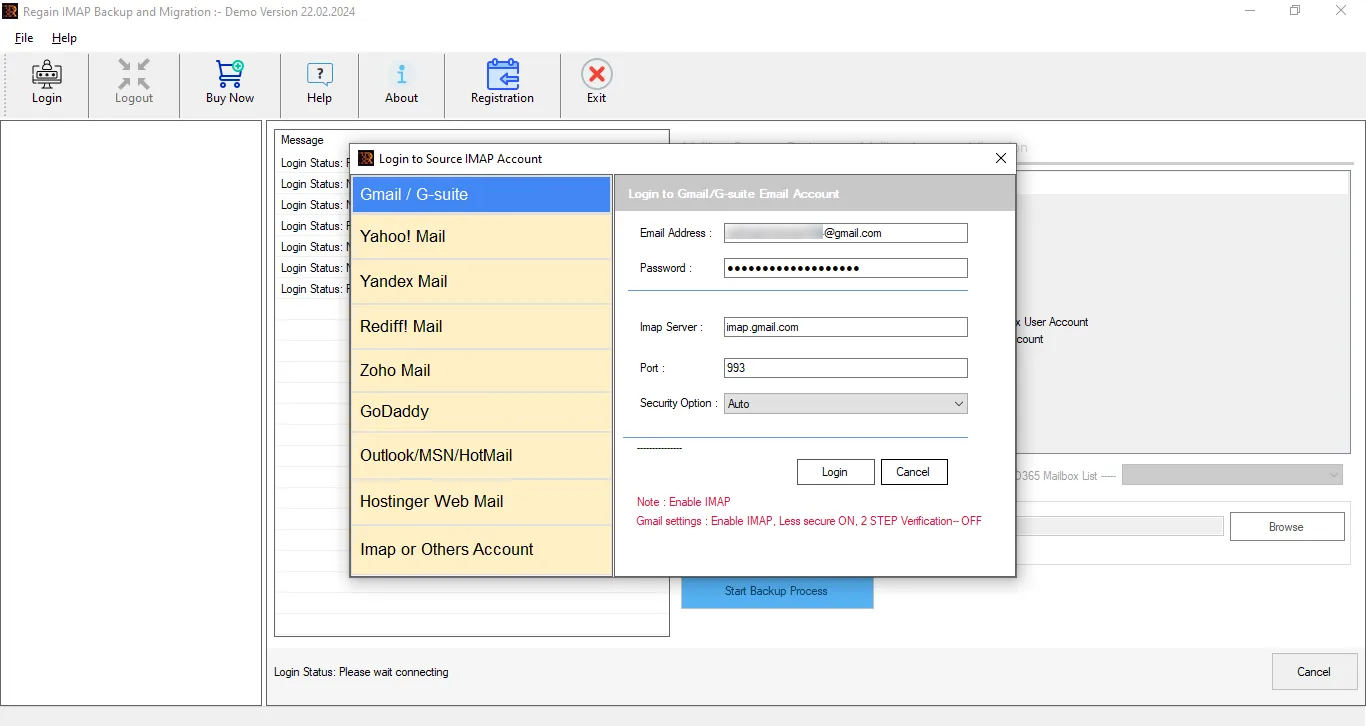
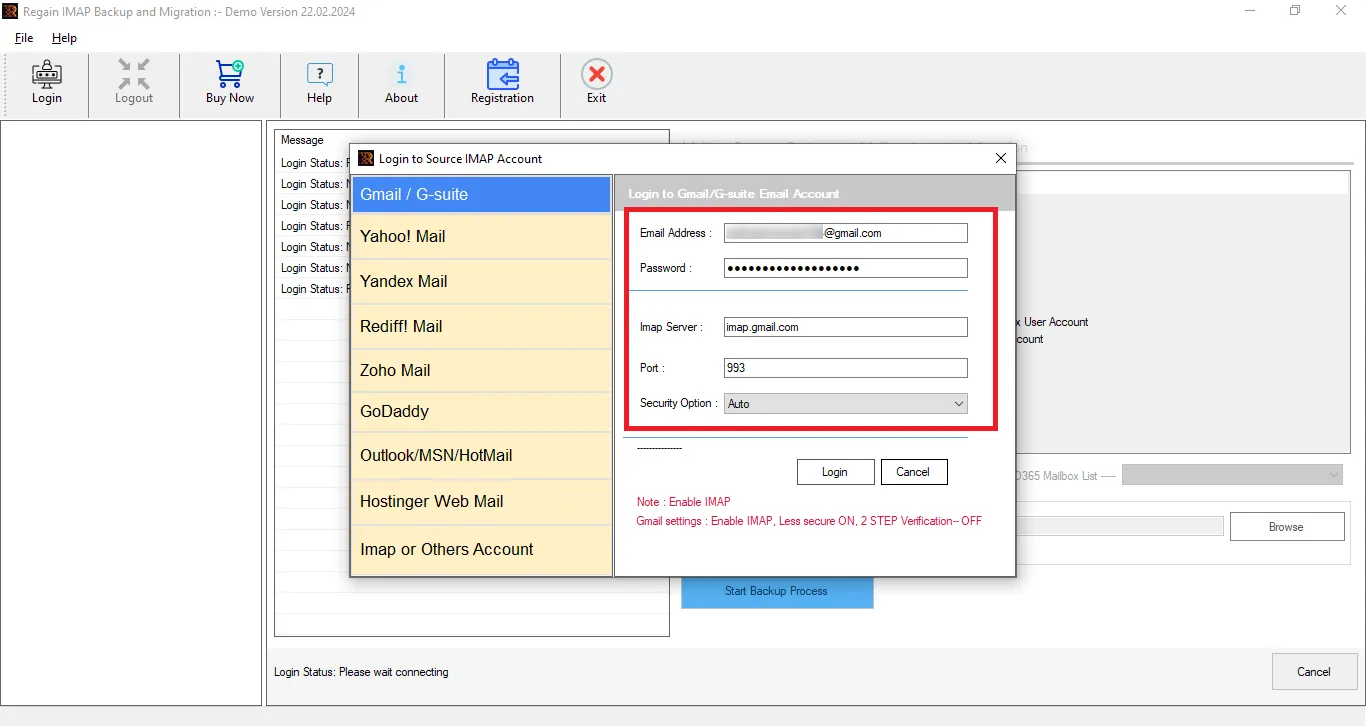
- Select the IMAP or Other Account and enter the Hushmail login credentials to connect with the server.
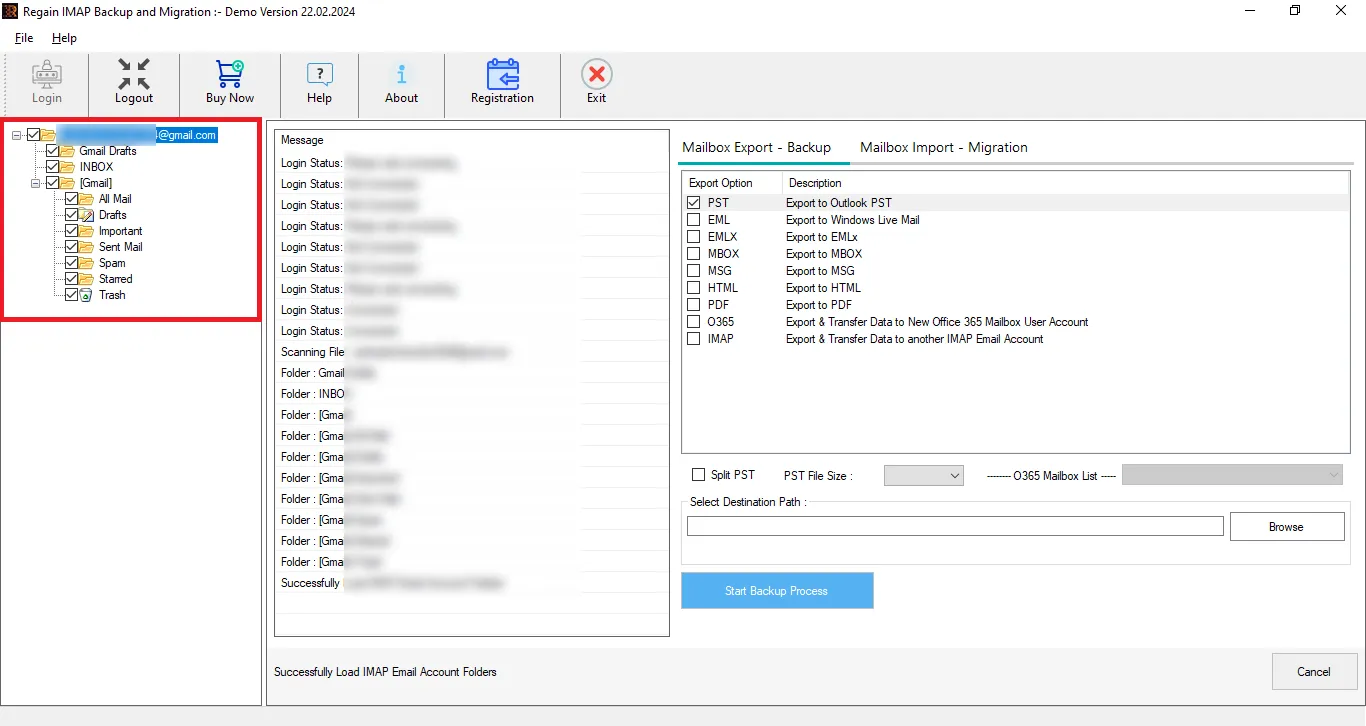
- Now, you can preview the mailbox details and select/deselect the folders as per the need.
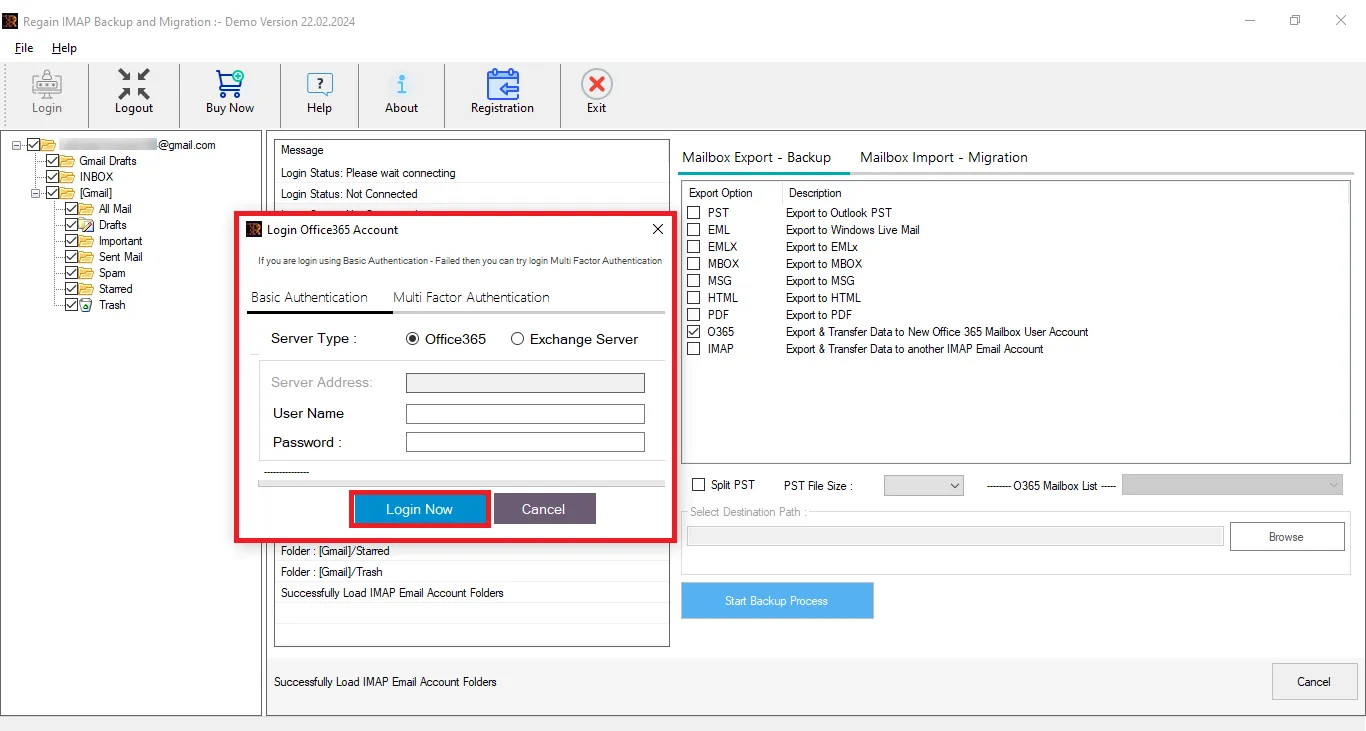
- Select the target. If saving data in any file format, then select the file format(e.g. PST, MBOX, EML) and click on Start Backup Process. If migrating to a platform, then log in by entering credentials and start migration by following the simple steps.
Important Tips before Migration:
Before starting the migration process, keep the following points in mind:
- Take a proper backup of your Hushmail data.
- Ensure that the target account has sufficient storage space.
- Perform a test migration first.
- Make sure you have a stable and strong internet connection.
- With proper planning, the migration process becomes smooth and hassle-free.
- Try a professional tool if you are not an expert and want an efficient and effortless way.
Wrapping Up:
Migrating from Hushmail to Gmail or Microsoft 365, or any other platform, is possible using both manual and professional tool methods. If you have a small amount of data, only a few emails and good technical knowledge, you can try the manual method. However, for multiple mailboxes, business-level migration, zero data loss and a faster, more organised process, a professional migration tool is the better option. Proper planning, taking backups and verifying the target storage are important to ensure a smooth and secure migration. Use Regain IMAP Backup and Migration Tool/ Regain Hushmail Migration Tool for professional results.
Frequently Asked Questions:
Q. Can this tool migrate to Gmail personal and Google Workspace Business irrespective of plan?
A. Yes. This utility is capable of migrating to a personal Gmail account as well as Business Gmail account (any Google Workspace plan).
Q. If I save my Hushmail data in Outlook PST; will I be able to open and access the Hushmail email data in Outlook?
A. Yes. You can simply add the resultant PST file in Outlook and access the email data.
Q. I tried the demo version and successfully tested, will this restriction be eliminated with a licensed one and performance will remain the same?
A. Absolutely yes. The demo version is just a restricted version of the full/licensed version. Once you assign the license, the restriction will be removed. The demo version is to satisfy users before purchasing the license.
Q. I want to skip Spam folder’s emails, is this possible?
A. Yes. You can do so by unchecking/deselecting the spam folder when the Regain Hushmail Migration Tool provides a preview after connecting with the Hushmail server.
Related Articles:


