One-Stop Solution to Export KPN Mail to Gmail, Microsoft 365 and Other Platforms


Published On - March 3, 2026 by Nasir Khan | Reading Time: 3 minutes
Email migration has become a common requirement for individuals and businesses who want better security, flexibility, and collaboration features. If you are using KPN Mail/Kpnmail.nl and planning to move your emails to another platform like Google Workspace, Microsoft 365, or any other email service, this guide will help you understand everything about KPN Mail migration. Moreover, if you just want to back up your email locally, then you can also do it.
An Intro of KPN Mail:
KPN Mail is an email service offered by KPN, one of the largest telecom providers in the Netherlands. However, while KPN Mail offers basic email functionality, many users prefer advanced features, enhanced collaboration tools, and modern security capabilities available in Gmail. That’s why a large number of users choose to migrate their emails from KPN Mail to a Gmail account.
Why do users migrate/export KPN Mail?
However, reasons to export can vary for each user, but some of the common ones are mentioned below:
- For Advanced Collaboration Features: Platforms like Google Workspace and Microsoft 365 provide shared calendars, document collaboration, and team communication tools.
- Limited Storage Space: KPN Mail offers limited mailbox storage compared to cloud-based services.
- Data Backup & Security: Modern platforms offer advanced security features, encryption, and automated backup.
- Free Up Storage Space: Many users migrate their KPN Mail accounts to free up storage space. Over the period, large attachments and old emails consume significant mailbox capacity.
Methods to Migrate KPN Mail:
Here, we will elaborate on two solutions for accomplishing the migration process of KPN Mail. After reading both of them, you can choose accordingly.
Manual Methods to Export KPN Mail:
1. Using IMAP Configuration (Outlook Method)
Steps:
- Open Microsoft Outlook on your system.
- Add your KPN Mail account using IMAP settings (imap.kpnmail.nl, Port 993, SSL).
- Add your new email account (like Gmail or Microsoft 365) to the same Outlook profile.
- Wait for both accounts to sync.
- Drag and drop emails from KPN folders to the new account folders.
- Allow time for synchronization to complete.
2. Using Gmail’s “Import Mail” Option
If you are migrating to Gmail.
- Log in to Gmail.
- Go to Settings → See all settings → Accounts and Import.
- Click “Add a mail account.”
- Enter your KPN Mail credentials.
- Select import options and start the process.
- Gmail will fetch emails from KPN Mail automatically.
Drawbacks of the Manual Method
- This process takes more effort and lots of time.
- You will need sufficient technical knowledge to perform the manual method.
- Just one wrong setting can increase the chances of data loss.
- There is a risk of file corruption during the synchronization process.
- You may lose your folder hierarchy, resulting in a lot of disorganization and chaos.
Method 2: Professional KPN Mail Migration Tool (Recommended)
Regain KPN Migration Tool provides a secure and automated way to transfer emails from KPN Mail to any other email platform.
Free Download100% Secure Buy NowPrice: $99
Steps to Migrate KPN Mail Using a Professional Tool
Step 1: Install the Software
Download and install the Regain KPN Mail Migration Tool/ IMAP Backup and Migration Tool on your system.
Step 2: Enter KPN Mail Credentials
Select the IMAP or Other Accounts and enter your KPN Mail email address and password. 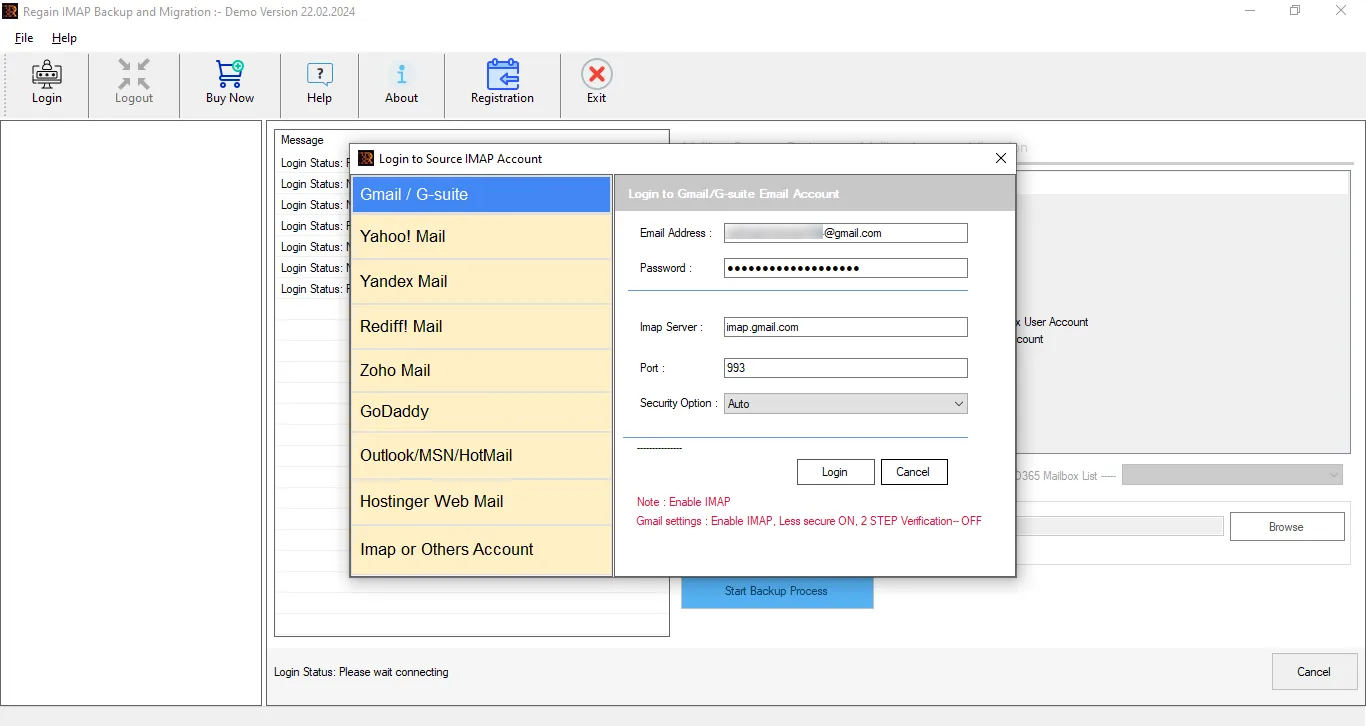
Step 3: Now you can have a preview of your KPN mailbox. You can also uncheck the folders in order to eliminate them. 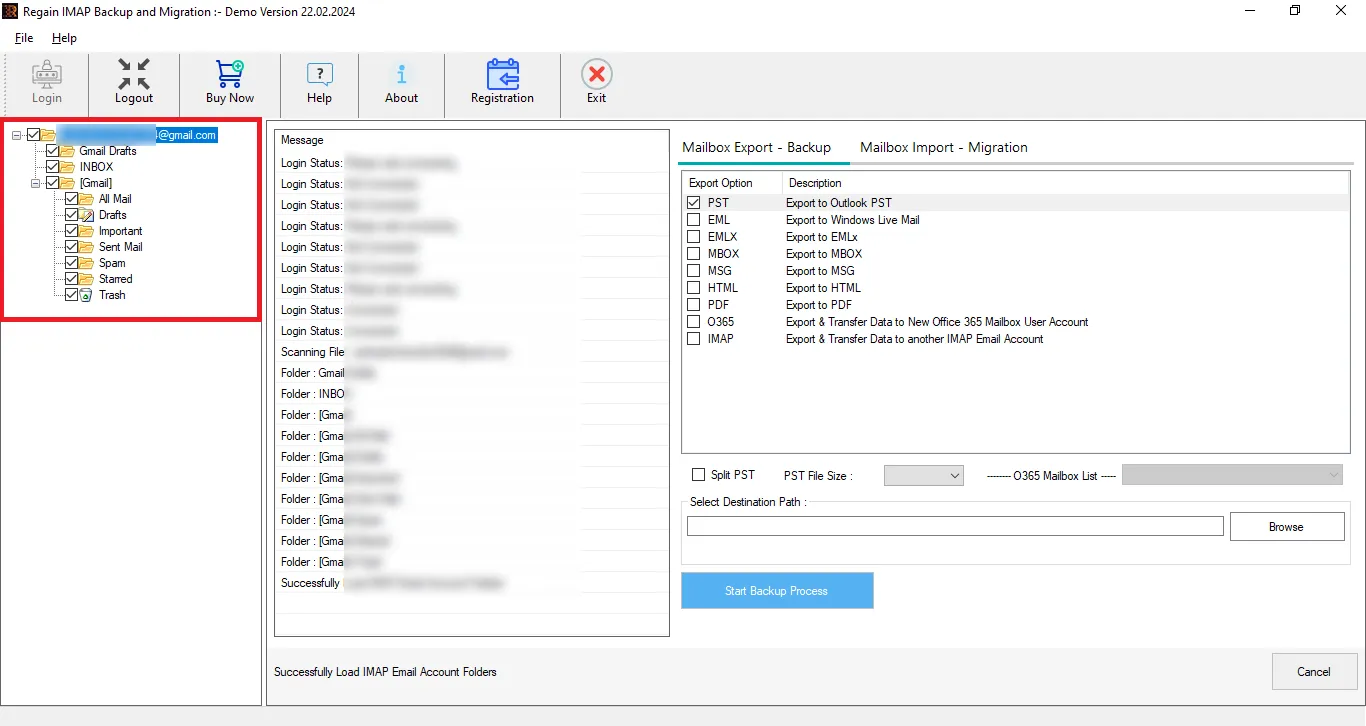
Step 3: Select Destination Platform
Choose your target email service like Google Workspace, Microsoft 365, or any IMAP server. 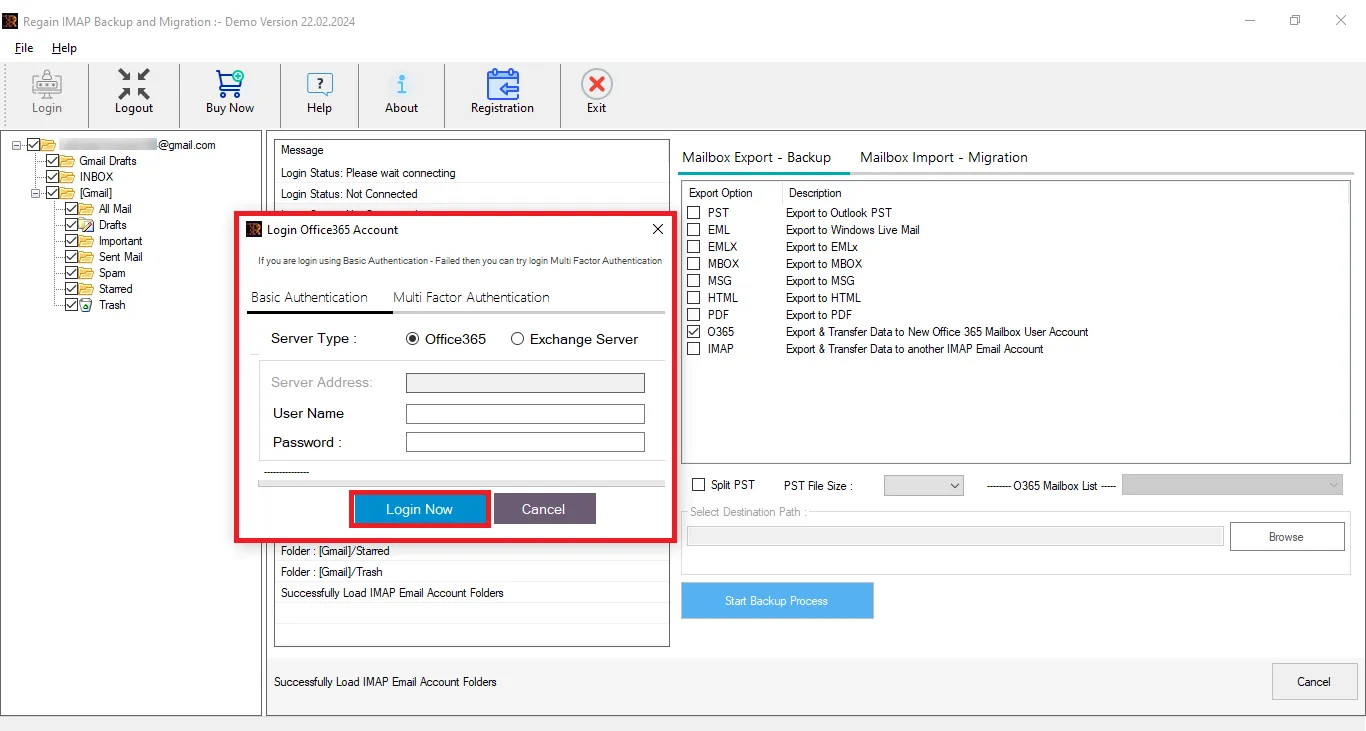
Step 4: Start Export
Click the migrate button and wait for the process to complete.
Key features of the Regain KPN Mail Export Tool:
- This tool supports Zoho / Yahoo / Gmail (Google Workspace)/ Outlook.com / Yandex and all IMAP accounts as a target.
- No size limitations on the mailbox for backup/migration.
- Directly migrate to Exchange Online (Microsoft 365) and Exchange Server On-Premises.
- Back up data in various file formats like PST, EML, MSG, MBOX, HTML, MHTML and PDF.
- The Regain KPN Mail Export Tool ensures that the original folder structure of your emails remains intact throughout the migration process.
- Users get a preview before exporting to select/deselect folders.
- The Regain KPN Migration Tool is suitable/compatible for all Windows OS versions.
- Users also get a free demo version of the software before purchasing it.
Gist of the Blog:
Moving from KPN Mail to a more advanced email platform is a smart decision for users looking for greater flexibility and improved mailbox management. As email needs grow, having access to better storage, stronger protection, and seamless synchronization becomes increasingly important. While manual migration methods are available, they can be time-consuming and may involve risks. To ensure a smooth and secure transition, the Regain KPN Mail Migration Tool is a great choice.
Related Articles:


