

To understand how to perform Azure App Registration and how to generate Azure App Client ID and Azure App Tenant ID, refer Appendix A - Azure App Registration & Generating Azure App Client ID & Tenant ID.
To understand how to enable Multi-Factor Authentication (MFA) for Office 365 account for Admin, refer Appendix B - Enabling MFA for Office 365 Account - Admin.
To understand how to enable Multi-Factor Authentication (MFA) for Office 365 account for a user, refer Appendix C - Enabling MFA for Office 365 Account - User.
To understand how to generate App password for Office 365 account, refer Appendix D - Creating App Password for Office 365 Account.
To perform Multi-Factor Authentication (MFA), perform the steps as:
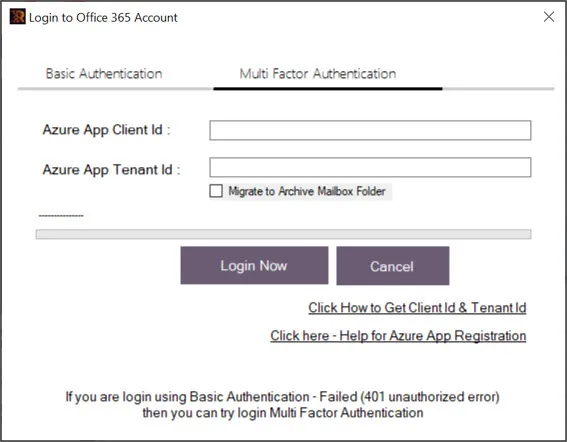
To perform Office 365 account to Outlook PST files conversion using Multi-factor authentication, refer Using Regain Office 365 to PST Converter Software.