Regain Office 365 to PST Converter

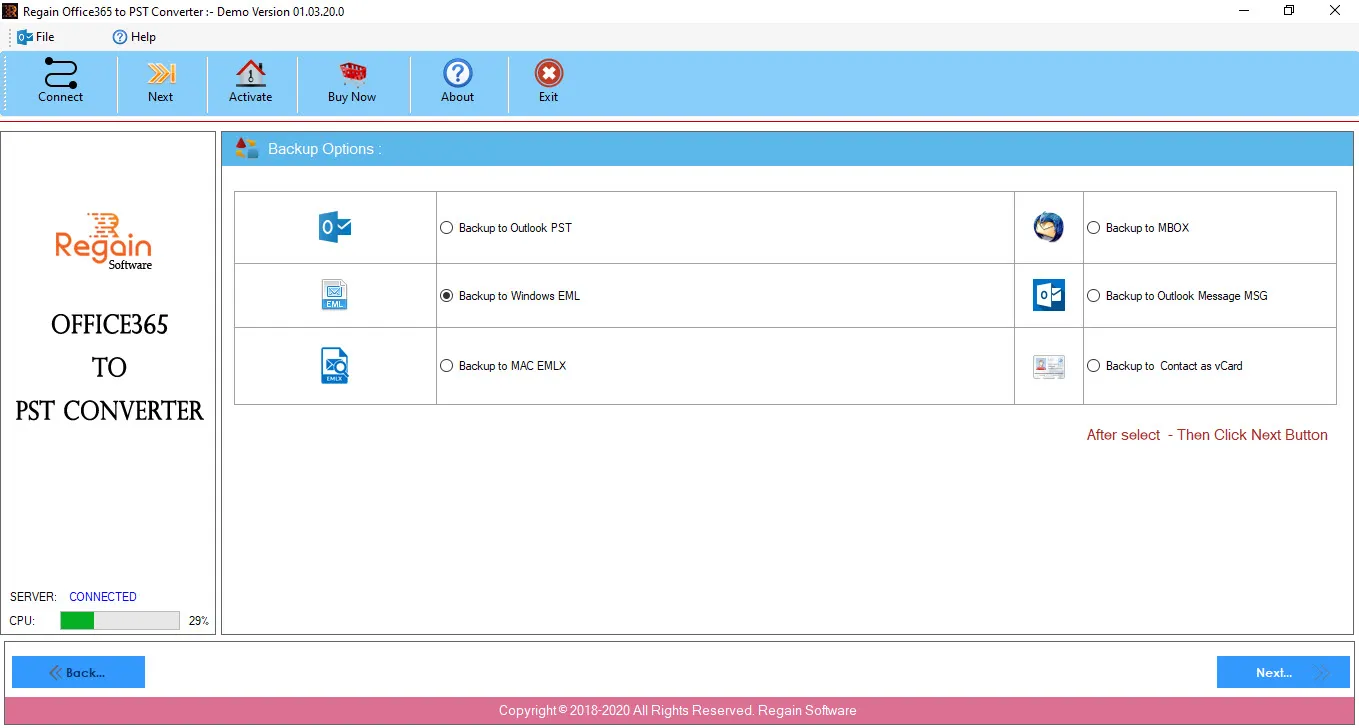
Backup to Windows EML

Follow the below steps to backup to Windows EML file from Office 365 account using Regain Office 365 to PST Converter software:

  1. Select Backup to Windows EML option to backup Office 365 account to Windows Mail Message .EML file.
  2. Click Next.
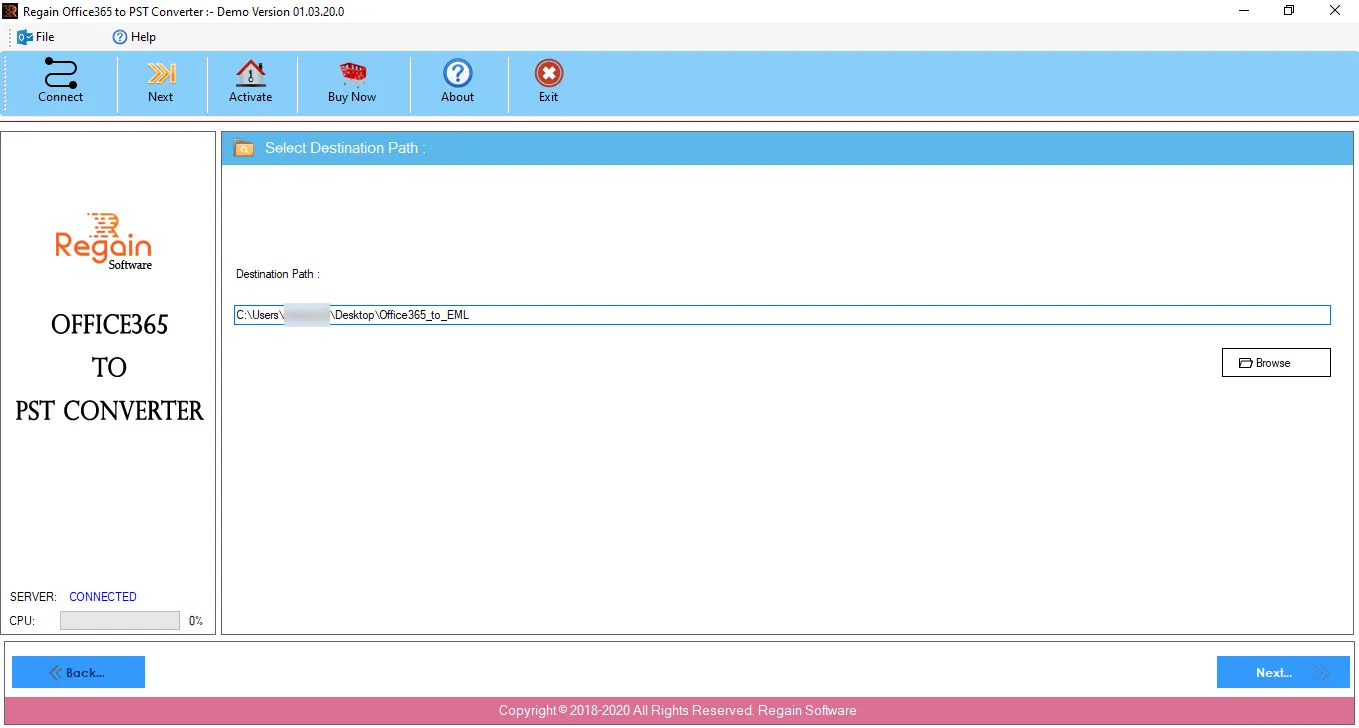
  3. In the Select Destination Path screen, click Browse to provide the destination path of Windows EML file.
  4. Click Next to proceed.
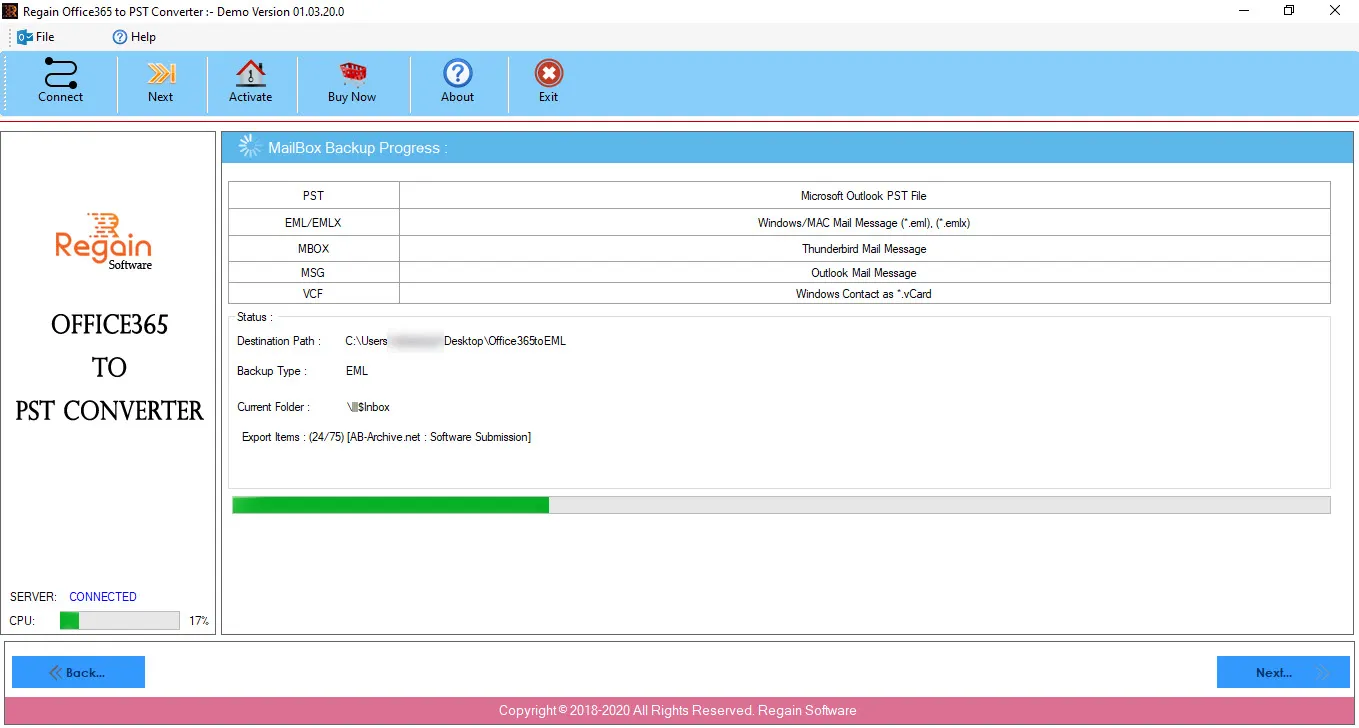
  5. The Office 365 to PST Converter software starts performing the migration process from Office 365 to Windows EMl file and displays the progress as:
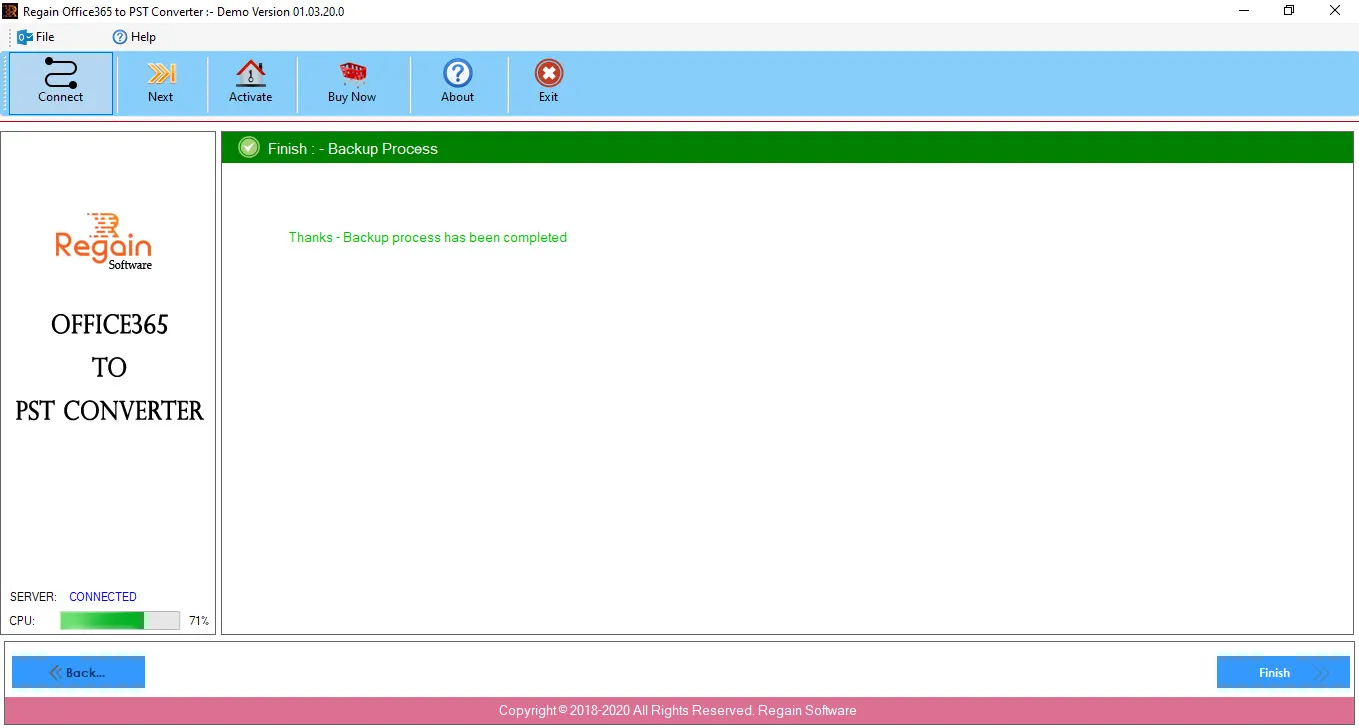
  6. On completion of backup process from Office 365 to Windows EMl file, the software displays the success message as:
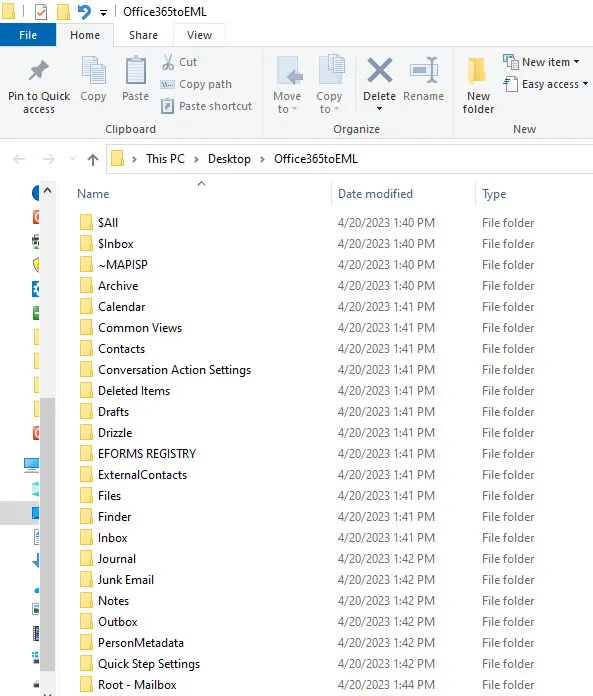
  7. And opens the folder location where the EML file gets saved.
  8. Click Finish, the software gets closed.