Save to PST - Create PST File
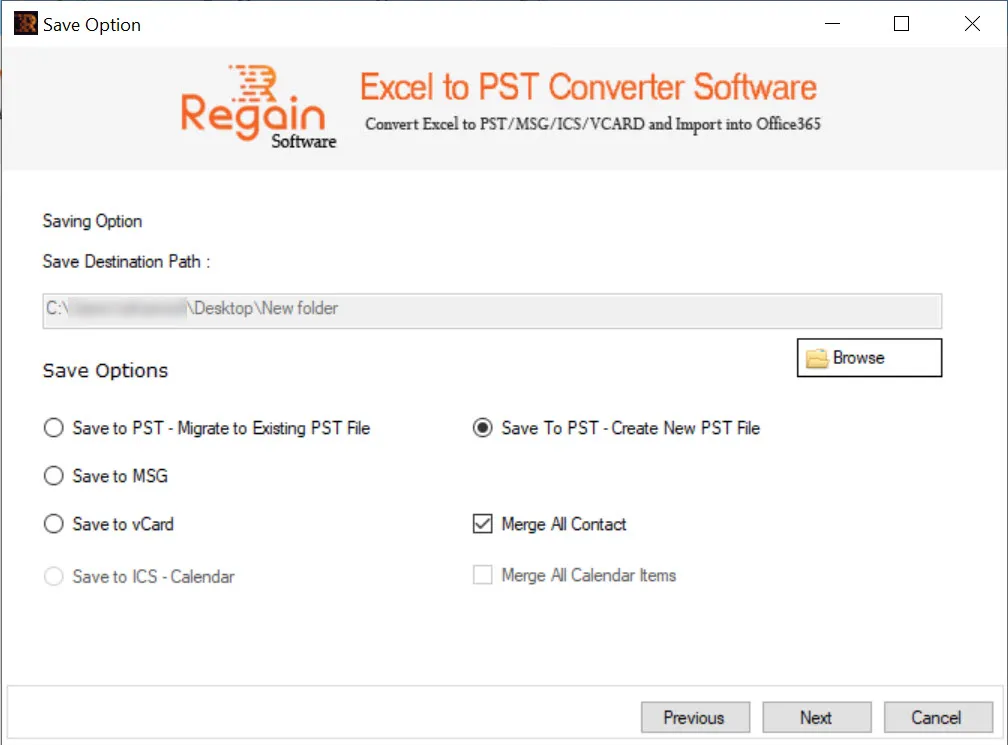
To save the Excel file Contacts and Calendar entries in a new Outlook PST file, perform the steps as below:
- Click Browse to provide destination path for the newly-created Outlook PST file.
- Select the Save Option as Save To PST – Create New PST File.
- In case of contacts conversion from Excel to PST, select checkbox “Merge All Contact” if you want to merge all the contacts.
- In case of calendar items conversion from Excel to PST, select checkbox “Merge All Calendar Items” if you want to merge all the calendar items.
- Click Next.
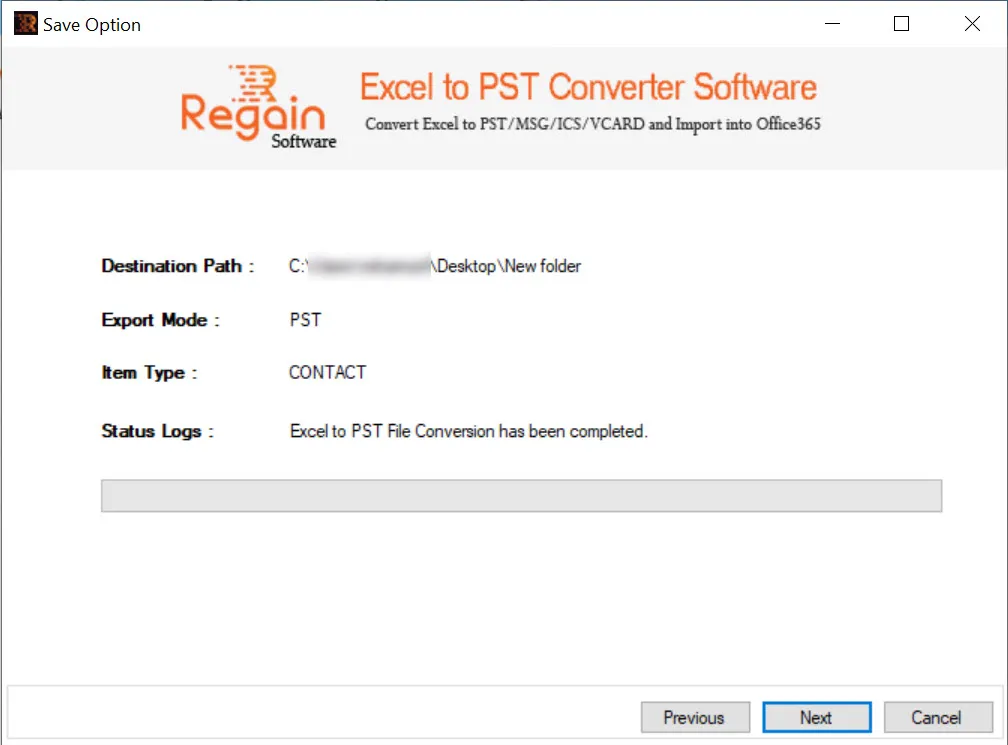
- The software performs the Excel to PST file conversion for contacts and on completion displays the success message as shown below and opens the folder location of newly-created Outlook PST file with naming convention as RegainExcelToPST-MMDDYYYY HHMMSS:
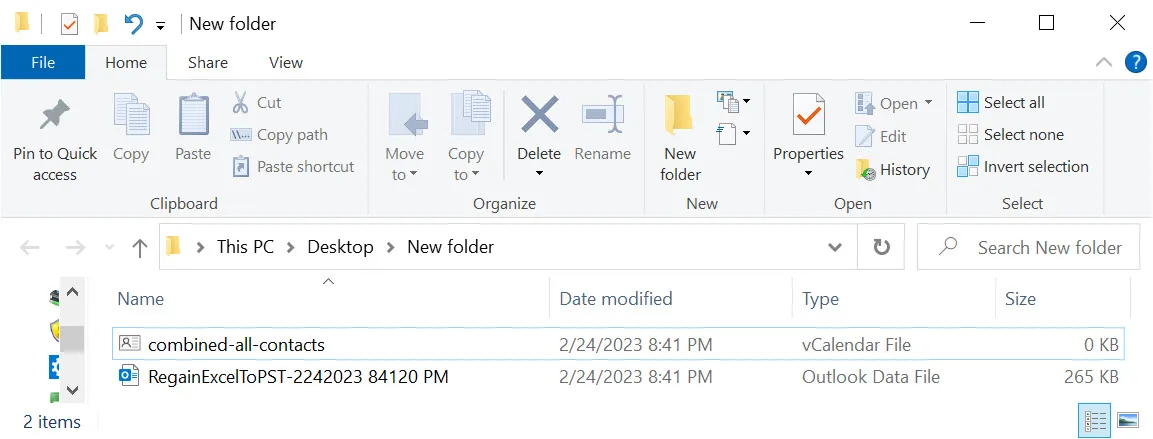
For “Merge All Contact” option selected, a separate “combined-all-contacts” vCalendar File (.vcf) is created.
- In case of completion of calendar entries from Excel to PST file, the software displays the success message as:
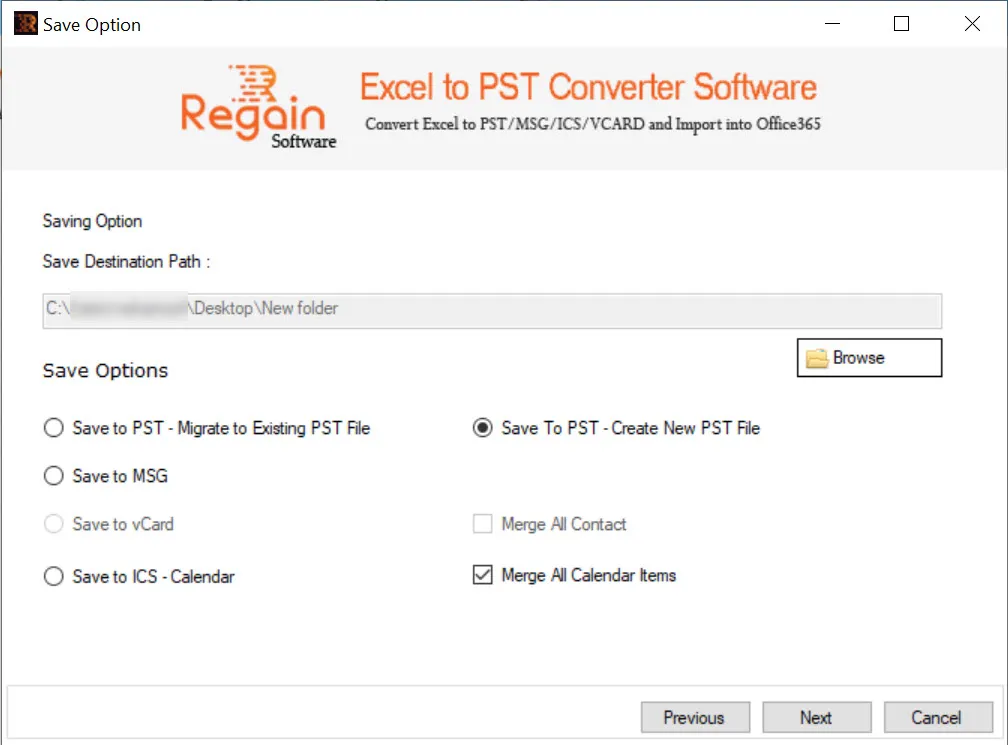
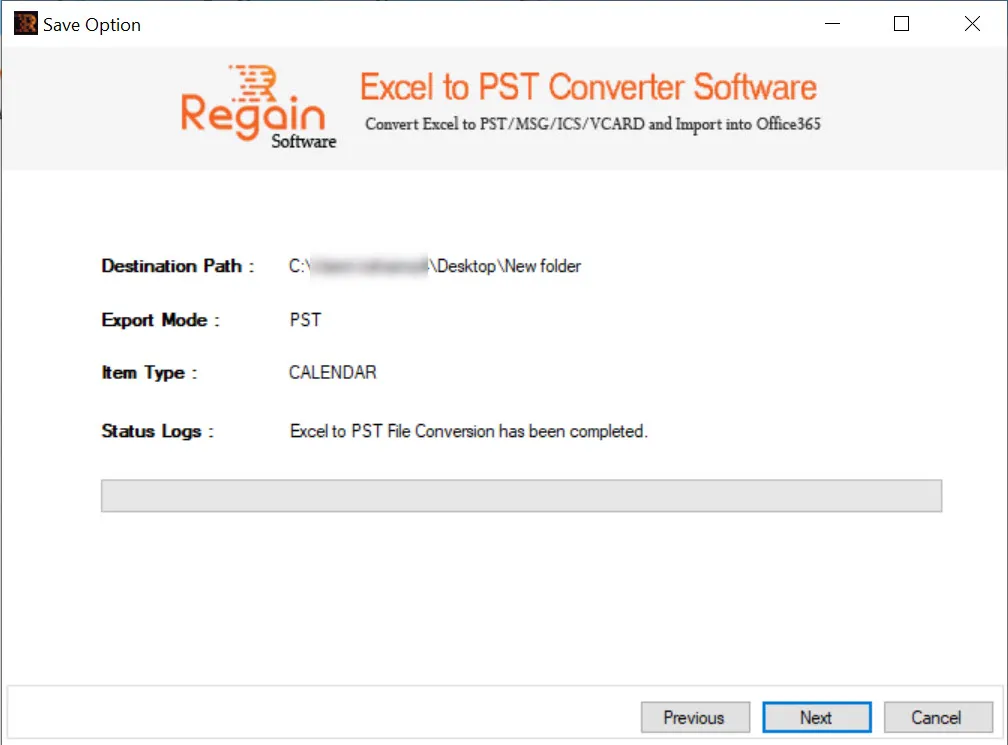
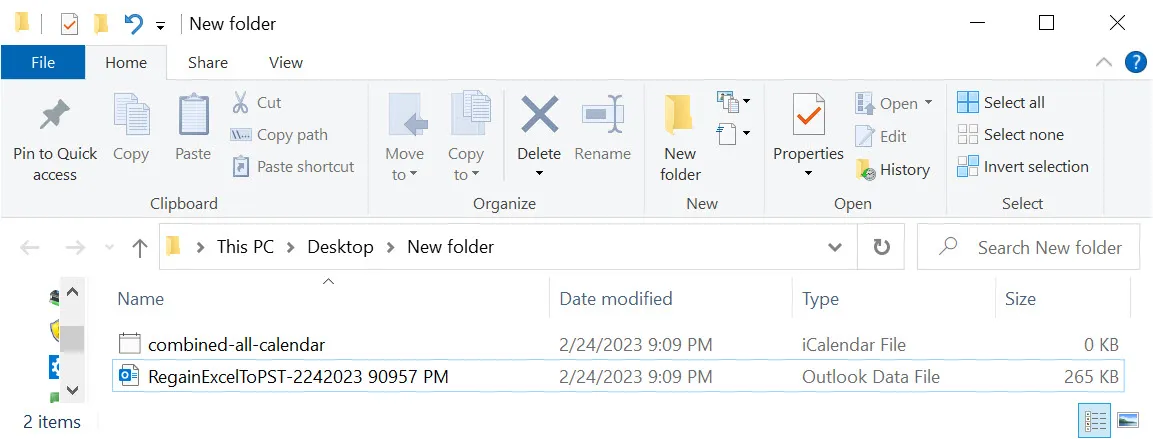
And opens the folder location of newly-created Outlook PST file with naming convention as RegainExcelToPST-MMDDYYYY HHMMSS.
For “Merge All Calendar Items” option selected, a separate “combined-all-calendar” iCalendar File (.ics) is created.
- Click Next to close the window.

