Save to MSG
To save the Excel file Contacts and Calendar entries in MSG file format, perform the steps as below:
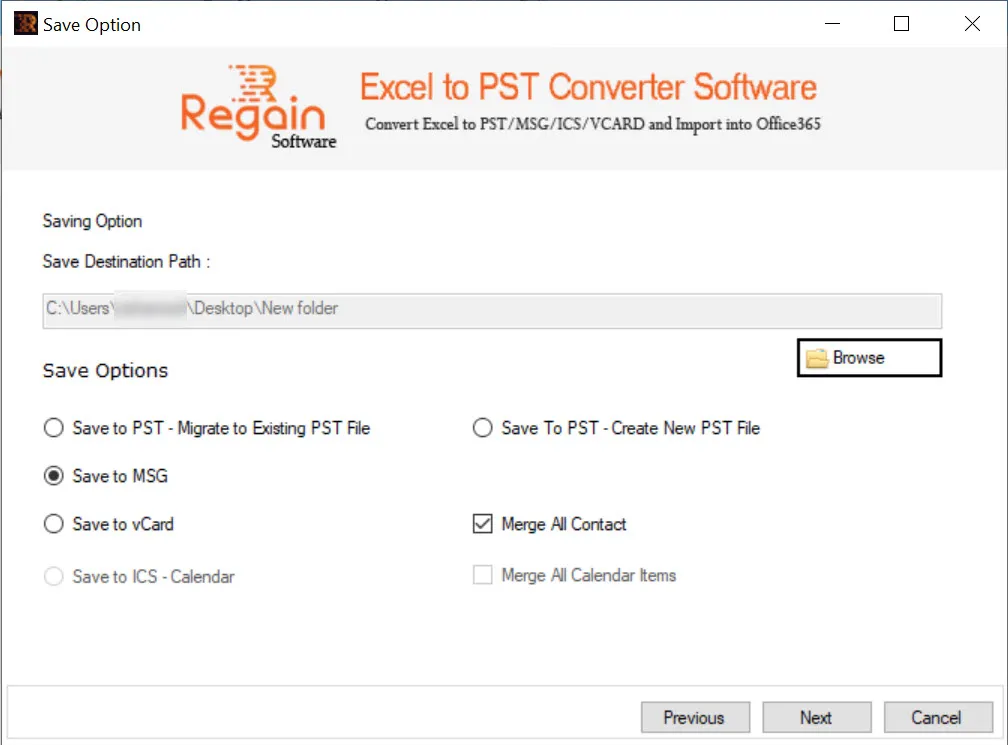
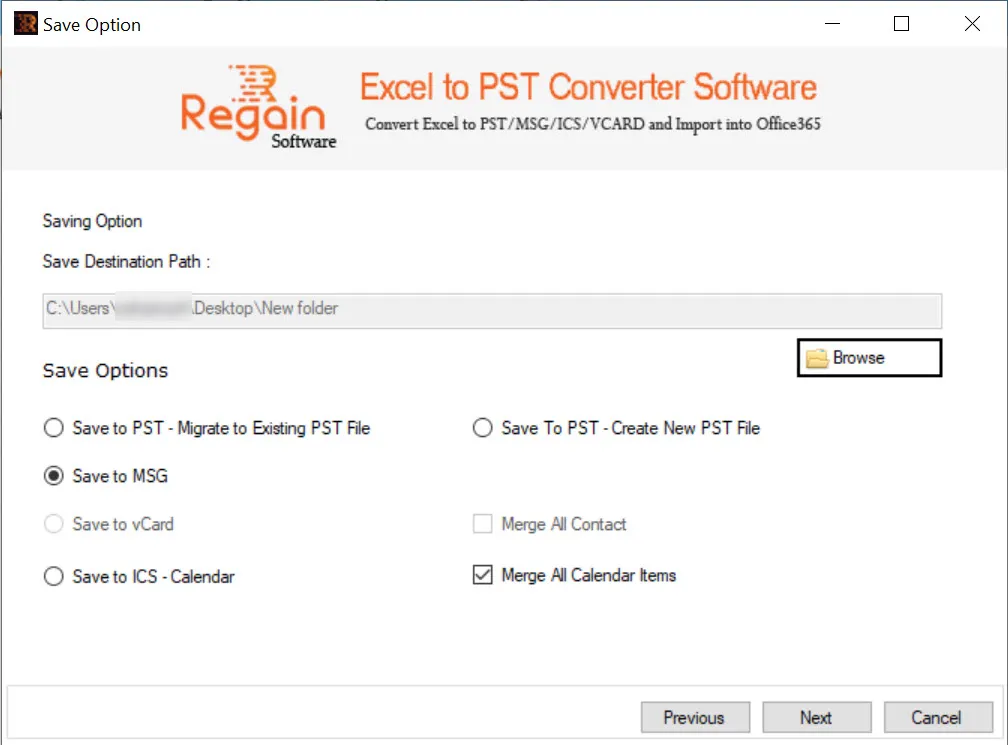
- Click Browse to provide destination path for the MSG file.
- Select the Save Option as Save To MSG.
- In case of contacts conversion from Excel to MSG, select checkbox “Merge All Contact” if you want to merge all the contacts.
- In case of calendar items conversion from Excel to MSG, select checkbox “Merge All Calendar Items” if you want to merge all the calendar items.
- Click Next.
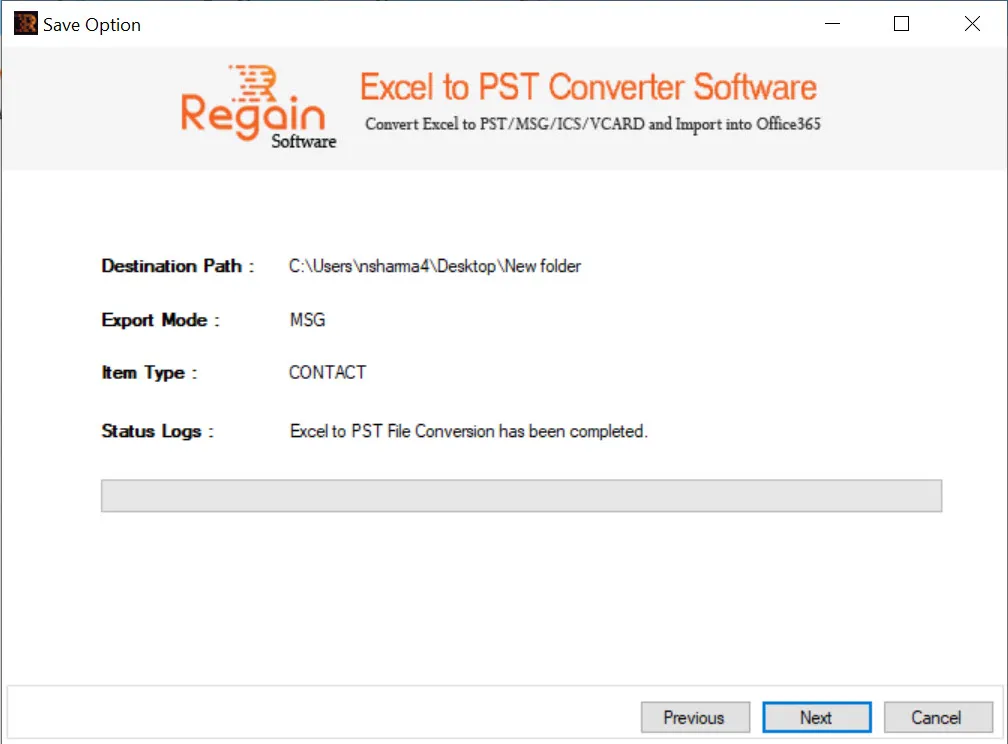
- The software performs the Excel to MSG file conversion for contacts and on completion displays the success message as shown below and opens the folder location of MSG file:
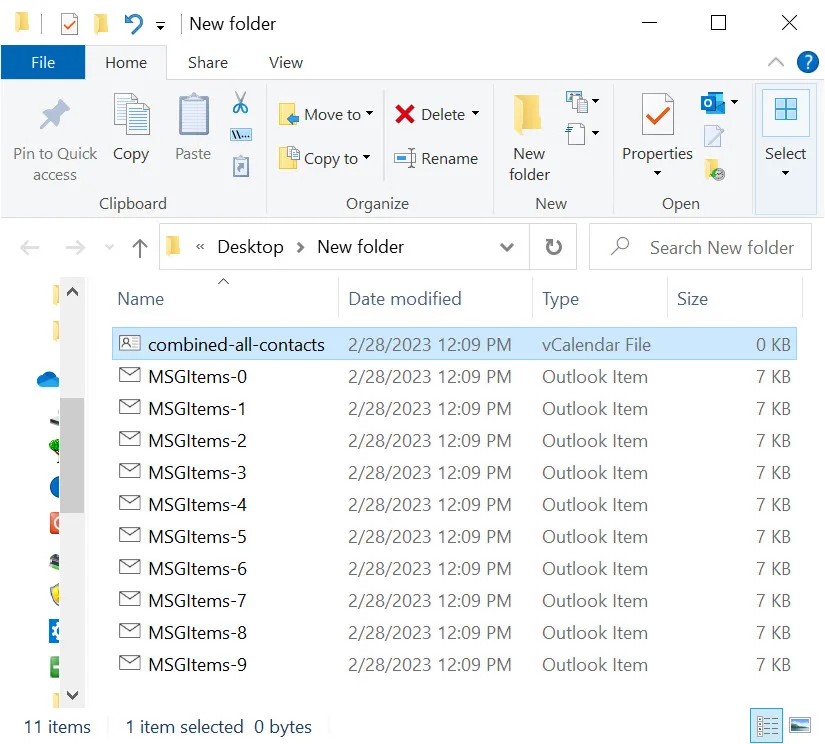
For “Merge All Contact” option selected, a separate “combined-all-contacts” vCalendar File (.vcf) is created.
- In case of completion of calendar entries from Excel to MSG file, the software displays the success message as shown below and opens the folder location of MSG file.
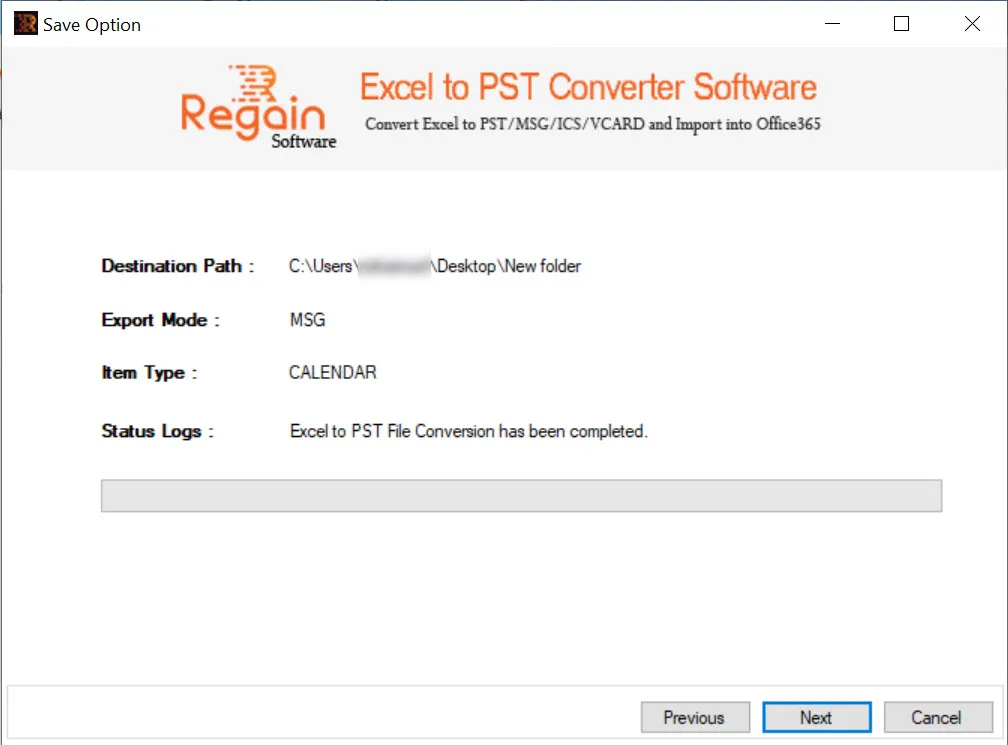
For “Merge All Calendar Items” option selected, a separate “combined-all-calendar” iCalendar File (.ics) is created.
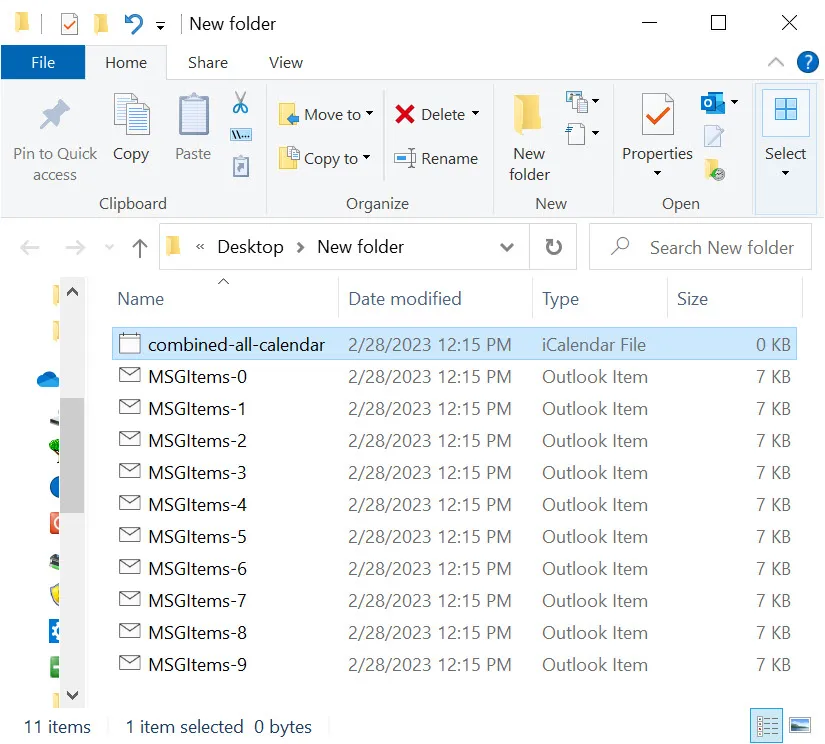
- Click Next to close the window.

