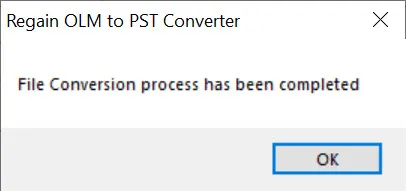
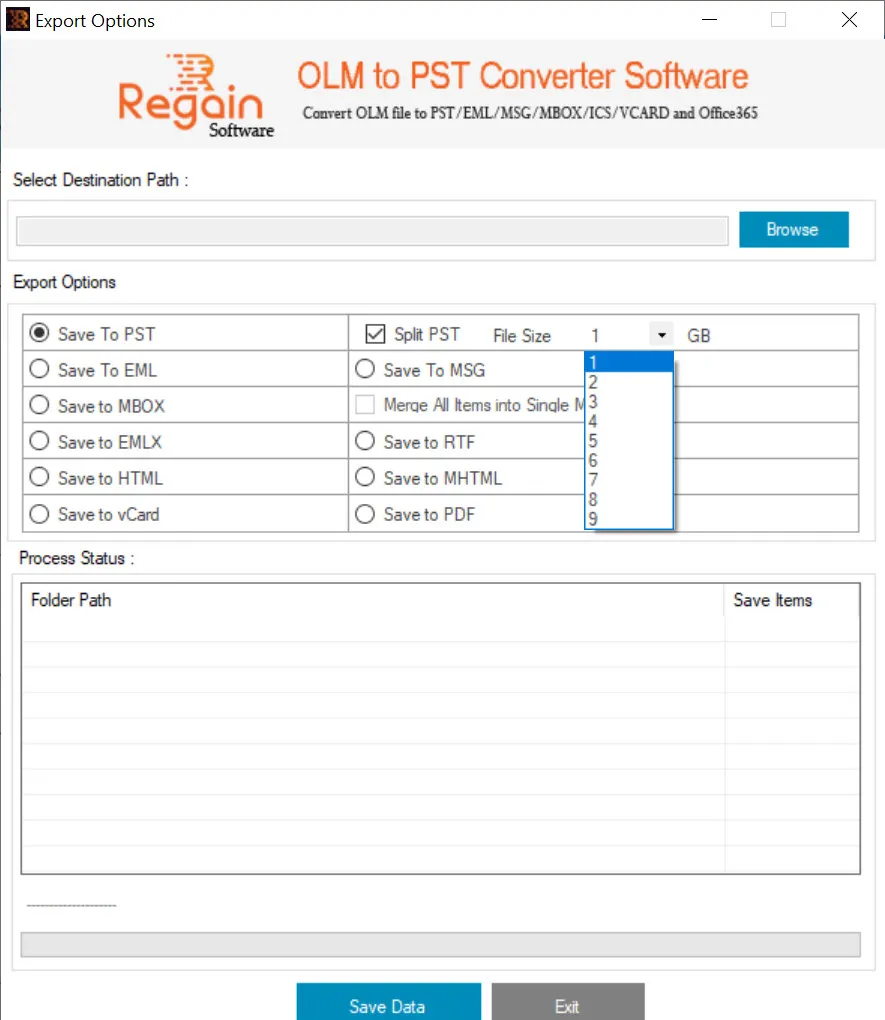
Select the Export Option as Save To PST to save the OLM file data into MS Outlook PST file format. To save the OLM file data in PST file format, perform the steps given below:
Default-selected Split PST File Size is 1 GB that you can change as per your requirement.
The software allows splitting the PST file with various split options:
| Split PST file after 1 GB | Select this option to split the PST file after 1 GB size |
|---|---|
| Split PST file after 2 GB | Select this option to split the PST file after 2 GB size |
| Split PST file after 3 GB | Select this option to split the PST file after 3 GB size |
| Split PST file after 4 GB | Select this option to split the PST file after 4 GB size |
| Split PST file after 5 GB | Select this option to split the PST file after 5 GB size |
| Split PST file after 6 GB | Select this option to split the PST file after 6 GB size |
| Split PST file after 7 GB | Select this option to split the PST file after 7 GB size |
| Split PST file after 8 GB | Select this option to split the PST file after 8 GB size |
| Split PST file after 9 GB | Select this option to split the PST file after 9 GB size |
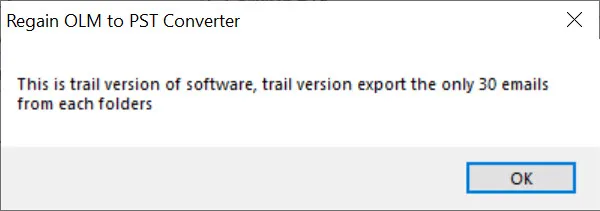
Note: The demo/trial version will only export first 30 emails from each folders.