Using Regain PST Split Software
Using Regain PST Split software you can split large or oversized Outlook PST file into smaller PST files. Follow the below steps to split large Outlook PST file using Regain PST Split software:
- Launch Regain PST Split software.
- The Source Outlook PST File home screen of the software appears.
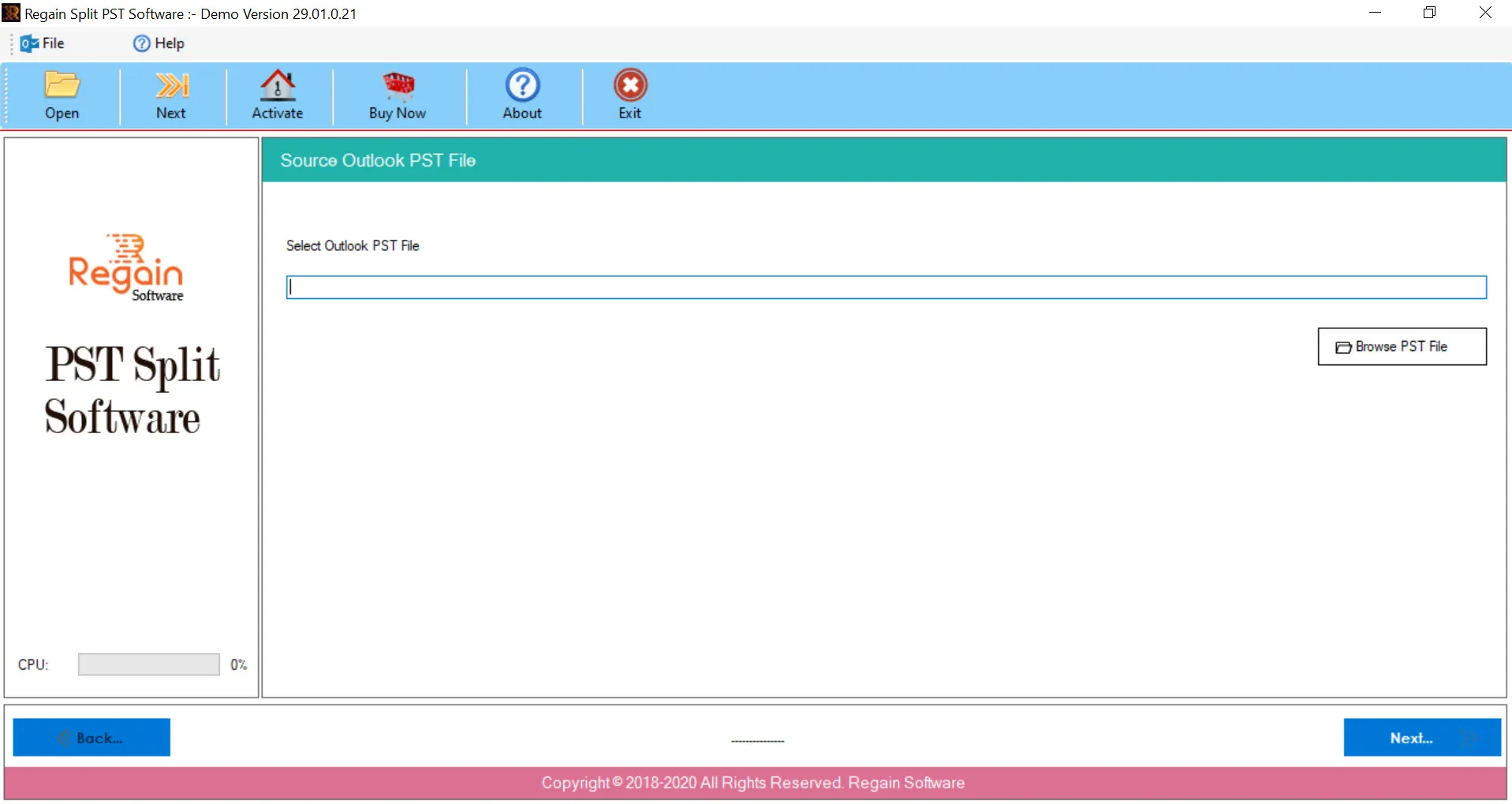
- Click Open button or click Browse PST File button to add an Outlook PST file for scanning.
- The software scans the added Outlook PST file and once completed displays the scanned PST file items in a hierarchical list in Outlook PST Folder List View screen.
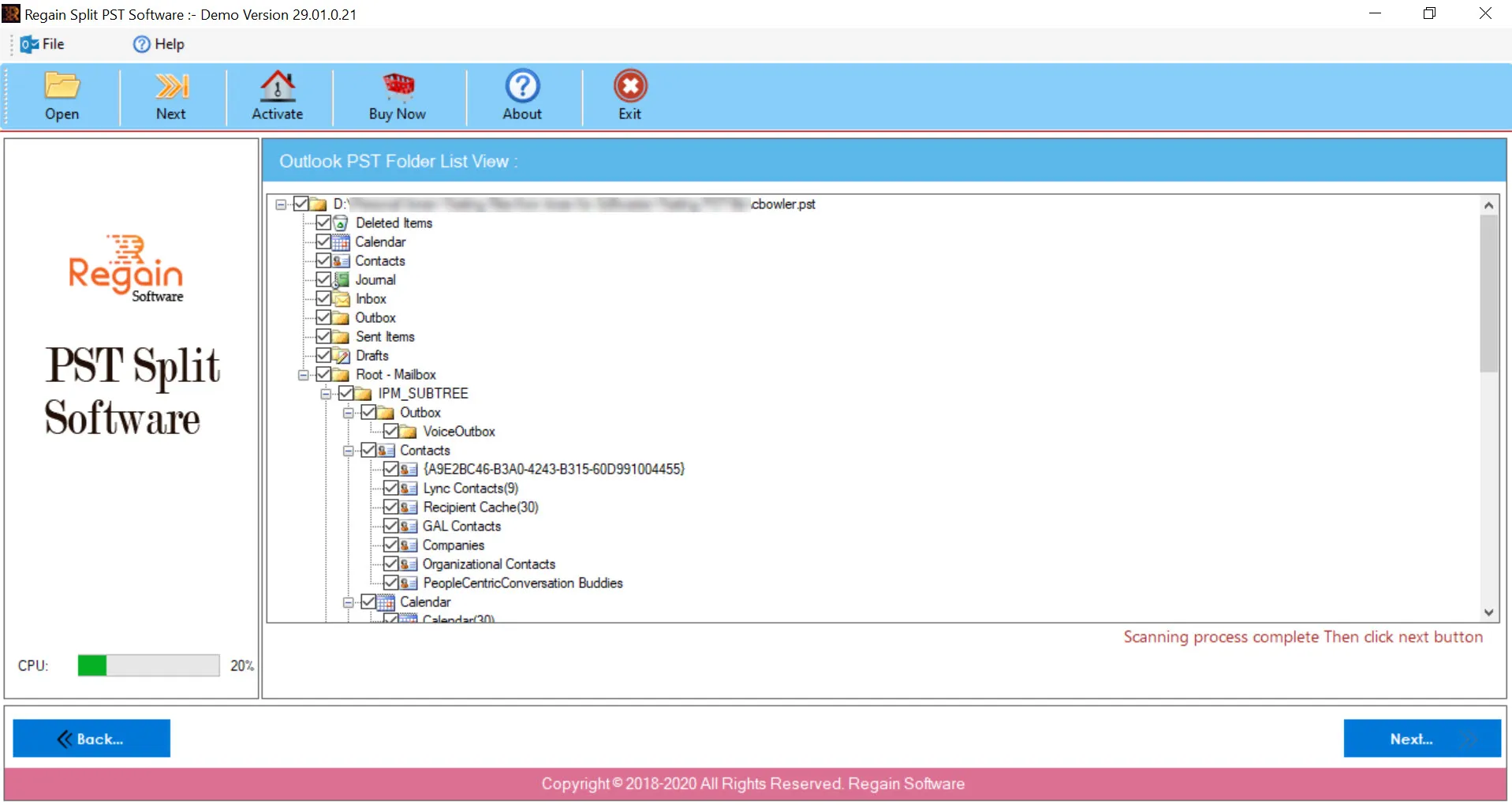
- Click Next.
- The Split Options screen appears.
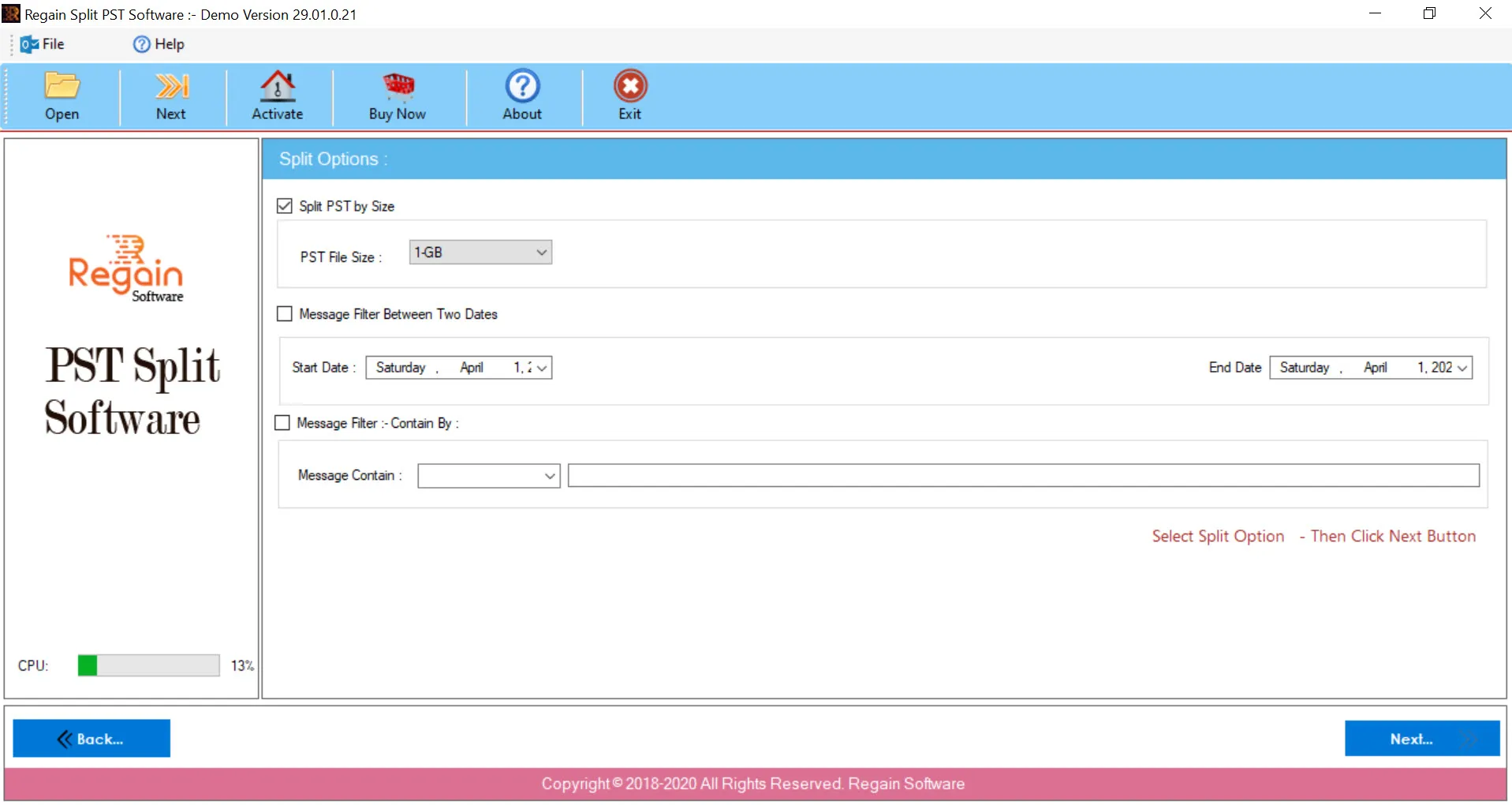
The available PST split options are:
a. Split PST by size
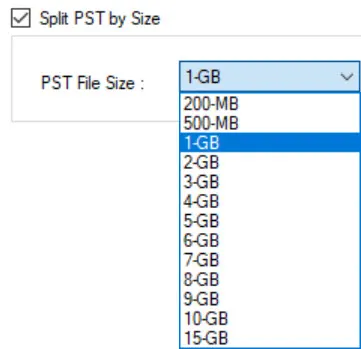
default-selected PST file size is 1 GB.
b. Message Filter between two dates
Select the Start Date and End Date to filter the message between the two selected dates.

c. Message Filter - Contain By

- Click Next.
- In the Select Destination Path screen, click Browse to provide the destination path of the newly-created PST file after splitting.
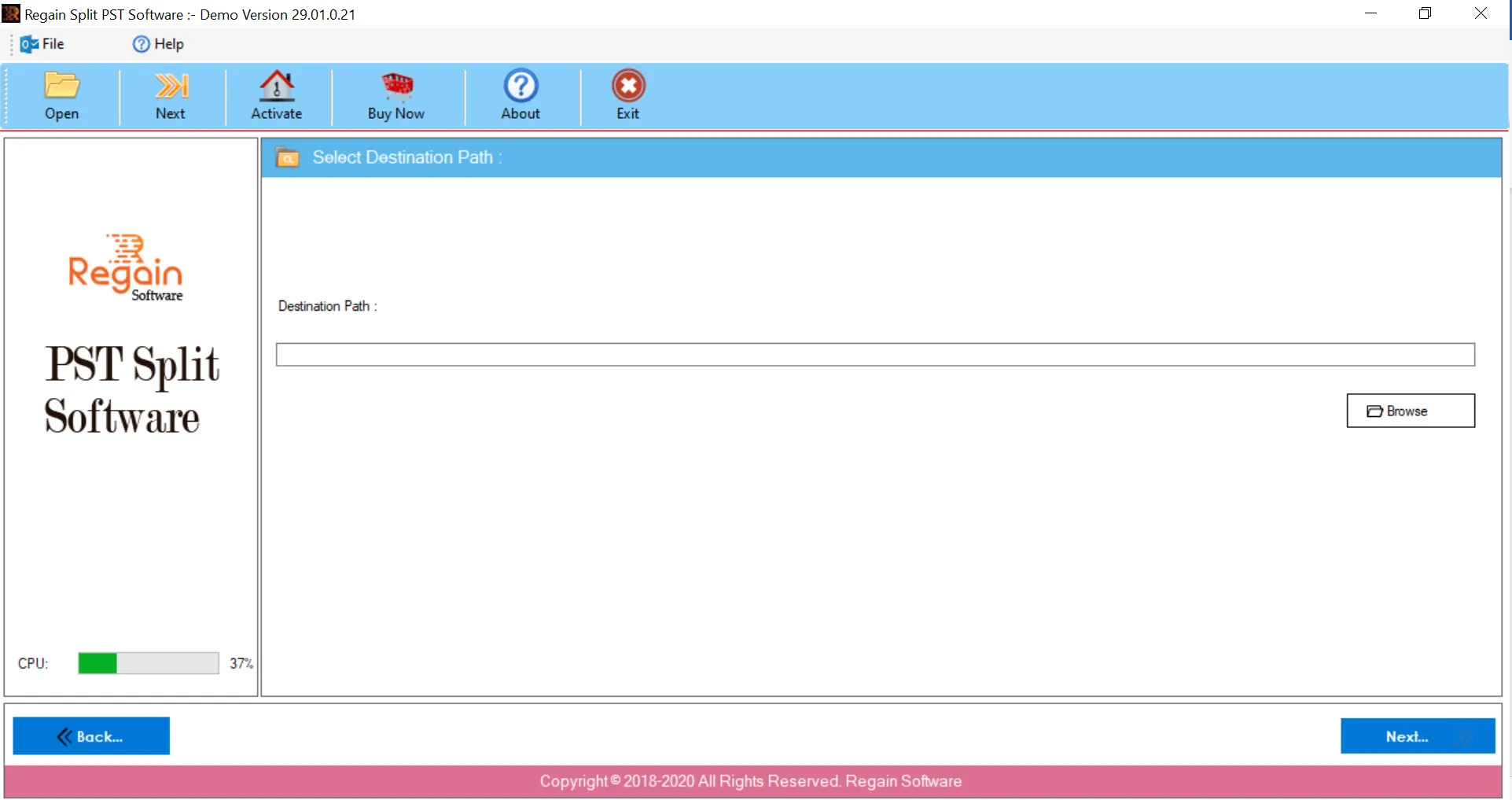
- Click Next.
- The software starts performing the PST file split process.
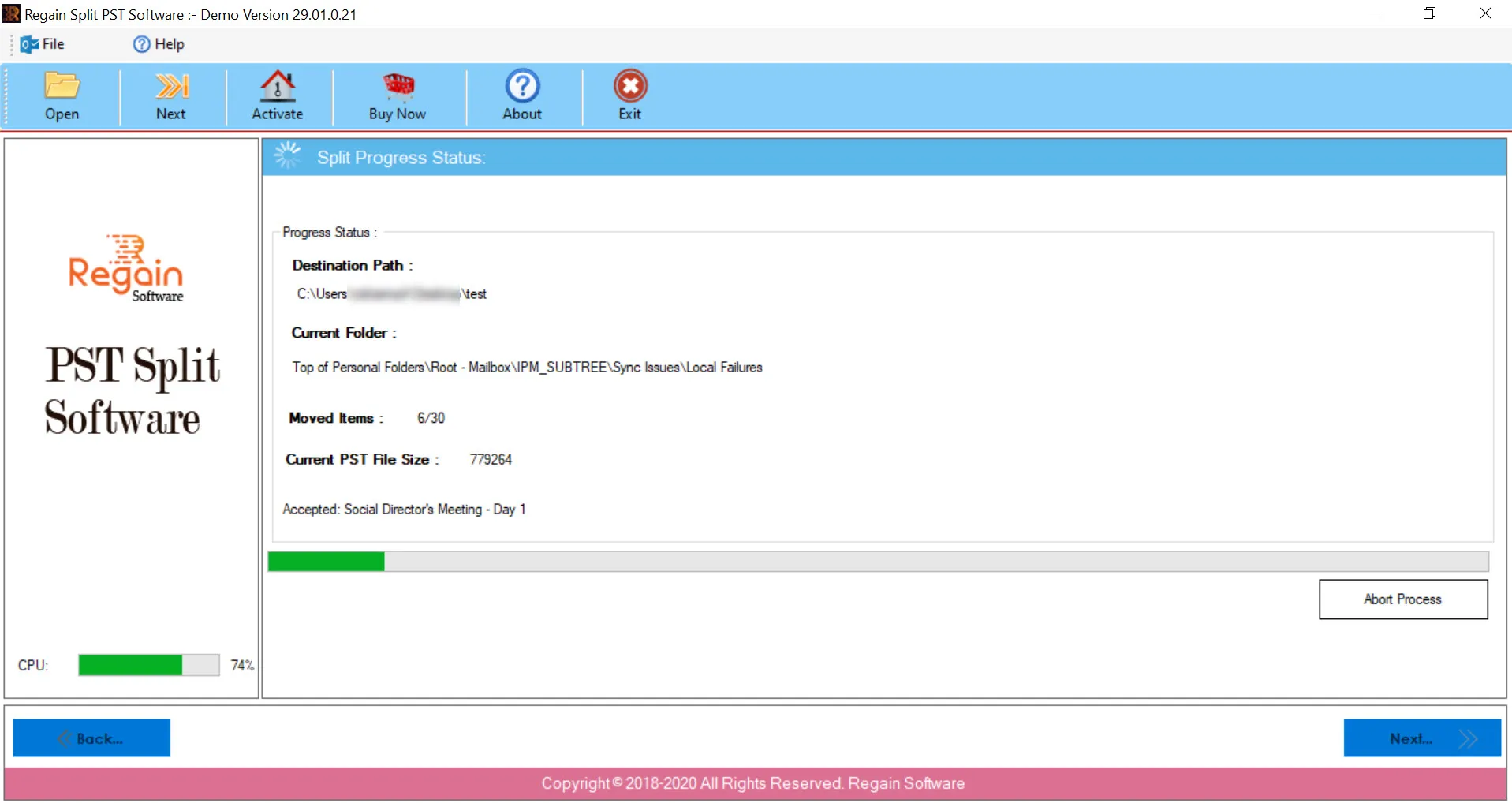
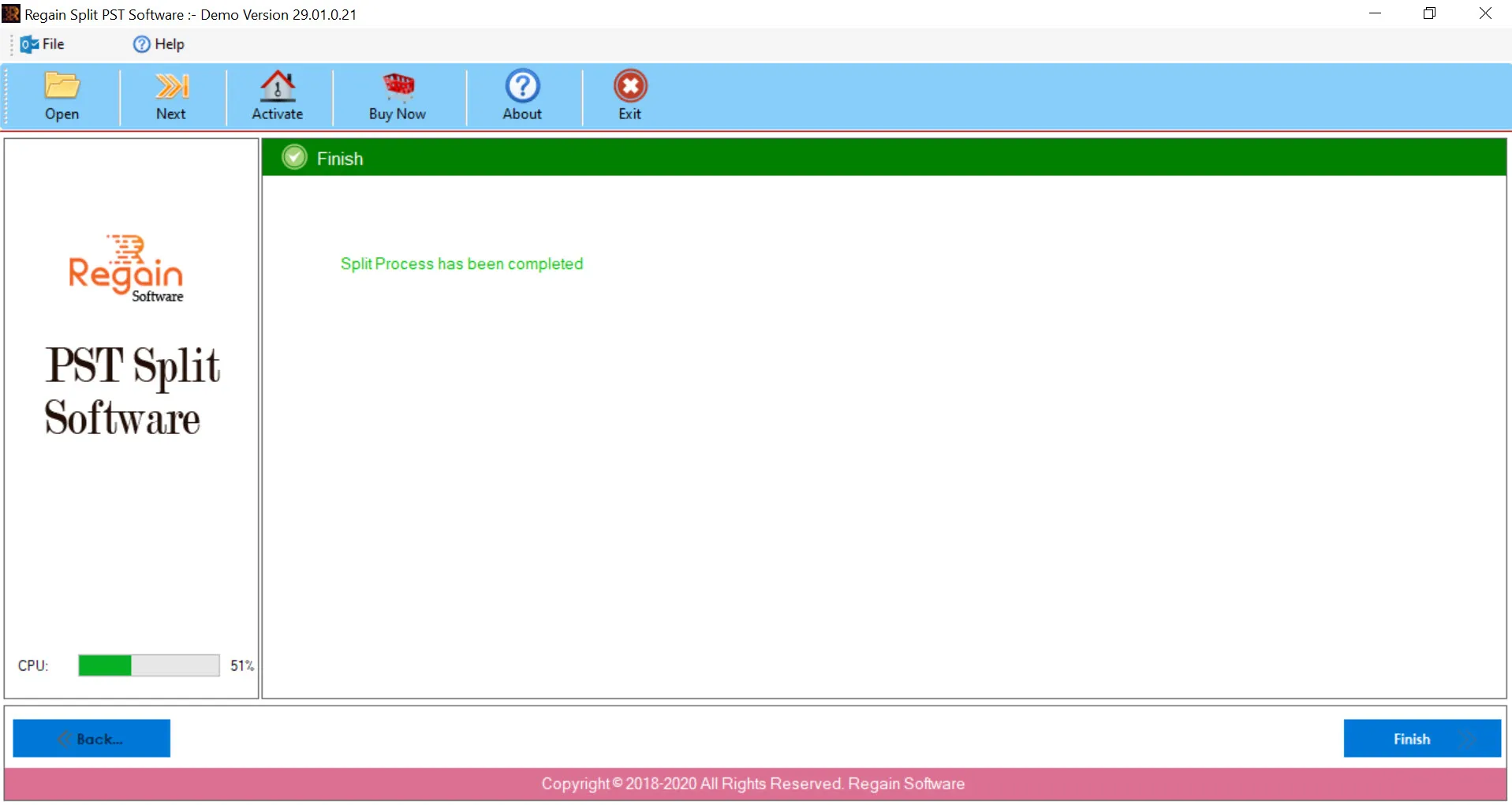
- Once the split process is completed, the software displays the success status.
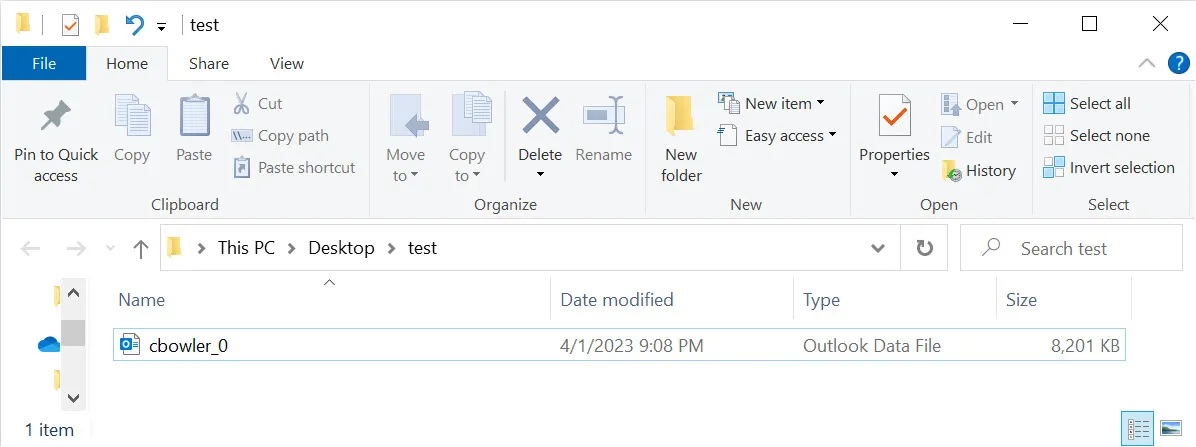
- Also, the software opens the folder which you provided as a destination location for the split PST file.
- Click Finish. The software closes.

